
QuickBooks
Manually add Tax Rates in QuickBooks Online
In this article

In this article, you will learn how to correctly add Tax Rate in QuickBooks so it will be in sync with Tax Rate in BizBaby.
BizBaby automatically creates tax rate in Stripe and QuickBooks when it’s added in BizBaby, so that all of your invoices and appointments are in sync on each platform. However, sometimes this needs to be done manually. Let’s see how this is done in QB.
Adding Customer Tax Rate
Here are the steps to creating a Tax Rate in QuickBooks Online.
- From the left side menu, select the Taxes > Sales Tax
- Click button “Sales Tax Settings”
- On the right hand side, click green arrow, next to the button “Add Agency”. Then click “Add custom rate”
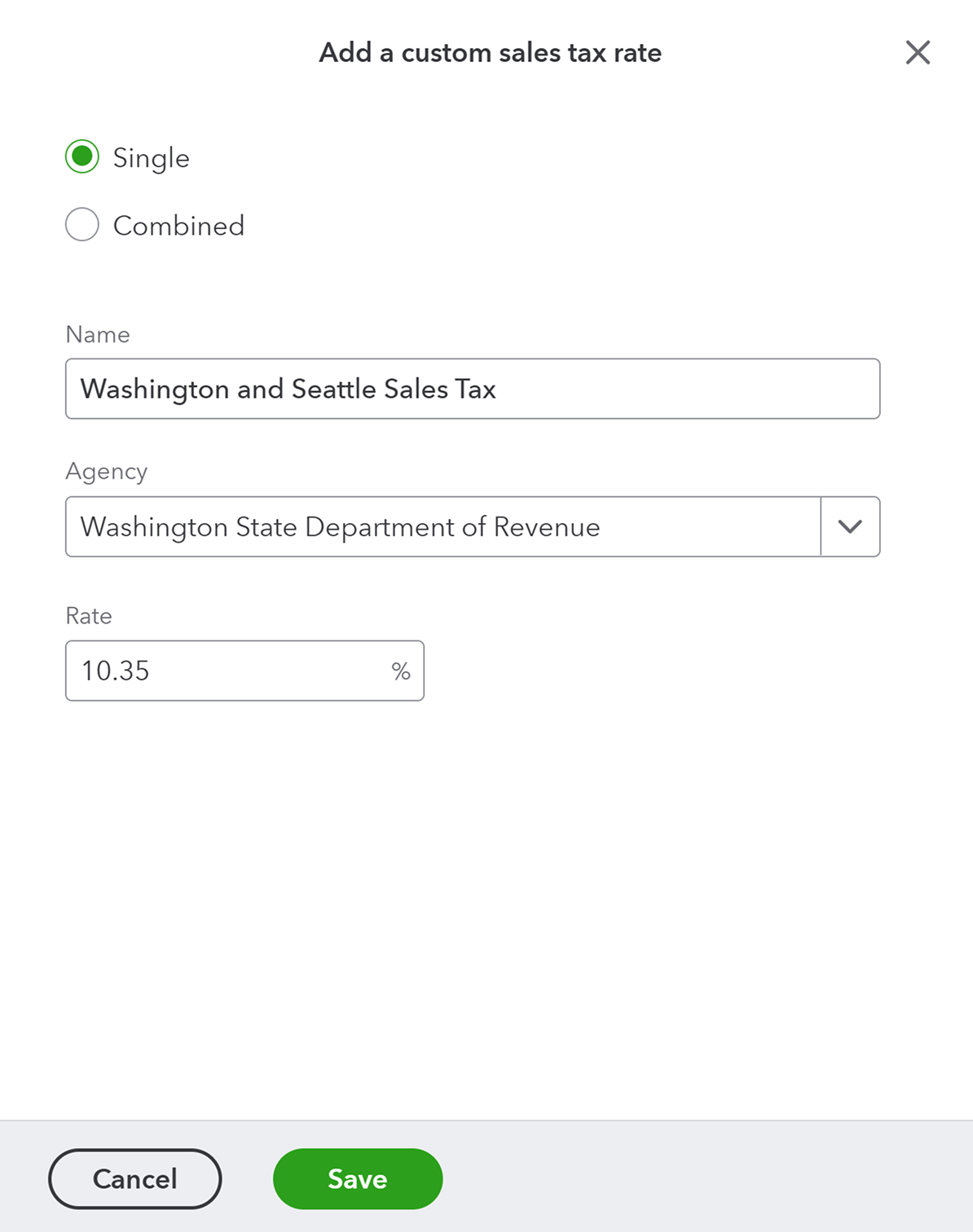
- Keep “Single” radio button selected.
- Enter the name for the custom tax rate. We suggest Listing State and City names and Year in which you’ve added this rate, to avoid repeat names. For example: “Washington and Seattle Sales Tax 2025”
- Select agency that applies to your state, usually it would be something like “Washington State Department of Revenue” or “Texas State Comptroller”
- Add a combined city and state tax. For example: Washington State Sales Tax is 6.50% and Seattle City Tax is 3.85%. Combining them into one Tax Rate to simplify Invoicing for one rate of 10.38%
- Click “Save”
Editing Tax Rates
In order to make it easier to work with Stripe payments and deposits on QuickBooks, BizBaby creates a virtual bank account in your QB that represents your account in Stripe where you receive funds before they are transferred to your business account.
You can edit names of Tax Rates in both platforms as you wish, edit year at the end for better visibility and understanding which tax rate is the current one.
Checking BizBaby Tax Rate
- Go to Settings of your organization, find Business Section.
- Under Tax Rate section. It doesn’t have to match the name exactly, however it needs match the percentage.
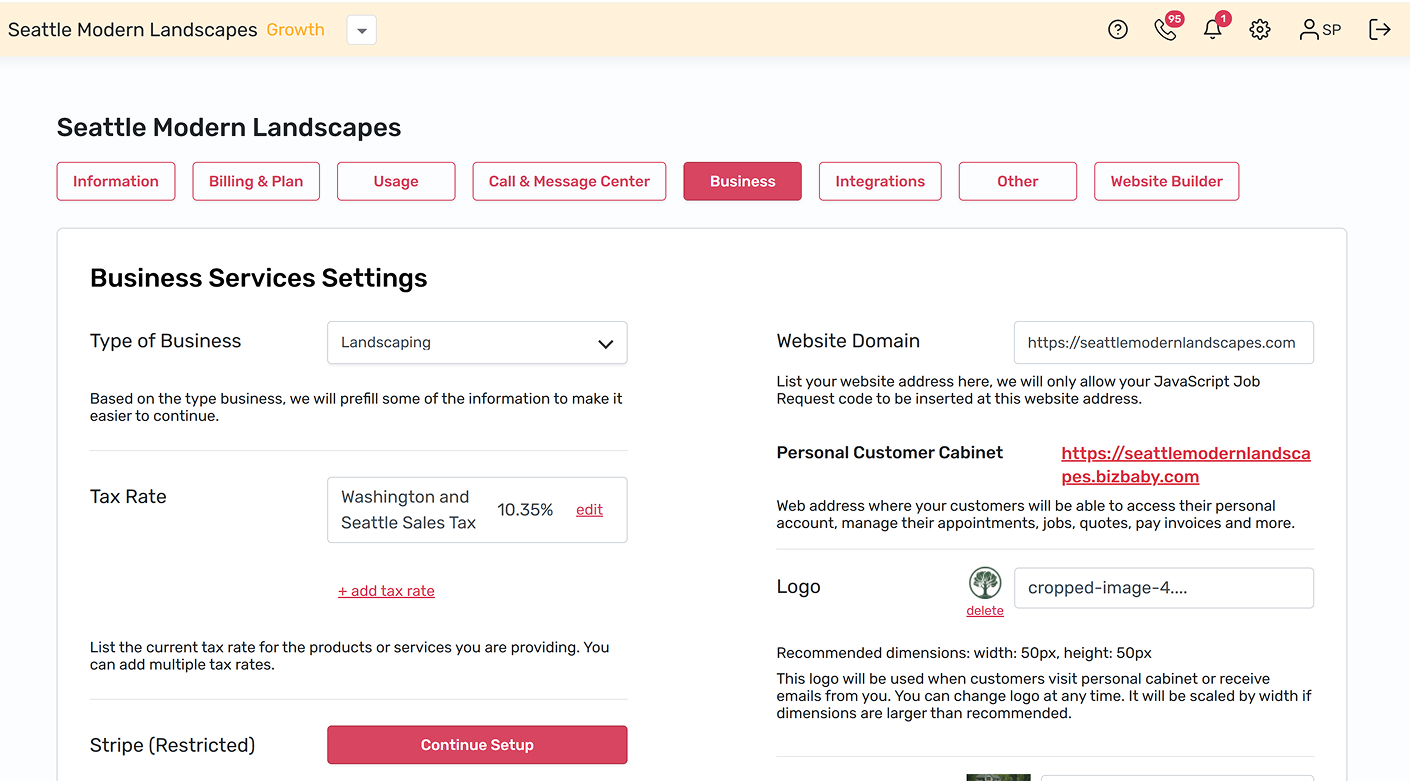
- If you don’t have a proper tax rate listed, you can add it by clicking “+ add tax rate”
Was this article helpful?
Was this article useful?
Knowing what to charge is step one
First 3 months free. No card required. Bring the whole team.
Start Free Trial Back to Login