
Integrations
BizBaby API: keys and your first call
In this article
The BizBaby API lets software you choose, such as your booking website or a reporting tool, read and update your customers, appointments, jobs, invoices and more. It is in Beta: you ask support to turn it on with Request API Access, then create an API key and tick only the areas the software needs. The key is shown once. It never expires, and it works until someone in your business revokes it.
Open the API page
- Owners and administrators: click the gear icon at the top right, then Integrations. Under Connected accounts, click Open on the BizBaby API tile.
- Team members: give them the API & Developers permission in their team settings. API then appears in their menu on the left, and they can create and revoke the business's keys.
The page is the API reference: every action the API offers, grouped by area, with a search box at the top left. The same list is public in the BizBaby developer docs, without addresses or code.
1. Request API access
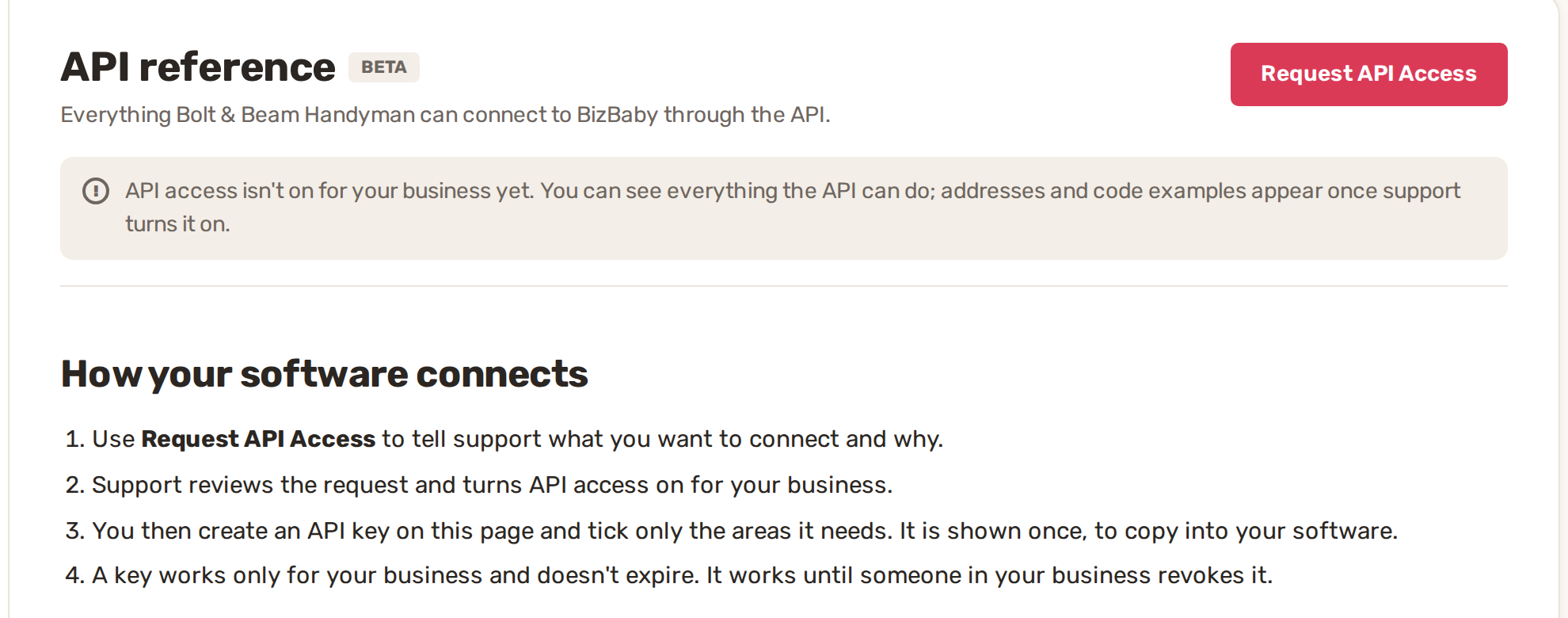
- Click Request API Access. A support ticket opens with the subject API access request and a few questions already filled in.
- Answer each question: what you will connect, and what the connection should do. Support needs a clear reason before turning access on.
- Click Submit. When support turns access on, the page shows the addresses and code examples, and the New API key and Download OpenAPI buttons appear.
2. Create an API key
- Click New API key.
- Give it a Name after the software it's for, such as Booking website.
- Tick only what this software needs. Each area has Read and Change. Change includes Read. All areas and each group heading tick a whole column at once. Greyed areas aren't included in your plan.
- Click Create API key.
- Click Copy next to the key and paste it into your software straight away. BizBaby won't show it again.
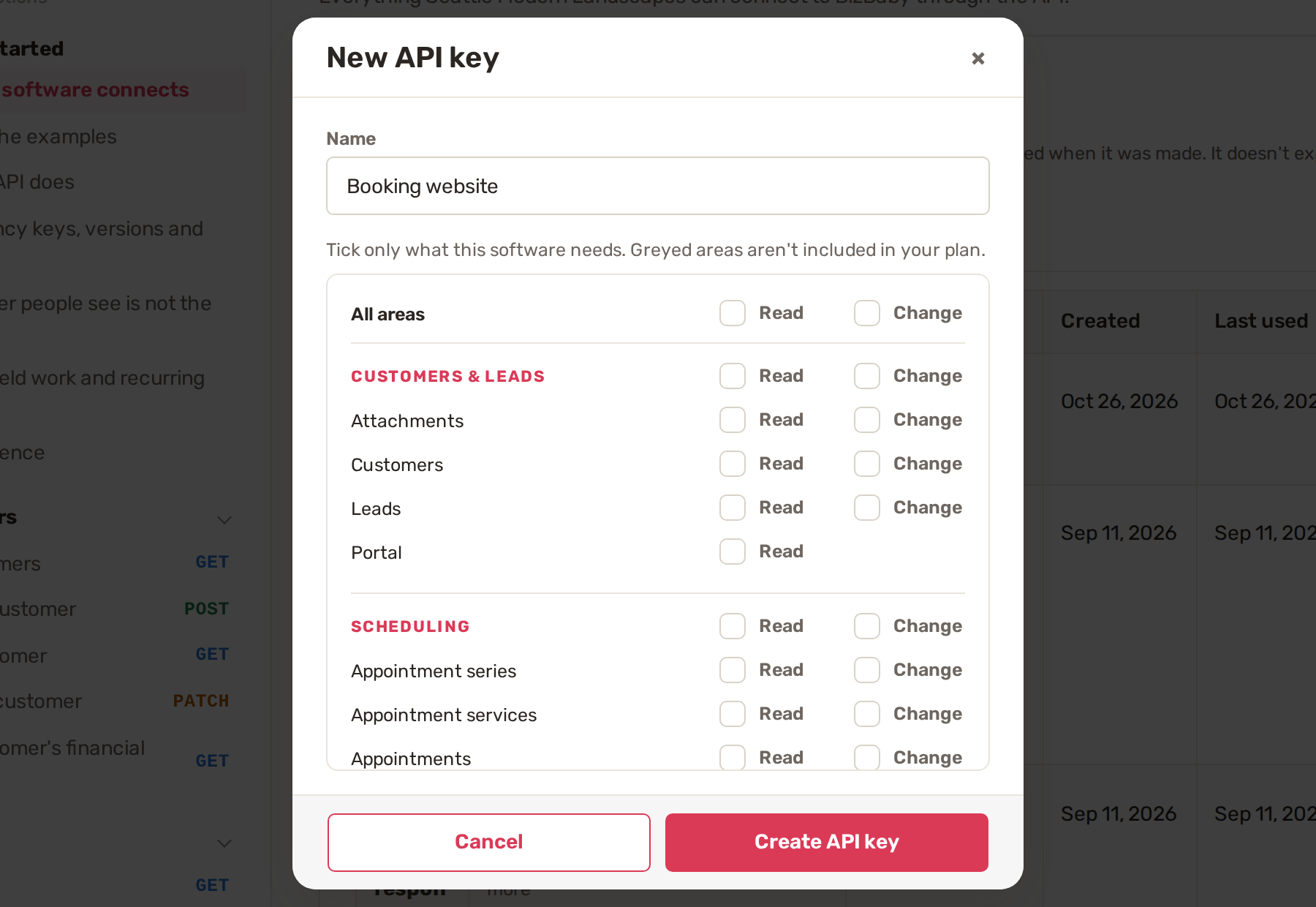
A key works only for your business, and only for the areas ticked when it was made. To change its areas, create a new key and revoke the old one.
3. Make your first call
Your software sends the key with every request, in this header:
Authorization: Bearer {API_KEY}
To test a new key, use the example under How your software connects on the API page. It asks the API about the key itself (/api/v1/auth/session) and changes nothing. The page shows it ready to copy, with your address filled in. Replace {API_KEY} with your key and run it. A working key answers with its status and the areas it may use.
Every other action on the page has its own example, with your business's ID already filled in. Replace the values in capitals before sending. Values in the examples on the page says where each one comes from.
| Value | Where it comes from |
|---|---|
| API key | From New API key. Sent with every request. |
| Idempotency-Key | Your software makes a new random UUID for each change it sends. If a change times out, it sends it again with the same UUID and BizBaby won't apply it twice. |
| If-Match | BizBaby gives it out. Reading a record returns an ETag, its current version. Send it back in If-Match when you update that record. |
The number people see in BizBaby, such as "Visit #42", is not the API ID. List the records with local_id=42 and use the id that comes back.
Actions follow your plan. An action your plan doesn't include stays off in the API too. Download OpenAPI gives your developer the full contract as a file.
Manage and revoke keys
The Your business's API keys card at the top of the API page lists every key, with the areas it may use, who created it, when, and when it was last used. Working keys are under Active, the rest under Revoked.
To stop a key, click Revoke on its row and confirm with Revoke. Software using it stops working at once. This can't be undone, but you can create a new key. If a key leaks, revoke it and make a new one.
Make a separate key for each thing you connect, named after it. Then you can revoke one without breaking the others, and Last used tells you which ones are still in use.
Common problems
- There's no New API key button. API access isn't on for your business yet. Use Request API Access.
- An area can't be ticked. It isn't included in your plan.
- You lost the key. It can't be shown again. Create a new one and revoke the old one.
- The API answers 429. Too many requests. Wait as long as the
Retry-Afterheader says, then try again. - An update answers 412 or 428. 428 means the update was sent without
If-Match. 412 means someone changed the record since your software read it. Read it again and send the newETag. - You need help with a failed call. Every response carries an
X-Request-ID. Include it when you contact support. The Error reference at the bottom of the API page explains every error code.
Related
- Add your team and choose what each person can see
- QuickBooks: connect, what syncs and fixing sync errors
Was this article useful?
Knowing what to charge is step one
First 3 months free. No card required. Bring the whole team.
Start Free Trial Back to Login