
Getting started
Add your team and choose what each person can see
In this article
Go to Team in the left menu and click Add User. Fill in their name, address and email, click Assign permissions to pick a Position and fine-tune what they can open, then click Save. BizBaby emails them a link to set their password. Every person can always see their own Worker Cabinet; everything else is a switch you turn on.
The Team page
Click Team in the left menu. The page is called Team Management and lists everyone in your business with their contact details, permissions, position and status.

- Active Users shows the people active now and how many seats your plan includes. When you go over, the page says so. Extra people are charged monthly; see Billing & Plan.
- Availability opens Team availability, where you block time when a worker can't take appointments, such as lunch or a vacation.
- Use the search box to find someone by name, email or phone.
1. Add someone
- On Team, click Add User. From any page, New → User / Worker in the top bar starts the same.
- Fill in First Name, Last Name, Address and Email. These four are required. Phone Number, Social security and Info are optional.
- Under Permissions, click Assign permissions and choose what they can do (step 2).
- Click Save.
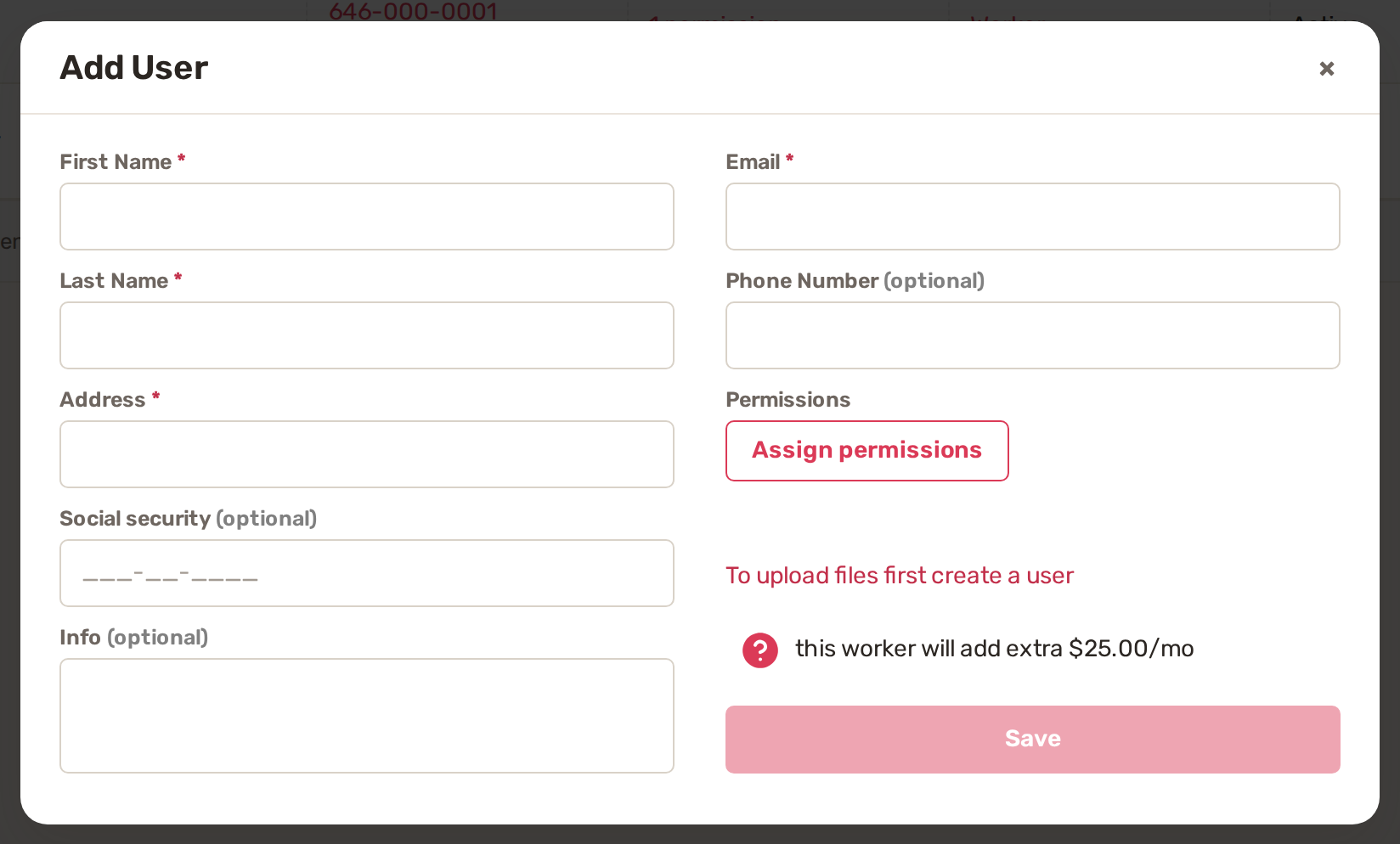
Files for a team member can be added once they are saved. The window says To upload files first create a user until then.
2. Choose what they can see
The Access & Permissions window opens from Assign permissions. Start with a Position. It switches on a sensible starting set, which you can then change one switch at a time. Click Save changes when you're done.
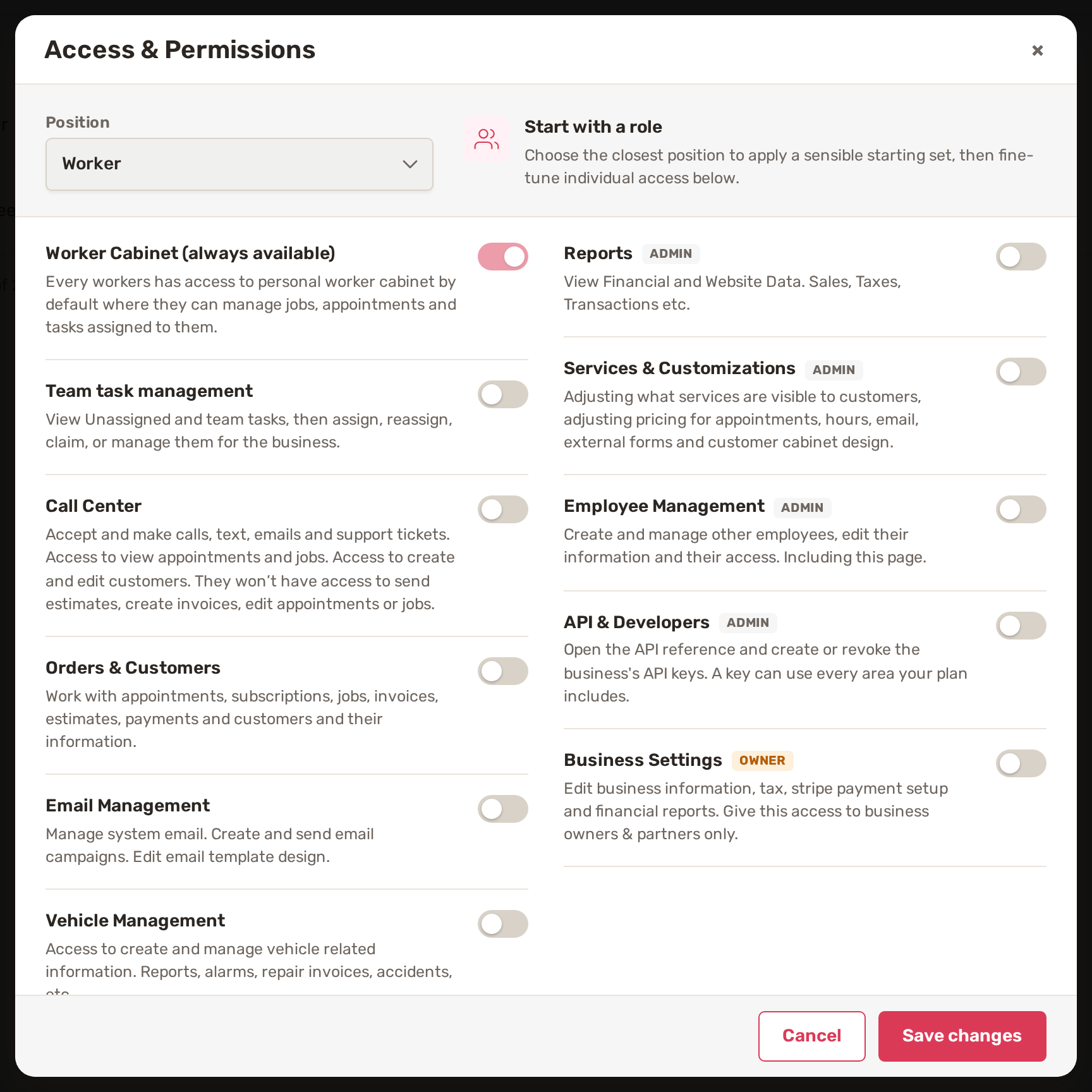
Positions: Worker, Customer Service Representative, Supervisor, General Manager and Owner / Partner.
| Switch | What it opens |
|---|---|
| Worker Cabinet | Always on. Their own jobs, appointments and tasks. |
| Team task management | Unassigned and team tasks: assign, reassign, claim or manage them. |
| Call Center | Calls, texts, emails and support tickets. They can view appointments and jobs and create or edit customers, but can't send estimates, create invoices or edit appointments or jobs. |
| Orders & Customers | Appointments, subscriptions, jobs, invoices, estimates, payments and customers. |
| Email Management | Your system email, email campaigns and email template design. |
| Vehicle Management | Vehicle records, reports, alarms, repair invoices and accidents. |
| Reports | Admin. Financial and website data: sales, taxes, transactions. |
| Services & Customizations | Admin. Which services customers see, appointment pricing, hours, email, external forms and the customer portal design. |
| Employee Management | Admin. Add and manage other people and their access, including the Team page. |
| API & Developers | Admin. The API reference and your business's API keys. |
| Business Settings | Owner. Business information, tax, Stripe payment setup and financial reports. Give it to owners and partners only. |
Only the owner or an admin can turn on switches marked Admin or Owner, and only the owner can make someone an Owner / Partner. A team member with Employee Management can only give access they have themselves. Nobody can change their own access.
3. What your team member gets
When you save, BizBaby emails them an invitation to join your business. They click Set your password and open your account, choose a password and land in their account. The link works until they set a password.
Someone who already has a BizBaby account gets a login link instead. They sign in with their usual password and pick your business.
Lost the email? Click the person's name on Team to open User Details, then click Resend invitation. The old link stops working once the new one is sent.
Change access, deactivate or delete
Click a person's name on Team to open User Details. Everything below is there.
- Change access: click Edit permissions next to their permissions. To change their name, phone, address or email, click Edit, then Save.
- Deactivate: click the Active button. BizBaby asks Deactivate Worker Account?. They lose access to your business. Their existing jobs and orders stay assigned, but their active tasks are unassigned.
- Delete: click Delete. BizBaby asks Permanently Delete Worker? and removes them from their jobs and appointments. This can't be undone, so deactivate instead if you might want them back.
Your own owner account can't be deactivated or deleted from this page.
Common problems
- There's no Add User button, only a locked "Create new account". Your plan doesn't include team members, or you've reached its limit. The note under it names the plan that allows more.
- "You have max users". You've reached the most people your plan allows.
- Saving asks you to add a payment method or pay outstanding bills. Extra seats are billed, so BizBaby needs a card on file and no unpaid BizBaby bills first. Fix it in Billing & Plan.
- "This user is already in this organisation." That email is already on your team. Find them in the list instead.
- "You can only grant or remove access you have yourself." Ask the owner or an admin to change that switch.
Related
- The worker cabinet: what workers see
- Assign workers and dispatch
- Usage charges and your monthly bill
- Using BizBaby on your phone
Was this article useful?
Keep reading
More Getting started
Build your Price Book
Open the Price Book Click Price Book in the left menu. It has two tabs: Items and Categories. Click a column heading suc...
Read guide →Import your customers
1. Prepare your file Export your customers from your old software or spreadsheet as a CSV file. The first row must hold...
Read guide →Set up your business in the first hour
Start from the Getting Started List The list sits near the top of your Dashboard. Click + next to Set up to open it. The...
Read guide →Knowing what to charge is step one
First 3 months free. No card required. Bring the whole team.
Start Free Trial Back to Login