
Integrations
QuickBooks: connect, what syncs and fixing sync errors
In this article
Connect QuickBooks from gear icon → Integrations, sign in to your QuickBooks company, and BizBaby records your money there for you. Paid invoices, Stripe payments, Stripe fees and refunds go over on their own. You don't press anything for them. Anything that couldn't be sent waits under Current sync on the QuickBooks accounting page, each item with its own problem and a Review button.
1. Connect QuickBooks
- Click the gear icon at the top right, then Integrations.
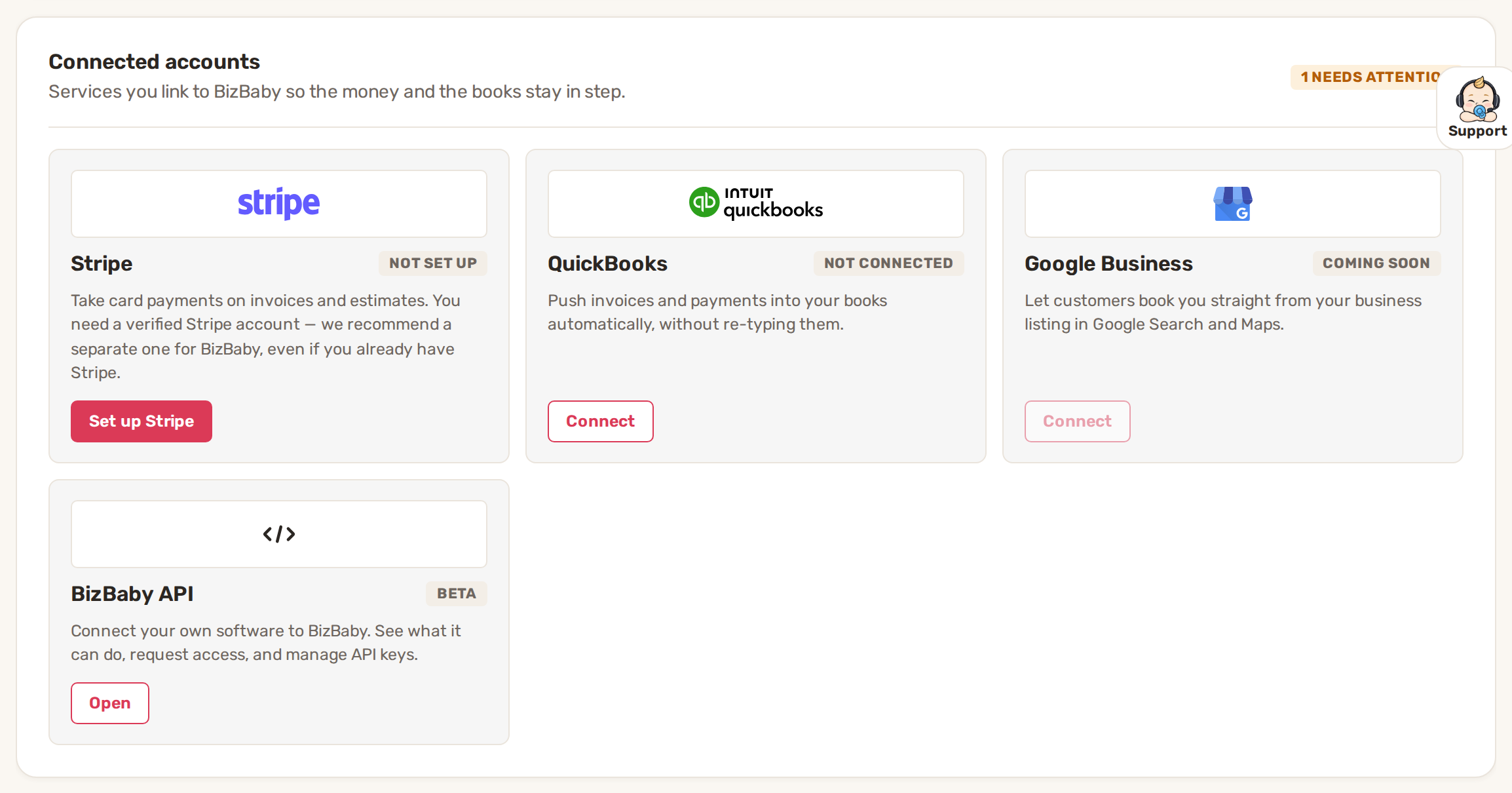
- Under Connected accounts, find QuickBooks and click Connect.
- A QuickBooks sign-in window opens. Sign in and pick the company you want BizBaby to write to.
- When QuickBooks hands you back, BizBaby opens the QuickBooks accounting page. The tile on Integrations now shows Connected and a Settings button.
If the sign-in window doesn't appear, your browser blocked it. BizBaby says "The QuickBooks sign-in window was blocked. Allow pop-ups and try again."
2. What BizBaby sends to QuickBooks
Open the Settings tab on the QuickBooks accounting page to see the rules. They apply to future work. Changing them never rewrites something already in QuickBooks.
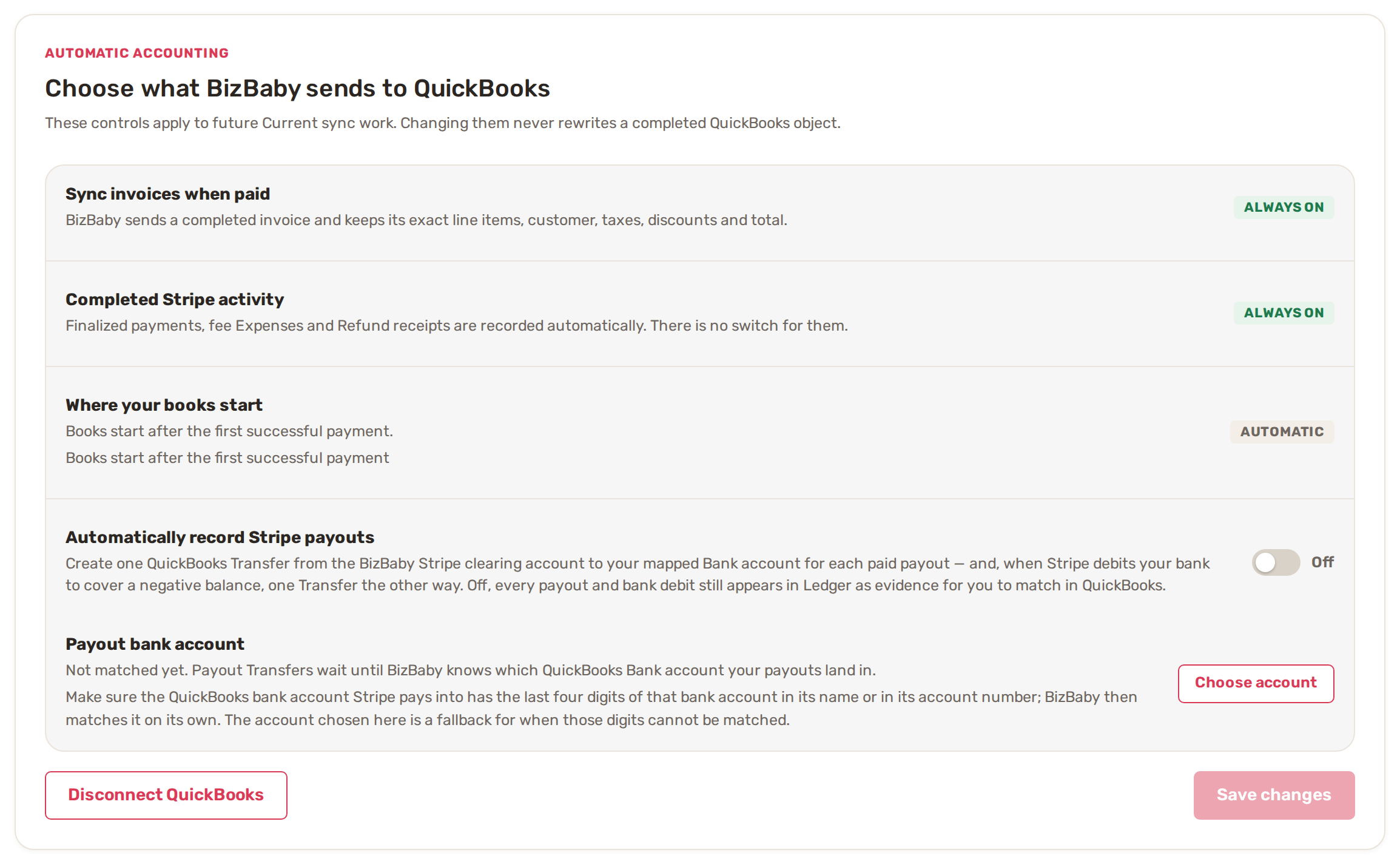
| Setting | What happens |
|---|---|
| Sync invoices when paid | Always on. A paid invoice goes over with its exact line items, customer, taxes, discounts and total. |
| Completed Stripe activity | Always on. Finished payments, Stripe fees (as Expenses) and refunds (as Refund receipts) are recorded automatically. |
| Where your books start | Automatic. Your QuickBooks books start after the first successful payment. |
| Automatically record Stripe payouts | Your choice, off by default. On, each paid Stripe payout becomes a QuickBooks Transfer into your bank account. Off, payouts still show in the Ledger tab for you to match in QuickBooks yourself. See Stripe payouts in QuickBooks Online. |
| Payout bank account | Where payout Transfers land. BizBaby matches it by the last four digits of the bank account Stripe pays into, so put those digits in the QuickBooks bank account's name or number. Choose account picks a fallback for when the digits can't be matched. |
Click Save changes after flipping the payout switch. It stays greyed out until something changed.
Customers go to QuickBooks after their first successful payment. To send others before that, go to Customers, click QuickBooks sync, tick the customers (or vendors, on the Vendors tab) and click Sync to QuickBooks.
Tax rates you charge in BizBaby must also exist in QuickBooks. See Manually add tax rates in QuickBooks Online.
3. The QuickBooks accounting page
Open it from the Settings button on the QuickBooks tile. The banner at the top says how the connection is doing and when BizBaby Last checked. Below it are four tabs.
| Tab | What it's for |
|---|---|
| Ledger | Every QuickBooks record BizBaby created, with the BizBaby record behind it, the amount and its status. Search and filter by type or status. |
| Current sync | The latest 30 calendar days: how many events were checked and how many need attention. |
| Historical sync | Older work. Pick a Start date and End date and click Start historical sync. It runs in the background and never delays current work. |
| Settings | The rules above, and Disconnect QuickBooks. |
Sync now at the top right opens Sync QuickBooks. Choose a period under Current (the last 30 days, which runs first) or Historical (older, back to January 1 of last year), or Pick exact dates, then click Queue sync. Anything older can't be sent through QuickBooks. The Historical sync tab offers it as downloads for your accountant instead: Download complete accounting archive and Download QuickBooks import package.
4. Fix sync errors
- When something couldn't be sent, the Current sync tab shows a warning count and the banner has a View issues button. Click it.
- The list shows each item, what went wrong and what that means for your books. Filter by kind of problem at the top, or search by customer or BizBaby ID.
- Click Review on an item to see the details and the next step. Fixing one item never re-sends work that already went through.
- To have BizBaby compare your books with QuickBooks, click Check & repair at the top of the page. Any change it proposes waits for your approval under Changes requiring approval.
Many items wait on something in QuickBooks itself, such as a missing tax rate or an inactive bank account. Fix that there, then come back and review the item.
Disconnect or switch company
On the Settings tab, click Disconnect QuickBooks, then Disconnect. New activity stops going to QuickBooks. What's already there stays unchanged, and you can reconnect later from Integrations, where the tile then shows Reconnect.
If you sign in to a different QuickBooks company than the one you connected, BizBaby changes nothing and asks first: Keep current company or Switch to the new company. Switching starts the new company's books from scratch. Nothing recorded for the old company is moved, and this can't be undone from BizBaby.
Common problems
- "Connect QuickBooks to continue". The QuickBooks page opened while you're not connected. Click Go to Integrations and connect.
- "QuickBooks is disconnected". The connection dropped. Records already in QuickBooks are unchanged. Click Reconnect on the Integrations tab.
- "QuickBooks did not complete the connection. Nothing changed in BizBaby." The sign-in was closed or refused. Click Connect again.
- Payouts don't show as Transfers. Check that Automatically record Stripe payouts is on and saved, and that Payout bank account isn't "Not matched yet".
- Sync now, Check & repair, or QuickBooks sync on Customers is greyed out. QuickBooks isn't connected.
Related
- Stripe payouts in QuickBooks Online
- Manually add tax rates in QuickBooks Online
- BizBaby API: keys and your first call
Was this article useful?
Knowing what to charge is step one
First 3 months free. No card required. Bring the whole team.
Start Free Trial Back to Login