
Vehicles and operations
Notepad
In this article
Notepad holds your business's notes: gate codes, supplier details, how a regular customer likes things done, a checklist for the van. Notes live in folders and save as you type. Owners and admins see every note. A team member sees only the notes they wrote or that someone shared with them.
Where to find it
Click Notepad in the menu on the left. If it isn't there, your plan doesn't include it. The page has three panes: folders and filters on the left, the notes in the middle, and the open note on the right.
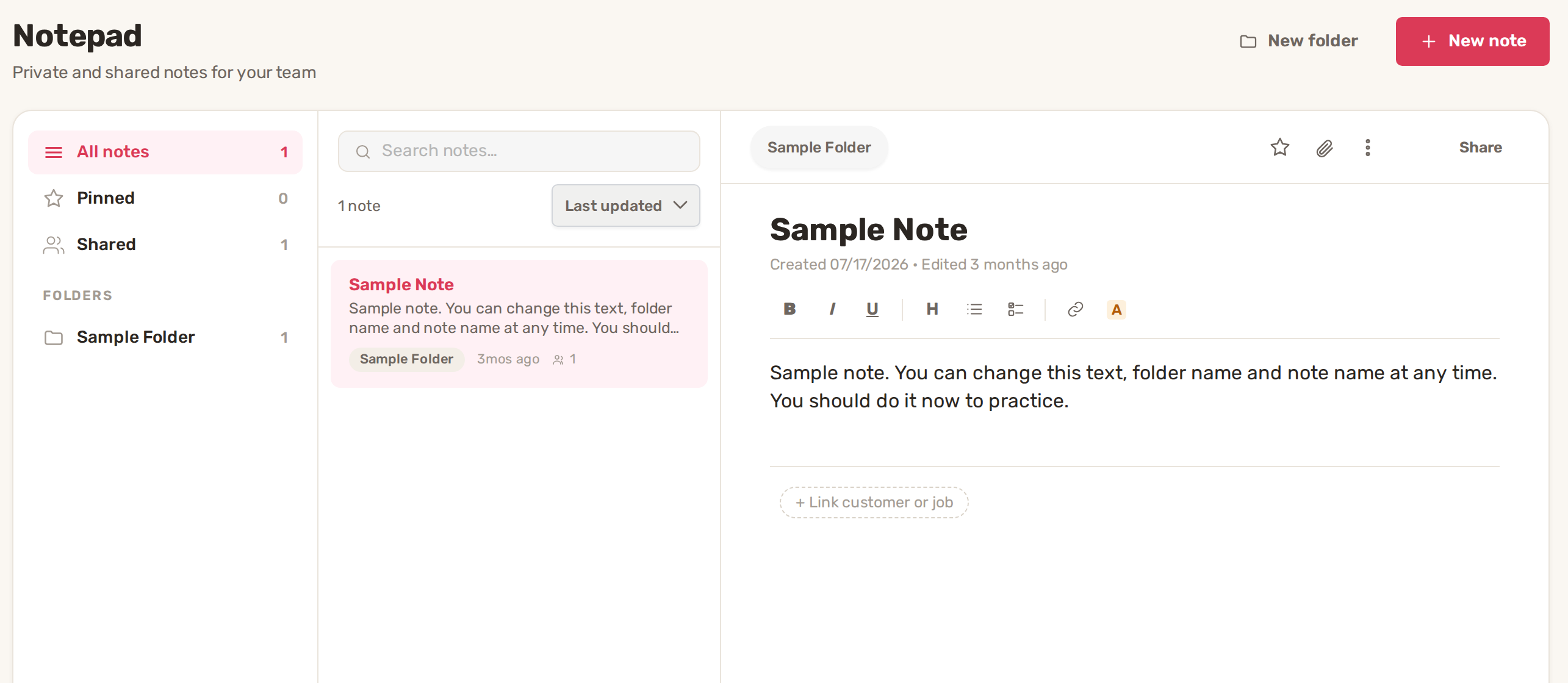
| Left pane | What it shows |
|---|---|
| All notes | Every note you can see. |
| Pinned | Notes starred with Pin note. |
| Shared | Notes at least one team member has access to. |
| Folders | One line per folder, with the number of notes in it. |
Use Search notes… to find a note, and sort the list by Last updated, Name A–Z or Newest first.
1. Create a note
- If you have no folder yet, click New folder, type a Folder name and click Save. Every note belongs to a folder.
- Click New note.
- Type a Note name, pick the Folder and click Create.
- Write in the note. The toolbar has bold, italic, underline, a heading, a bullet list, a checklist, a link and highlight.
There's no Save button. The bar at the top of the note shows Saving… and then All changes saved. Under the title you can see when the note was created and last edited.
2. Pin, move and attach
- Pin note (the star at the top of an open note) puts it in Pinned.
- To move a note, pick another folder from the folder name at the top left of the note (Move to folder), or drag the note onto a folder.
- Attach files (the paperclip) adds photos or documents to the note. They show below the text, where you can view, download or remove them.
- + Link customer or job, under the text, ties the note to a customer or a job. Type a customer name or a project number, such as 158, and pick the match.
3. Share a note with your team
- Open the note and click Share.
- Choose a role for each team member: No access, Can view or Can edit. To give everyone the same role, use Everyone at the company.
- Click Apply.
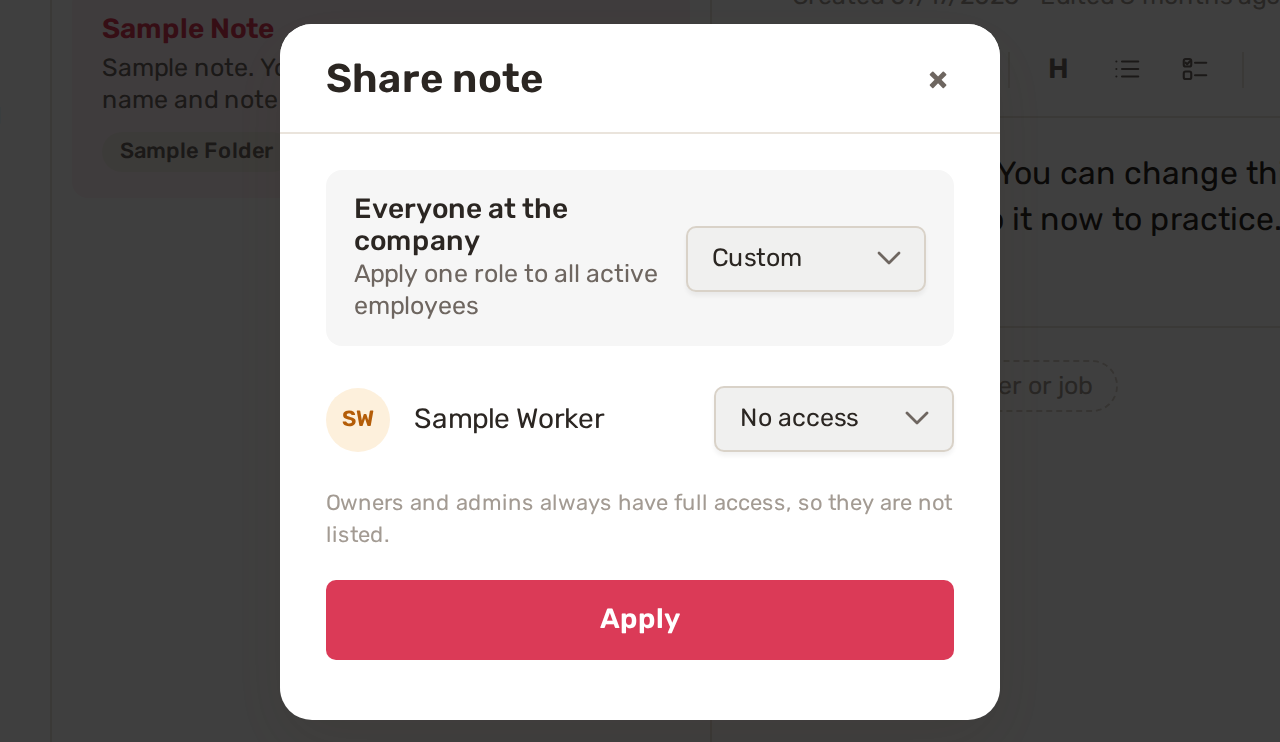
Owners and admins always have full access, so they aren't listed. A team member who can only view sees a lock on the note and can't change it.
| Who | What they can do |
|---|---|
| Owner, admin | See and edit every note. Rename and delete folders. |
| Can edit | Change, pin, move, share and delete that note, and add files and links. |
| Can view | Read that note and its files. |
| No access | Doesn't see the note. |
A team member who creates a note can edit it. They can share it with others the same way.
Put the things everyone on site needs, like gate codes and supplier accounts, in one folder, and share those notes with Everyone at the company set to Can view.
Rename or delete a folder
Owners and admins can click the pencil next to a folder (Rename or delete). Change the Folder name and click Save, or click Delete folder. A folder can be deleted only when it's empty.
Delete a note
Open the note, click More actions (the three dots) and choose Delete note. Confirm with Delete.
Common problems
- "This folder still has notes. Move or delete them first." Move the notes to another folder, then delete the folder.
- "This note changed in another editor. Reload it before saving." Someone else saved the same note while you had it open. Reload the page and make your change again.
- "Couldn't save — will retry" appears at the top of the note. The connection dropped. BizBaby keeps trying. Don't close the page until it shows All changes saved.
- A team member can't see a note. It isn't shared with them. Open it, click Share and give them Can view or Can edit.
- Notepad is missing from the menu. Your plan doesn't include Notepad.
Related
Was this article useful?
Keep reading
More Vehicles and operations
Reports and analytics
Where to find it Click Reports in the menu on the left. A team member needs both the Reports and the Orders & Customers...
Read guide →Vehicles: maintenance, repairs, accidents and alarms
Where to find it Click Vehicles in the menu on the left. If it isn't there, your plan doesn't include vehicles or your r...
Read guide →Knowing what to charge is step one
First 3 months free. No card required. Bring the whole team.
Start Free Trial Back to Login