
Vehicles and operations
Reports and analytics
In this article
Reports shows how the business is doing: what customers paid, what you lost to refunds and fees, which services earn the most, where your work comes from and how many new customers your website brings in. Pick a tab, pick a period, and download the result as a PDF or CSV. These reports are for running the business. For bookkeeping, BizBaby points you to your Stripe Dashboard or QuickBooks.
Where to find it
Click Reports in the menu on the left. A team member needs both the Reports and the Orders & Customers permissions to see it. The page opens on the Sales tab.
| Tab | What it answers |
|---|---|
| Sales | How much customers paid, split into jobs and appointments, with tax and tips, by month, year or day. |
| Financial Summary | Sales against refunds and fees for a period, like a simple statement. |
| Services (Jobs) | Sales and job counts per service, for jobs. |
| Services (Appointments) | The same per service, for appointments. |
| Itemized Services | Each paid job and appointment marked Done, line by line. |
| Customers | A report for one customer and their recent transactions. |
| Territory | Where your sales and requests come from, by service area. |
| Website Analytics | New customers who came in through your website forms, by channel. |
If your plan doesn't include Territory and Website Analytics, those tabs show a lock and the plan that has them. Clicking one opens the plans page.
1. Pick the period
- Open a tab.
- In the first box, pick the period: Current Month, Current Year, Last Month, Last Year or Custom. For Custom, choose the dates in the date box next to it.
- The line beside it confirms the dates and the currency, for example "Financial Summary Report: 10/1/2026 - 10/26/2026 | USD".
The Sales tab works by totals instead: Monthly Totals (Current Year), Monthly Totals, Yearly Totals or Daily Totals, with Custom Date Ranges beside it.
Point at Important on any report to read its caveat. Most say the report is a general summary, not for official accounting, and ask you to report any mistakes to support@bizbaby.com.
2. Read the money reports
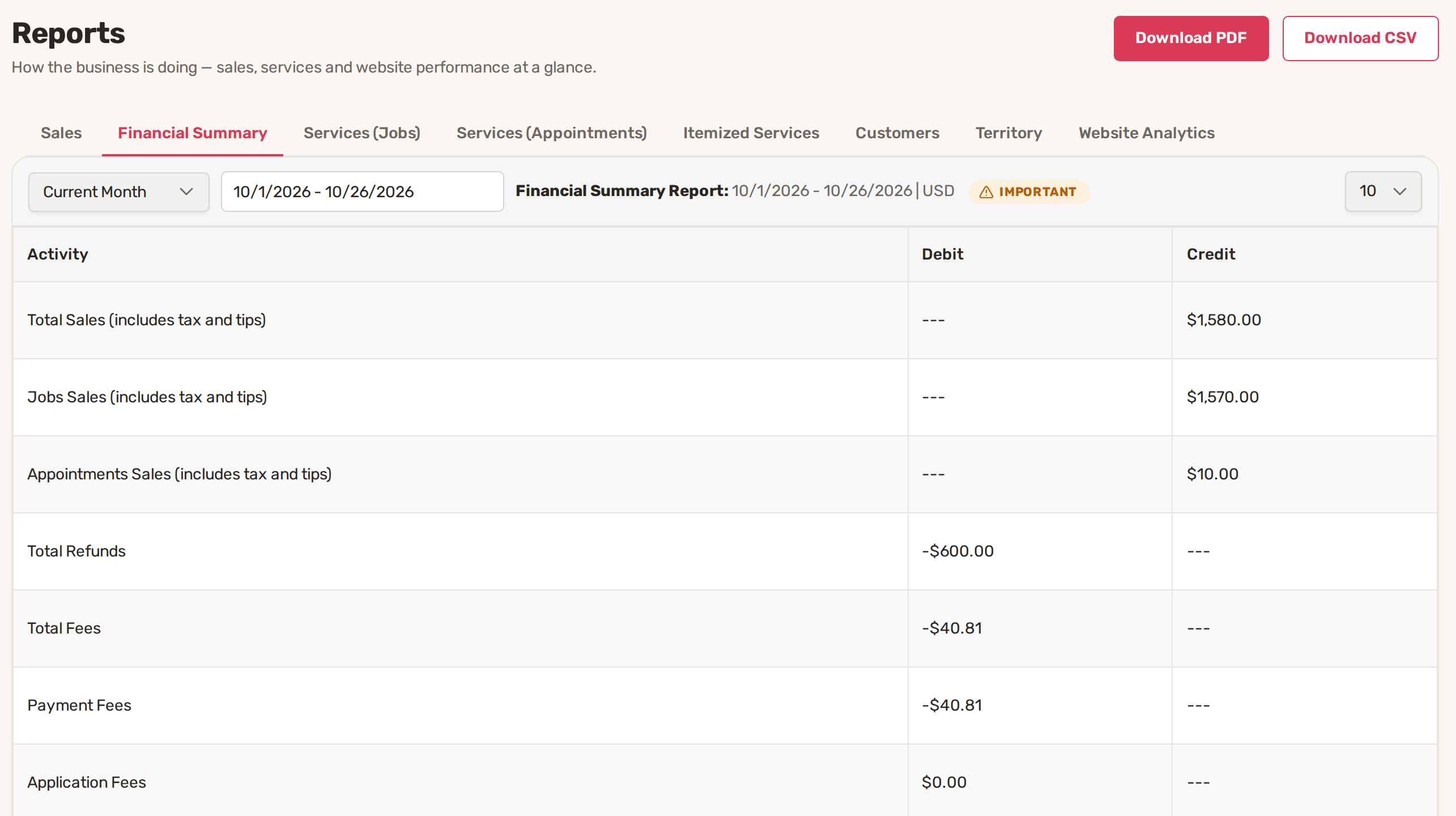
Sales is the full amount customers paid in the period, counted by when the payment went through. Tax and tips are parts of that amount, not extra. Refunds and fees don't reduce it; they're in the Financial Summary.
Financial Summary lists, with Debit and Credit columns:
- Total Sales (includes tax and tips), split into Jobs Sales (includes tax and tips) and Appointments Sales (includes tax and tips)
- Total Refunds, including refunded tax and tips. A refund shows in the period it was completed and doesn't change the period of the original sale.
- Total Fees, made of Payment Fees and Application Fees. These are costs and aren't included in sales.
- Total Tips, Total Tax Collected, Sales Tax from Appointments and Sales Tax from Jobs
3. See which services earn the most
Services (Jobs) and Services (Appointments) have one row per service. Gross Sales is everything collected, including tax and tips. Work Sales is that amount without the tax and tips. You also see the number completed and canceled, and the Average Gross Sale.
These two tabs count each job or appointment in the period it was submitted, not when it was paid. A job submitted in March and paid in April counts in March.
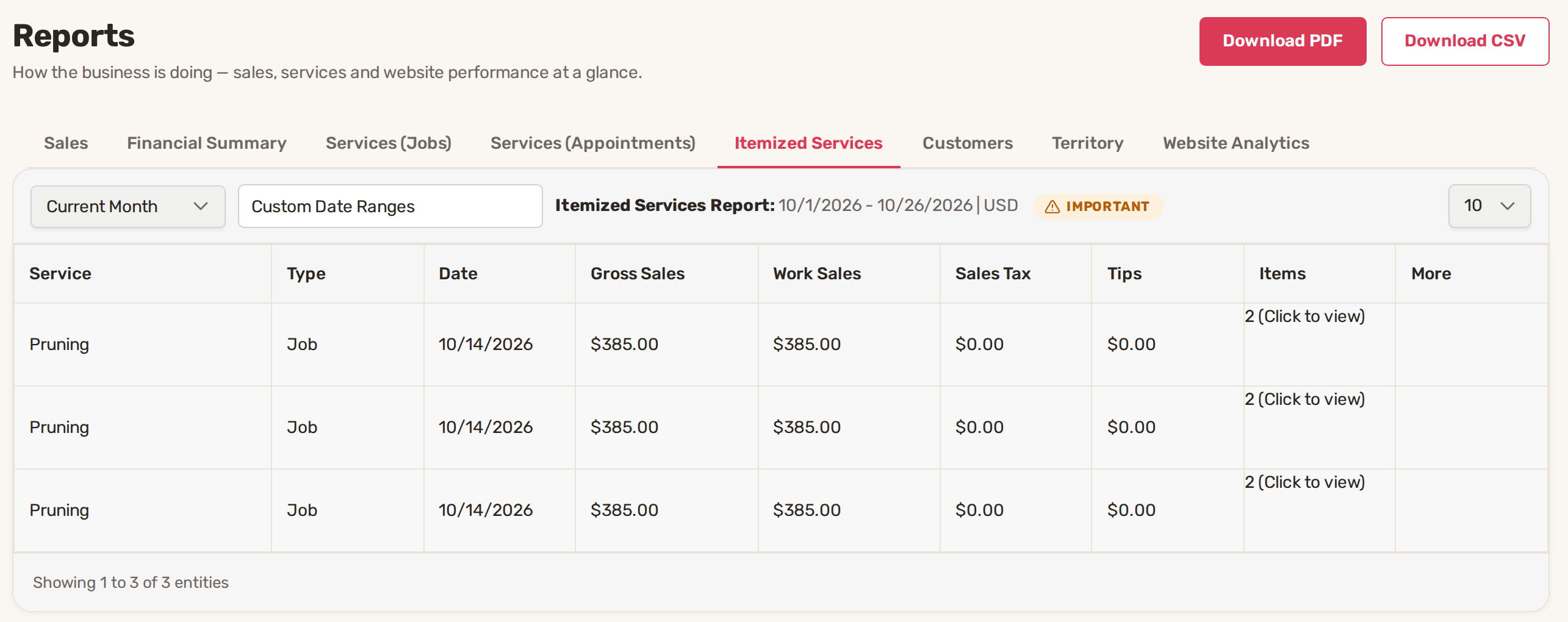
Itemized Services lists each paid job and appointment that has been marked Done, by its work date. A job that's paid but not marked Done yet isn't here; the Sales tab has everything collected. Click (Click to view) in the Items column to see the lines on that job or appointment.
4. Look up one customer
- Open the Customers tab.
- Type in Search customers and click Search.
- Click View report on the customer's row.
- Pick the Report period. For Custom, choose the dates and click Apply date range. The top shows Expected amount, Collected, Refunds, Fees and Net amount received. Recent Transactions shows as a Table or a List.
5. See where your work comes from
Territory puts your service areas on a map. The figures at the top show gross sales, refunds, appointments, requests and out-of-area requests. Switch the map between Gross sales, Requests and Out of area, show it as Circles, Heat, Per customer or Zones only, and pick 30 days, 90 days or 12 months.
On the right, Zones shows the sales in each service area and outside every zone. Knocking from outside lists the zip codes of requests from outside your zones. Gross sales by distance from HQ shows how far from your business address the money comes from. Edit service areas takes you to your service areas.
6. Measure your website
Website Analytics counts only new customers who came through your public website forms. Existing customers, and anything your team entered or a customer booked in the portal, aren't included. Each row is a channel, with its jobs, appointments, new leads and their gross sales.
Download PDF and Download CSV, at the top right, save the tab you're on with the period you picked. Territory has Edit service areas there instead. For your books, use the Stripe Dashboard or QuickBooks, as the Important note on each report says.
Common problems
- Reports is missing from the menu. Your role needs both the Reports and Orders & Customers permissions. Ask the business owner.
- Sales and Services (Jobs) show different totals for the same month. Sales counts payments by payment date; the Services tabs count by the date the job or appointment was submitted.
- A paid job isn't on Itemized Services. It hasn't been marked Done yet.
- Refunds don't lower the Sales figure. That's by design. See refunds and fees in Financial Summary.
- Territory or Website Analytics shows a lock. Your plan doesn't include them. Click the tab to see the plans.
Related
Was this article useful?
Keep reading
More Vehicles and operations
Notepad
Where to find it Click Notepad in the menu on the left. If it isn't there, your plan doesn't include it. The page has th...
Read guide →Vehicles: maintenance, repairs, accidents and alarms
Where to find it Click Vehicles in the menu on the left. If it isn't there, your plan doesn't include vehicles or your r...
Read guide →Knowing what to charge is step one
First 3 months free. No card required. Bring the whole team.
Start Free Trial Back to Login