
Vehicles and operations
Vehicles: maintenance, repairs, accidents and alarms
In this article
Vehicles keeps a record of every work vehicle: who drives it, when its inspection and registration run out, what was serviced or repaired, what it cost, and any accidents. Add each vehicle first. Everything else, from maintenance reports to alarms, is logged against a vehicle. BizBaby flags a vehicle 30 days before its inspection or registration expires, and an alarm you set flags a vehicle when a date arrives or its mileage reaches a number.
Where to find it
Click Vehicles in the menu on the left. If it isn't there, your plan doesn't include vehicles or your role doesn't have the Vehicle Management permission. The page has six tabs. The red button at the top right changes with the tab you're on.
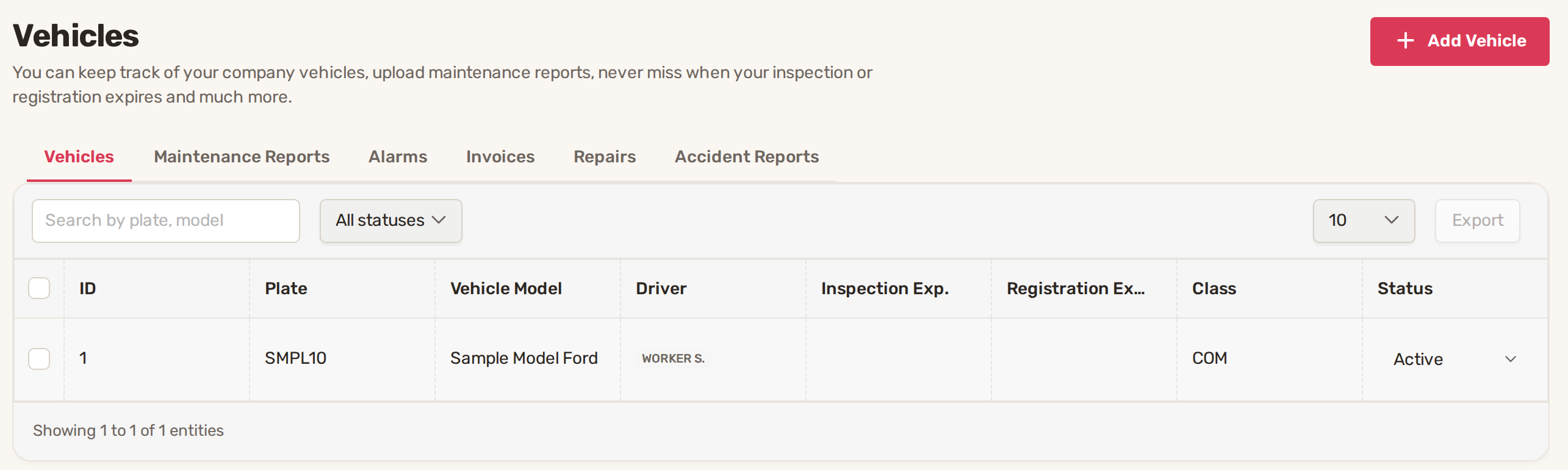
| Tab | What it holds | Button |
|---|---|---|
| Vehicles | Every vehicle with its plate, model, driver, inspection and registration dates, class and status. | Add Vehicle |
| Maintenance Reports | Services and checks, with the date and mileage. View Graph is here too. | Add Report |
| Alarms | Reminders set for a date or a mileage. | Add Alarm |
| Invoices | Bills from the mechanic or shop: cost, mileage, status and the repairs done. | New Invoice |
| Repairs | Each repair listed on your vehicle invoices, one row per repair. | Repair names instead |
| Accident Reports | Accidents with the driver, time, claim number and police report number. | Create Report |
Every tab has a search box (by plate or model) and an Export button. Most also have a status filter and a Date Range filter.
1. Add a vehicle
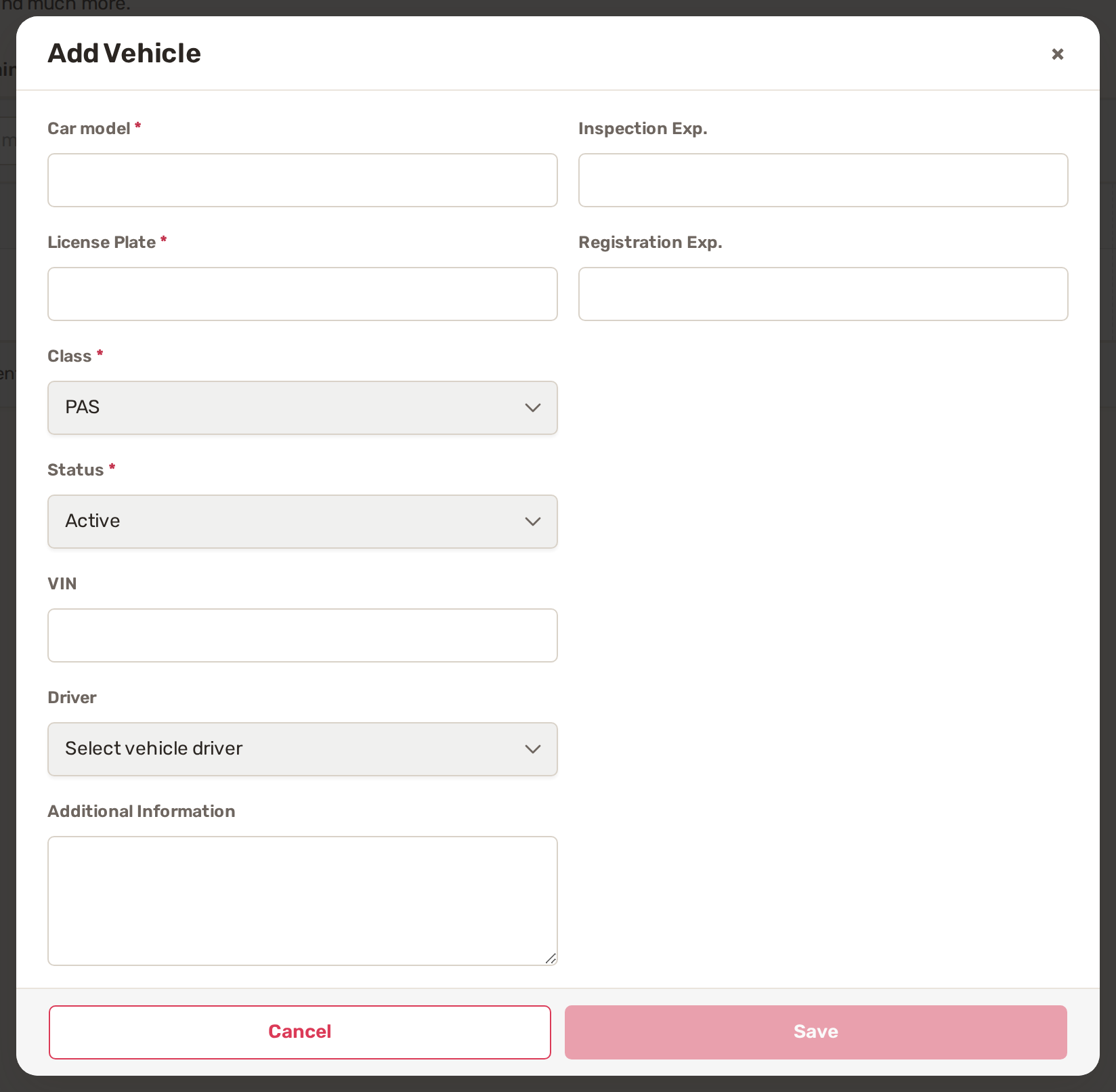
- On the Vehicles tab, click Add Vehicle.
- Fill in Car model and License Plate. These are required.
- Pick the Class: PAS (passenger) or COM (commercial). Status starts as Active.
- Optionally add the VIN, a Driver from your team, and Additional Information.
- Enter the Inspection Exp. and Registration Exp. dates. These drive the expiry warnings.
- Click Save.
2. Open a vehicle
Click a vehicle in the list to open its card. It shows the details, the Current odometer with where that reading came from, and the Images / Files area, where Upload Pictures / Files attaches photos or documents such as the registration. From the card you can Edit the details, change the driver or the status with their own Edit buttons, or Delete the vehicle.
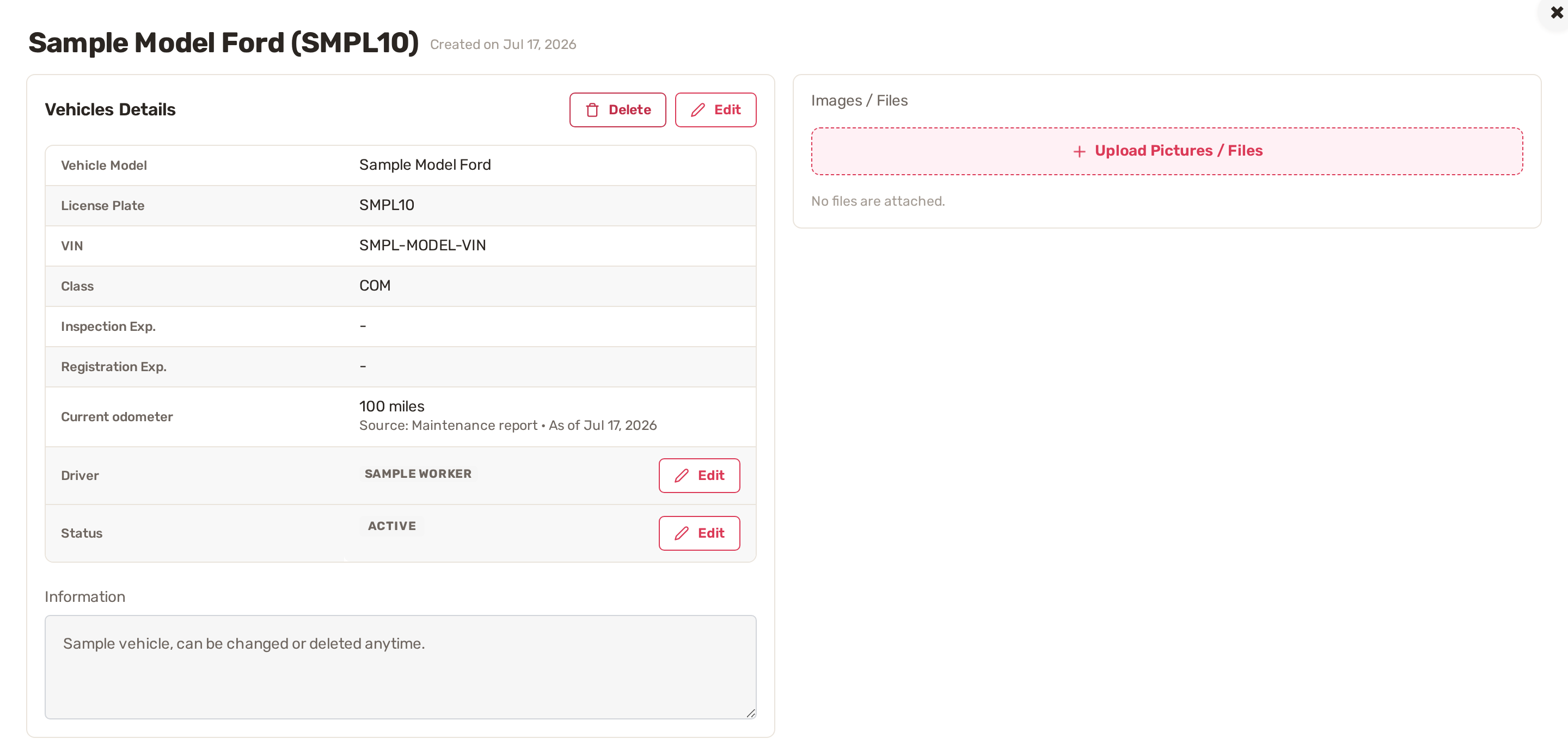
Set a vehicle you no longer use to Inactive rather than deleting it, so its history stays. You can also change the status straight from the Status column of the list.
BizBaby has no separate odometer field. The Current odometer is the highest mileage you've entered on that vehicle's maintenance reports, invoices and accident reports.
3. Log maintenance and repair bills
Maintenance report. On the Maintenance Reports tab, click Add Report. Pick the Vehicle, and enter the Mileage and the Date (both required) and any Comments. Save. To attach files, open the report again: Upload Pictures / Files appears once the report exists.
Invoice. On the Invoices tab, click New Invoice. These are bills you received for a vehicle, not invoices you send to customers. Required: Vehicle, Cost, Date, Mechanic, Mileage and External Invoice ID (the shop's invoice number). Set the Status to Paid, Open or Voided. Under Repairs Done, list each repair; Add new repair adds another line. Each repair then shows on the Repairs tab.
Repair names. On the Repairs tab, the Repair names button keeps your list of repair names, such as oil change or brake pads, so everyone spells them the same way.
View Graph, on the Maintenance Reports tab, opens a Cost Graph and a Mileage Graph per vehicle. Pick a Date range at the top right. Return to Maintenance Report takes you back.
4. Set an alarm
An alarm reminds you about a vehicle, for example an oil change at 55,000 miles or a service on 1 March.
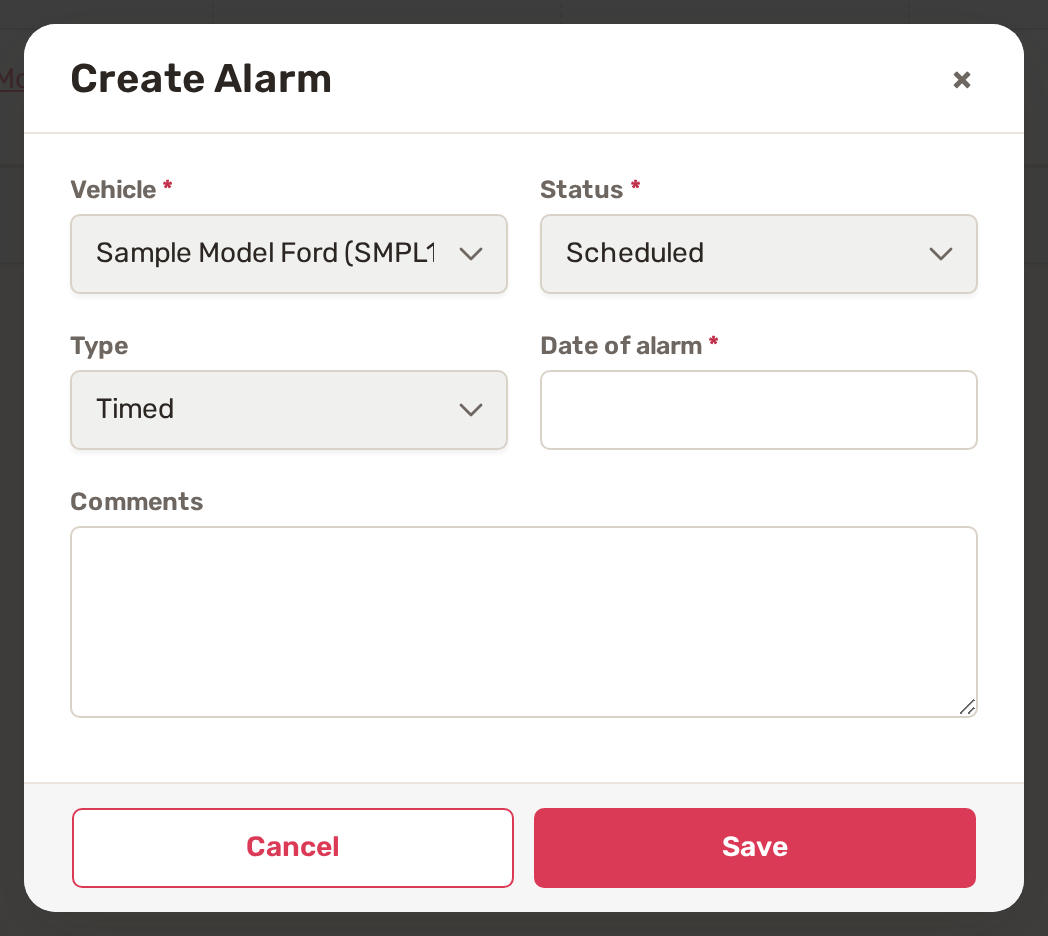
- On the Alarms tab, click Add Alarm.
- Pick the Vehicle.
- Pick the Type: Timed asks for a Date of alarm; Mileage asks for the Mileage.
- Add Comments so the team knows what's due, then click Save. The alarm starts as Scheduled.
BizBaby checks alarms every hour. A Timed alarm triggers on its date, in your business's time zone. A Mileage alarm triggers once any maintenance report, invoice or accident report for that vehicle records that mileage or more. A triggered alarm shows as Triggered with a red mark, and the Alarms tab shows a warning count.
| Status | What it means |
|---|---|
| Scheduled | Waiting for its date or mileage. |
| Triggered | The date or mileage was reached. It stays until you resolve it. |
| Done | You marked it done. It's kept in the list, greyed out. |
To resolve a triggered alarm, open it. Under Resolve triggered alarm, choose Mark done when the work is finished, or Rearm as scheduled to use it again. Before you rearm, move the date or mileage into the future, or it triggers again straight away.
5. Record an accident
On the Accident Reports tab, click Create Report. Pick the Vehicle and enter the Date, Time and Mileage. Optionally add the Accident Type, the Driver, the Claim Number, the Police Report Number and Comments. Set the Status to Open, In Repairs or Closed as the claim moves along. Open the report again to attach photos with Upload Pictures / Files.
Inspection and registration warnings
From 30 days before a vehicle's Inspection Exp. or Registration Exp. date, BizBaby flags it: the date turns red on the vehicle and a warning appears on the Vehicles tab. The warning goes away when you enter the new expiry date or remove it. You can manage these warnings with your other alerts in Automations → Alerts.
Mileage alarms only know the mileage you enter. Add the odometer reading every time you log a maintenance report, a repair invoice or an accident.
Common problems
- Vehicles is missing from the menu. Your plan doesn't include vehicles, or your role doesn't have the Vehicle Management permission. Ask the business owner.
- A mileage alarm hasn't triggered. No maintenance report, invoice or accident report for that vehicle has recorded the alarm's mileage yet. Check the Current odometer on the vehicle's card.
- A rearmed alarm triggered again at once. Its date or mileage was already passed. Open it and set a later date or a higher mileage.
- No Upload Pictures / Files on a new report. Save the report first, then open it again to attach files.
Related
Was this article useful?
Keep reading
More Vehicles and operations
Notepad
Where to find it Click Notepad in the menu on the left. If it isn't there, your plan doesn't include it. The page has th...
Read guide →Reports and analytics
Where to find it Click Reports in the menu on the left. A team member needs both the Reports and the Orders & Customers...
Read guide →Knowing what to charge is step one
First 3 months free. No card required. Bring the whole team.
Start Free Trial Back to Login