
AI
Agent Genie: approve its replies and choose what it can do
In this article
Agent Genie is BizBaby's AI Receptionist. Every reply and action it prepares lands in two places: the Conversations tab of the Agent Genie page, and the customer's conversation in the Call & Message Center. You approve or decline each one there. Manage abilities decides what it may do, and whether each action happens by itself or waits for you. Out of the box, every action waits. To set it up first, see AI Receptionist: set it up, what it says, when it hands over.
See everything it handled
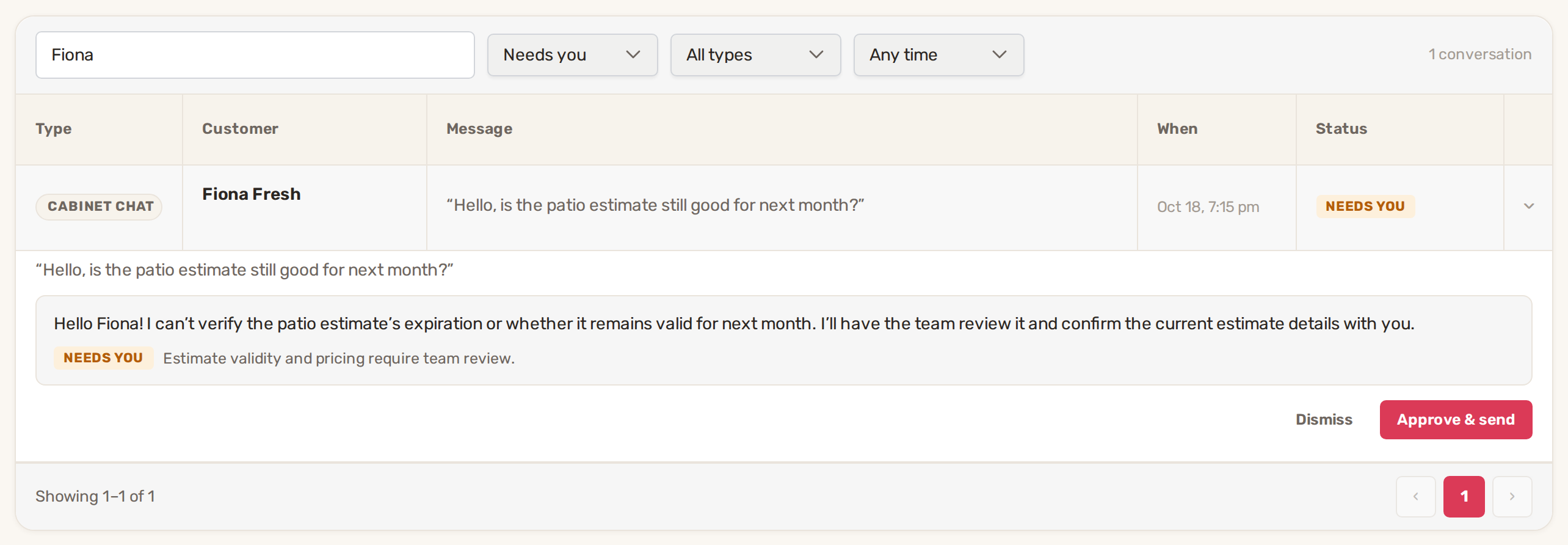
Open Agent Genie in the menu on the left and click the Conversations tab. The badge on the tab counts replies waiting for you. Each row is one conversation: a call, text, email, chat or Contact form message. Rows marked Needs you are already open. Click any other row to open the full exchange: what the customer wrote, the reply Agent Genie prepared, and the actions it wants to take. For a call, Read the full call shows every line.
| Status | What it means |
|---|---|
| Needs you | Waiting for your approval. A line underneath says why, when Agent Genie decided a person should answer. |
| Sent | You or a teammate approved it and it went out. The line under it says who approved it and when. |
| Sent automatically | Auto-send was on and Agent Genie was sure of the answer. |
| Handled on the call | A call Agent Genie answered. |
| Dismissed | Declined. Nothing was sent. |
| Failed | It couldn't be prepared or sent. The reason is shown. |
Each action on a conversation carries its own label: With your approval (still waiting), Done, Failed with the reason, or Skipped.
Approve or decline a reply
On the Conversations tab, open the row and click Approve & send, or Dismiss to drop it. When there's no reply to send, only actions, the button reads Approve actions. These buttons approve or drop every action on the conversation at once. To untick one action, or to approve without Agent Genie replying, use the Call & Message Center.
In the Call & Message Center, the same draft shows as a card inside the customer's conversation, marked Needs your OK. A card marked Wants a human says "The AI paused on purpose" and why. The card shows what it's replying to and the Suggested reply. Under If you approve, the AI will also are the actions it wants to take. When there's more than one, untick any you don't want.
| Button | What happens |
|---|---|
| Approve & reply | The ticked actions are done, then the reply goes to the customer by text, email or chat. |
| Approve silently | The actions are done but Agent Genie sends nothing, so you can write the reply yourself. |
| Decline | Nothing is done and nothing is sent. On a Wants a human card this button is Dismiss. |
A reply that waits for approval is written as the finished result, for example "Done! Your clean-up is now Monday at 4:00 pm.", because it only goes out once the action is done. Meanwhile a customer who texted or chatted has already heard "Thanks! Let me check this with the team." If they send several messages before you decide, they're folded into one card and one reply.
For a call, the card is marked AI answered a call and shows What happened on the call. When the caller asked for something that waits for you, the card also has a Message to the caller: a short text, written after the call, that goes to them once you approve.
Automations can start from "Agent Genie drafts a reply that needs your approval" or "flags a conversation for a human", for example to send you a phone alert. See How automations work.
Choose what it can do
On the Settings tab, under Personality, voice & abilities, click Manage abilities. For each action, pick one setting and click Save. It applies to calls, texts, emails and chat.
| Setting | What it means |
|---|---|
| Do it automatically | Done during the call or chat, without waiting for you. |
| Ask the team first | Waits for approval in the Call & Message Center. This is where every action starts. |
| Off | Agent Genie never offers it. |
| Ability | What it does |
|---|---|
| Book appointments | Only times your calendar actually offers. |
| Reschedule appointments | The caller's own appointments only. Refused if the worker is busy. |
| Cancel appointments | The caller's own appointments only, with their reason. |
| End a recurring service | Stops the caller's weekly or monthly service and records why. |
| Save new customers | Needed before it can book for a new caller. |
| Take job & estimate requests | Your team prices the job afterwards. |
| Tell callers your prices | On or Off only: it just reads prices from your services, so there's nothing to approve. |
| Add team to-dos | For example "call this customer back about a quote". |
| Set follow-up reminders | A reminder in your inbox after a few days. |
| Open issue tickets | When a customer reports a problem with your work. |
| Flag spam callers | Robocalls and mass texts go to your Blocked Contacts. |
A switched-off ability is taken away from Agent Genie completely, not just discouraged. Changing appointments, cancelling and ending a service work only for a customer Agent Genie can match to your records, such as a caller whose number is on file.
A row may be fixed. Always asks your team first, set by BizBaby means that action can't be made automatic. Turned off by BizBaby means it's unavailable for now. Not on your plan appears on a website-only plan, which keeps only to-dos, follow-up reminders, tickets and spam flagging.
Let confident replies go out by themselves
Switch on Auto-send confident replies under How your assistant operates. A reply then goes straight to the customer when Agent Genie is sure of it and nothing on it waits for approval. Anything it flags, or that has an action set to Ask the team first, still waits in Needs you. With auto-send off, every reply waits for you.
Common problems
- Approve & reply reads "No channel available". There's no way to reach this customer: no phone number with texting set up, and no email address. Use Approve silently and contact them yourself, or add their details.
- A Needs you reply has no draft. Agent Genie decided a person should answer and left the reply to you. The reason is shown on the card.
- An action shows Failed. The reason is shown under it. Check the record before you answer the customer yourself.
- Do it automatically can't be picked. BizBaby has set that action to always ask your team first.
- No conversations show. Agent Genie is off, or no customer has written since you turned it on. Check the filters too: "No conversations match these filters" means a filter is hiding them.
Related
- AI Receptionist: set it up, what it says, when it hands over
- The Call & Message Center: calls, texts and chats in one place
- How automations work
Was this article useful?
Keep reading
More AI
AI Receptionist: set it up, what it says, when it hands over
Before you start Add a card on file. Agent Genie is billed by use, so it can't be turned on without one. Set your workin...
Read guide →Wingman: your private AI assistant for running the business
Open Wingman Click Wingman in the menu on the left, or the Wingman button in the bottom right corner of any page. The co...
Read guide →Knowing what to charge is step one
First 3 months free. No card required. Bring the whole team.
Start Free Trial Back to Login