
AI
Wingman: your private AI assistant for running the business
In this article
Wingman is an AI assistant for business owners and admins. Ask it about your business in plain words, such as "Which invoices are overdue?", or ask it to make a change, such as moving an appointment. It looks things up in your BizBaby records. It changes nothing until you review it and click Confirm change. Estimates, invoices, payments and refunds are always read-only. Wingman is in Beta and free while it is.
Open Wingman
Click Wingman in the menu on the left, or the Wingman button in the bottom right corner of any page. The corner button opens it in a side panel, so you can keep the page you're on in view. Only the business owner and admins have Wingman. Team members don't see it.
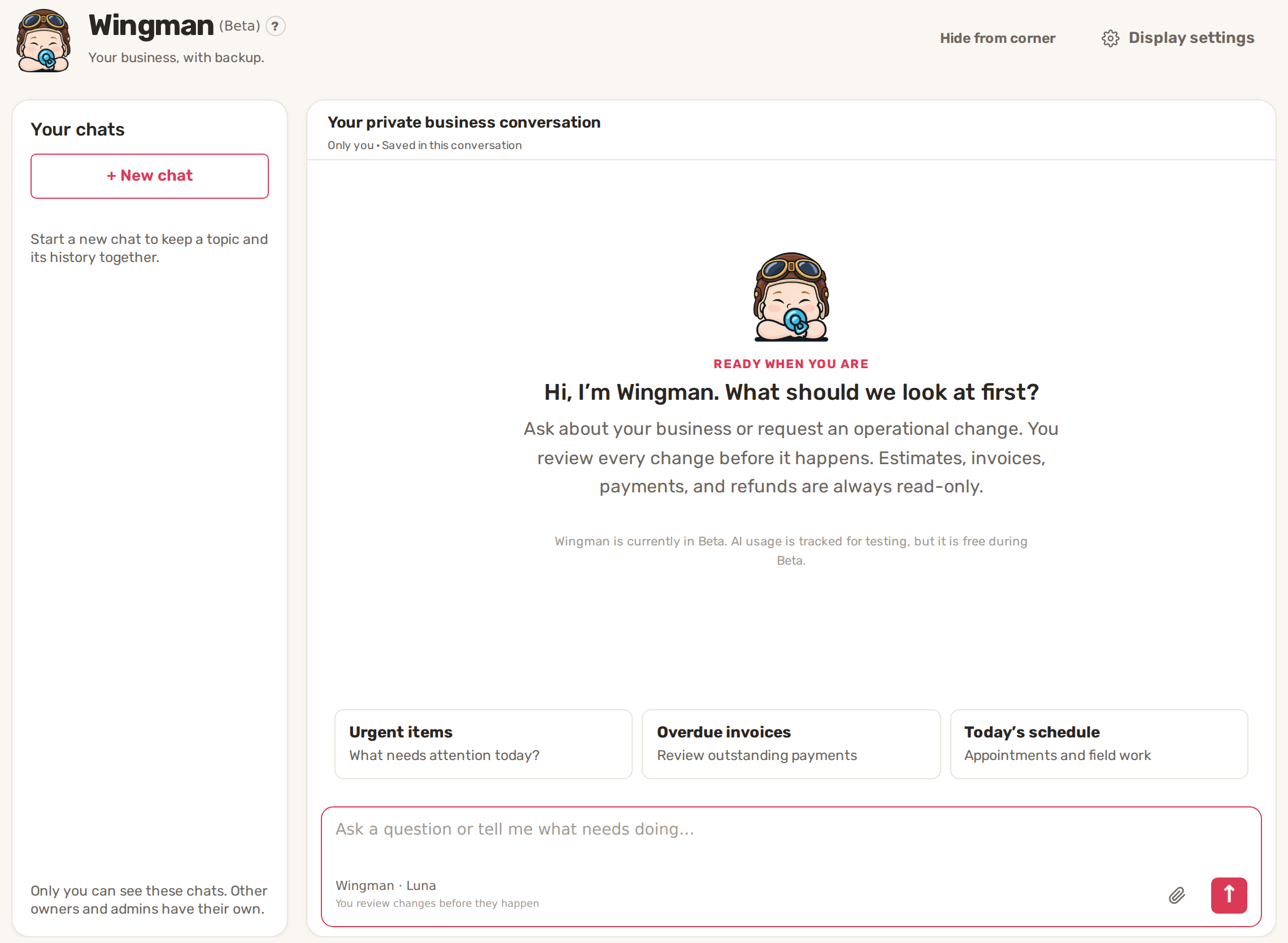
Ask a question
- Type in the box at the bottom, "Ask a question or tell me what needs doing…", and press the arrow button. In a new chat you can also click a starter: Urgent items, Overdue invoices or Today's schedule.
- Wingman shows what it's doing while it works. While it works, the send button turns into Stop. Click it to stop a long answer. Wingman answers from what it found so far.
- Under each answer, Sources & activity lists what Wingman looked up to answer.
Wingman is told to answer with your business's own names, record numbers and local dates and times, and to leave out technical details.
Make a change
Tell Wingman what you want done, for example "Add a note to the Smith job that the gate code changed". Before anything happens, it shows the change for you to review, marked Review and confirm with "Nothing will happen until you confirm."
- Read each change in the list.
- Click Confirm change (or Confirm changes for several), or Cancel.
- Wingman makes the changes one at a time and marks each Completed or Couldn't complete this change. If one fails, the rest stop and are marked Not completed.
While several changes are running, Cancel remaining stops those not yet started. Wingman is told to make only the changes you asked for, and to say exactly what succeeded, what failed and what wasn't started. When a result reads Result could not be confirmed, check the record before trying again.
What it can and can't change
| Access | Areas |
|---|---|
| Look up and change | Customers, vendors, appointments, appointment services and subscriptions, requests, jobs and visits, Price Book, Tasker, checklists, Notepad, vehicles, conversations, tickets, follow-ups, leads, automations, Agent Genie settings, working hours, service areas and attachments |
| Look up only | Estimates, invoices, payments, recurring payments, team, reports, website, customer portal, marketing, account and storage, and QuickBooks |
BizBaby can limit which areas Wingman reaches for a business. When it can't do something, it says so.
Attach a picture
Click the paperclip to attach up to 4 JPG, PNG, WebP or GIF pictures per message, up to 4 MB each, for example a photo of a job or a screenshot of an error. In the side panel, the camera button attaches the screen you're on. Wingman treats pictures as context only. It never follows instructions written inside them.
Your chats
Chats are private: only you see yours, and other owners and admins have their own. Click + New chat to keep a topic and its history together. Wingman names a new chat after your first question. To rename or archive a chat, click ⋯ at the top of the chat. In Chat options, type a new Chat title and click Rename, or click Archive chat. Archiving deletes nothing: the chat moves under Archived chats at the bottom of the list, with Restore.
Click Hide from corner on the Wingman page, or open Display settings. The choice follows your account, and you can still open Wingman from the menu.
Common problems
- Wingman isn't in my menu. You aren't the owner or an admin of this business, or Wingman is switched off for it.
- "Wingman is unavailable for this business." Wingman has been switched off for this business. Your chats aren't lost.
- "Temporarily unavailable". Reload the conversation in a moment.
- "The selected business or user changed." You switched business in another tab. Reload Wingman in the business you want to work in.
- A picture won't attach. It's over 4 MB or not a JPG, PNG, WebP or GIF.
- It can't change an invoice or payment. Estimates, invoices, payments and refunds are read-only for Wingman. Make those changes yourself.
Related
- Agent Genie: approve its replies and choose what it can do
- Add your team and choose what each person can see
- Tasker: tasks for your team
Was this article useful?
Keep reading
More AI
Agent Genie: approve its replies and choose what it can do
See everything it handled Open Agent Genie in the menu on the left and click the Conversations tab. The badge on the tab...
Read guide →AI Receptionist: set it up, what it says, when it hands over
Before you start Add a card on file. Agent Genie is billed by use, so it can't be turned on without one. Set your workin...
Read guide →Knowing what to charge is step one
First 3 months free. No card required. Bring the whole team.
Start Free Trial Back to Login