
Automations and notifications
How automations work
In this article
An automation is one sentence: when something happens, send or create something, for someone, at a time you choose. BizBaby comes with built-in automations for estimates, invoices, appointments and more. You can add ready-made ones from Discover, or write your own with New Automation. Set up your email templates and sender details first; automations then decide when each email goes out.
Before you start
- Set up your email templates and sender details.
- Set your working hours in gear icon → Business Settings → Working hours, so automations don't message customers at night.
- For text message automations, register your business number for texting (A2P 10DLC). Until then, every text automation stays off.
Where to find them
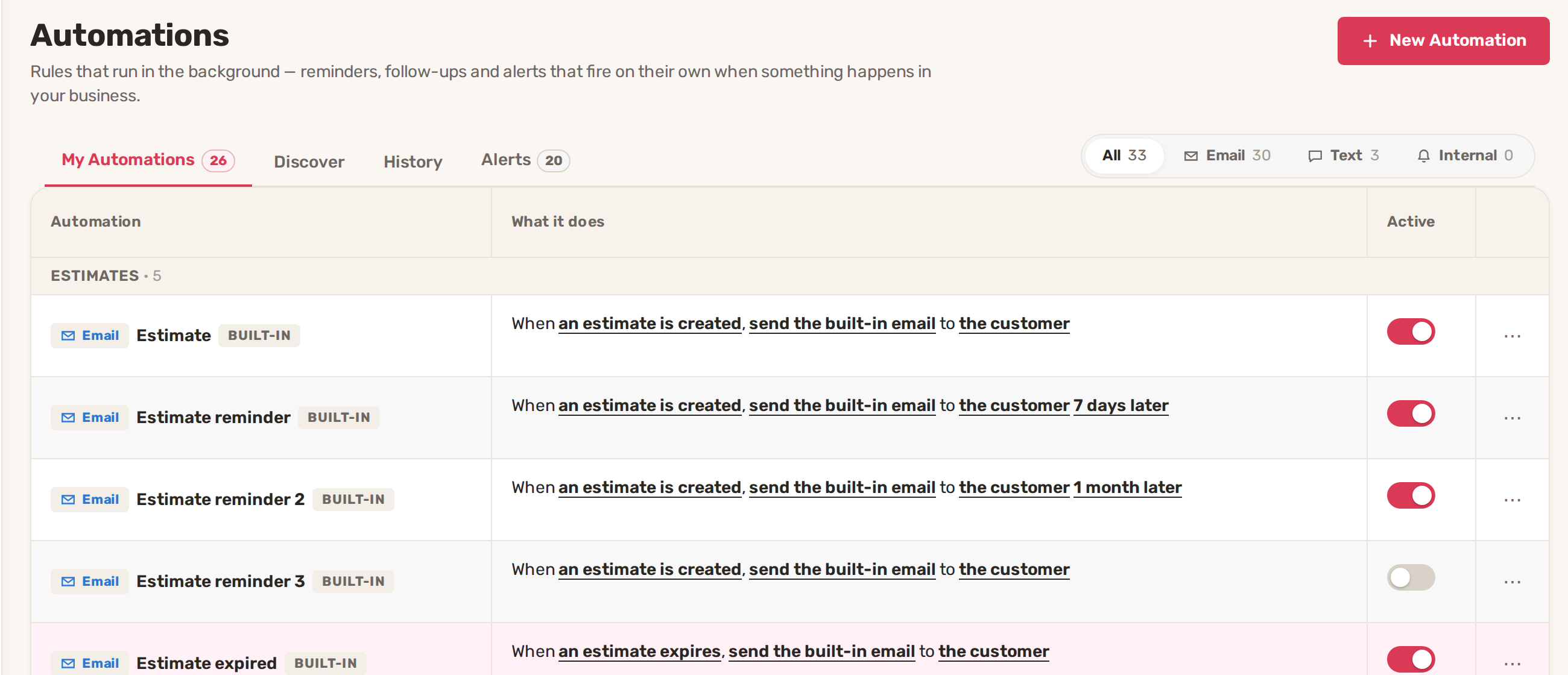
Click Automations in the menu on the left. If it isn't there, your plan doesn't include automations or your role has no access to business settings. Every automation reads as a plain sentence in the What it does column (Required rows show a short description instead), and the switch in the Active column turns it on or off.
| Tab | What it's for |
|---|---|
| My Automations | Your own automations first, then the built-in ones grouped as Estimates, Invoices & getting paid, New customers & win-back, Appointments, and Receipts & required. The number on the tab counts the ones that are on. |
| Discover | Ready-made automations you can add with one click. |
| History | What your automations did: what's scheduled, what was sent and anything that needs attention. |
| Alerts | Warning markers on your records, such as a request with no estimate yet. These are a separate feature with their own settings. |
The parts of an automation
| Part | What you choose |
|---|---|
| When | The thing and what happened to it, for example an invoice + is paid. The full list is below. |
| Then | send a text message, an email or a phone alert, or create a follow-up reminder or a to-do for the team. To-dos land in Tasker. |
| To | the customer, the business owner or the team. Phone alerts go only to the owner or the team. Reminders and to-dos have no "to". |
| Timing | after 0 to 730 minutes, hours, days or months. 0 means right away. Appointment automations can also run before the appointment starts. |
| Only if | Optional conditions, up to five, such as the total is more than 1000. See conditions. |
Create your own automation
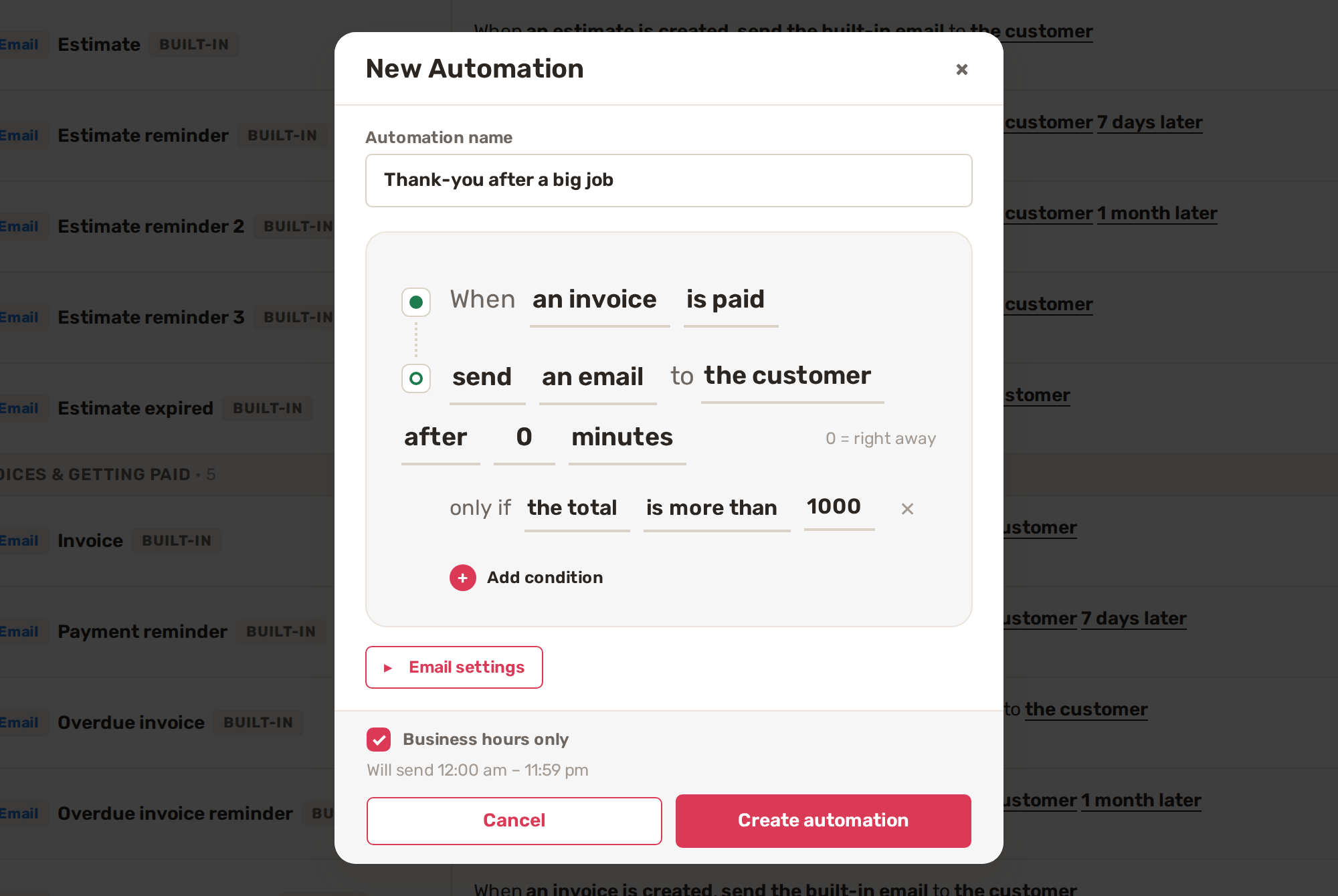
Here we'll make a thank-you email that goes out only after big jobs are paid.
- On the Automations page, click New Automation.
- Type an Automation name you'll recognise later, such as Thank-you after a big job.
- Build the sentence by clicking each underlined word: When an invoice is paid, send an email to the customer after 0 minutes.
- Click Add condition and set only if the total is more than 1000.
- Open Email settings and write the Email subject. Left empty, it reads "A message from" and your business name. Pick a Customer preference category: Service updates (email) or Promotions & offers (email). Customers who turned that category off won't get this email.
- Click Create automation.
For an email, BizBaby saves the automation and opens Email design, where you write and lay out the email itself. Click Save email when it's ready. The automation is on from the moment you create it, so finish the email straight away or switch the automation off until you do. To come back later, click ⋯ on its row and choose Email design.
For a text message, the expander is called Write the message instead, with the text box right there. Keep texts short: they are billed per roughly 160 characters. You can drop in *customer_name*, *organisation_name* and *amount*, and BizBaby fills them in for each customer. The preference categories for texts are Job completion (text), Visit updates (text) and Appointment reminders (text).
For a phone alert, a follow-up reminder or a to-do, Write the message holds the words your team sees. The customer never sees these.
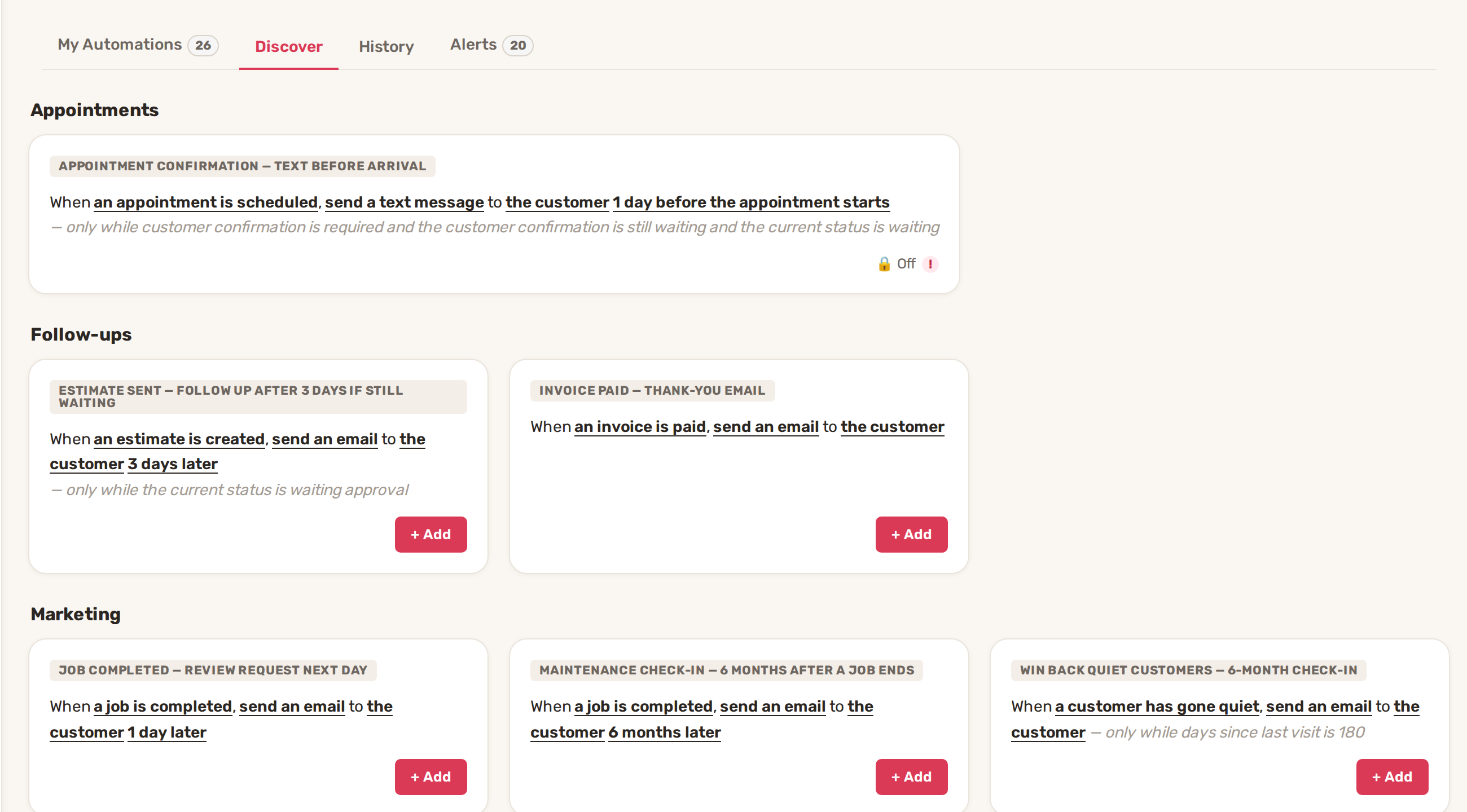
Discover has a ready-made thank-you email for paid invoices, under Follow-ups. It goes out for every paid invoice. Add it, then use ⋯ → Edit to add the "more than 1000" condition.
Everything that can start an automation
| When… | …this happens |
|---|---|
| a request | comes in · is approved |
| an estimate | is created · is approved · is rejected · gets change requests · expires |
| an invoice | is created · is paid · becomes overdue · is disputed |
| a job | is created · is started · is completed · is canceled |
| a visit | is scheduled · is completed · is canceled |
| an appointment | is scheduled · is completed · is canceled · is paid · has its payment declined · is confirmed by the customer |
| a payment | succeeds · fails · is refunded |
| a customer | is added · is sent a portal invitation · has gone quiet |
| a call | is missed · goes to voicemail |
| a message | comes in |
| your storage | is nearly full |
| Agent Genie | drafts a reply that needs your approval · flags a conversation for a human |
A customer has gone quiet 90, 180 and 365 days after their latest appointment or job was added. To pick another day count, add the condition only if days since last visit is and a number.
Conditions
Add condition appears only when the starting event has something to check. Requests, visits, calls, messages, storage, Agent Genie, and customers being added or invited have no conditions.
| Condition | Works with | You set |
|---|---|---|
| the total | estimates, invoices, jobs, appointments | is, is not, is more than or is less than a number |
| the amount | payments | is, is not, is more than or is less than a number |
| the current status | estimates, invoices, jobs, appointments | is or is not one of that record's statuses, for example waiting approval for an estimate or overdue for an invoice |
| days since last visit | a customer has gone quiet | is, is more than or is less than a number of days |
| customer confirmation | appointments | is or is not required |
| the customer confirmation | appointments | is or is not still waiting or confirmed |
Conditions are checked when the event happens and again when a delayed automation comes due. A follow-up set for 3 days later "only if the current status is waiting approval" doesn't go out if the customer approved the estimate on day 2. On the list, conditions show after the sentence as "only while…".
Timing and business hours
before can be picked only when the automation starts from an appointment. The sentence then ends with the appointment starts, for example "1 day before the appointment starts". If the appointment has already started when the time comes, it doesn't run.
At the bottom of the New Automation window is Business hours only, ticked by default. When it's on, anything that comes due outside your working hours, including days you're closed, waits until you next open, so customers don't get a text at 2 am. The line under it, Will send…, shows today's hours. If no day has working hours set, automations run at any time.
Built-in automations
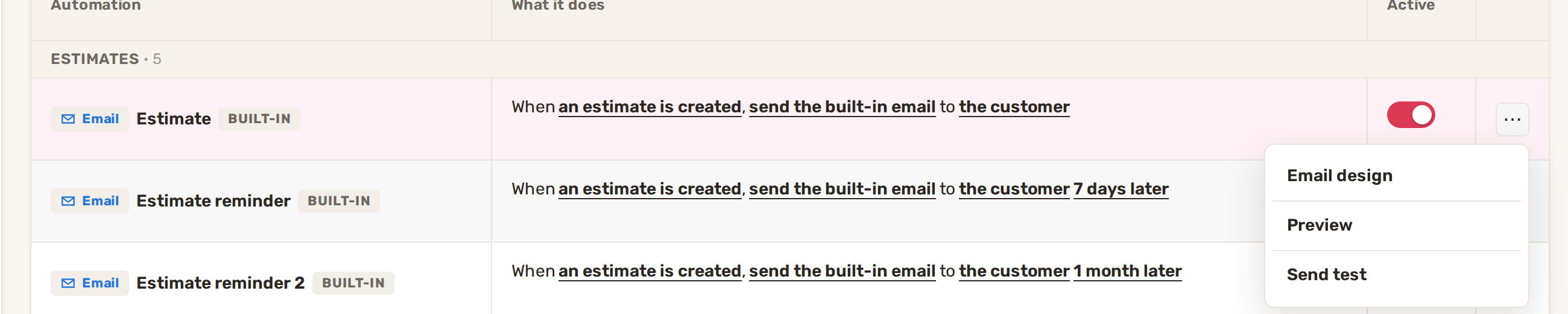
Rows with the Built-in label are the emails and texts BizBaby sends for you, such as estimates and their reminders, invoices and payment reminders, the welcome email and appointment texts. What starts them and when is fixed. You can switch them on or off. For a built-in email, ⋯ → Email design changes how it looks, ⋯ → Preview shows it as a customer would see it, and ⋯ → Send test sends it to you.
Rows marked Required, such as receipts and appointment confirmations, show 🔒 On and stay on because customers need them. You can only preview and test them.
To send a reminder on a different schedule, switch the built-in off and create your own. If yours sends the same email as a built-in that's still on, BizBaby warns you first so customers don't get two. For every built-in and what it sends, see Built-in automations.
Add a ready-made automation
- Open the Discover tab.
- Read the sentence on a card to see exactly what it does.
- Click + Add. It's added to My Automations and switched on, and the card shows Added.
Check what an automation did
Open the History tab. It opens on yesterday and today; change the dates to look further back. The tiles at the top count what Needs attention (failed or overdue), what is Scheduled, what was Sent & completed and All activity. Click a tile to list only those. You can also filter by automation, status or type, or search by automation, trigger, recipient or result.
| Status | What it means |
|---|---|
| Sent, Completed | The email or text provider accepted the message, which doesn't prove it reached the inbox or phone. For an alert, reminder or to-do: it was created. |
| Scheduled | Waiting for its time. |
| Overdue | Its time has passed and it hasn't run yet. |
| Partially sent | Some recipients got it and some didn't. |
| Failed | It couldn't be sent. The reason shows under the automation's name. |
| Skipped | It ran with nothing to send, for example the customer has no email address or phone number, or turned off that kind of message. |
| Canceled | It was waiting and was dropped: the automation was switched off or deleted, its conditions no longer matched, or the appointment had started. |
Click ⋯ on a row and choose Preview to see what was sent, or why nothing was. When an email from an automation you made failed, the same menu has Retry email (Retry failed recipients if only some failed). It sends once more using the current email design.
Change, turn off or delete an automation
To change one you made, click ⋯ → Edit, make your changes and click Save changes. To pause one, flick its Active switch off. Its settings are kept, but anything it had waiting is canceled if it's still off when that comes due. To remove one you made, click ⋯ → Delete and confirm with Delete. It stops at once and can't be undone. Built-in automations can't be deleted, only switched off.
Common problems
- A text automation shows a lock and Off. Your business number isn't registered for texting yet (A2P 10DLC), which US carriers require. Point at the lock (tap it on a phone) and click Register. Creating a new text automation shows the same reason: "Your business phone is not registered for text messages yet (A2P 10DLC)."
- "A built-in automation already performs this action". A built-in that's switched on sends the same email. Click Go back and switch the built-in off, or Create anyway if you really want both.
- "A message is required for this action". Open Write the message and type the text before saving.
- "Enter a numeric value for this condition". Type digits only, such as 1000, without a dollar sign or commas.
- Add condition is missing, or before can't be picked. The starting event has nothing to check, or isn't an appointment. See Conditions and Timing.
- A customer didn't get the message. Check History first, with a date range that covers the day. A Skipped row gives the reason, such as the customer turning off that kind of message. See Why a customer didn't get an email or text.
Related
- Set up your email templates and sender details
- Built-in automations: what is on by default and how to change them
- Why a customer didn't get an email or text
- Text messaging registration (A2P 10DLC)
Was this article useful?
Keep reading
More Automations and notifications
Built-in automations: what is on by default and how to change them
Where to find them Click Automations in the menu on the left. Under My Automations, the built-ins are grouped as Estimat...
Read guide →Email and text notifications to customers
What your customers get, step by step WhenEmailText They send a requestJob request submitted, confirming you got it. Alw...
Read guide →Set up your email templates and sender details
1. Choose who your emails come from Go to gear icon → Business Information. The Business email address card holds the ad...
Read guide →Knowing what to charge is step one
First 3 months free. No card required. Bring the whole team.
Start Free Trial Back to Login