
Scheduling and dispatch
Service areas and out-of-area requests
In this article
A service area is a list of zones, and each zone is a list of zip codes. Your request form, your booking form and the AI Receptionist check a customer's zip code against those zones. Under Outside your area you choose what happens when it doesn't match: accept it, accept it and tag it, or decline politely and keep the lead. Until you pick something other than Accept everything, nothing is checked.
Open your service areas
Click the gear icon at the top right, then Service Areas. The page has a map on the left and two cards on the right: Zones and Outside your area. Nothing you change takes effect until you click Save changes under the cards.
The bar under the map counts your zones and the zip codes they cover, and shows the policy you've picked.
1. Build your zones
- Click + New zone. It's called New zone and gets its own colour on the map.
- Click the name to rename it, for example North Seattle. Click the coloured dot to change its colour.
- Type a 5-digit zip code in the zone's Add zip… box and click Add. Repeat for each zip code.
- To take a zip code out, click the × on its chip.
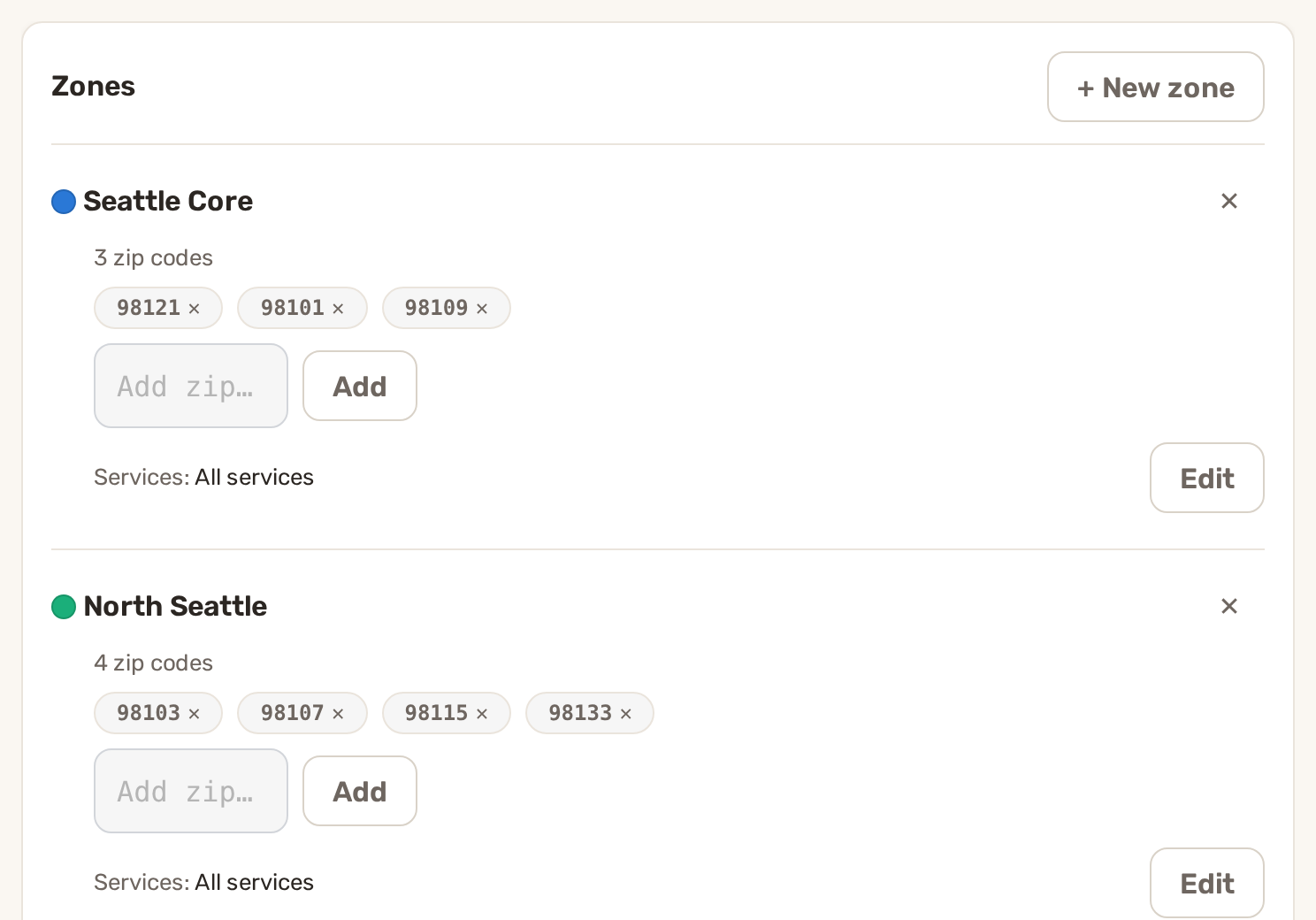
You can also work on the map. Click a zone in the list to make it the active one, then click a zip code's shape on the map to add it to that zone. Click it again to take it out. Pointing at a shape shows its zip code and which zone it's in.
Zones can overlap. A zip code that is in two zones shows a dashed border on its chip. To delete a whole zone, click the ✕ at its top right and confirm.
2. Or draw a radius
The Radius tool takes every zip code inside a circle in one go.
- Click a zone in the list so the zip codes go into it.
- Click Radius tool above the map. A circle appears.
- Drag and resize the circle over the area you cover.
- Click Add zips inside circle. Press Esc to cancel instead.
The circle only picks up zip codes BizBaby already knows the location of. If it finds nothing, add one zip code in that region by hand first, then try again.
3. Limit a zone to some services
A zone covers All services until you narrow it down. This is useful when you do some work further out than the rest, for example lawn care everywhere but tree work only close to home.
- Click Edit next to Services on the zone.
- Every service starts switched on. Your appointment services and your estimate services are both listed. Click a service to take it off this zone, and click it again to put it back. The line then reads, for example, 16 of 17 services.
A zip code counts as covered for a service if any zone that contains it offers that service. If a customer's zip code is in a zone but the service they picked isn't offered there, they're treated as out of area.
4. Choose what happens outside your area
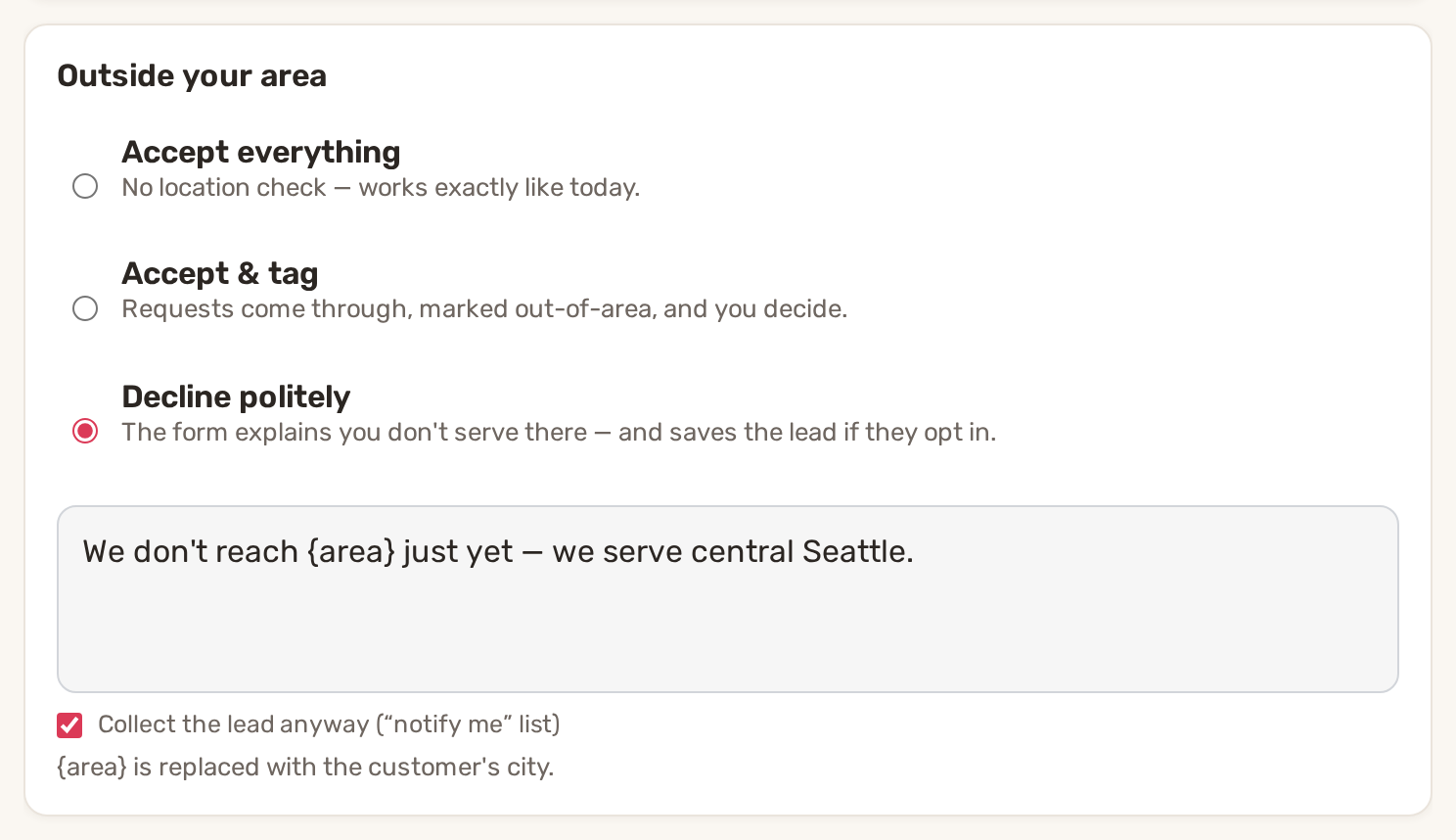
| Choice | What the customer sees | What you get |
|---|---|---|
| Accept everything | Nothing different. No location check runs, even if you have zones. | Every request and booking, as usual. |
| Accept & tag | Nothing different. | The request or booking comes in as normal and is recorded as out of area. It counts towards Out of area in the Territory report. |
| Decline politely | A window titled Outside our service area with your message. With lead collection on, a Notify me when you serve my area button. | No request or booking. If they press the button, their details go to Leads › Out of area. |
For Decline politely, write the message in the box. Put {area} where the customer's city should go. If you leave the box empty, customers see: "We don't reach {area} just yet. Leave your details and we'll let you know the moment we expand." Collect the lead anyway ("notify me" list) is ticked by default. Untick it and the customer only sees your message.
Click Save changes. A note at the bottom of the page confirms the save.
5. Test an address
- Click Test an address above the map.
- Type an address with its zip code and click Check.
The answer is what your forms would do: ✓ In your service area with the zone's name, or ✗ Outside your zones with your policy and, for Decline politely, the exact message the customer would see. The test uses your saved settings, so save first. While Accept everything is saved, it always answers "No zones configured yet — every request is accepted.", because nothing is checked.
What happens to an out-of-area customer
The check uses the zip code the customer types into the form.
- Request form, Decline politely. Nothing is saved unless the customer presses Notify me when you serve my area. Then they see "You're on the list", BizBaby saves them as a customer, keeps the request without sending you the usual new-request alerts, and adds them to Leads › Out of area.
- Booking form, Decline politely. No appointment is booked. If the customer asks to be notified, BizBaby saves them as a customer, adds them to Out of area, and creates a follow-up reminder that names their zip code and the service and time they wanted.
- AI Receptionist. When zones are switched on, it checks the caller's zip code before booking. With Decline politely it doesn't book and reads out your decline message. With Accept & tag it carries on but tells the caller they're outside your usual area. If lead collection is on, it offers to save their details.
See who asked: Leads › Out of area
Open Communications → Leads and click the Out of area tab. It lists people who pressed Notify me when you serve my area:
- Three counts at the top: how many people asked, how many of their zip codes are outside your zones, and the most-asked place.
- By ZIP code: each zip code with the number of people who asked. A zip code that has since been added to a zone says inside and the zone's name.
- People who asked: the leads themselves, with a zip code filter.
When enough people ask from one place, add that zip code to a zone and contact the people on the list.
If your plan includes website analytics, Reports → Territory shows requests, revenue and out-of-area requests per zip code and zone over the last 30 days, 90 days or 12 months. Its Edit service areas button brings you back to this page.
Common problems
- Customers from outside your area still get through. The policy is Accept everything or Accept & tag, or you didn't click Save changes. Pick Decline politely and save.
- A customer inside a zone was declined. The zone doesn't offer the service they chose. Check Services on the zone, or add the zip code to a zone that offers it.
- "Create a zone first". You clicked the map or used the radius tool with no zone. Click + New zone first.
- "Enter a 5-digit zip code". Type digits only, five of them.
- "No new zips found inside the circle". BizBaby doesn't know any zip codes there yet. Add one by hand, then draw the circle again.
- "Couldn't locate that address". Add the zip code to the address you're testing.
- Service Areas isn't in your settings. It isn't offered on website-only plans.
Related
- Set up your business in the first hour
- Online booking: what customers can book
- Add BizBaby forms to any website
- AI Receptionist: set it up, what it says, when it hands over
Was this article useful?
Keep reading
More Scheduling and dispatch
Appointments and the calendar
Before you start Set the hours customers can book. On the Appointments page, click Service Settings. On the Work setup p...
Read guide →Assign workers and dispatch
1. Decide who gets booked automatically Each appointment service has its own list of workers. When a customer books onli...
Read guide →Scheduling modes: Standard and Advanced
Standard or Advanced ModeYou chooseBizBaby does StandardThe day and the arrival time.Offers your business's days and arr...
Read guide →Knowing what to charge is step one
First 3 months free. No card required. Bring the whole team.
Start Free Trial Back to Login