
Account and billing
Change plan, cancel, payment method and invoices
In this article
Everything about your BizBaby subscription is on one page: click the gear icon, then Billing & Plan. An upgrade starts as soon as you confirm it, and BizBaby shows what it charges today first. A downgrade or a cancellation waits until your next billing date, and you keep your current plan until then. Your card, past bills and invoices are on the same page.
Your Billing & Plan page
Only people who can open your business settings see this page. It shows your Current plan and its status, the monthly price, your Payment method, your Next payment and your Billing cycle. Under it, Payment history lists every bill.
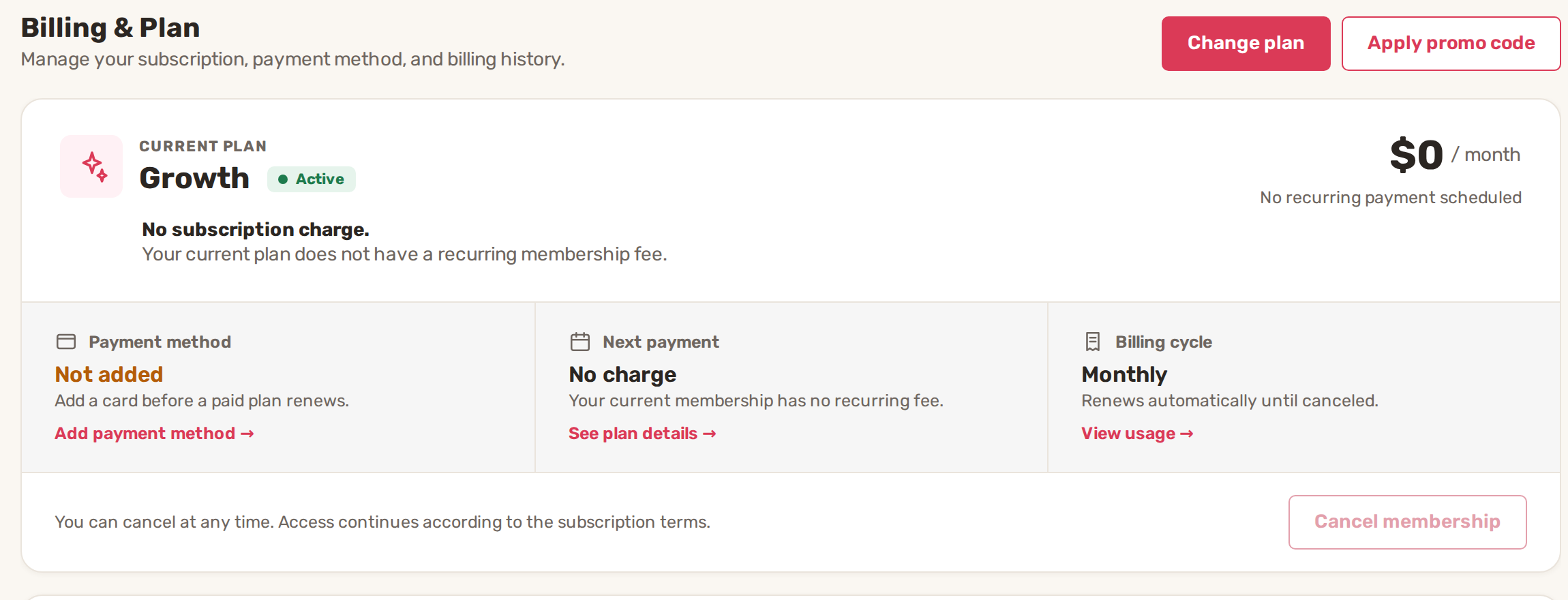
| Status | What it means |
|---|---|
| Included | Your plan's first 90 days, at $0. The card says what happens on the end date. |
| Active | Your plan renews automatically each month. |
| Canceling | You canceled. You keep access until the date shown, then the business moves to Essential. |
| Inactive | No working subscription. Choose a plan or pay the outstanding bill to restore full access. |
Upgrade your plan
- On Billing & Plan, click Change plan.
- On the plan you want, click Upgrade to and the plan name.
- If there's no working card on file, BizBaby asks you to add one first. Nothing is bought when you save the card.
- The Confirm plan change window shows the Plan, its Monthly price and what is Charged today. Click Confirm.
Charged today is the new plan's monthly price plus any extras not billed yet, minus any account credit. It's $0 during your included 90 days. The new plan's features open as soon as the charge goes through. If the card is declined, you see "Payment was declined" and your plan doesn't change.
Downgrade your plan
- On Billing & Plan, click Change plan.
- On the lower plan, click Downgrade to and the plan name.
Nothing is charged. BizBaby confirms the date the lower plan starts, which is your next billing date. Until then you keep everything your current plan includes, and Billing & Plan shows a note with the plan and the date, such as "Premium starts on" and your next billing date. To stay on your current plan after all, click Keep and your plan's name in that note.
Cancel your membership
- On Billing & Plan, click Cancel membership at the bottom of the plan card.
- Read the date in the window. That's the last day of your paid plan.
- Click Schedule cancellation, or Keep membership to close the window without changes.
Canceling doesn't delete your business. When the date comes, it moves to the free Essential plan and the features Essential doesn't include turn off. Your customers, jobs and invoices stay. If you own more than one business, only your primary business has the Cancel membership button available.
Add or change your card
- On Billing & Plan, under Payment method, click Add payment method or Change payment method.
- Enter the card number, expiration date, CVC and ZIP, then click Submit. Opening the window doesn't charge the card.
The card pays your monthly plan, extra users and usage charges. If it has expired or a charge was declined, Payment method shows it in orange with "expired" or "declined", and the link reads Update payment method. Update it before choosing a paid plan.
Bills, invoices and statements
Payment history shows one year at a time. Pick the year in the box at the top right.
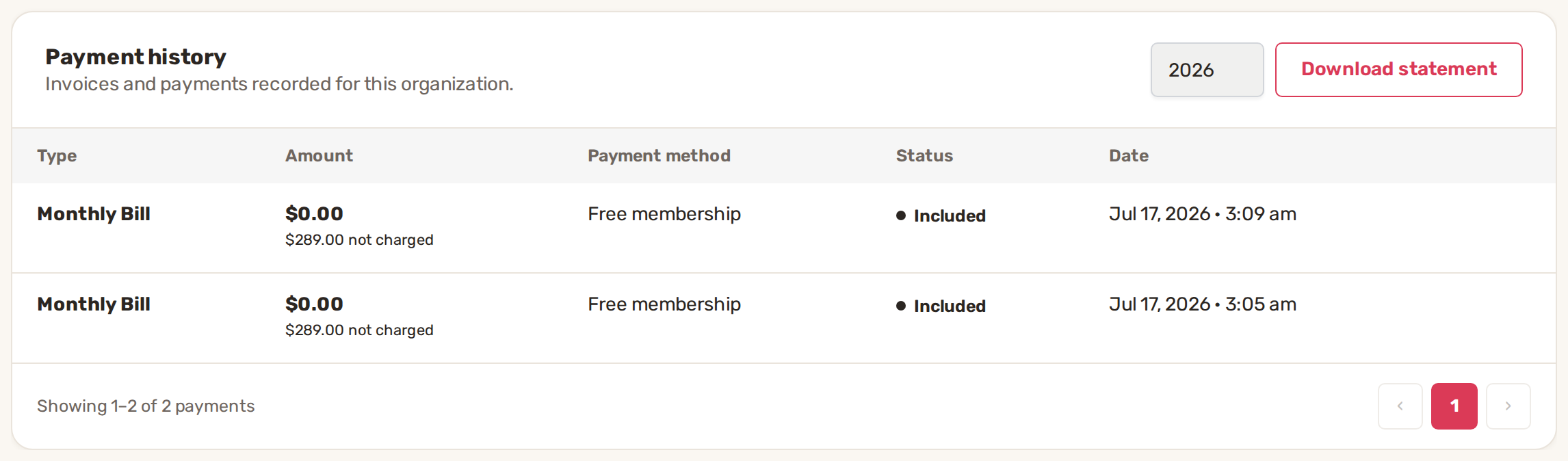
| Type | What it is |
|---|---|
| Monthly Bill | Your plan, plus monthly extras such as extra users and extra website pages. |
| Usage | Calls, texts, emails, AI and storage. Click View invoice for the breakdown, which you can also download as a PDF. |
| Website Purchase | A one-time website purchase, with its own View invoice. |
| Extra Charge, Refund | Other one-off charges and money returned to you. |
A bill your plan or free period covered shows $0.00 with the amount that wasn't charged under it, and Free trial or Free membership as the payment method. To keep a copy for your accountant, click Download statement. You get a spreadsheet (CSV) of that year with the date, type, amount, payment method, status and invoice link of every bill.
Apply a promo code
On Billing & Plan, click Apply promo code, type it in Promo Code and click Apply Code.
Common problems
- A bill shows Pay now. The charge didn't go through. Click Pay now to try the card on file again. An unpaid monthly bill keeps your paid plan active during a 7-day grace period. An unpaid usage bill pauses new usage until it's paid.
- A bill shows Update card and retry. The card on file has expired or was declined. Click it to put in a working card and pay the bill.
- "A quick billing check". There's an unpaid BizBaby bill. Click Review bill and pay it, then you can add team members or website pages again.
- Cancel membership is greyed out. This isn't your primary business. Cancel from the primary one.
- My downgrade didn't change anything. A downgrade starts on your next billing date. Check the note on Billing & Plan for the date.
Related
Was this article useful?
Keep reading
More Account and billing
Plans and what each includes
See the plans and your current one Click the gear icon at the top right, then Billing & Plan. Click Change plan. The pla...
Read guide →Two-step sign-in and account security
Verify your phone The first time you sign in, BizBaby shows Phone verification: "To keep your account safe, we need to v...
Read guide →Switch between businesses
Switch from the top of the page Click the small arrow to the right of your business name and plan at the top left. Click...
Read guide →Knowing what to charge is step one
First 3 months free. No card required. Bring the whole team.
Start Free Trial Back to Login