
Account and billing
Two-step sign-in and account security
In this article
Every BizBaby account needs a verified mobile phone. Once it's verified, signing in from a new device or location takes two steps: your password, then a 6-digit code BizBaby texts to that phone. This is always on and there's nothing to set up. BizBaby also emails you after a sign-in from a new IP address, so you notice if it wasn't you.
Verify your phone
The first time you sign in, BizBaby shows Phone verification: "To keep your account safe, we need to verify your phone number." You can't open any other page until it's done. This applies to owners, team members and admins alike.
- Check the number shown, or type your mobile number if none is shown.
- Click Send SMS message.
- Type the code from the text in Code and click Check.
- Click Continue.
No text? Click Resend SMS, or Call me instead to hear the code. If the number is wrong, click Change phone number. A number already used by another BizBaby account can't be used again. Log out to use another account is the only other way off this page.
Sign in with a code
When you sign in from a device or location BizBaby hasn't seen for your account, the Multifactor Authentication window opens after your password. It says the code went to your phone number ending in the last few digits shown.
- Open the text from BizBaby. It reads "BizBaby: DO NOT share this Secured code" and holds a 6-digit code.
- Type the code in Code and click Verify.
From then on that location signs in with your password alone. BizBaby never calls or texts you to ask for this code. Anyone who asks for it is not BizBaby.
| Message | What to do |
|---|---|
| Code you entered is incorrect | Type it again, or click Resend code for a new one. |
| It's been more than 5 minutes | A code works for 5 minutes. Click Resend code. |
| Too many verify code attempts | You get 5 tries. Wait the number of seconds shown, then try again. |
The new sign-in email
After a sign-in from a new IP address, BizBaby sends your account email a routine security alert headed "We’ve noticed a new login". It lists the time, IP address, location and browser. If it was you, ignore it. If it wasn't, change your password straight away.
Change your password
- Click your initials at the top right, then My profile.
- Click Change password.
- Type your Old Password, then the New Password twice.
- Click Change password. The button turns on once every requirement is met.
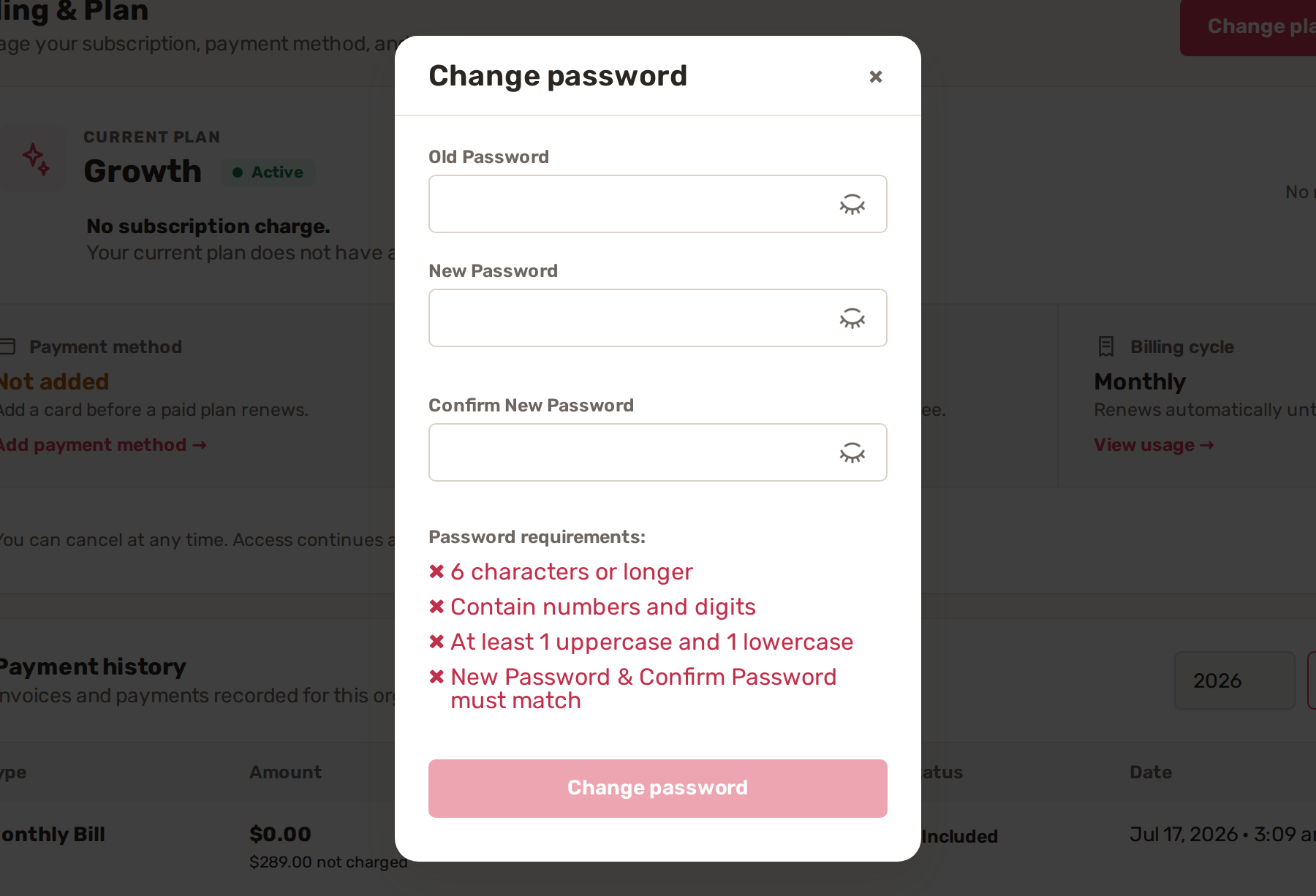
A password needs 6 characters or more, with a number, an uppercase and a lowercase letter. Forgot it? Click Forgot password? on the sign-in page and BizBaby emails you a reset link.
Change the phone that gets your codes
Click your initials, then My profile and Edit. Change Phone and click Save. Use a mobile you always have with you: it's where every sign-in code goes.
Codes go to one phone per account, so don't share your sign-in with your team. Invite each person instead, with only the access they need.
Common problems
- No code arrives. Check the last digits shown match your phone, wait a minute, then click Resend code. For more help, see I can't sign in or didn't get the code.
- I have a new phone number. Sign in from a place you've used before and change Phone in My profile. If you can't, contact BizBaby support.
- "You have tried too many times." On Phone verification, click Change phone number and enter the number again.
Related
Was this article useful?
Keep reading
More Account and billing
Change plan, cancel, payment method and invoices
Your Billing & Plan page Only people who can open your business settings see this page. It shows your Current plan and i...
Read guide →Plans and what each includes
See the plans and your current one Click the gear icon at the top right, then Billing & Plan. Click Change plan. The pla...
Read guide →Switch between businesses
Switch from the top of the page Click the small arrow to the right of your business name and plan at the top left. Click...
Read guide →Knowing what to charge is step one
First 3 months free. No card required. Bring the whole team.
Start Free Trial Back to Login