
Scheduling and dispatch
Tasker: tasks for your team
In this article
Tasker holds the small jobs around the real work: pick up materials, call a customer back, chase a signature. Each task has one owner, or sits Unassigned in the team queue until someone claims it. Click Tasker in the menu on the left. My Tasks is your own list; Team Tasks is where owners and managers hand work out.
Where to find it
Click Tasker in the menu on the left. It opens My Tasks, the work assigned to you, sorted by what needs attention first, on the Today tab. If Tasker isn't in your menu, your plan doesn't include it.
| Page | Who sees it | What it's for |
|---|---|---|
| My Tasks | Everyone on your team | Your own tasks, in tabs: Overdue, Today, Upcoming, No due date and Completed. |
| Team Tasks | The owner, and team members with Team task management | Every task in the business, in tabs: Unassigned, Overdue, All Open and Completed. |
To open Team Tasks, click Team tasks at the top of My Tasks. To give a team member access, turn on Team task management in their permissions. See Add your team and choose what each person can see.
1. Create a task
- On Team Tasks, click New team task. On My Tasks, click New task instead; a task made there is always assigned to you.
- Type the Task title: one clear action, such as "Pick up materials before tomorrow's visit".
- Add Helpful details if the person doing it needs them.
- Set the Due date. It starts on today. Click Clear for no deadline.
- Pick the Assigned person, or leave it on Unassigned so anyone on the team can claim it.
- Choose how often it Repeats: Doesn't repeat, Daily, Weekly, Every 2 weeks, Monthly or Yearly.
- Click Create task.
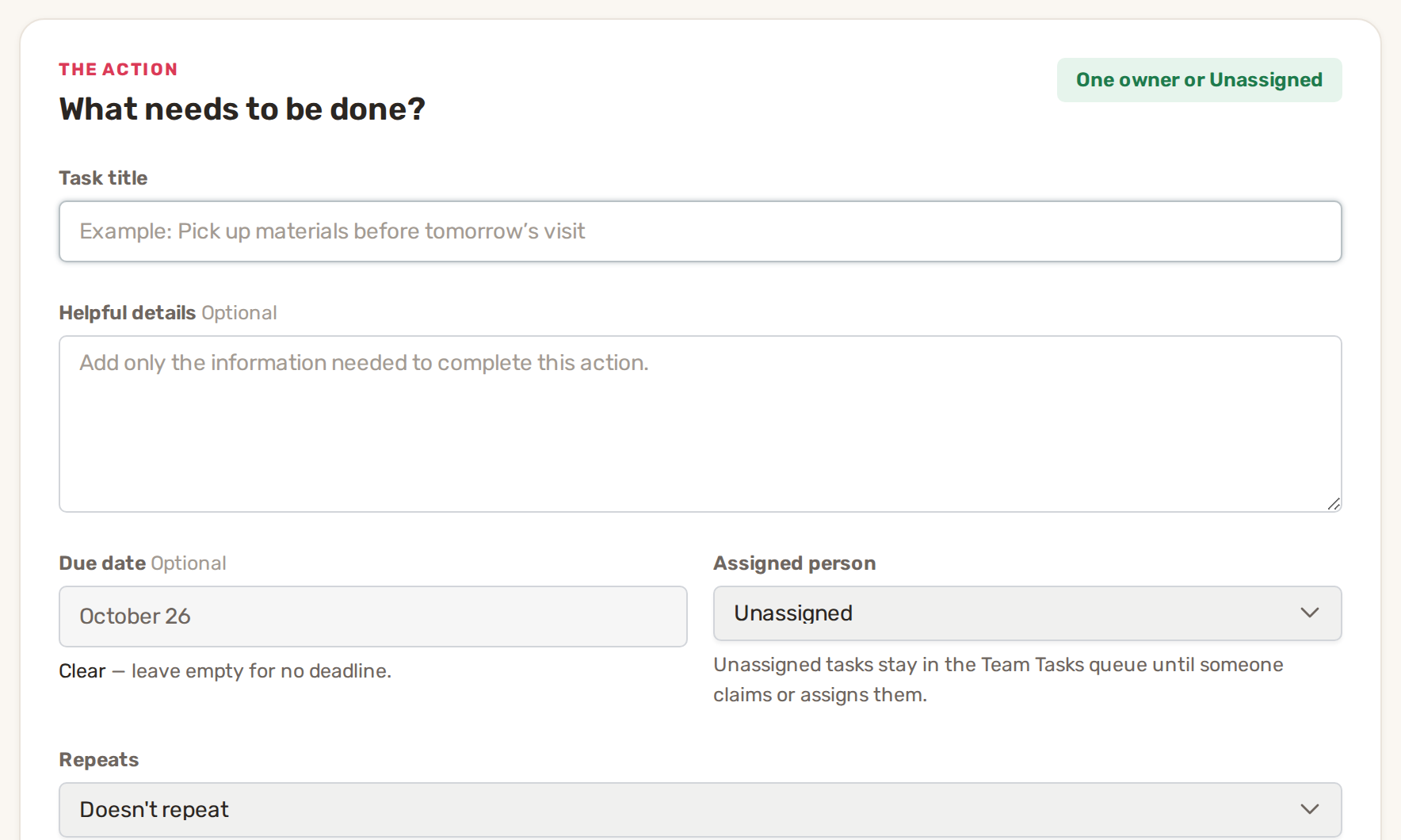
Below that, two optional sections:
- Link it to the work. Pick a Customer (type to search), then a Linked record: one of their records, such as a job, an estimate, a visit or an invoice. The task opens with a link straight to that record. Changing the customer clears the linked record.
- Add supporting files. Click Upload Pictures / Files to attach photos or documents. Photos are compressed before they count towards your storage.
Open a request, estimate, job, visit or invoice and click Create task. The new task form opens with the customer and the record already linked.
Tasks also arrive on their own. An automation can create a to-do for the team, for example when an appointment is booked. See How automations work.
Repeating tasks
A repeating task needs a due date. When you complete it, BizBaby creates the next one with the next due date. To end the series, open the task and click Stop repeating.
2. Work through your tasks
Each task on My Tasks shows its due time, its status and any linked customer or record. The buttons on it depend on its status:
| Status | What you can do |
|---|---|
| To do | Start, Complete or Block. |
| In progress | Complete or Block. |
| Blocked | Unblock puts it back in your open work. Complete still works. |
| Completed, Canceled | The owner or a manager can Reopen it. |
Block asks What are you waiting on? Type a short Blocked reason and click Mark blocked. The reason shows on the task as "Waiting on: …" so whoever picks it up knows what has to happen next.
Click a task's title to open it. The task page shows its details, the linked customer and record, attachments and an Activity history of who did what. The owner and managers can also click Edit task or Cancel task there.
3. Hand out work on Team Tasks
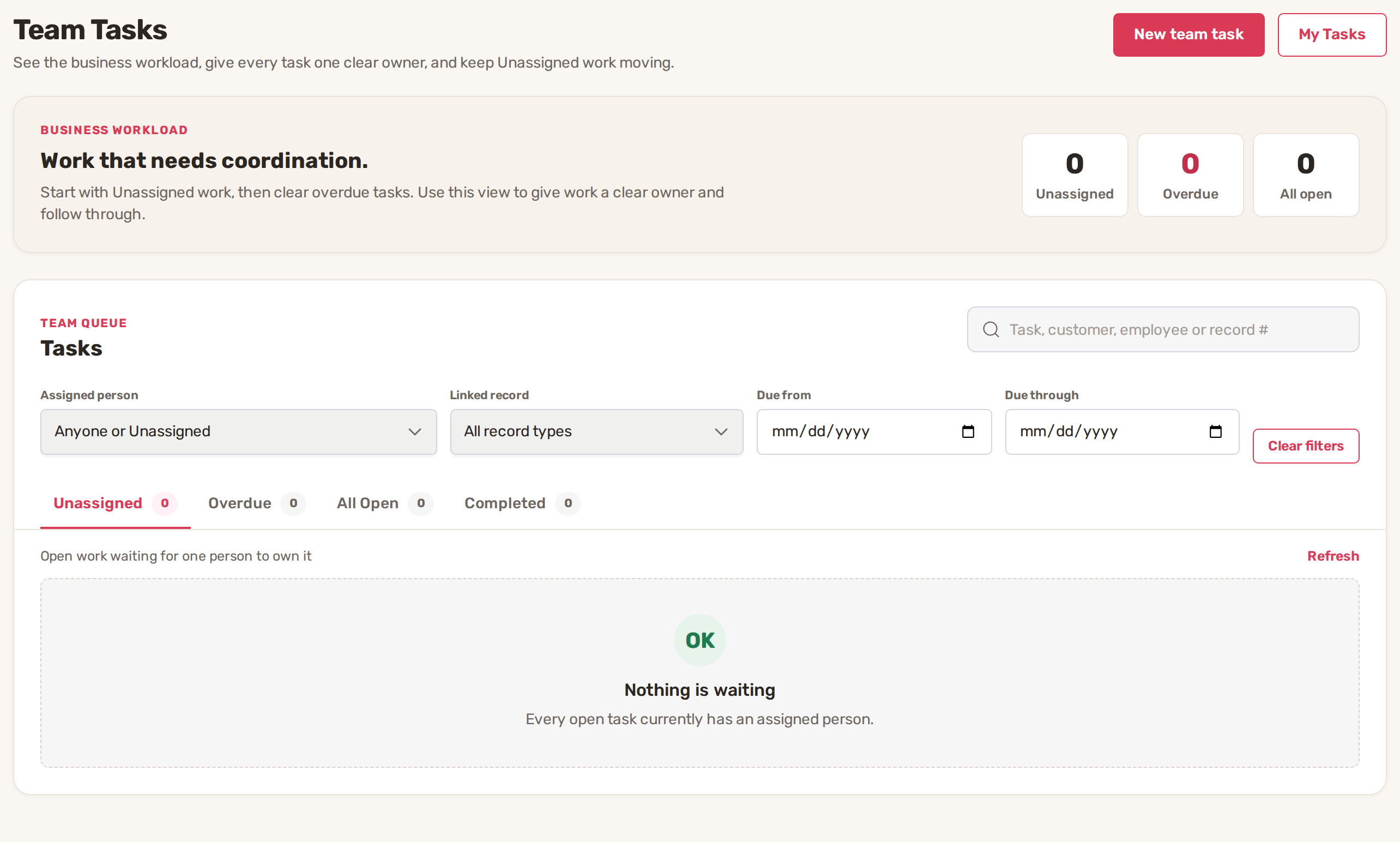
- Assign or reassign. Each open task has a person picker. Choose someone, or Unassigned to put it back in the team pool.
- Claim. On an unassigned task, Claim makes it yours.
- Cancel an open task that's no longer needed. Reopen brings back a completed or canceled one.
- Filter by Assigned person, Linked record type, Due from and Due through, or search by task, customer, employee or record number. Clear filters resets them.
What your workers see
Team members without Team task management see only tasks assigned to them, on My Tasks. A field worker also sees them in the Worker Cabinet, next to their jobs and appointments, and can complete them there. See The worker cabinet: what workers see.
With the BizBaby phone app, the assigned person gets a notification when a task is assigned or reopened, when it's due today and when it's overdue. Each person can turn these off on their own phone.
Common problems
- Tasker is missing from the menu, or opens the plans page. Your plan doesn't include Tasker.
- No Team tasks button. You need Team task management, or to be the owner.
- "A repeating task needs a due date so the next one can be scheduled". Set a due date, or choose Doesn't repeat.
- "Only an Unassigned task can be claimed". Someone else claimed it first. Click Refresh.
- "The assignee must be an active employee or the owner of this business". That person has left or been deactivated. Pick someone else.
- A worker can't see a task. It's assigned to someone else or Unassigned. Assign it to them on Team Tasks.
Related
- The worker cabinet: what workers see
- Add your team and choose what each person can see
- Assign workers and dispatch
- How automations work
Was this article useful?
Keep reading
More Scheduling and dispatch
Appointments and the calendar
Before you start Set the hours customers can book. On the Appointments page, click Service Settings. On the Work setup p...
Read guide →Assign workers and dispatch
1. Decide who gets booked automatically Each appointment service has its own list of workers. When a customer books onli...
Read guide →Scheduling modes: Standard and Advanced
Standard or Advanced ModeYou chooseBizBaby does StandardThe day and the arrival time.Offers your business's days and arr...
Read guide →Knowing what to charge is step one
First 3 months free. No card required. Bring the whole team.
Start Free Trial Back to Login