
Automations and notifications
Built-in automations: what is on by default and how to change them
In this article
Built-in automations are the emails and texts BizBaby sends to your customers for you: estimate and invoice emails, reminders, the welcome email, appointment texts and receipts. You'll find them on the Automations page, marked Built-in or Required. Built-in rows can be switched on or off and their emails redesigned. Required rows always stay on. A new business starts with the welcome email and texts on, and the estimate and invoice emails and reminders off.
Where to find them
Click Automations in the menu on the left. Under My Automations, the built-ins are grouped as Estimates, Invoices & getting paid, New customers & win-back, Appointments and Receipts & required. Each row says in plain words what starts it and when it goes out.
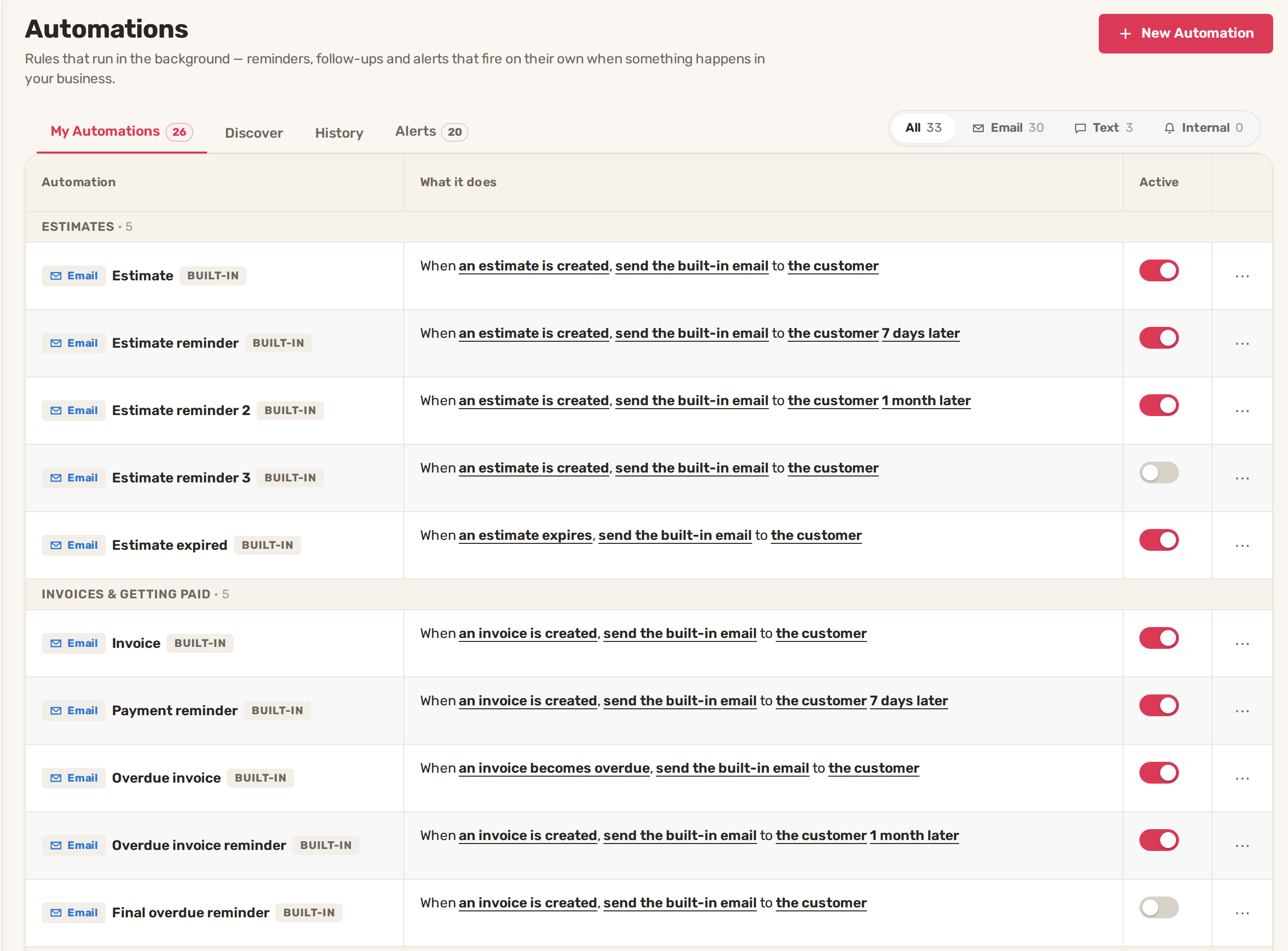
Every built-in and how it starts
"Starts" is the setting for a brand-new business. Your own switches may differ.
| Automation | What it sends | Starts |
|---|---|---|
| Estimate | The estimate email, when an estimate is created. | Off |
| Estimate reminder | A reminder 7 days after the estimate was created. | Off |
| Estimate reminder 2 | A second reminder 1 month after. | Off |
| Estimate reminder 3 | A last reminder 60 days after. | Off |
| Estimate expired | A note to the customer when the estimate expires. | Off |
| Invoice | The invoice email, when an invoice is created. | Off |
| Payment reminder | A reminder 7 days after the invoice was created. | Off |
| Overdue invoice | A notice when the invoice becomes overdue. | Off |
| Overdue invoice reminder | A reminder 1 month after the invoice was created. | Off |
| Final overdue reminder | A last reminder 60 days after. | Off |
| Welcome email | An email with the customer's portal link, when you send a portal invitation. | On |
| Text invitation | The same invitation by text. | On once texting is registered |
| Feedback request | An email 3 days after a job is completed. | Off |
| Lost customers | An email when a customer has gone quiet, 30 days after their last visit. | Off |
| Appointment scheduled text | A text with the time, when an appointment is scheduled. | On once texting is registered |
| Visit scheduled text | A text with the time, when a visit is scheduled. | On once texting is registered |
Estimate reminders go out only while the estimate is still waiting for approval. Payment and overdue reminders go out only while the invoice is still unpaid. Once the customer approves or pays, the rest are dropped. Drafts are never emailed automatically.
The Estimate and Invoice rows only control the automatic email when one is created. When you send an estimate or invoice yourself, it's emailed either way.
Required emails
The Receipts & required group holds emails customers need, so they show 🔒 On and can't be switched off: the service invoice, receipts, payment failed and refunded notices, updated estimates and invoices, job request confirmations, appointment confirmations and cancellations, visit notices, bank and card verification notices, and an email when a Chat message has waited unread for 30 minutes.
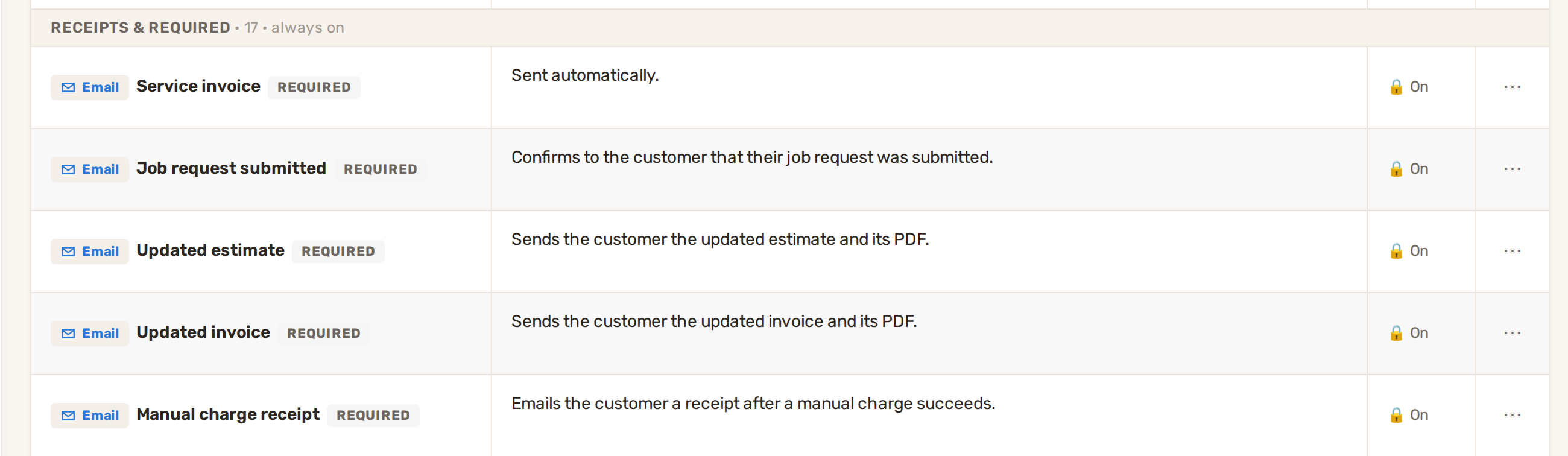
Their design comes from BizBaby, with your logo and colours from Email design. Click ⋯ on a row to Preview it or Send test.
Change a built-in
- Switch it on or off with its Active switch. A switched-off row keeps its settings; anything it had waiting is canceled.
- Change the words or layout: click ⋯ → Email design. See Set up your email templates and sender details.
- See it or try it: ⋯ → Preview shows it as your customer will, and ⋯ → Send test sends it to you.
- Change when it goes out: you can't. What starts a built-in and its timing are fixed. Switch it off and create your own automation with the timing you want. If yours sends the same email as a built-in that is still on, BizBaby warns you first.
Built-in automations can't be deleted, only switched off. Built-in rows (not Required ones) wait for your working hours, so customers don't get an email at 2 am.
Built-in texts
The three built-in texts show 🔒 Off with a red ! until your business number is registered for texting, which US carriers require. Point at the lock (tap it on a phone) to see why, and click Register. See Text messaging registration (A2P 10DLC).
Related
- How automations work
- Email and text notifications to customers
- Set up your email templates and sender details
- Why a customer didn't get an email or text
Was this article useful?
Keep reading
More Automations and notifications
Email and text notifications to customers
What your customers get, step by step WhenEmailText They send a requestJob request submitted, confirming you got it. Alw...
Read guide →Set up your email templates and sender details
1. Choose who your emails come from Go to gear icon → Business Information. The Business email address card holds the ad...
Read guide →How automations work
Before you start Set up your email templates and sender details. Set your working hours in gear icon → Business Settings...
Read guide →Knowing what to charge is step one
First 3 months free. No card required. Bring the whole team.
Start Free Trial Back to Login