
Automations and notifications
Set up your email templates and sender details
In this article
Three things decide how your customer emails look and who they come from. Your Business email address is the sender. Email design sets your logo, colours, font, footer and buttons for every email at once. The wording of each email (estimate, invoice, reminders) is edited one at a time from Automations. Set them up in that order, before your first estimate goes out.
1. Choose who your emails come from
Go to gear icon → Business Information. The Business email address card holds the address your quotes, invoices and reminders are sent from. When a customer clicks reply, the reply goes to the same address. Until you set one, emails go out from a BizBaby no-reply address.
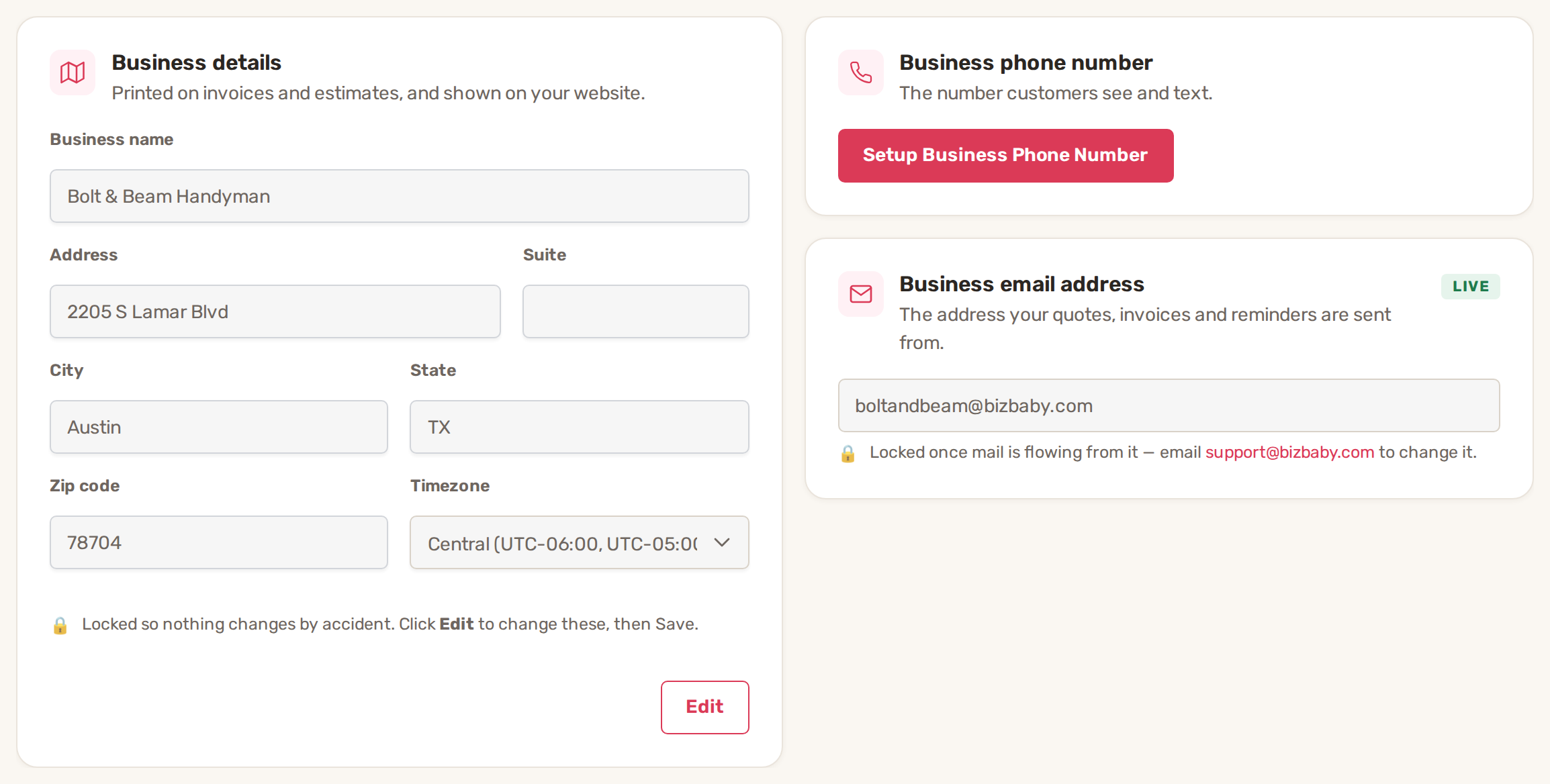
- On the Business email address card, click Setup Business Email.
- Pick one of the options below.
| Option | What happens |
|---|---|
| Create a BizBaby email | Type an Email name, click Check availability, then Create email. The address ends in @bizbaby.com and can send and receive. This is the fastest way. |
| Use an email on your domain | Click Set up owned domain and enter an address such as hello@yourbusiness.com. You need access to your domain's DNS settings: the next step gives you the MX and CNAME records to add. All email sent to any address at that domain then arrives in BizBaby, not your current mailbox. Gmail, Yahoo, Outlook and BizBaby addresses can't be connected. |
| Continue without email | Click Skip email setup. Your customer emails keep going out from the BizBaby no-reply address. |
The card shows In setup while a domain connection is unfinished; click Continue the setup to pick it up again. Once it shows Live, the address is locked. To change it later, email support@bizbaby.com.
The business email is part of the Call & Message Center, so your plan must include it.
2. Set the look of every email
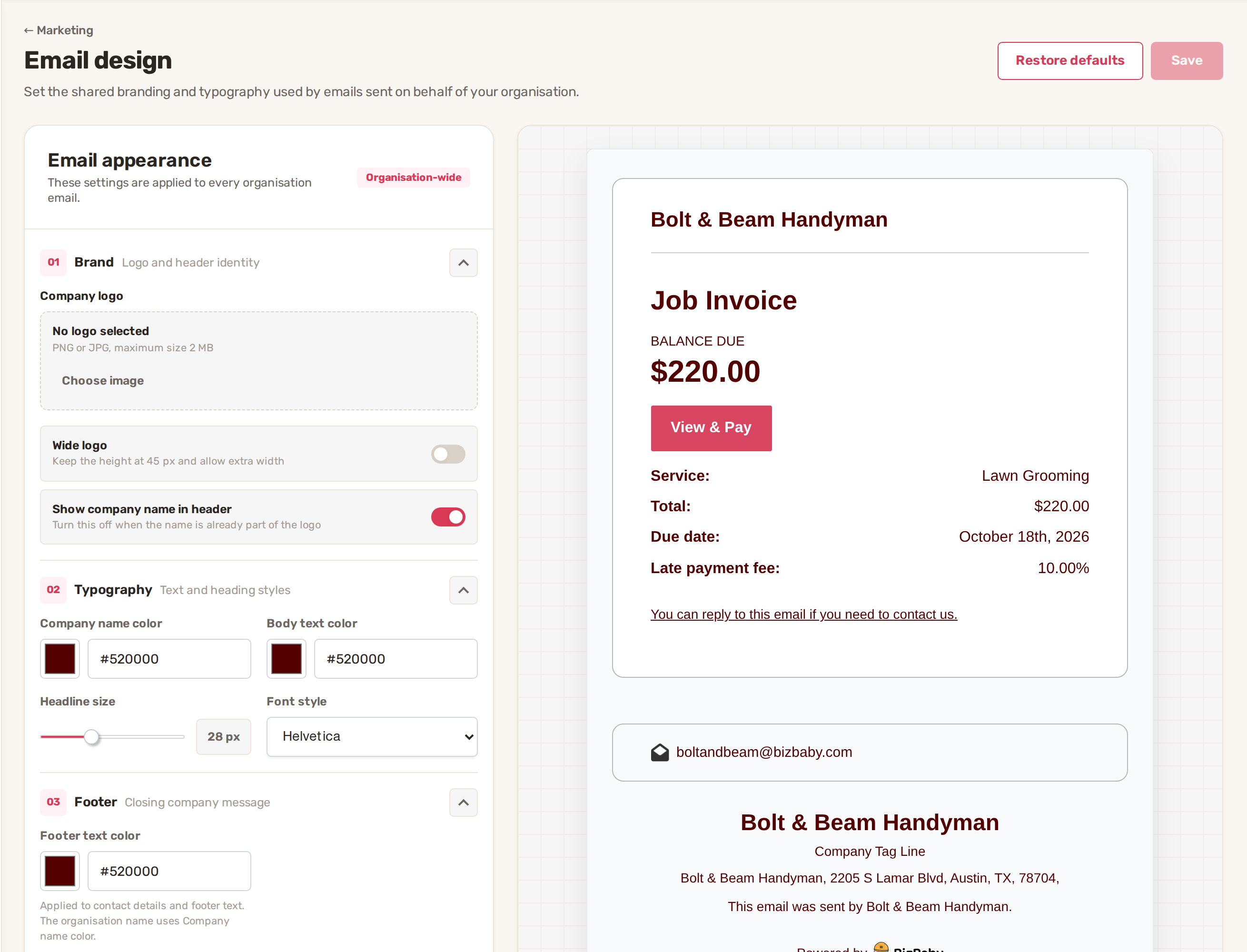
Email design is one design for all the emails BizBaby sends for you: estimates, invoices, reminders and receipts. Open it from Marketing → Design Email Template, or click Design the Email in the Getting Started List.
| Section | What you set |
|---|---|
| Brand | Company logo (PNG or JPG, up to 2 MB). Turn on Wide logo for a logo wider than it is tall: it keeps a height of 45 px and takes extra width. Turn off Show company name in header when your logo already spells out your name. |
| Typography | Company name color, Body text color, Headline size and Font style. |
| Footer | Footer text color and a Company tag line, shown above your business details at the bottom of the email. |
| Buttons | Button color, Button text color, Button border color and Border radius, for buttons such as View & Pay. |
Click Save at the top right. Until you do, the page shows Unsaved changes. Restore defaults replaces your saved design with BizBaby's original one; it doesn't just undo your last change.
If your plan doesn't include email design, Design Email Template takes you to the BizBaby plans page instead.
3. Change the words of each email
Each email BizBaby sends has its own row on the Automations page, and its own wording.
- Click Automations in the menu on the left. In the Getting Started List, Review Emails opens the same page.
- Find the email, for example Estimate, click ⋯ on its row and choose Email design.
- Click a block in the middle to edit it. Its settings open on the right.
- To add a block, click one under Add a block on the left or drag it into place: Button, Greeting, Heading, Image, Text, a Divider or a spacer.
- Check it with Preview, and with Phone to see the small-screen version.
- Click Save email.
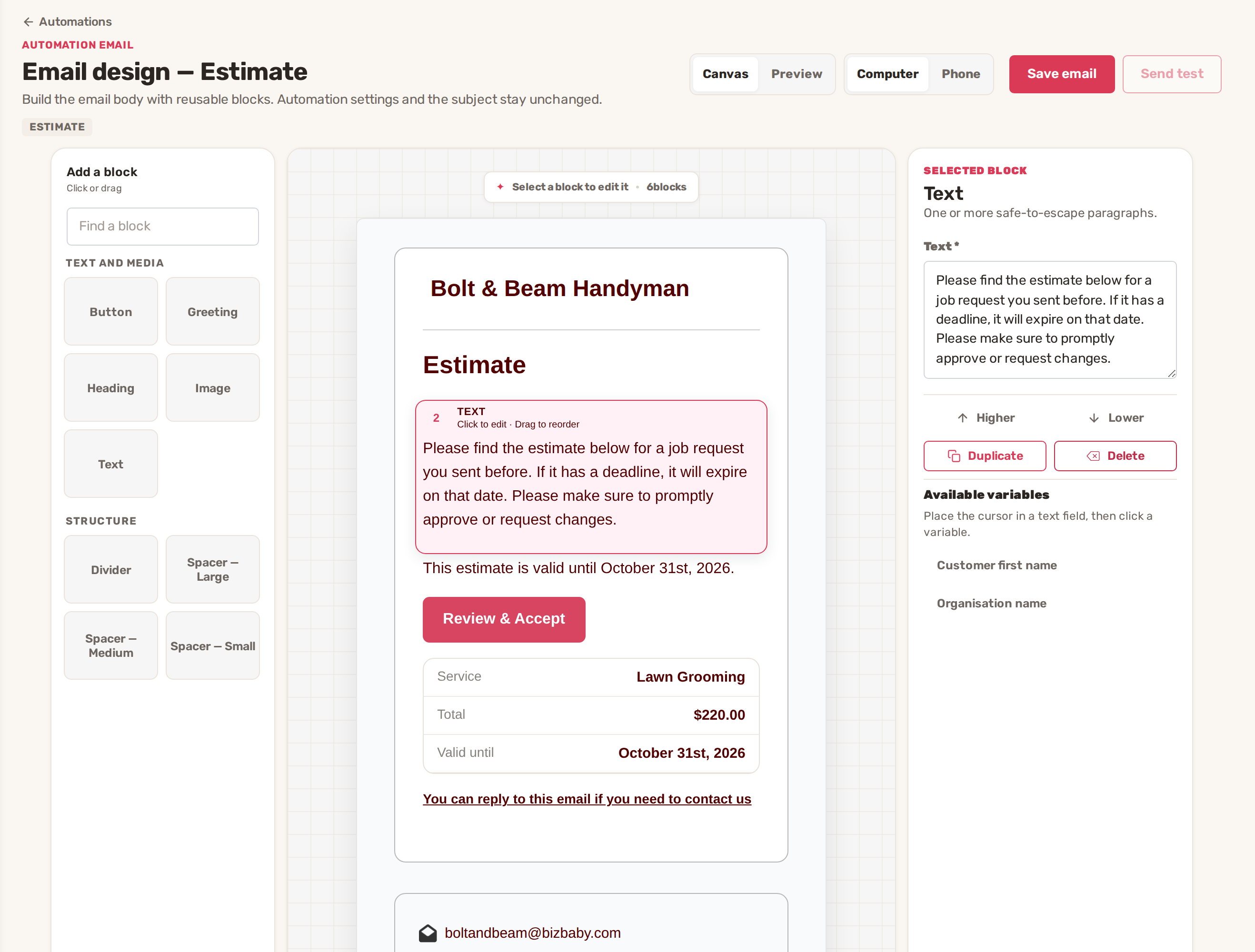
- Use Higher and Lower to move a block, or Duplicate and Delete.
- The subject line and when the email goes out don't change here. This page only edits the body.
- Send test sends the saved email to you.
- Reset to default removes your version and goes back to BizBaby's current wording.
- Rows marked Required, such as receipts, can't be redesigned. Use ⋯ → Preview to see them.
On the Automations page, ⋯ → Preview shows any email as your customer will see it, and ⋯ → Send test sends it to you. Do this for your estimate and invoice emails after you change the design.
Common problems
- Customers see a BizBaby no-reply address. No business email is set yet. Do step 1.
- "This address is already in use". Someone already has that BizBaby address. Try a different email name.
- "This address could not be connected". Check the address you typed. Addresses from Gmail, Yahoo, Outlook and BizBaby can't be connected as your own domain.
- The Business email address card has no button, only Live. The address is locked once mail is flowing. Email support@bizbaby.com to change it.
- My logo is tiny or squashed. For a wide logo, turn on Wide logo in Email design.
- Email design isn't in the row menu. The row is a Required email, or a text message. Texts are written in the automation itself.
Related
- Built-in automations: what is on by default and how to change them
- How automations work
- Set up your business in the first hour
- Send marketing email from your own domain
Was this article useful?
Keep reading
More Automations and notifications
Built-in automations: what is on by default and how to change them
Where to find them Click Automations in the menu on the left. Under My Automations, the built-ins are grouped as Estimat...
Read guide →Email and text notifications to customers
What your customers get, step by step WhenEmailText They send a requestJob request submitted, confirming you got it. Alw...
Read guide →How automations work
Before you start Set up your email templates and sender details. Set your working hours in gear icon → Business Settings...
Read guide →Knowing what to charge is step one
First 3 months free. No card required. Bring the whole team.
Start Free Trial Back to Login