
Automations and notifications
Email and text notifications to customers
In this article
BizBaby keeps your customers posted by email and text at each step: their request, your estimate, the appointment or visit, the invoice and the payment. Every one of these messages is a row on the Automations page, where you see what goes out and switch the optional ones on or off. Texts go out only after your business number is registered for texting.
What your customers get, step by step
| When | Text | |
|---|---|---|
| They send a request | Job request submitted, confirming you got it. Always on. | None |
| You send an estimate | Estimate, with a Review & Accept button. Updated estimate if you change it. Up to three reminders while it waits for approval, and Estimate expired. | None |
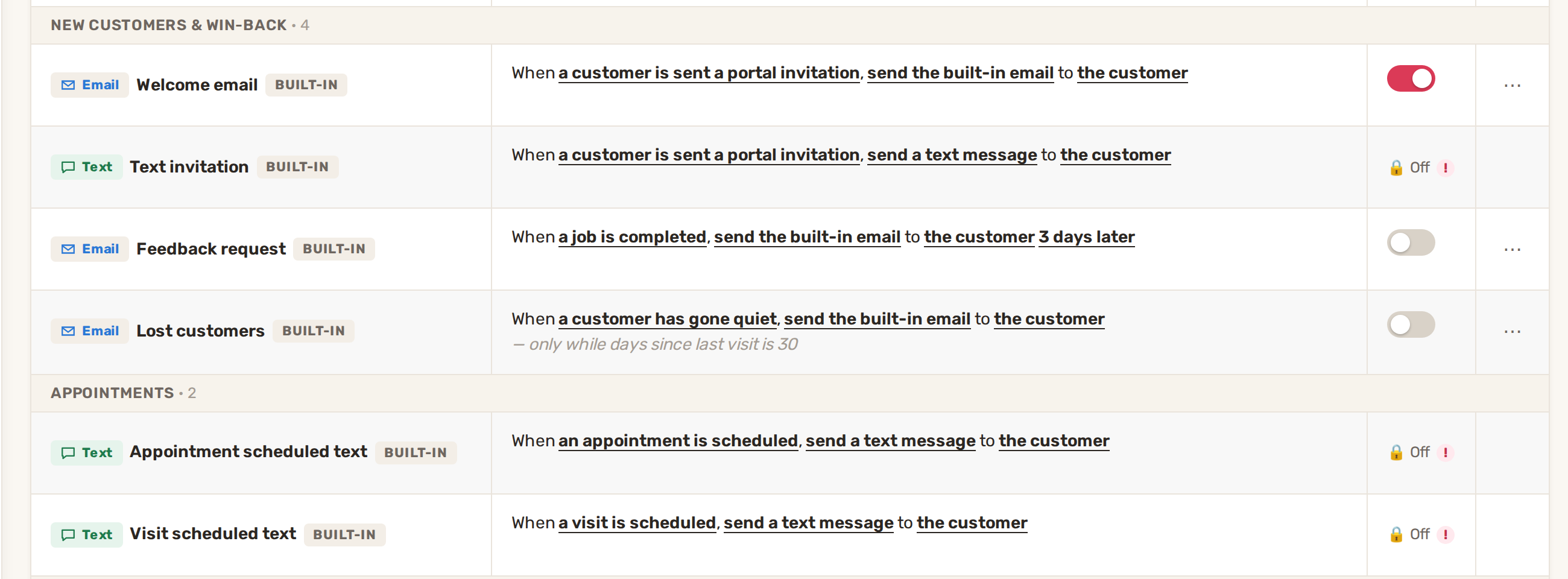
| An appointment is booked | Appointment confirmation, and Appointment canceled if it's canceled. Always on. | Appointment scheduled text, with the time. |
| A visit is scheduled | Visit scheduled. Always on. | Visit scheduled text, with the time. |
| The job is done | Feedback request, 3 days later. | None |
| You send an invoice | Invoice, with a View & Pay button. Updated invoice if you change it. A payment reminder, then overdue notices while it's unpaid. | None |
| They pay | A receipt. Payment failed or Payment refunded when that happens. Always on. | None |
| You invite them to the portal | Welcome email, with their portal link. | Text invitation, with the same link. |
| They go quiet | Lost customers, 30 days after their last visit. | None |
Rows marked "Always on" are Required and can't be switched off. The rest are optional, and some start switched off. Built-in automations lists each one with its timing and whether it starts on or off.
Choose which ones go out
- Click Automations in the menu on the left.
- Use the Email and Text filters at the top right to see one kind at a time.
- Flick the Active switch on a row to turn it on or off.
- To see an email as your customer will, click ⋯ → Preview. ⋯ → Send test sends it to you.
Want a message BizBaby doesn't send? Add a ready-made one from the Discover tab or build it with New Automation. See How automations work.
Texts need registration first
US carriers require every business that texts customers to register its number (A2P 10DLC). Until yours is registered, the built-in texts show 🔒 Off and nothing is texted. Point at the lock (tap it on a phone) and click Register, or see Text messaging registration (A2P 10DLC). Once registered, the built-in texts turn on. A text also needs a phone number on the customer's record.
What customers can turn off
Your marketing emails carry an Unsubscribe link. It opens an Email & text preferences page where the customer turns each kind of message on or off.
| Choice | What it covers |
|---|---|
| Service updates | Emails about services, orders and account activity. Marked Recommended. |
| Promotions & offers | Discounts, special offers and promotional emails. |
| Job completion | A text when a job or service is marked complete. |
| Visit updates | A text when a worker is on the way or a scheduled visit changes. |
| Appointment reminders | A reminder before a scheduled visit or job begins. |
These choices apply to your marketing campaigns and to automations you create yourself, when you pick a Customer preference category for them. The built-in emails and texts in the table at the top still go out. The page itself tells customers that some account, billing and legally required messages may still be sent. Every new customer starts with everything on.
Before your first customer
- Set your sender and your email look: Set up your email templates and sender details.
- Switch on the estimate and invoice emails and reminders you want.
- Register your number for texting.
- Make sure customers have an email address and a phone number on their record. Without one, that message is skipped.
Related
- Built-in automations: what is on by default and how to change them
- Why a customer didn't get an email or text
- How automations work
- The customer portal: what customers see and how to invite them
Was this article useful?
Keep reading
More Automations and notifications
Built-in automations: what is on by default and how to change them
Where to find them Click Automations in the menu on the left. Under My Automations, the built-ins are grouped as Estimat...
Read guide →Set up your email templates and sender details
1. Choose who your emails come from Go to gear icon → Business Information. The Business email address card holds the ad...
Read guide →How automations work
Before you start Set up your email templates and sender details. Set your working hours in gear icon → Business Settings...
Read guide →Knowing what to charge is step one
First 3 months free. No card required. Bring the whole team.
Start Free Trial Back to Login