
Customers
Customer notes, files and history
In this article
Everything about one customer lives in their record. Click Customers in the menu on the left, then click the customer's row. Customer Info holds their balance, details, a Comment box for notes and their Images / Files. The Projects, Appointments, Subscriptions and Overview tabs show the work and money that went through them. Files you upload start hidden from the customer.
Open a customer's record
- Click Customers in the menu on the left.
- Find the customer. Type a name, email or phone number in the search box to narrow the list.
- Click their row. The record opens over the page, with their phone, address and email at the top.
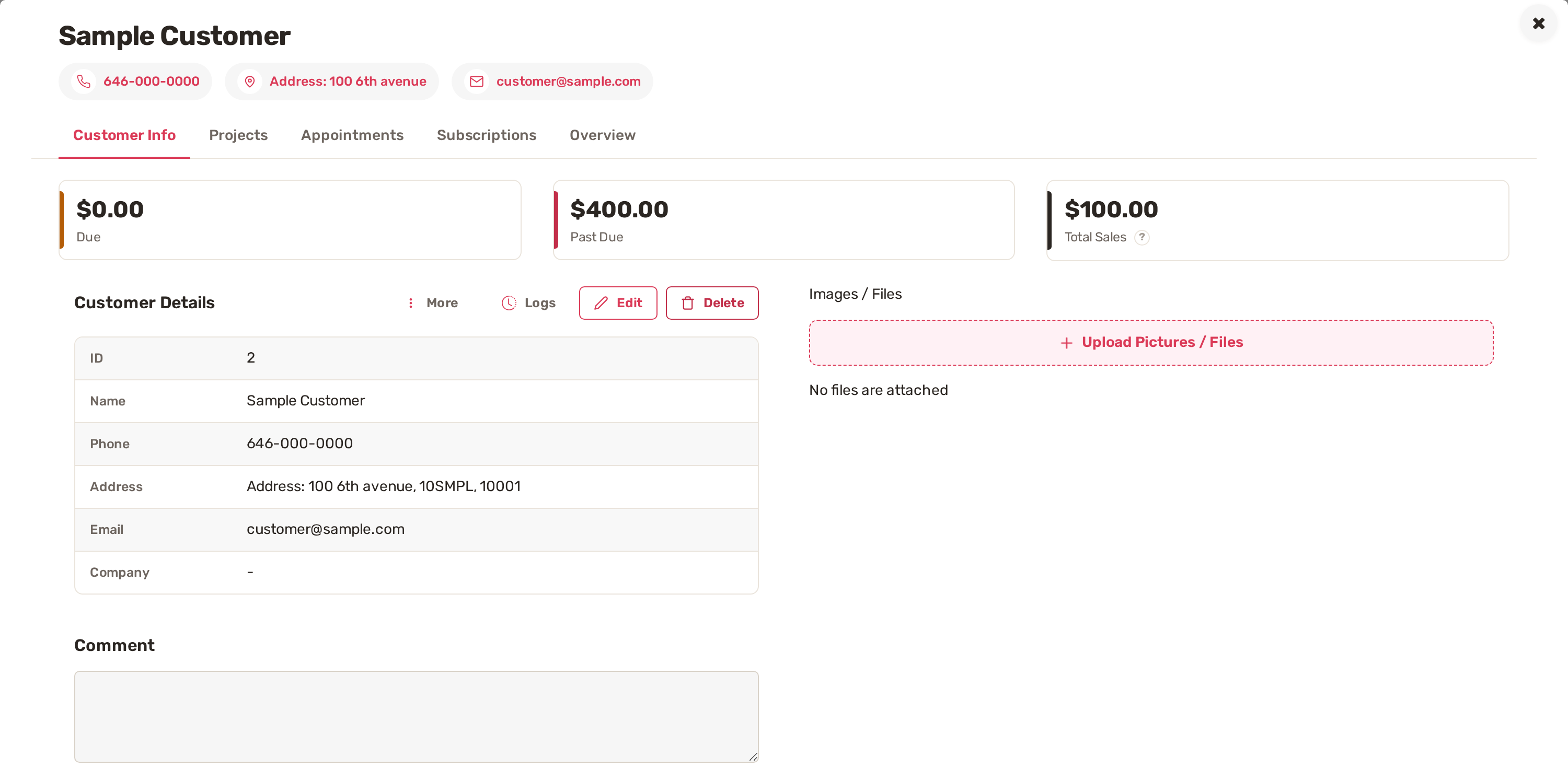
| Box | What it shows |
|---|---|
| Due | Money the customer owes you. |
| Past Due | What the customer owes that is past its due date. |
| Total Sales | Every successful payment this customer has made, across appointments and invoices, added up once. It counts what was collected before refunds and fees. |
Keep notes on a customer
The Comment box under Customer Details is for notes your team should see every time they open this customer: a gate code, where to park, who to ask for. It's the same text you typed in Customer Details when you added them.
- Next to Customer Details, click Edit. The Comment box becomes editable.
- Type your note.
- Click Save at the bottom of the window.
The Company field in the same place is for a business name, if the customer is one.
Add photos and files
- On Customer Info, under Images / Files, click Upload Pictures / Files.
- In Upload Documents, drag your files in or click browse your file, then click Upload. The window lists the formats it accepts and the size limit for documents.
Each file shows its name, size and the date it was added. Use the buttons on its row:
- Download saves a copy. Images also have Preview.
- The eye button decides whether the customer can see the file. New files start as Hidden from customer. Click the eye to show it, click it again to hide it.
- The × on the right deletes the file.
See the customer's history
The tabs across the top of the record show everything you have done for this customer.
| Tab | What's on it |
|---|---|
| Projects | Each job, from request to invoice, with the service, the date it came in and where it stands now. |
| Appointments | Booked appointments. |
| Subscriptions | Repeating appointments and payments. |
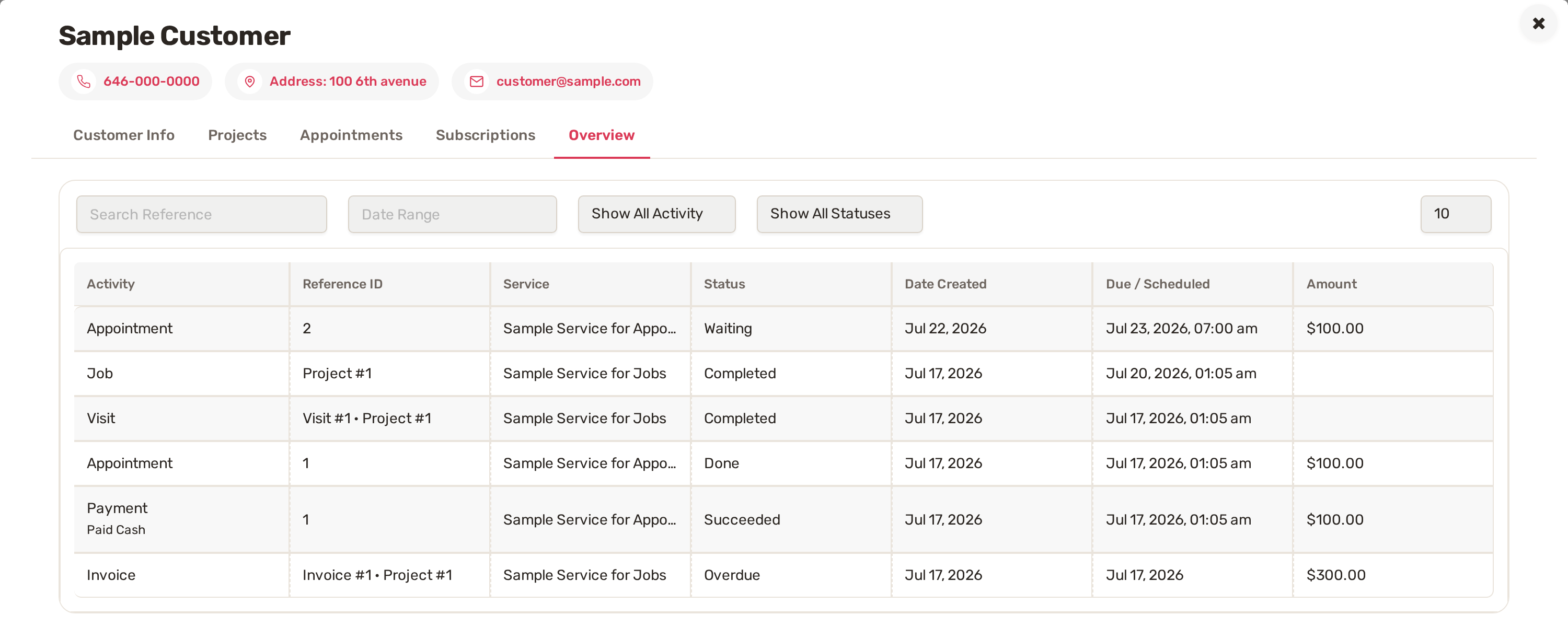
| Overview | One list of every appointment, job, visit, invoice and payment, with its reference, service, status, dates and amount. |
Logs, next to Edit, opens the log for the customer's record.
Search the list by the phone number they are calling from. Their record has their balance and every job in one place.
Common problems
- Upload Pictures / Files and Edit are greyed out. This customer has been deleted. Their record can be read but not changed.
- The Comment box won't let you type. Click Edit first.
- Only Customer Info shows, no Projects or Appointments. Your plan is a website-only plan, which doesn't include jobs or appointments.
Related
- Add, edit and delete customers
- The customer portal: what customers see and how to invite them
- How a job moves: request, quote, job, visit, invoice
Was this article useful?
Keep reading
More Customers
Add, edit and delete customers
Your customer list Click Customers in the menu on the left. Customer management lists everyone you serve, with their pho...
Read guide →Brand the customer portal
1. Add your logo The portal shows your logo next to your business name. Without one, it shows your business initials. Go...
Read guide →The customer portal: what customers see and how to invite them
What customers see The portal shows your business name and logo at the top, with Client portal under it. The menu has th...
Read guide →Knowing what to charge is step one
First 3 months free. No card required. Bring the whole team.
Start Free Trial Back to Login