
Customers
The customer portal: what customers see and how to invite them
In this article
The customer portal is a private page with your business name on it, where a customer signs in to see their projects, appointments and invoices, pay, update their details and message you. Invite a customer by ticking Send customer a welcome email. when you add them, or later from their record with More → Send a link to personal cabinet. The full portal is included on the Premium and Growth plans. On every plan, customers can still open and pay the estimates and invoices you send them by link.
What customers see
The portal shows your business name and logo at the top, with Client portal under it. The menu has these pages:
| Page | What the customer can do |
|---|---|
| Home | See what Needs your attention, such as an estimate to Review & approve or a bill to pay, their Next visit and Recent activity. |
| Projects | Follow each job from request to done. Finished and canceled work moves to its history. |
| Appointments | See booked visits, confirm an appointment when asked, and request a change. |
| Billing | See open invoices and the balance, Pay Balance or pay single items, keep saved cards in the Wallet, and look up Payment history with receipts and PDFs. |
| Account | Update their own details, address and password. |
Two buttons are always there: Request service, which opens your job request form, and Book an appointment, when you have services customers can book. If your business has chat turned on, Help & contact opens a conversation with you. On a phone, the pages move to a bar at the bottom of the screen.
Invite a customer
A customer signs in with their email address and a password they choose. The invitation is how they set that password the first time.
When you add them.
In Customers → Add Customer, tick Send customer a welcome email. before you click Save. The customer needs an email address for this.
For a customer you already have.
- Click Customers in the menu on the left and open the customer.
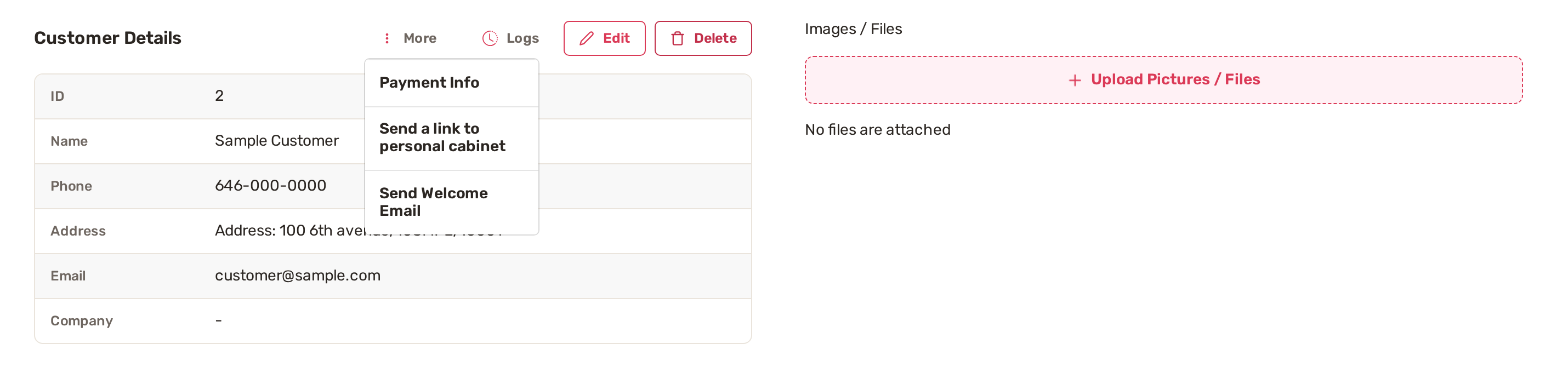
- Next to Customer Details, click More.
- Choose Send a link to personal cabinet to pick how the link goes out, or Send Welcome Email to send the welcome email again.
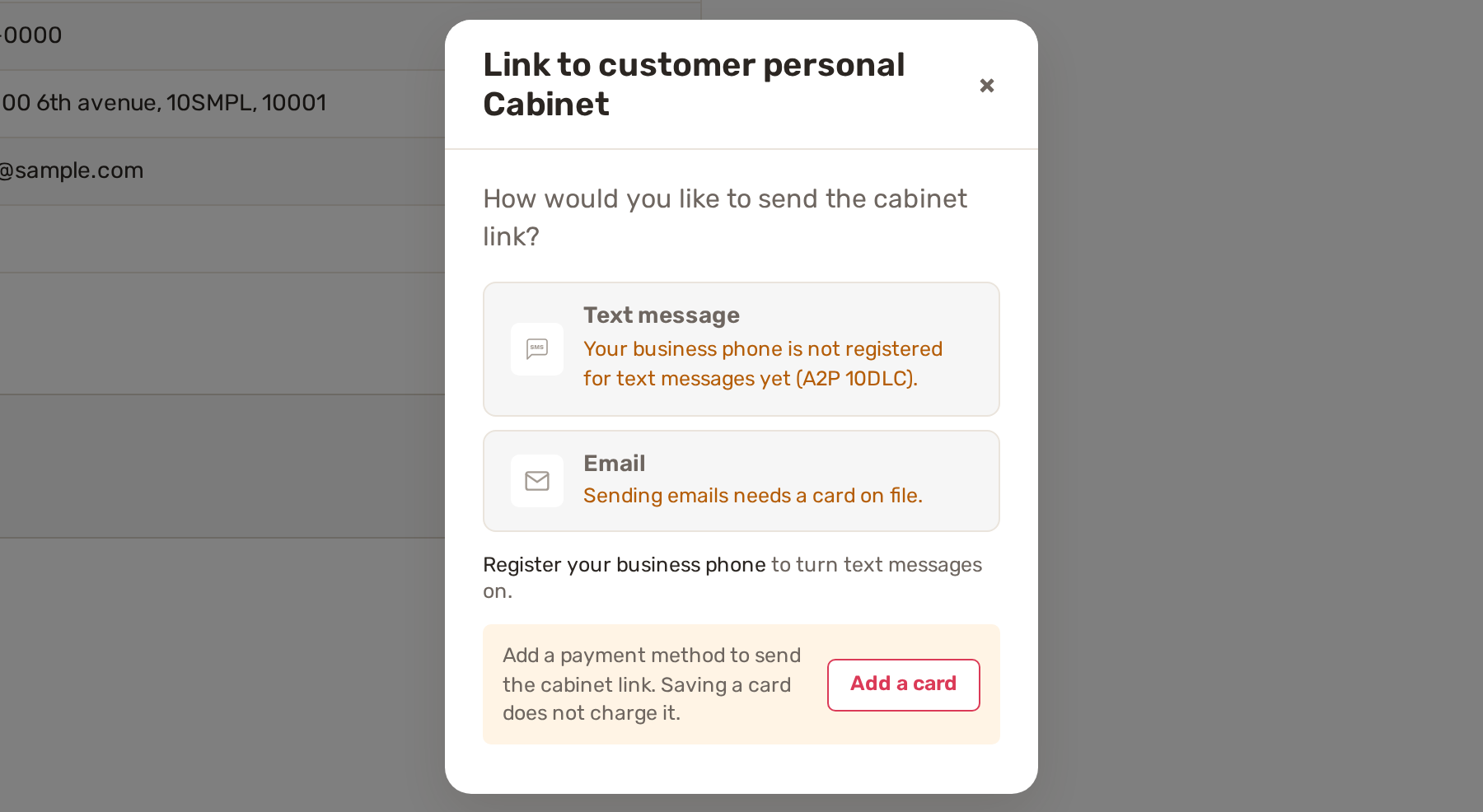
Send a link to personal cabinet asks How would you like to send the cabinet link? Pick Text message or Email. Each option shows the number or address it will go to. An option you can't use shows why instead.
The email is titled with your business name and "Customer Cabinet". It holds a Personal Cabinet Link. If the customer has no password yet, the link lets them set one; it works once. If they already have a password, it takes them to your sign-in page.
The welcome email and text
The welcome invitation is sent by two built-in automations, Welcome email and Text invitation. You can change the email's wording or switch it off on the Automations page. The text only goes out once your business number is registered for texting; until then, Text invitation shows a lock and Off. See Built-in automations.
Where customers sign in
The invitation link brings customers in the first time. After that, they sign in on your portal's Log in page with their E-mail and Password, and can use Forgot your password? to set a new one.
Your portal's web address is shown in gear icon → Business Settings, under Personal Customer Cabinet. You can link to it from anywhere.
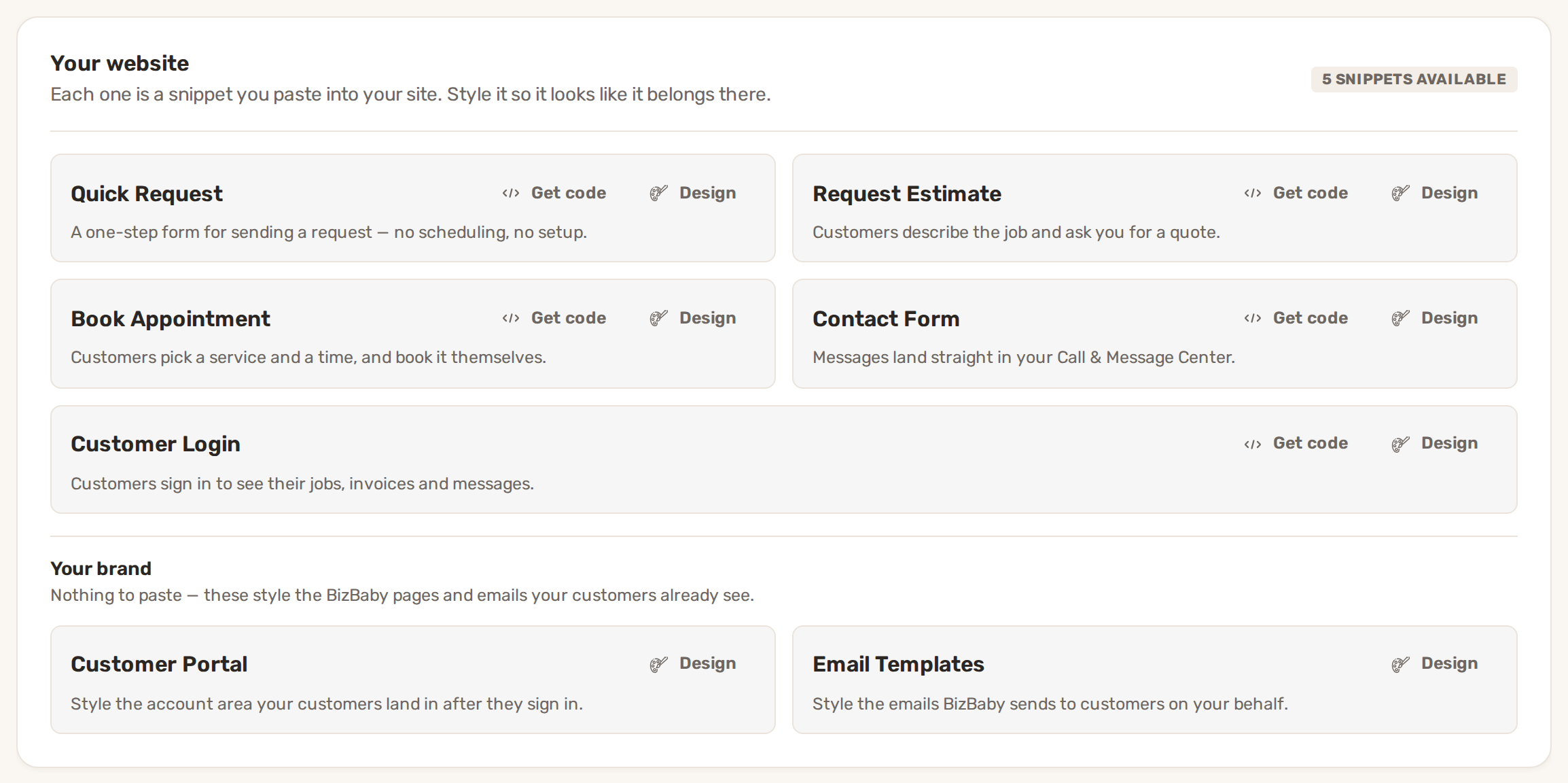
To give customers a sign-in box on your own website, go to gear icon → Integrations. Under Your website, the Customer Login row has Get code for the snippet and Design for its look. Get code needs your website address saved first, in gear icon → Business Settings → Website Domain.
Which plans include it
- Premium and Growth: the full portal and the Customer Login snippet.
- Other plans: no portal. Customers still get your estimates and invoices by link and can read, approve and pay them there. If they try to open the portal, they see Online account isn't available.
A customer who opens an estimate, invoice or payment link sees only that document, not the rest of the portal.
Common problems
- Text message says your business phone is not registered for text messages yet (A2P 10DLC). Finish texting registration, or send by email. See Text messaging registration (A2P 10DLC).
- Sending emails needs a card on file. Add a payment method for your BizBaby account. Click Add a card in the same window. Saving a card does not charge it.
- This customer has no email address on file. or no phone number on file. Add it with Edit in Customer Details, then send again.
- Send Welcome Email is greyed out. The customer has no email address.
- The customer says the link doesn't work. The password link works once. Send a new one with Send a link to personal cabinet, or ask them to use Forgot your password?.
Related
- Brand the customer portal
- Add, edit and delete customers
- Built-in automations
- Add BizBaby forms to any website
Was this article useful?
Keep reading
More Customers
Add, edit and delete customers
Your customer list Click Customers in the menu on the left. Customer management lists everyone you serve, with their pho...
Read guide →Brand the customer portal
1. Add your logo The portal shows your logo next to your business name. Without one, it shows your business initials. Go...
Read guide →Customer notes, files and history
Open a customer's record Click Customers in the menu on the left. Find the customer. Type a name, email or phone number...
Read guide →Knowing what to charge is step one
First 3 months free. No card required. Bring the whole team.
Start Free Trial Back to Login