
Requests, quotes, jobs and invoices
How a job moves: request, estimate, job, visit, invoice
In this article
Everything for one piece of work lives under one Project #: the customer's request, your estimate, the job, its visits and the invoice. You find them all on Jobs & Invoices, one tab per stage. You don't have to use every stage: you can start with New Estimate or New Invoice straight away.
Where to find it
Click Jobs & Invoices in the menu on the left. The page has a tab for each stage: Customers, Requests, Visits, Estimates, Jobs and Invoices. The button at the top right changes with the tab, for example New Estimate on Estimates and New Invoice on Invoices.
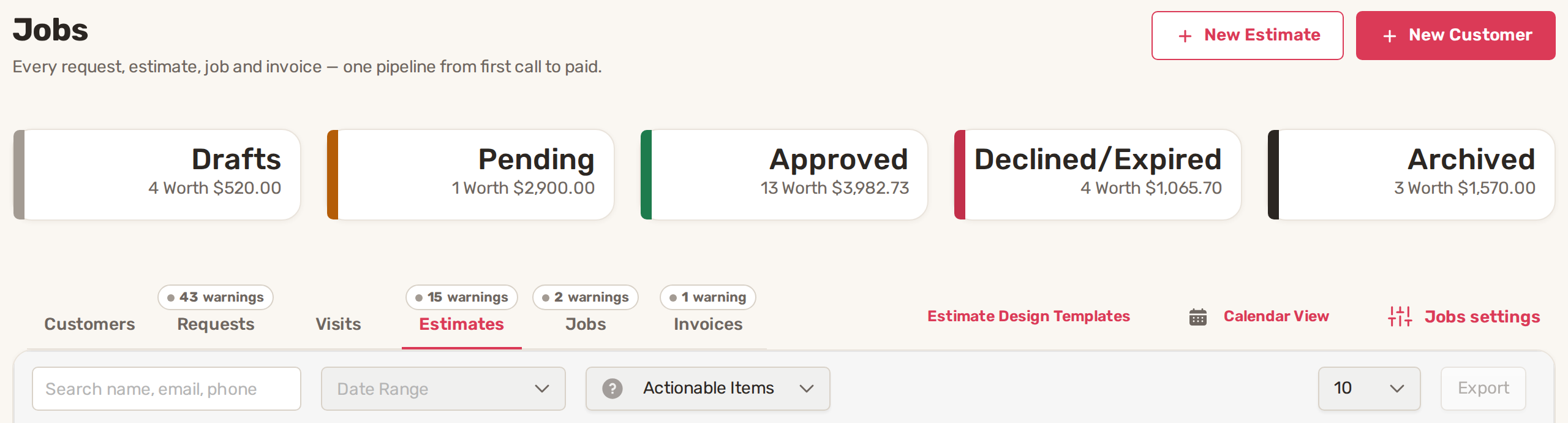
Every row shows its Project #, so you can follow one piece of work from tab to tab. A red ! next to a number marks a warning, such as an estimate still waiting for an answer or an overdue invoice.
The stages
| Stage | What it is | Statuses |
|---|---|---|
| Request | What the customer asked for: a service and a preferred date. It comes from your website forms, the customer portal, or you add one with New Request at the top right. | Submitted, Approved, Canceled |
| Estimate | The price you send for approval. The customer approves or rejects it online. | Draft, Waiting Approval, Changes Requested, Approved, Rejected, Expired, Canceled, Archived |
| Job | The work you've agreed to do. | Draft, Approved, In Progress, Completed, Canceled |
| Visit | A scheduled trip to the customer, with the workers you assign. | Scheduled, In Progress, Completed, Canceled |
| Invoice | The bill. The customer pays it online. | Draft, Due, Overdue, Paid, Paid Cash, Pending, Declined, Disputed, Refunded, Partially Refunded, Voided, Uncollectable |
A typical job, start to finish
- A request comes in. It appears on the Requests tab with a warning until you act on it.
- Send an estimate. Click the request's row to open its project, go to the Estimate step and click Add New Estimate. If no visit is scheduled yet, BizBaby first asks whether you want to skip the visit and send an estimate straight away. See Create and send an estimate.
- The customer approves. They open the estimate from the email or text, sign it and click Accept. Its status turns to Approved. If you asked for a deposit, BizBaby also creates a draft invoice so the customer can pay the deposit.
- Turn it into a job. In the project, click the Job step. BizBaby asks whether to convert the request into a job, which also marks the request Approved. Click Yes!. The job shows on the Jobs tab under the same Project #, and the request leaves the Requests tab's default view.
- Schedule the work. In the project, go to the Visit step, click Add New Visit and assign workers. Visits show on the Visits tab and in Calendar View.
- Bill it. In the project, go to the Invoice step and click Add New Invoice. See Invoices: send, remind and get paid.
A one-off repair doesn't need a request or an estimate. Click New Invoice on the Invoices tab, pick the customer and send it. New Estimate on the Estimates tab works the same way.
Open a project
Click any row to open the customer's window on the Projects tab. Across the top you see the project's steps: Request, Visit, Estimate, Job and Invoice. Click a step to see that record.
| Step | What you can do there |
|---|---|
| Request | See the service, start date and time, alternative dates and the customer's comment. Edit it, add files, or click Create task. |
| Visit | See each visit with its date, time, address and workers. Add New Visit schedules another one. |
| Estimate | See the estimate's items and terms. Add New Estimate, Send and Download PDF. |
| Job | See the job's details, workers and checklist, and add worker comments and files. |
| Invoice | Add New Invoice, Send, Mark as Paid Cash and Download Pdf. |
Every step has Create task and Logs, which lists who changed what. To change a status by hand on the list, click the status in the Status column and pick a new one.
Find what needs doing
The Requests, Visits, Estimates and Jobs tabs open on Actionable Items, so approved and closed records are hidden until you change that filter to Show All. The Invoices tab opens on Show Unpaid. Use the search box for a customer's name, email or phone, and Date Range to look further back. The totals at the top, such as Overdue or Needs an Invoice, show where money is waiting.
Common problems
- A request disappeared from the Requests tab. It was marked as a job. Look on the Jobs tab under the same Project #.
- An estimate I sent isn't on the Estimates tab. It may be approved or closed, which Actionable Items hides. Change the filter.
- New Estimate or New Invoice won't open. BizBaby needs your services, business type and working hours saved first. See Set up your business in the first hour.
Related
- Create and send an estimate
- Invoices: send, remind, mark paid and deposits
- Assign workers and dispatch
- Recurring jobs
Was this article useful?
Keep reading
More Requests, quotes, jobs and invoices
Checklists for jobs and appointments
1. Build a checklist template Open Work setup: on Appointments, click Service Settings. The Checklist templates row is u...
Read guide →Create and send an estimate
1. Start the estimate Start from one of two places: From a request: on the Requests tab, click the request's row, go to...
Read guide →Customize job and order fields
1. Ask questions on a service Questions are what the customer answers when booking: room count, TV size, ceiling height....
Read guide →Knowing what to charge is step one
First 3 months free. No card required. Bring the whole team.
Start Free Trial Back to Login