
Customers
Brand the customer portal
In this article
Your customer portal takes its look from three places. Your logo comes from Business Settings. Your brand colour, typeface and corner style come from the Customer login form in Form studio. On Customer cabinet design you then choose one of three appearances: Quiet, Bold header or Dark. Changing the portal's look needs the Growth plan.
1. Add your logo
The portal shows your logo next to your business name. Without one, it shows your business initials.
- Go to gear icon → Business Settings.
- Under Online presence & branding, next to Logo, click Select image and choose a PNG or JPEG.
- Click Save at the bottom of the page.
2. Set your colour, typeface and corners
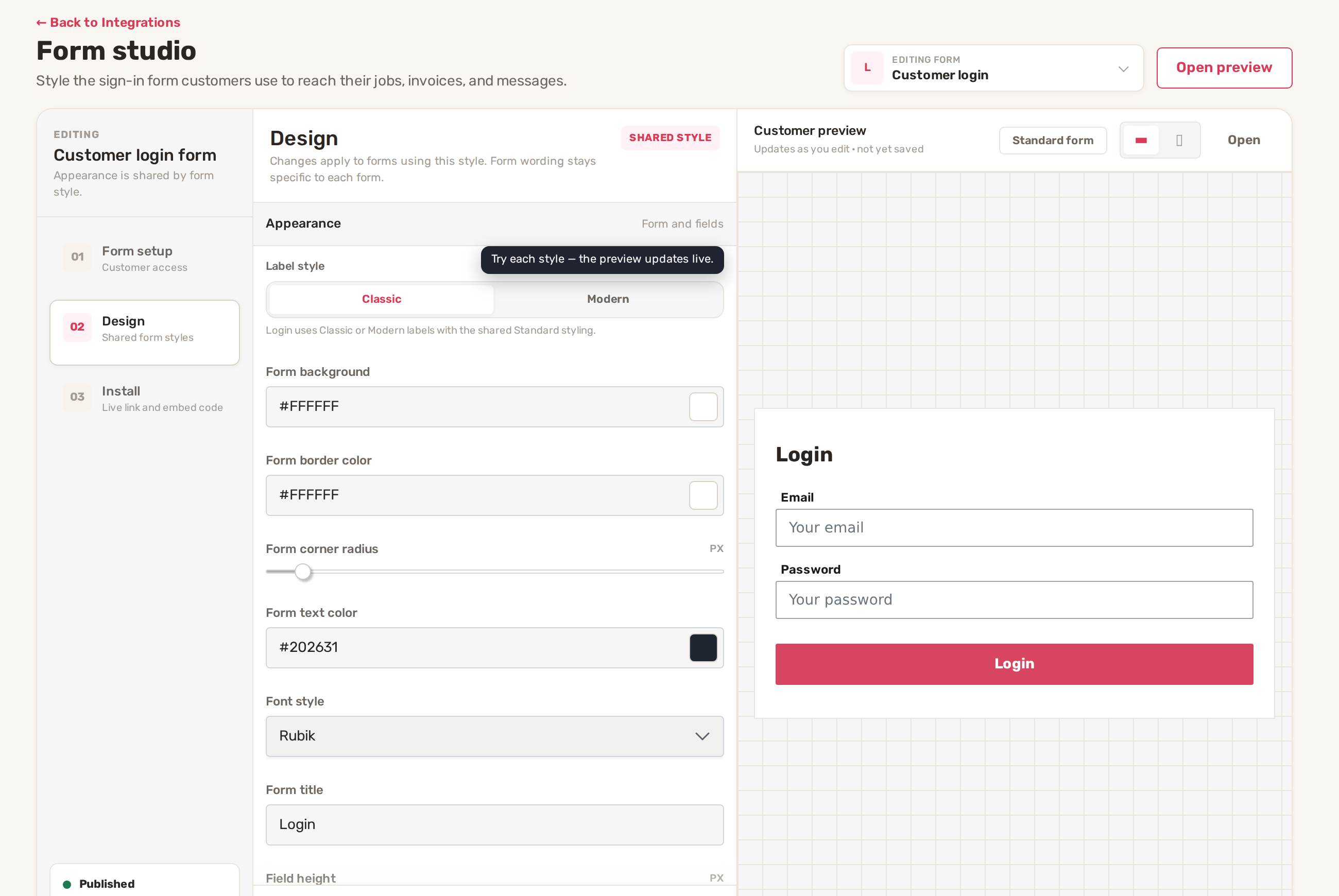
The portal follows the design of your customer sign-in form, so your sign-in box and the portal behind it match.
- Go to gear icon → Integrations.
- Under Your website, click Design on the Customer Login row. Form studio opens on the Customer login form.
- In Design, set the colours, Form corner radius and Font style. The Customer preview on the right updates as you go.
- Click Save changes. Reset puts back what was last saved.
3. Choose an appearance
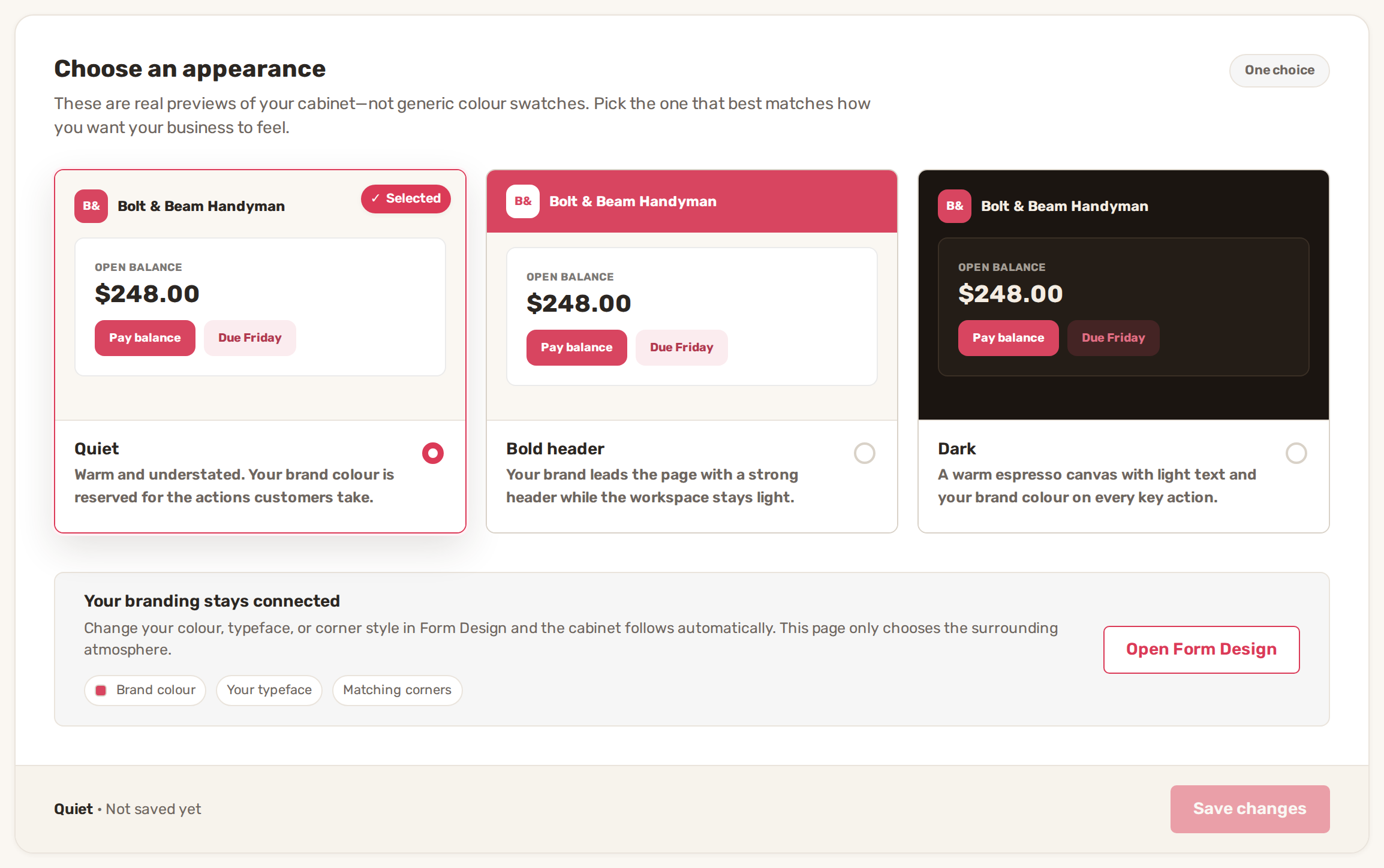
- Go to gear icon → Integrations. Under Your brand, click Design on the Customer Portal row. The page is called Customer cabinet design.
- Under Choose an appearance, click the one you want. Each card is a preview of your portal in your own colours.
- Click Save changes. The bar at the bottom shows the chosen appearance and whether it has been saved, for example Quiet · Not saved yet.
| Appearance | What customers see |
|---|---|
| Quiet | Warm and understated. Your brand colour is kept for the buttons customers press. This is the default. |
| Bold header | A strong header in your brand colour, with a light page below it. |
| Dark | A dark espresso background with light text, and your brand colour on every key action. |
Under Your branding stays connected, the page lists what it takes from your form design: Brand colour, Your typeface, Matching corners, and Company logo once you have one. Open Form Design takes you back to step 2.
You only pick the appearance once. When you change your colour or typeface in Form studio, the portal follows on its own.
The BizBaby name on the portal
On the Starter and Essential plans, the pages your customers open show a small Powered by BizBaby link under your business name. Premium and Growth don't show it.
Common problems
- Customer Portal or Customer Login shows a lock, or the page sends you to the plans page. Customer cabinet design and form design are on the Growth plan. The portal itself is on Premium and Growth.
- Save changes stays greyed out. You haven't picked a different appearance from the one that is saved.
- The portal still shows initials. No logo is saved in Business Settings yet.
Related
- The customer portal: what customers see and how to invite them
- Add BizBaby forms to any website
- Set up your email templates and sender details
Was this article useful?
Keep reading
More Customers
Add, edit and delete customers
Your customer list Click Customers in the menu on the left. Customer management lists everyone you serve, with their pho...
Read guide →Customer notes, files and history
Open a customer's record Click Customers in the menu on the left. Find the customer. Type a name, email or phone number...
Read guide →The customer portal: what customers see and how to invite them
What customers see The portal shows your business name and logo at the top, with Client portal under it. The menu has th...
Read guide →Knowing what to charge is step one
First 3 months free. No card required. Bring the whole team.
Start Free Trial Back to Login