
Customers
Add, edit and delete customers
In this article
Click Customers in the menu on the left, then Add Customer. A customer needs a first name, a last name and a phone number; everything else is optional. To change a customer, click their row, then Edit in Customer Details. BizBaby has no merge button: each phone number and email address can belong to only one customer in your business, which stops most duplicates before they happen.
Your customer list
Click Customers in the menu on the left. Customer management lists everyone you serve, with their phone, company, address, where they came from (Source) and when they were added.
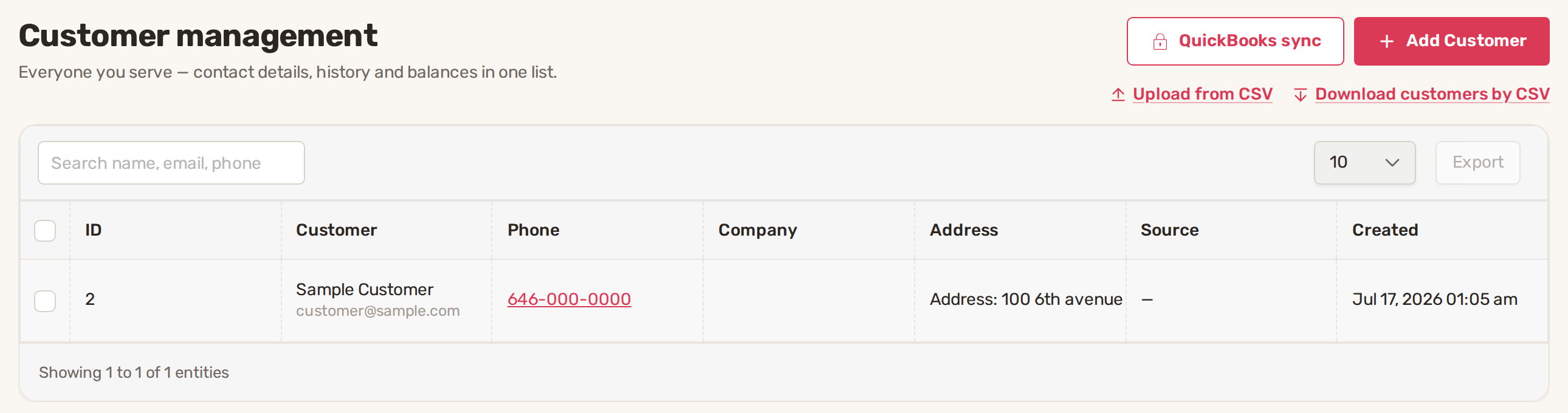
- Upload from CSV brings in a whole list at once. See Import your customers.
- Download customers by CSV saves every customer to a spreadsheet file.
- QuickBooks sync appears on plans that include QuickBooks. It shows a lock until QuickBooks is connected in gear icon → Integrations.
Add a customer
- On Customer management, click Add Customer. From any page, New → Customer in the top bar does the same.
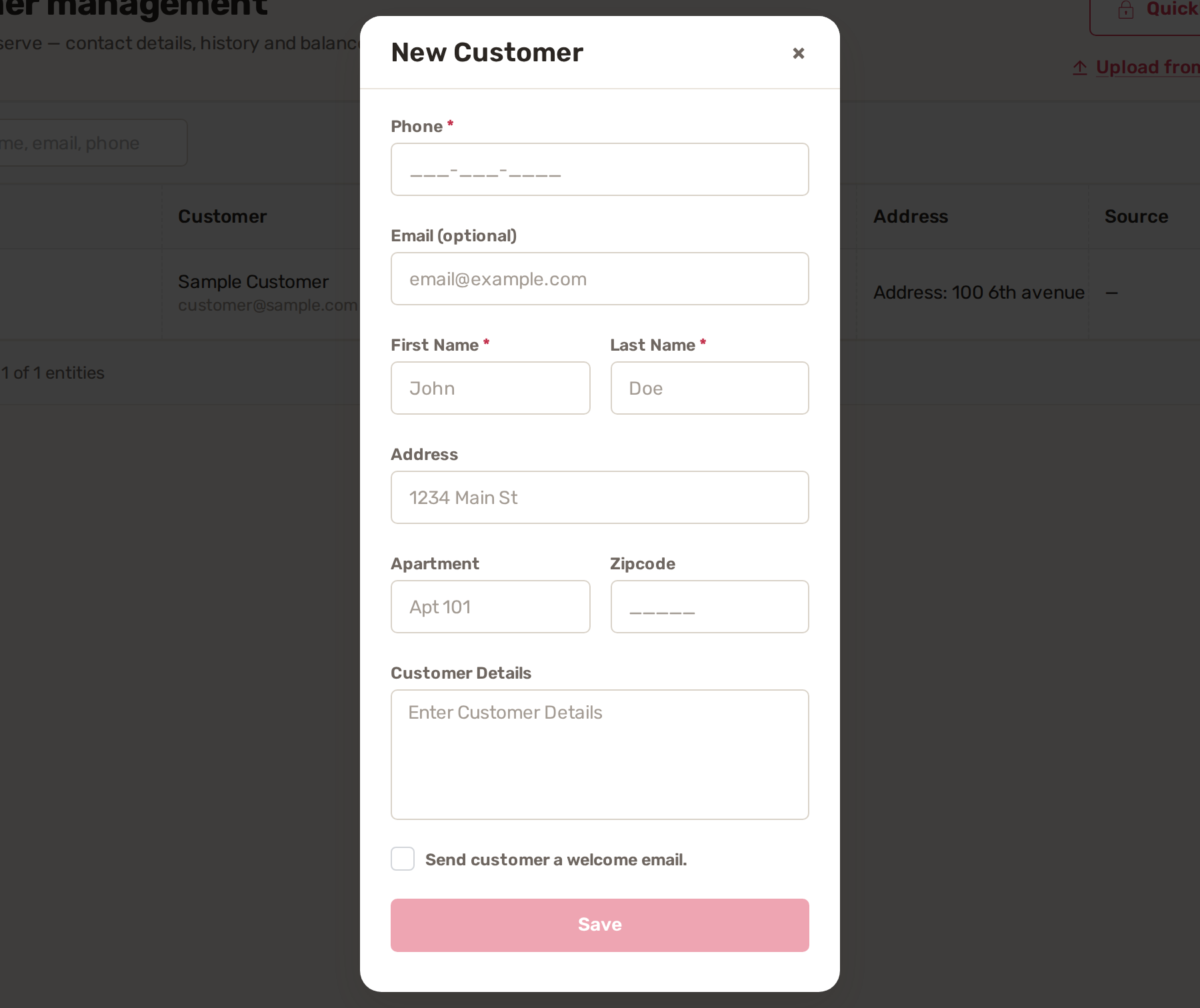
- Fill in Phone, First Name and Last Name. These three are required.
- Add Email (optional), Address, Apartment and Zipcode if you have them.
- Use Customer Details for anything your team should know, like a gate code or a dog in the yard.
- Tick Send customer a welcome email. if you want BizBaby to email them an invitation to your customer portal now.
- Click Save. The button stays greyed out until the required fields are filled.
Before you can add a customer, your business needs a type of business, at least one service and working hours. If one is missing, BizBaby sends you to Business Settings instead. See Set up your business in the first hour.
Edit a customer
- Click the customer's row. Their record opens on the Customer Info tab.
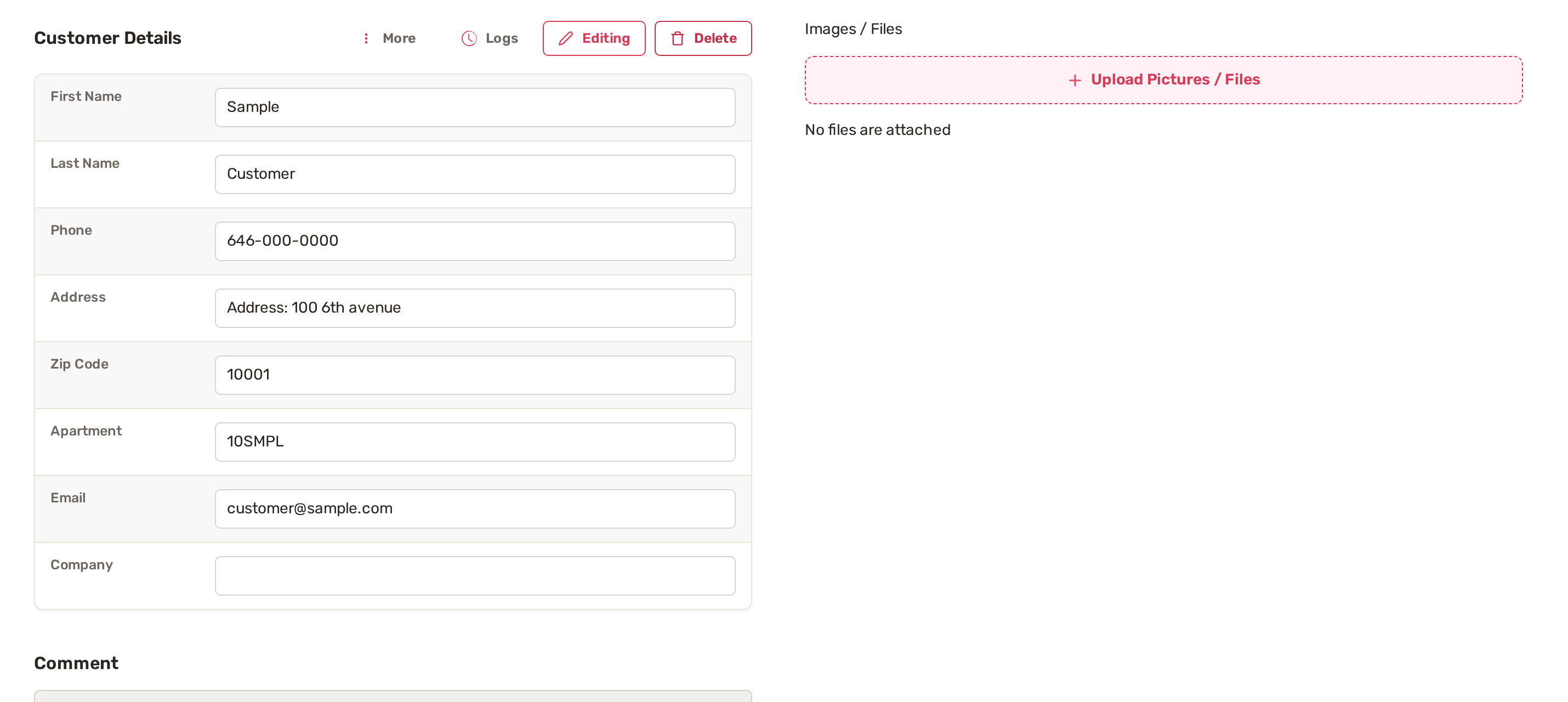
- Next to Customer Details, click Edit. The button changes to Editing and the details become fields.
- Change First Name, Last Name, Phone, Address, Zip Code, Apartment, Email or Company. The Comment box below becomes editable too.
- Click Save at the bottom of the window, or Cancel Editing to leave everything as it was.
Duplicates and merging
BizBaby can't merge two customers into one. Instead, it refuses to create the second one: within your business, a phone number or an email address can belong to only one customer. If you try, the form says the phone or email has already been taken.
When that happens, search the list for the number or email. The customer you were about to add is usually already there under a slightly different name. Open them and use Edit to correct the name.
Delete a customer
- Open the customer and click Delete next to Customer Details.
- BizBaby asks you to confirm. Click Yes! Delete, or Nevermind to keep them.
Deleting can't be undone. BizBaby removes the customer from your list and wipes their contact details. Jobs and orders already assigned to them stay where they are, and their messages stay in your history without the customer attached.
Common problems
- The phone has already been taken. Another customer in your business already has this number. Search for it and edit that customer instead.
- The email has already been taken. The same, for the email address.
- Invalid phone number or The phone format is invalid. Enter all ten digits. BizBaby formats it as 206-555-0123.
- The address must be a valid email address. Shown when you save an edit with a mistyped email.
- Add Customer sends you to Business Settings. Your type of business, services or working hours are missing.
- Edit and Delete are greyed out. The customer has already been deleted.
Related
- Import your customers
- Customer notes, files and history
- The customer portal: what customers see and how to invite them
Was this article useful?
Keep reading
More Customers
Brand the customer portal
1. Add your logo The portal shows your logo next to your business name. Without one, it shows your business initials. Go...
Read guide →Customer notes, files and history
Open a customer's record Click Customers in the menu on the left. Find the customer. Type a name, email or phone number...
Read guide →The customer portal: what customers see and how to invite them
What customers see The portal shows your business name and logo at the top, with Client portal under it. The menu has th...
Read guide →Knowing what to charge is step one
First 3 months free. No card required. Bring the whole team.
Start Free Trial Back to Login