
Payments
Bill your customers on a subscription
In this article
A Recurring Payment charges a customer the same amount on a schedule, such as monthly lawn care, without you sending an invoice each time. BizBaby charges the card or bank account the customer has saved as Primary, and can fall back to their Backup. You need Stripe connected, and the customer needs a saved payment method before the first charge.
Before you start
- Connect Stripe.
- Make sure the service you'll bill for is set to take payment. Only those services can be picked.
- Make sure the customer has a saved card or bank account. Adding a recurring payment doesn't ask the customer for one. A customer adds one when they pay an invoice online.
Where to find it
Click Appointments in the left menu, then the Recurring Payments tab. If you don't see it, your plan doesn't include it. The list shows each recurring payment's Last Payment, Next Payment, Status and Frequency.
The Subscriptions tab next to it is a different thing: repeat bookings of appointments, not repeat charges.
1. Add a recurring payment
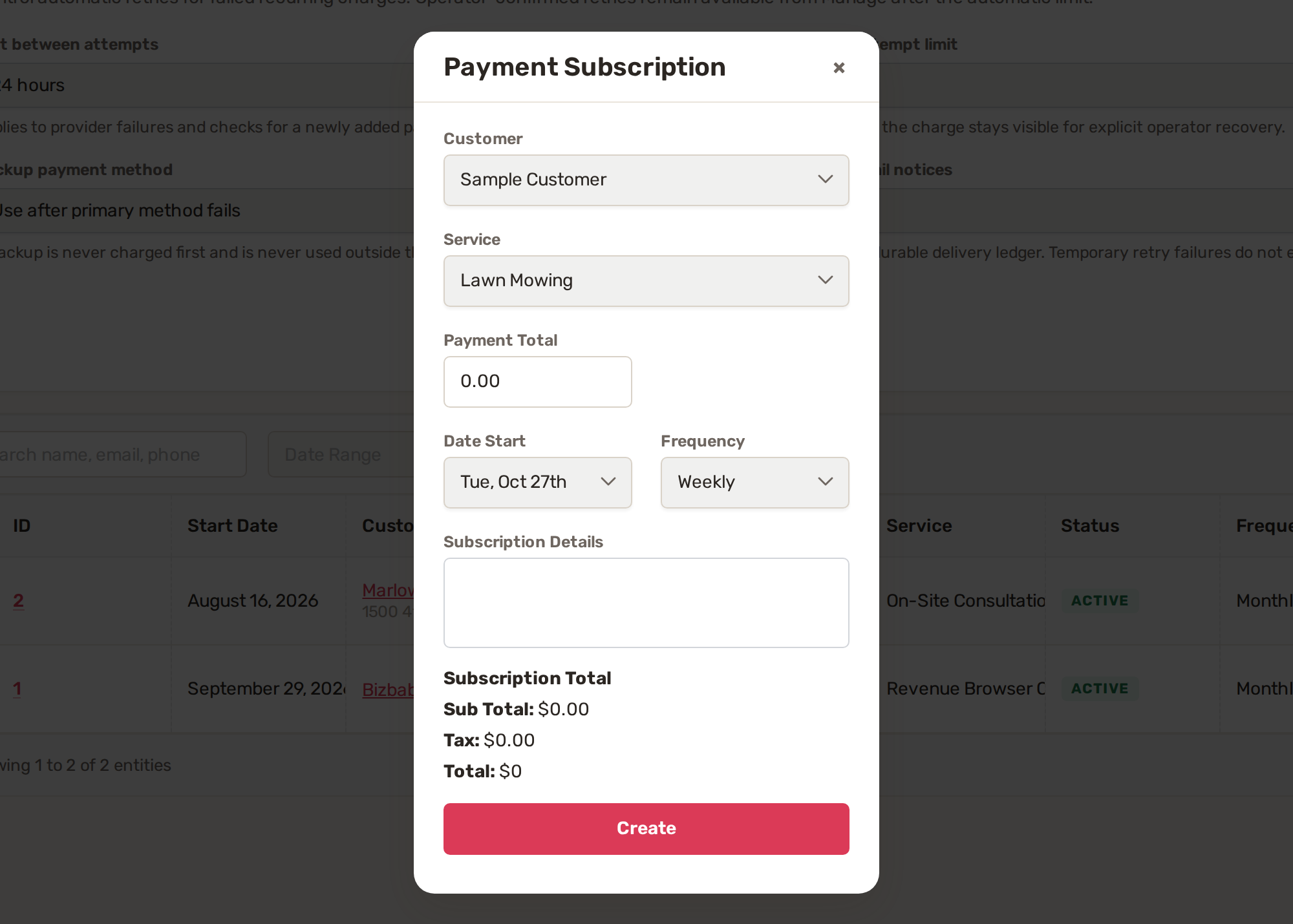
- Click Add Recurring Payment.
- Pick the Customer and the Service.
- Type the Payment Total, the amount before tax. Tax is added from the service's own tax setting.
- Pick the Date Start and the Frequency: Weekly, Every 2 Weeks, Every 4 Weeks, Monthly, Quarterly, Every 6 Months or Yearly.
- Add any notes in Subscription Details.
- Check Sub Total, Tax and Total, and click Create.
2. Choose what happens when a charge fails
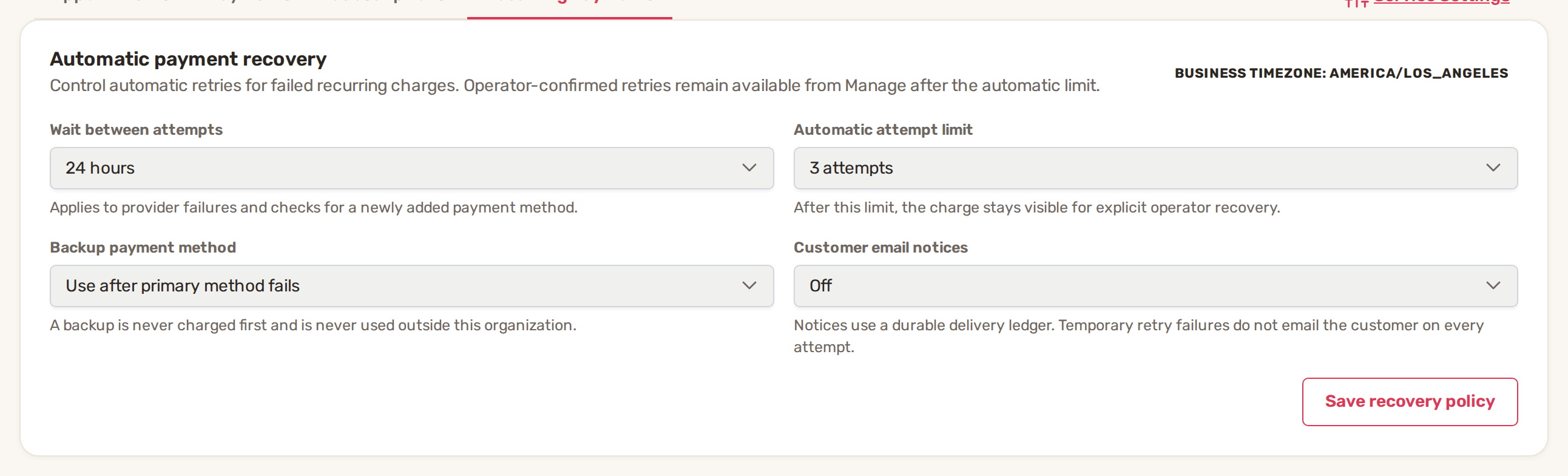
The Automatic payment recovery card at the top of the page applies to all your recurring payments. Change it and click Save recovery policy.
| Setting | Choices |
|---|---|
| Wait between attempts | 6, 12, 24, 48 or 72 hours. Starts at 24 hours. |
| Automatic attempt limit | 1 to 5 attempts. Starts at 3. After the last one, the charge waits for you to retry it. |
| Backup payment method | Use after primary method fails or Never use automatically. A backup is never charged first. |
| Customer email notices | Off, Final failures only or Success and final failure. Starts at Off. |
With notices on, the customer gets "Recurring payment received" after a charge, or "Recurring payment needs attention" after the final failure, which asks them to contact you to update their payment method.
3. Pause, skip or end a recurring payment
- Click Manage on its row. You see the Next charge, Frequency, Recurring total, the Subscription health and the Charge timeline.
- Under Manage billing, type a Reason for change. It's required and kept in the Management history.
- Click Pause, Skip next charge or End recurring payment. A paused one shows Resume instead.
- Confirm the change.
| Status | What it means |
|---|---|
| Active | Charges go out on schedule. |
| Paused | No charges until you click Resume. |
| Ended | Stopped for good. An ended recurring payment can't be resumed. |
Retry a failed charge yourself
After the automatic attempts run out, the charge stays in the Charge timeline as Retryable, Declined or Action required. Fix the cause first, for example ask the customer to add a new card. Then click Preview retry on the charge. The preview shows what will happen and charges nothing. Click Apply recovery to try the charge again, or Cancel preview. The recurring payment has to be active to retry.
Common problems
- Add Recurring Payment opens Settings → Integrations instead of the form. Stripe isn't connected yet. Connect Stripe first.
- "No active primary or backup payment method is available." The customer has no saved card or bank account. Ask them to add one, then retry the charge.
- The service isn't in the list. Only services that take payment can be billed this way.
- "The recurring base amount must be greater than zero." Type a Payment Total above 0.
- "Explain why this subscription is being changed." Fill in Reason for change before you pause, skip or end it.
- "Resolve the current charge occurrence before editing future terms." A charge is in progress or failed. Deal with it in Manage before you edit the amount or schedule.
- "Resume this recurring payment before retrying a charge." Click Resume first.
Related
Was this article useful?
Keep reading
More Payments
Bank payments and instant bank verification
How customers pay by bank You send an invoice by email or text. The customer opens it in their customer portal. If they...
Read guide →Connect Stripe and take card payments
Before you start Have your business details and bank account ready. Stripe asks for them during sign-up. Decide which St...
Read guide →Payouts and fees explained
Where your money goes A customer pays an invoice, a deposit or an appointment by card or bank. The payment lands in the...
Read guide →Knowing what to charge is step one
First 3 months free. No card required. Bring the whole team.
Start Free Trial Back to Login