
Payments
Connect Stripe and take card payments
In this article
BizBaby takes card and bank payments through your own Stripe account. Open Settings → Integrations and click Set up Stripe on the Stripe tile, then finish Stripe's sign-up. When the tile shows Connected, customers can pay your invoices and estimates online and you can charge a saved card. Until then you can still record cash payments.
Before you start
- Have your business details and bank account ready. Stripe asks for them during sign-up.
- Decide which Stripe account to use. BizBaby recommends a separate Stripe account for BizBaby, even if you already have Stripe.
1. Connect Stripe
- Open Settings and choose Integrations.
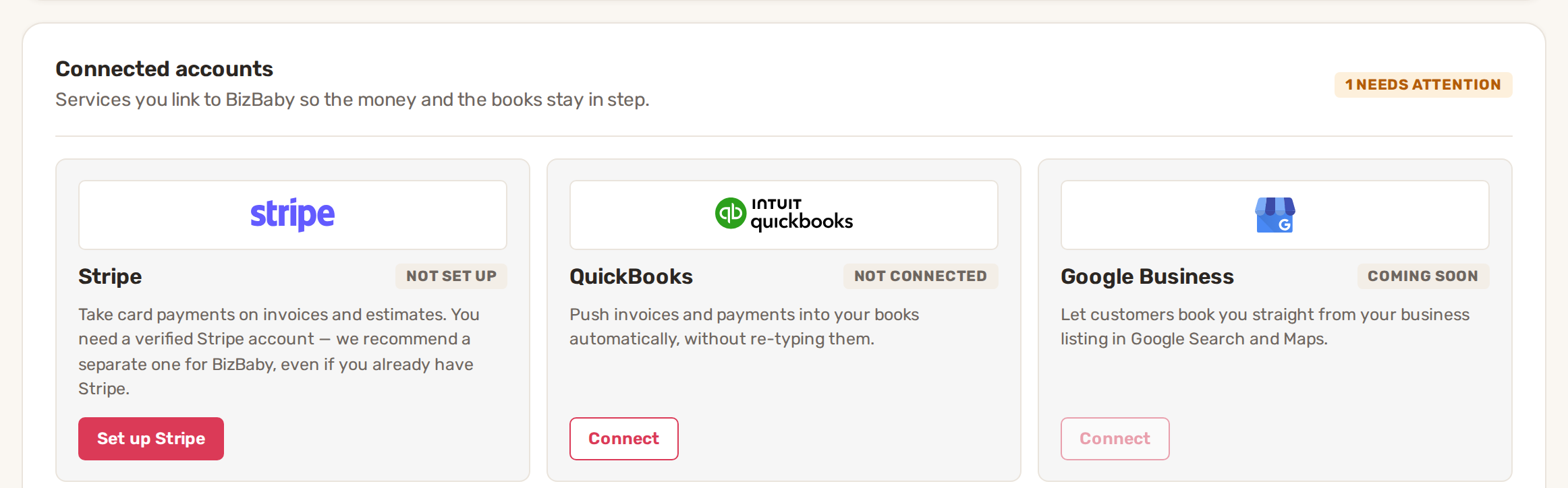
- Under Connected accounts, find the Stripe tile. It shows Not set up.
- Click Set up Stripe. Stripe's own sign-up pages open.
- Fill in every step Stripe asks for and submit it.
- Stripe sends you back to BizBaby, which checks your account status again.
The Getting Started list on your dashboard has the same step, Online Payments, with a Setup Stripe button.
2. Check the Stripe tile
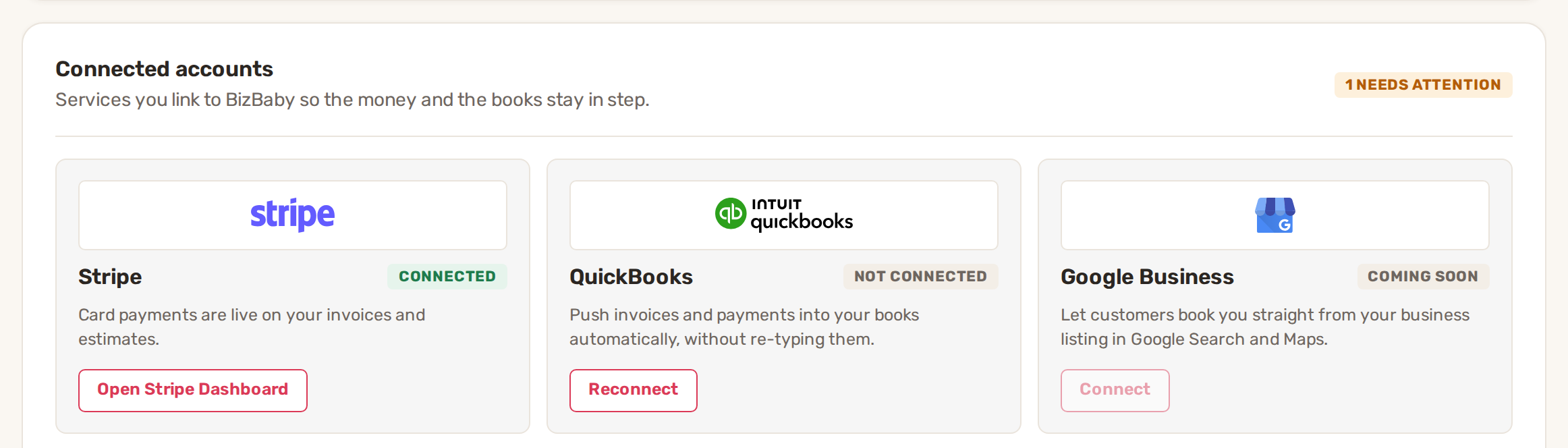
The label at the top right of the Stripe tile tells you where you stand.
| Label | What it means | What to do |
|---|---|---|
| Not set up | No Stripe account is linked yet. | Click Set up Stripe. |
| Action needed | Your setup stopped part-way, or Stripe needs more information, so you can't be paid yet. | Click Continue setup and finish every step. Stripe emails you when it's done. |
| Pending review | You finished, and Stripe is still reviewing your account. | Wait for Stripe's email. Log in to Stripe shows the review. |
| Connected | Card payments are live on your invoices and estimates. | Nothing. Open Stripe Dashboard takes you to your Stripe account. |
3. Take card payments
Once Stripe shows Connected, there are two ways to get paid by card.
Send the customer a payment link.
Send an invoice by email or text. The customer opens the link and pays in their customer portal. With nothing saved yet, they see "Add a payment method to pay online." and can choose Add a card or Add a bank account. Cards and bank accounts they save are marked Primary or Backup and can be used again. If the service allows tips, they also see Add a tip above the Total due.
Charge a saved card yourself.
On an appointment, open the PAYMENT step. The Service Invoice window has a Charge button. It charges the customer's saved Primary or Backup payment method. If the customer has none, the window says "The customer has no payment method on file. Ask them to add one before charging." In that case click Send invoice instead, so they can add a card when they pay.
The same window always offers Mark as paid in cash, which records the payment without Stripe.
To let customers add a tip, edit the service and turn on Let customers add a tip. Your plan has to include tip collection.
Take a deposit on an estimate.
On an estimate, click Add + under Deposit Required. In Set Deposit, choose Fixed amount or Percent, enter the Deposit amount and click Save deposit.
Common problems
- "Connect Stripe in Settings → Integrations before charging or sending a customer-payable invoice. Cash payments remain available." Stripe isn't connected, or Stripe has paused your account. Open Settings → Integrations and follow the label on the Stripe tile.
- The buttons read "Charge (Stripe not connected)" or "Send invoice (Stripe not connected)" and can't be clicked. Same cause. Finish the Stripe setup first.
- The invoice editor shows a greyed "Connect Stripe to Send Invoice" button. Same cause. Click Open Integrations next to it to set up Stripe.
- The tile went back to Action needed. Stripe asked for more information, often for identity or bank details. Click Continue setup. Until you finish, you can't take online payments.
- Customers see "Payments are unavailable at the moment." Your Stripe account isn't ready to take payments. Check the Stripe tile.
- Charge is greyed out with "This customer has no primary/backup payment method". Send the invoice so the customer can add a card when they pay.
Related
- Bank payments and instant bank verification
- Payouts and fees explained
- Refunds
- Bill your customers on a subscription
Was this article useful?
Keep reading
More Payments
Bank payments and instant bank verification
How customers pay by bank You send an invoice by email or text. The customer opens it in their customer portal. If they...
Read guide →Bill your customers on a subscription
Before you start Connect Stripe. Make sure the service you'll bill for is set to take payment. Only those services can b...
Read guide →Payouts and fees explained
Where your money goes A customer pays an invoice, a deposit or an appointment by card or bank. The payment lands in the...
Read guide →Knowing what to charge is step one
First 3 months free. No card required. Bring the whole team.
Start Free Trial Back to Login