
Phone and texting
Call recording
In this article
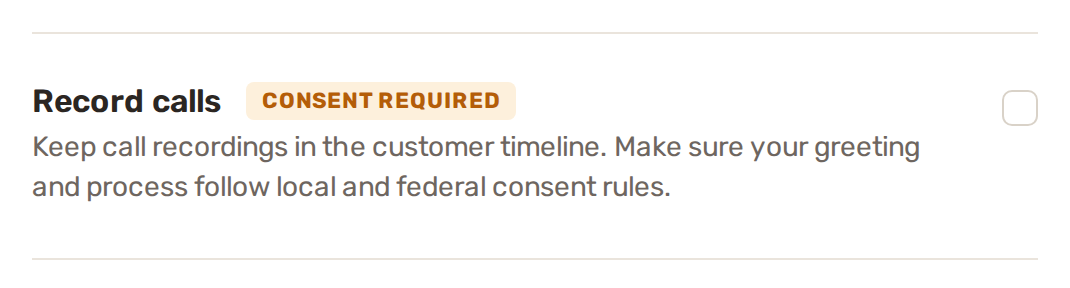
BizBaby can record calls on your business number and keep each recording on the call in the customer's conversation, where your team can play it back. Recording is on for a new business. You turn it on or off with one box, Record calls. Before you record, make sure callers are told: consent rules differ by state.
Turn recording on or off
- Click the gear icon at the top right, then Call & Message Center. Communications → Settings in the left menu opens the same page.
- On the Call routing card, tick or untick Record calls.
- Click Save at the bottom of the page.
The change applies to the next call. Recordings already made stay where they are.
What gets recorded
| Call | With Record calls ticked |
|---|---|
| Incoming calls | Recorded from the start of the call, while your team is being rung, through to the end. |
| Forwarded calls | When Forward every call is set, recorded from the moment the forwarding phone answers. |
| Calls you make | Calls your team places from the Call & Message Center are recorded too. |
| Voicemails | Always kept, whether the box is ticked or not. A voicemail is a message the caller chose to leave. |
With the box unticked, calls aren't recorded and nothing is kept, except voicemails.
Telling callers
The Consent required label is there because the law on recording calls differs from state to state. Some states require everyone on the call to agree. BizBaby doesn't add a recording notice for you. The simplest way to tell every caller is to say it in your Welcome greeting, for example "This call may be recorded." See Change what callers hear. On calls you place, tell the customer yourself at the start.
With Forward every call set, callers don't hear your welcome greeting, so they don't hear a recording notice from it. Tell them when you answer, or untick Record calls.
Listen to a recording
- Open the Call & Message Center and click the customer.
- Find the call in their conversation. A recorded call shows a play button, a progress bar and its length.
- Click play. The time next to the bar shows how far in you are.
Anyone on your team who can use the Call & Message Center can play the recordings of your business's calls.
Common problems
- A call has no play button. Recording was off when the call happened, or the call was never answered and no voicemail was left. A recording also appears only after the call ends.
- You unticked Record calls but calls are still recorded. The change needs Save at the bottom of the page.
- The recording doesn't play. Reload the page and try again. Recordings are fetched from our phone carrier each time you play one.
Related
- Call routing, forwarding, greetings and missed calls
- The Call & Message Center
- Voice verification and call reputation
Was this article useful?
Keep reading
More Phone and texting
Call routing, forwarding, greetings and missed calls
Where to find the settings Click the gear icon at the top right, then Call & Message Center. You can also open it from C...
Read guide →Get a new business number
Before you start You need admin access to the business. Team members without access to business settings can't open the...
Read guide →Messaging limits and delivery problems
Did my text arrive? Under each text you send, next to the time, BizBaby shows where it stands. LabelWhat it means Sendin...
Read guide →Knowing what to charge is step one
First 3 months free. No card required. Bring the whole team.
Start Free Trial Back to Login