
Phone and texting
Voice verification and call reputation
In this article
Two optional registrations help your outbound calls get answered. SHAKEN/STIR, on the Outbound calls tab, has Twilio sign your calls so carriers can check they really come from your business. Voice Integrity, on the Call reputation tab, sends your number to the carriers' spam-checking services to fix wrong labels such as "Spam Likely". Both reuse the Business Profile from your text messaging registration, so they open only after that profile is approved and your brand is submitted.
Before you start
Both registrations live on the same Get verified to reach customers page as texting registration: gear icon → Business Information, then Needs verification on the Business phone number card. That link appears once your business has a number. You need admin access to the business.
The Outbound calls and Call reputation tabs also show the Business Profile Verification steps, so you can fill in the profile from either tab.
- Your Business Profile must be approved and your brand submitted on the Text messaging tab. Until then the forms show Wait for the Business Profile to be verified before submitting SHAKEN/STIR. (or … Voice Integrity.) and the Submit for review button stays grey. Text messaging registration walks you through both.
- Your number is already linked. BizBaby links your business number to the Business Profile when you submit the profile, and adds it to each registration for you.
- Do SHAKEN/STIR first. The Call reputation tab recommends it, because signed calls help the spam-checking services recognise you as a trusted caller.
1. Turn on SHAKEN/STIR
- Open the Outbound calls tab.
- In the steps list on the left, under SHAKEN/STIR (Voice), click Submit SHAKEN/STIR.
- Tick I confirm that the Business Profile information is accurate and authorize registration of a SHAKEN/STIR trust product for your business.
- Click Submit for review.
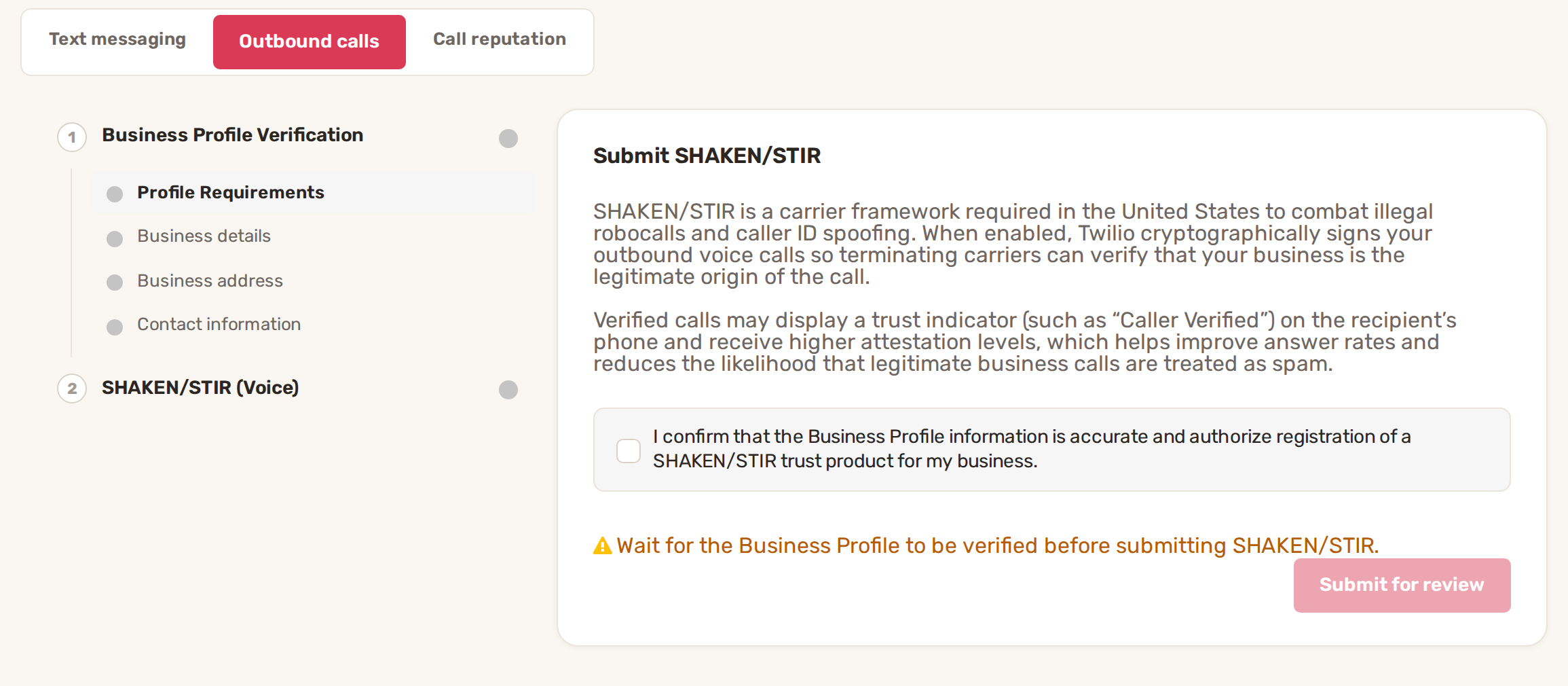
Twilio usually finishes its review within 24 to 72 hours. Follow it under Verification status in the steps list. When it's approved, calls from your business number are signed, and carriers that support it can show your customers that the call is verified.
2. Register for Voice Integrity
- Open the Call reputation tab.
- In the steps list, under Voice Integrity, click Submit Voice Integrity.
- Fill in the Voice calling details (see the table below).
- Tick I confirm the information above is accurate and authorize registration of a Voice Integrity trust product for your business.
- Click Submit for review.
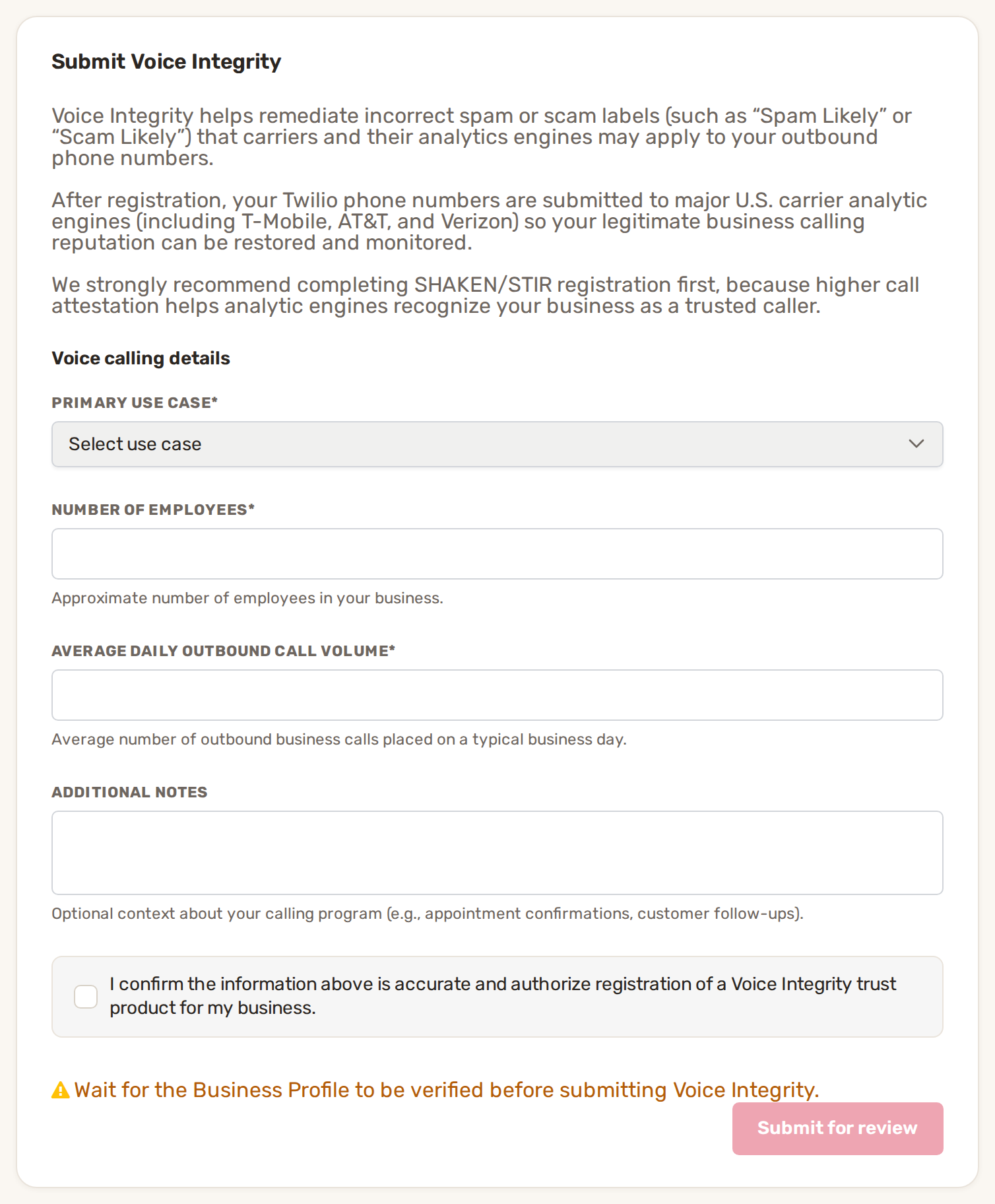
| Field | What to enter |
|---|---|
| Primary use case | Customer Support, Outbound Sales, Outbound Notifications, Appointment Reminders, Survey / Research or Other. |
| Number of employees | About how many people work in your business. At least 1. |
| Daily call volume | Average daily outbound call volume: how many business calls you make on a typical day. At least 1. |
| Additional notes | Optional, up to 1,000 characters. For example, that you call customers to confirm appointments or follow up on jobs. |
Once you submit, the form locks. After Twilio approves it, your number is registered with the participating carriers' spam-checking services. Each carrier then removes wrong labels on its own schedule, so it can take longer to see a change. You don't need to do anything while it's in progress. Follow it under Reputation / spam label status.
The Outbound calls and Call reputation cards at the top of the page show Not started, In review, Approved or Failed. BizBaby also emails the representative from your Business Profile when Twilio answers.
Why it gets rejected
If Twilio turns a registration down, its card shows Failed, the step has a red mark and BizBaby emails your representative. The email subject is A2P Shaken Stir Status or A2P Voice Integrity Status.
| Registration | What to check | What to do |
|---|---|---|
| SHAKEN/STIR | Your Business Profile details, EIN and business address, and that your number is linked to the profile. | The page can't send a failed registration again yet. Contact BizBaby support at support@bizbaby.com. |
| Voice Integrity | Your Business Profile, your calling use case and that your number is linked to the profile. | The page can't send a failed registration again yet. Contact BizBaby support at support@bizbaby.com. |
Common problems
- Submit for review stays grey. Your Business Profile isn't approved yet, or your brand isn't submitted. On Voice Integrity, also check that the use case, employees and call volume are filled in and the box is ticked.
- The right side of the tab is empty. Click a step in the list on the left to open it.
- The form is greyed out after you submitted it. That's expected. Each registration is sent once; the form stays locked while Twilio reviews it and after.
- Your calls still show "Spam Likely". Voice Integrity can be approved before every carrier has updated its labels. Give it time; each carrier works on its own schedule.
Related
- Text messaging registration (A2P 10DLC)
- The Call & Message Center
- Call routing, forwarding, greetings and missed calls
Was this article useful?
Keep reading
More Phone and texting
Call recording
Turn recording on or off Click the gear icon at the top right, then Call & Message Center. Communications → Settings in...
Read guide →Call routing, forwarding, greetings and missed calls
Where to find the settings Click the gear icon at the top right, then Call & Message Center. You can also open it from C...
Read guide →Get a new business number
Before you start You need admin access to the business. Team members without access to business settings can't open the...
Read guide →Knowing what to charge is step one
First 3 months free. No card required. Bring the whole team.
Start Free Trial Back to Login