
Phone and texting
Call routing, forwarding, greetings and missed calls
In this article
When a customer calls your business number, BizBaby rings everyone on your team who is available in the Call & Message Center. If nobody answers in time, the caller goes to the AI receptionist, to voicemail or is told you'll call back, whichever you choose. You can also send every call to one phone instead. All of this is set on one page, along with the four recordings callers hear.
Where to find the settings
Click the gear icon at the top right, then Call & Message Center. You can also open it from Communications → Settings in the left menu, or from the Call & Message Center tab on any settings page. The page is headed Shape every customer conversation. It's there when your plan includes calling.
What happens when someone calls
BizBaby checks these in order. The first one that applies decides where the call goes.
| Check | What happens |
|---|---|
| Caller outside the US or Canada | The caller hears "Only calls from US and Canada phones are allowed." and the call ends. |
| Blocked number | The caller hears "Your phone is blocked." and the call ends. |
| Forwarding phone set | The call goes straight to that phone. Nobody rings in BizBaby. |
| Outside working hours | The AI receptionist answers if it's on. Otherwise the caller hears your After-hours voicemail and can leave a message. |
| Nobody available | The AI receptionist answers if it's on. Otherwise the caller hears your Stepped-away greeting and can leave a message. |
| Someone available | The caller hears the Welcome greeting and then the Wait-line message, while every available team member's Call & Message Center and BizBaby phone app ring. The first to answer gets the call. |
Working hours are the ones in gear icon → Business Settings → Working hours, the same hours your automations use. A day that is switched off counts as closed all day.
A team member counts as available while they have the Call & Message Center open with Available for calls switched on. It's on every time they open the page. When the switch is off, their screen says Calls directed to voicemail.
When nobody picks up
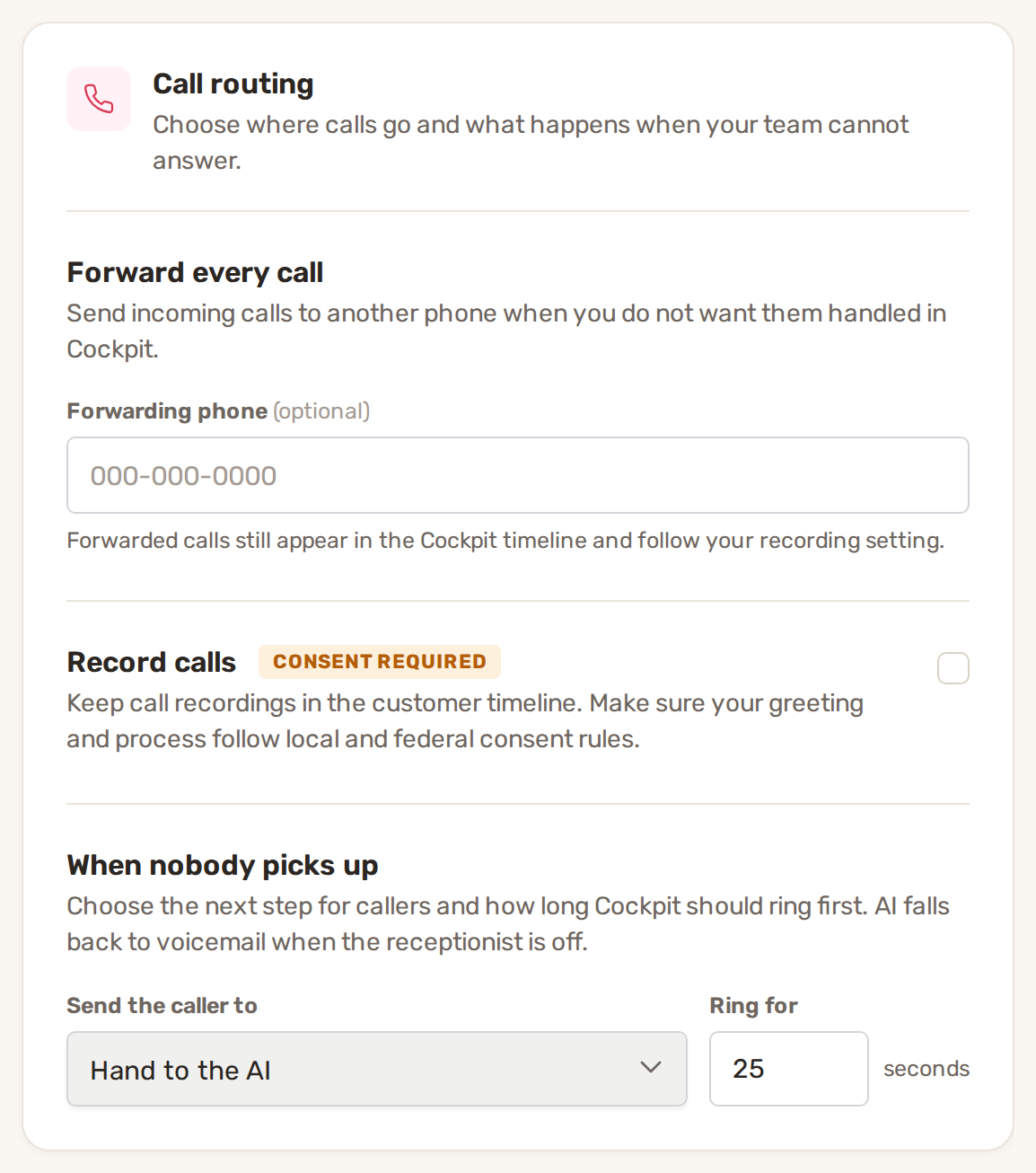
Under Call routing, the When nobody picks up section sets what happens when your team is available but doesn't answer.
- In Send the caller to, pick what the caller gets.
- In Ring for, type how many seconds to ring first, from 5 to 120. The default is 25.
Both save as soon as you change them; a green Saved appears under them.
| Option | What the caller gets |
|---|---|
| Hand to the AI | The AI receptionist takes the call. If the receptionist is off, the caller goes to voicemail instead. This is the default. |
| Send to voicemail | Your Stepped-away greeting, then they can leave a message. |
| Politely hang up | "Sorry, we couldn't take your call right now. Please try us again later." and the call ends. |
A voicemail can be up to 2 minutes long. The caller can press * to finish. It lands in that customer's conversation in the Call & Message Center, marked as a missed call.
Forward every call to another phone
- Under Forward every call, type the number in Forwarding phone (000-000-0000 format).
- Click Save at the bottom of the page.
From then on every call goes straight to that phone: no greetings, no ringing in BizBaby, no AI receptionist and no voicemail from BizBaby. Forwarded calls still show in the customer's timeline and follow your recording setting. To stop forwarding, empty the box and click Save.
Change what callers hear
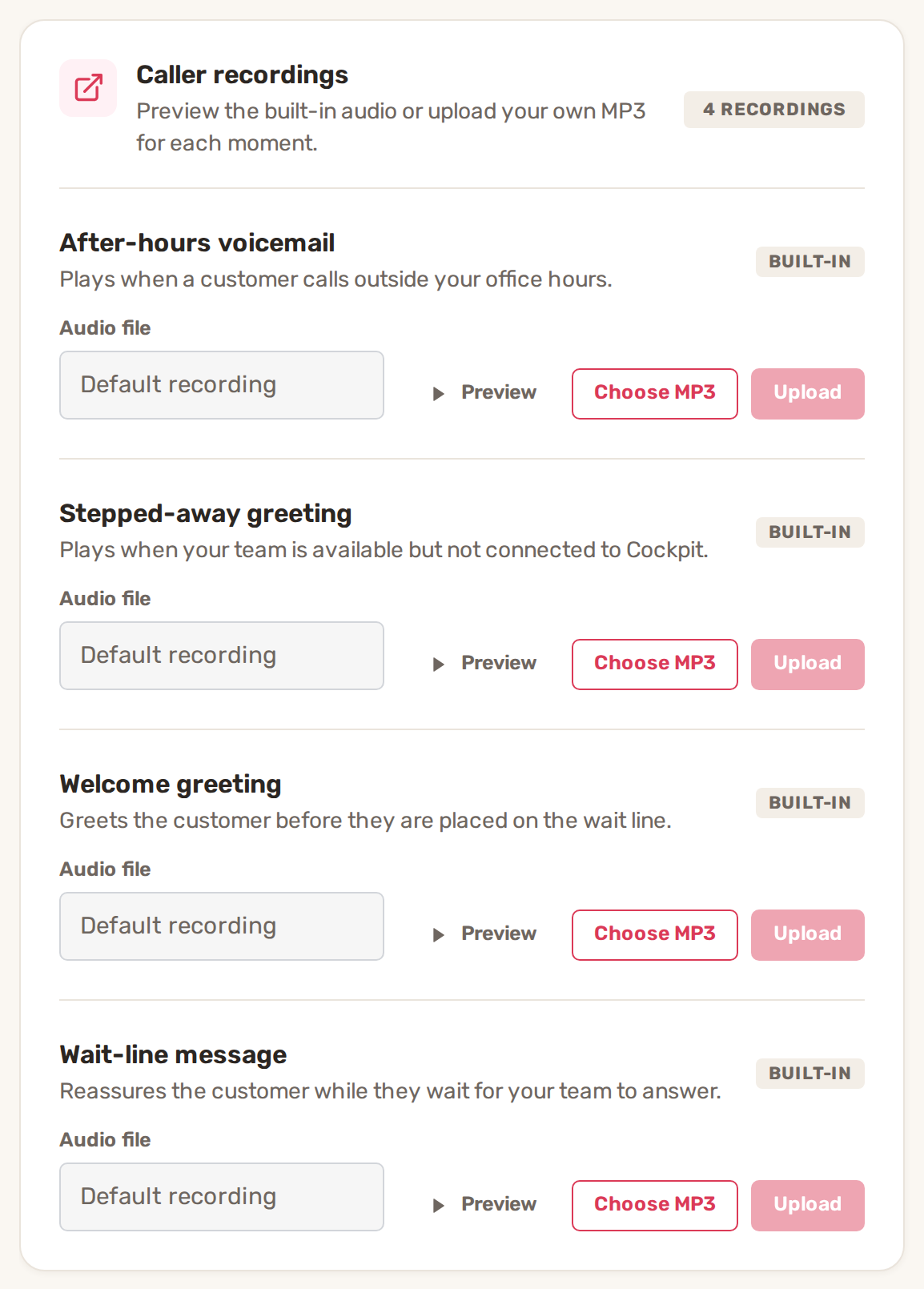
The Caller recordings card holds four recordings. Each starts as a Built-in one; once you upload your own it shows Custom.
| Recording | When it plays |
|---|---|
| After-hours voicemail | A customer calls outside your working hours, before they leave a message. |
| Stepped-away greeting | Nobody is available or nobody answered, and the call goes to voicemail. |
| Welcome greeting | Once, at the start of a call while your team is being rung. |
| Wait-line message | After the welcome, while the caller waits for someone to answer. |
- Click Preview to hear the current recording.
- Click Choose MP3 and pick your file. Only MP3 files are accepted.
- Click Upload. It's used from the next call.
The caller hears the welcome and the wait-line message while your team's phones ring. Short recordings mean they're still listening when someone picks up. If you record calls, say so in the welcome greeting.
Common problems
- Calls go straight to voicemail during the day. Nobody was available: check that someone has the Call & Message Center open with Available for calls on. Also check today's working hours in Business Settings.
- Calls never ring in BizBaby. A Forwarding phone is set. Empty it and click Save.
- The AI receptionist doesn't answer. It's switched off, so callers go to voicemail. See AI Receptionist.
- Your upload is refused. The file isn't an MP3, or your storage is full.
- You want a text or alert after a missed call. Create an automation that starts when a call is missed or goes to voicemail. See How automations work.
Related
- The Call & Message Center
- Call recording
- AI Receptionist: set it up, what it says, when it hands over
- How automations work
Was this article useful?
Keep reading
More Phone and texting
Call recording
Turn recording on or off Click the gear icon at the top right, then Call & Message Center. Communications → Settings in...
Read guide →Get a new business number
Before you start You need admin access to the business. Team members without access to business settings can't open the...
Read guide →Messaging limits and delivery problems
Did my text arrive? Under each text you send, next to the time, BizBaby shows where it stands. LabelWhat it means Sendin...
Read guide →Knowing what to charge is step one
First 3 months free. No card required. Bring the whole team.
Start Free Trial Back to Login