
Scheduling and dispatch
Scheduling modes: Standard and Advanced
In this article
When you book or reschedule an appointment, the window opens with a switch: Standard or Advanced. Standard is the quick way: pick a day and an arrival time, and BizBaby assigns a free worker for you. Advanced shows every worker's day on a timeline, so you choose who goes and how long the work takes. BizBaby remembers which one you used last.
Standard or Advanced
| Mode | You choose | BizBaby does |
|---|---|---|
| Standard | The day and the arrival time. | Offers your business's days and arrival times and assigns a free worker automatically, following the service's automatic worker assignment. The work takes as long as the service says. |
| Advanced | The day, the arrival window, exactly which workers go (one, several or none) and the duration. | Shows each worker's bookings, visits and time off for that day, and warns you about clashes before you save. Nobody is assigned automatically. |
The switch appears for your team when booking or rescheduling from the Appointments page. Customers booking online never see it: they always get the Standard way.
Book with Standard
- On Appointments, click Add Appointment. Click Standard if the window opened on Advanced. It says: "Pick a day and arrival time. A free worker is assigned automatically."
- Pick the Service, then the Appointment Date and Arrival Time.
- Click Next, choose the customer and click Submit.
Some services only offer times when one of their workers is free. For those, staff get an extra box, Show all dates and times. Tick it to see every day and time in your hours, including ones when no worker is free. BizBaby still saves the appointment and shows a warning afterwards.
Book with Advanced
- In the Service Appointment window, click Advanced. The window widens: "See every worker's day, choose who goes, and set the duration."
- Pick the Service.
- Pick a day in the Appointment date strip. Each day says how many arrival windows are open. "Open" means the whole appointment, arrival window plus duration, fits for at least one worker.
- Under Workers · tick who goes (one, several, or none), tick each worker you're sending. Their line on the timeline shows what they already have that day.
- Set the Arrival Time, or drag the appointment block along the timeline to another arrival window.
- Set the Duration, or drag the right edge of the block. It starts at what the service suggests. Zero is allowed.
- Read the box under the duration. It tells you whether the appointment fits, and who is free for the whole of it.
- Click Next, choose the customer and click Submit.
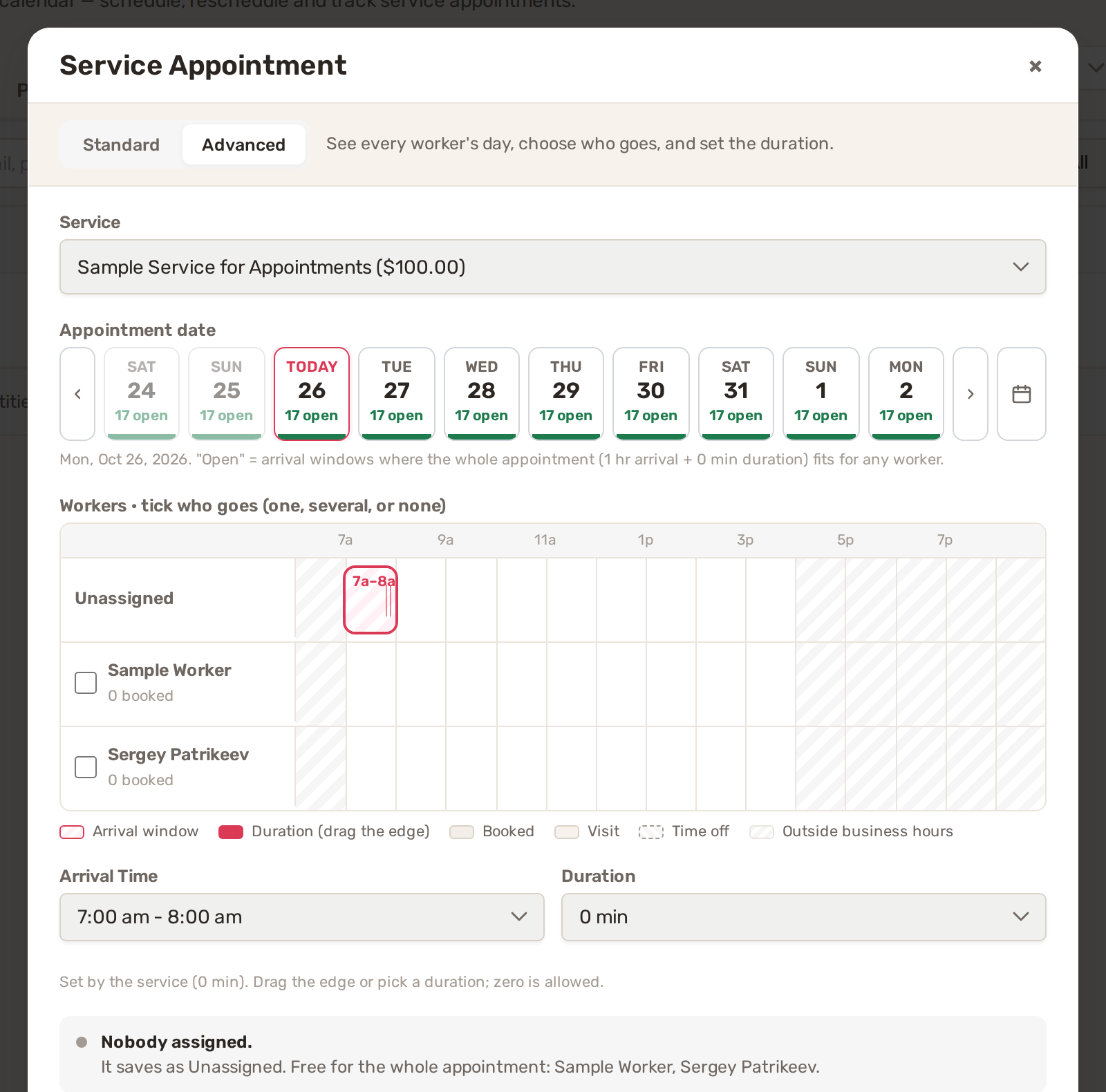
| On the timeline | What it means |
|---|---|
| Arrival window | The outlined part of the appointment block: when the worker may arrive. |
| Duration | The filled part: how long the work takes. Drag its edge to change it. |
| Booked | The worker's other appointments that day. |
| Visit | Job visits the worker already has. |
| Time off | Time blocked on Team availability. |
| Outside business hours | Shaded hours when you're not open. |
What the warnings mean
Advanced warns you but rarely stops you. You know things BizBaby doesn't, like a worker who said they'd stay late.
- "No one is free for the whole appointment." Every worker has a booking, a visit or time off in that time. Pick another window, shorten the duration, or tick a worker anyway.
- "This day is closed in your Appointment Hours." You can still book it: pick any arrival time.
- "No arrival window on this day." Your hours offer no window that day. Pick another day above.
- "This date is in the past." You can still save it, for example to record work already done.
- "Nobody assigned." No worker is ticked. The appointment saves as Unassigned and waits on the Unassigned line of the Scheduler.
Editing and rescheduling
The same switch appears in the Reschedule appointment window (click the appointment's time in the list) and the Edit Appointment window (open the appointment and click Edit). On Advanced, the timeline opens with the appointment's current day, time, workers and duration. A worker who has since left the team is still listed, as No longer on the team, so you can untick them. On Standard, Edit Appointment also shows a Duration box.
To move many appointments or change several workers at once, use the Scheduler instead: Appointments → Calendar View. See Assign workers and dispatch.
Advanced shows everyone's day, so it needs the Orders & Customers permission. Without it, the switch shows a lock and its hint says to ask the business owner. Turn it on in Team → Permissions. Anything they save goes through as Standard.
Common problems
- There are no worker tick boxes on Advanced. Your plan doesn't include choosing workers for appointments. You can still see the timeline and set the duration.
- "Choose a duration between 0 minutes and 24 hours." The duration is too long. Pick a shorter one.
- "A chosen worker is not on this business's team." That person was removed from your team while the window was open. Close the window, open it again and pick someone else.
- A day is missing on Standard. No worker is free that day for this service. Tick Show all dates and times, or switch to Advanced.
Related
- Appointments and the calendar
- Assign workers and dispatch
- Add your team and choose what each person can see
Was this article useful?
Keep reading
More Scheduling and dispatch
Appointments and the calendar
Before you start Set the hours customers can book. On the Appointments page, click Service Settings. On the Work setup p...
Read guide →Assign workers and dispatch
1. Decide who gets booked automatically Each appointment service has its own list of workers. When a customer books onli...
Read guide →Service areas and out-of-area requests
Open your service areas Click the gear icon at the top right, then Service Areas. The page has a map on the left and two...
Read guide →Knowing what to charge is step one
First 3 months free. No card required. Bring the whole team.
Start Free Trial Back to Login