
Scheduling and dispatch
Assign workers and dispatch
In this article
Every appointment, job and visit can have one or more workers. When a customer books, BizBaby picks the first free worker from the service's list. You can change who goes at any time: with Assign Workers on the record, by ticking workers on Advanced when you book, or by dragging appointments between workers in the Scheduler. Block time off on Team availability so nobody gets booked while they're away.
1. Decide who gets booked automatically
Each appointment service has its own list of workers. When a customer books online, or you book on Standard, BizBaby assigns the first free one.
- Open Appointments and click Service Settings. On Work setup, click Manage services next to Appointment booking. Open the service you want to change and click Workers in the list on the left of the service page.
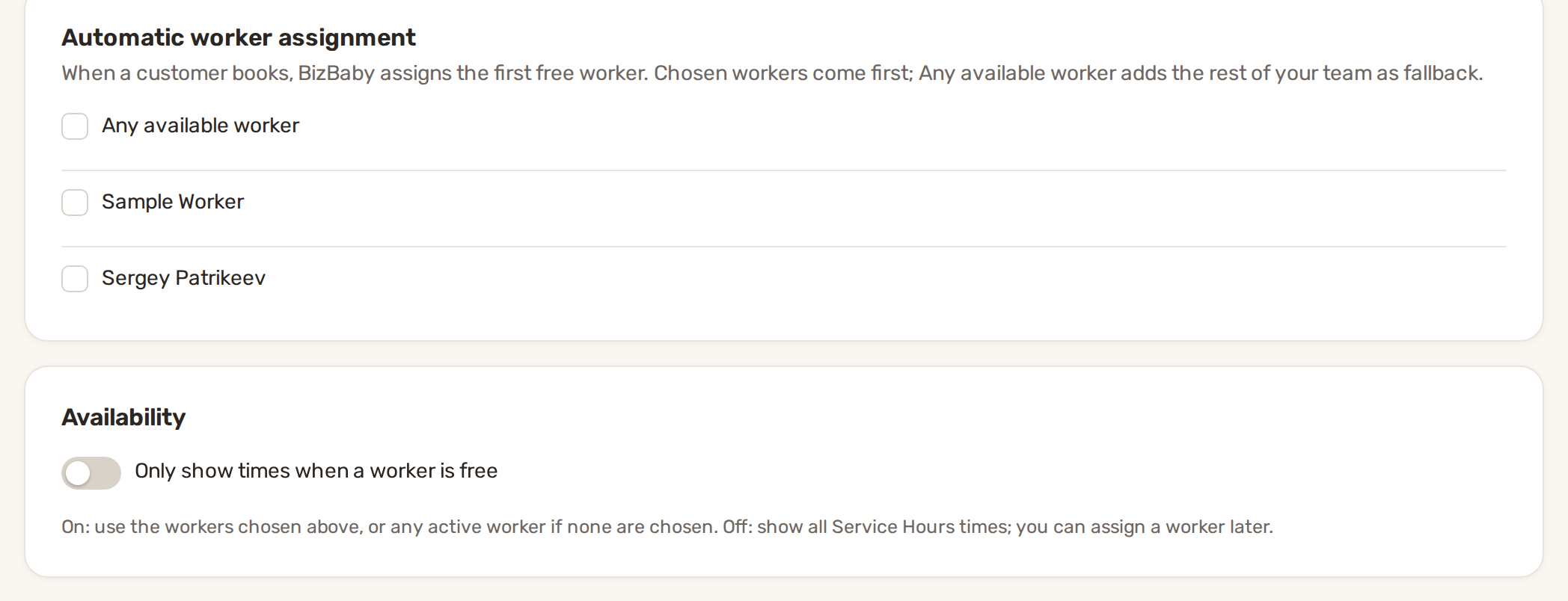
- Under Automatic worker assignment, tick the workers who do this work. Chosen workers are tried first.
- Tick Any available worker to let BizBaby fall back on the rest of your team when the chosen ones are busy.
- Under Availability, decide on Only show times when a worker is free. On: customers only see times when one of these workers is free (or any active worker, if you chose none). Off: they see every time in your service hours, and you assign a worker later.
- Click Save at the top of the page.
2. Assign or change workers on a record
An appointment. On Appointments, the Workers column shows who is going. Click + Assign Workers, or the names if someone is already assigned. You can also open the appointment and click Assign in its Workers row. In the Assign workers window, pick one or more people under Workers and click Save assignment.
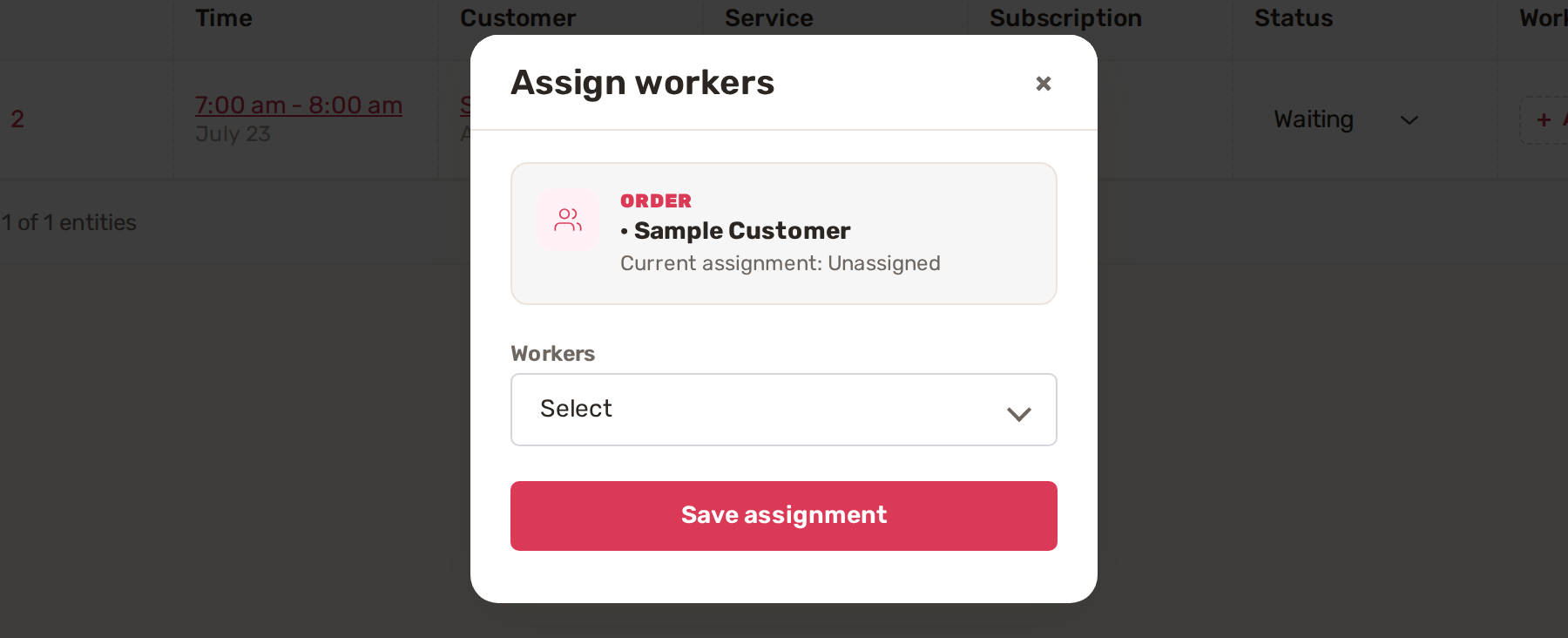
A job or a visit. On Jobs & Invoices, the Jobs tab has the same Workers column with + Assign Workers. Or open the job: its Workers row has an Assign button. Both open the same Assign workers window.
While booking. Switch the appointment window to Advanced and tick who goes. You see each worker's day before you choose. See Book with Advanced.
3. Plan the day in the Scheduler
The Scheduler is where you dispatch: one line per worker, every appointment of the day, and the ones nobody has yet. Open Appointments and click Calendar View.
- Pick the day in the strip at the top.
- Look at the Unassigned line first. The number under it says how many appointments are waiting for someone.
- Drag a block onto a worker's line to give it to them, or along the line to another time. Drag its right edge to change how long it takes.
- Hover over a block: + adds another worker, × removes one.
- Changed blocks get a dashed outline, and the bar at the bottom counts your changes. Work through as many days as you need: changes are kept per day until you save.
- Click Save changes. Or Clear to drop them.
| Outline | What it means |
|---|---|
| Dashed | Changed, not saved. |
| Red | Overlaps a booking or time off. |
| Green | A job. |
| Dotted | The appointment's arrival window. The solid part is the work itself. |
If your changes create a new clash, BizBaby asks first: "Save with … new conflicts?" It lists each one. Your changes double-book a worker, book them into time off, or move an appointment into the past. Click Go back and edit to fix them, or Save anyway. Clashes that were already there aren't counted. Upcoming conflicts in these 14 days, under the timeline, lists every clash still on the calendar.
Close the Scheduler with unsaved changes and it asks whether to Save changes or Discard. Nothing is lost without you choosing.
4. Block time off
Time off keeps BizBaby from offering a worker for lunch, a dentist visit or a vacation. Go to Team and click Availability. The Team availability page shows one line per worker for the day you pick.
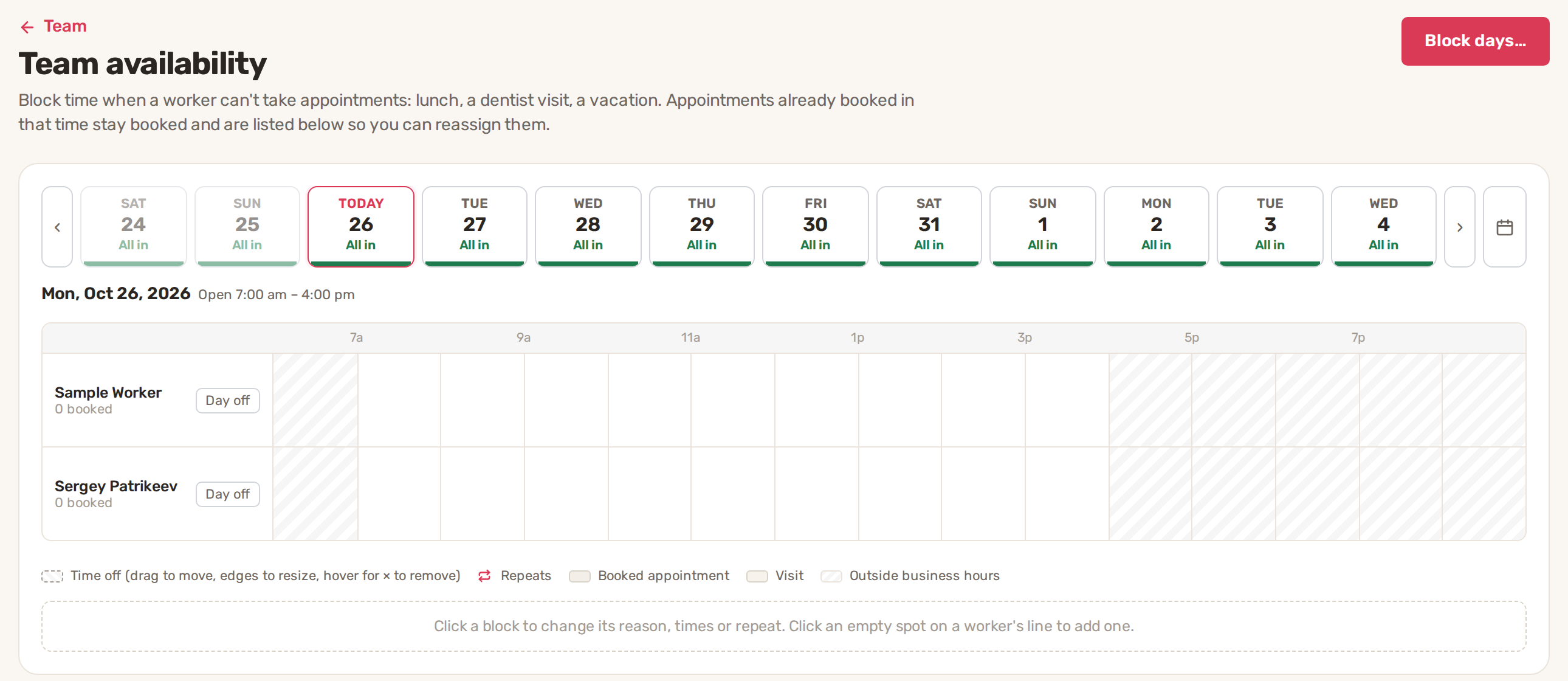
- Part of a day: click an empty spot on a worker's line. Drag the block to move it and its edges to resize it.
- A whole day: click Day off next to the worker's name.
- Several days, such as a vacation: click Block days…, pick the Worker, click the first day and then the last day, pick a Reason and click Block days.
- Reason and repeats: click a block to change its reason, times or repeat: Does not repeat, Every week on that weekday, Every weekday (Mon–Fri) or Every day we're open.
Appointments already booked in that time stay booked. They're listed under the timeline. Nothing is moved automatically: reschedule each one, or keep it if the worker will still go.
Common problems
- An appointment came in with nobody on it. No worker on the service's list was free, or the service doesn't use automatic assignment. Assign someone, and check step 1.
- Advanced or Team availability is locked for a team member. Both show everyone's appointments, so they need the Orders & Customers permission. Turn it on in Team → Permissions.
- "Nothing was saved." The Scheduler couldn't save, often because the connection dropped. Your changes are still there. Try Save changes again.
- A worker shows as "No longer on the team". They were removed from your team after being assigned. Untick them or assign someone else.
Related
- Appointments and the calendar
- Scheduling modes and advanced scheduling
- The worker cabinet: what workers see
- Add your team and choose what each person can see
Was this article useful?
Keep reading
More Scheduling and dispatch
Appointments and the calendar
Before you start Set the hours customers can book. On the Appointments page, click Service Settings. On the Work setup p...
Read guide →Scheduling modes: Standard and Advanced
Standard or Advanced ModeYou chooseBizBaby does StandardThe day and the arrival time.Offers your business's days and arr...
Read guide →Service areas and out-of-area requests
Open your service areas Click the gear icon at the top right, then Service Areas. The page has a map on the left and two...
Read guide →Knowing what to charge is step one
First 3 months free. No card required. Bring the whole team.
Start Free Trial Back to Login