
Scheduling and dispatch
Appointments and the calendar
In this article
Appointments are fixed-price services a customer books for a time, like a TV mounting or a furniture assembly. They live under Appointments in the menu on the left. Click Add Appointment to book one, and Calendar View to see every worker's day in the Scheduler. Jobs, visits, estimates and invoices have their own calendar on Jobs & Invoices. Before you can book, your business needs working hours and at least one appointment service.
Before you start
- Set the hours customers can book. On the Appointments page, click Service Settings. On the Work setup page, click Change next to Service hours. Your Business hours, on the same page, are when your company is open, which is a separate setting.
- Add the services customers can book. See Set up your business in the first hour, step 4.
- Add your team, so there is someone to send. See Add your team and choose what each person can see.
The Appointments page
Click Appointments in the menu on the left. The page is called Service Appointments and opens on the Appointments tab, a list of every booking.
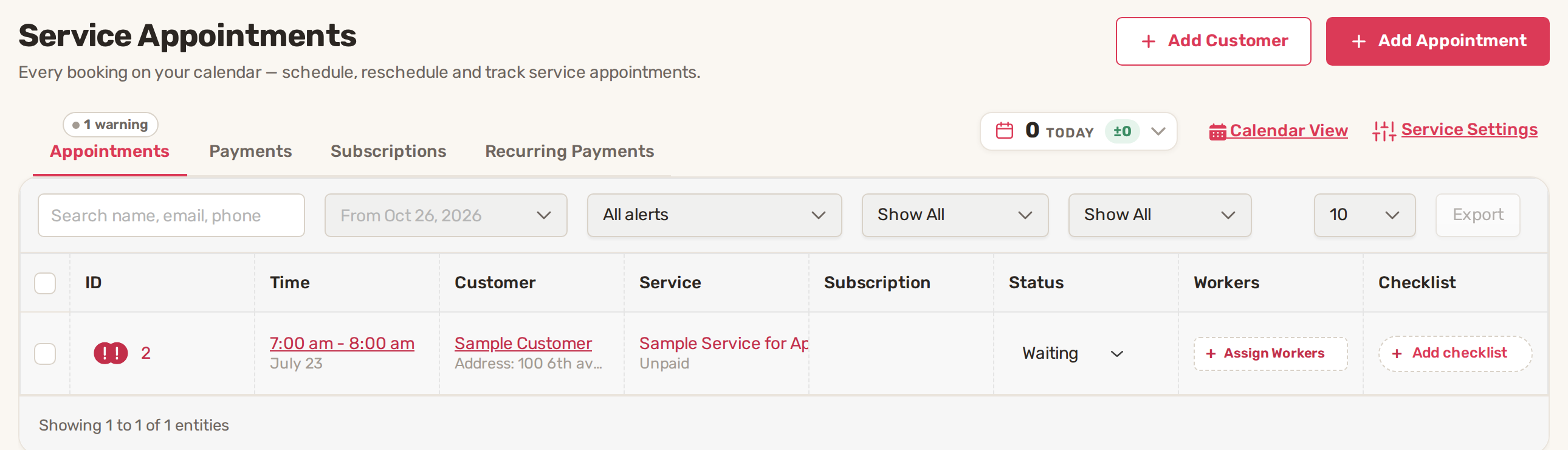
| Tab | What it shows |
|---|---|
| Appointments | Every booking, with its time, customer, service, status, workers and checklist. |
| Payments | Payments for appointments that collect payment. |
| Subscriptions | Appointments that repeat on a schedule. |
| Recurring Payments | Payments that repeat on a schedule. |
Above the list you can search by name, email or phone, pick a start date and filter by alerts, worker and status. The box with Today at the top right counts today's appointments. Click it to see booked sales, new customers and existing customers for Today, Tomorrow and This week. Service Settings next to it opens Work setup, where you manage your appointment services, your hours and your booking forms.
Book an appointment
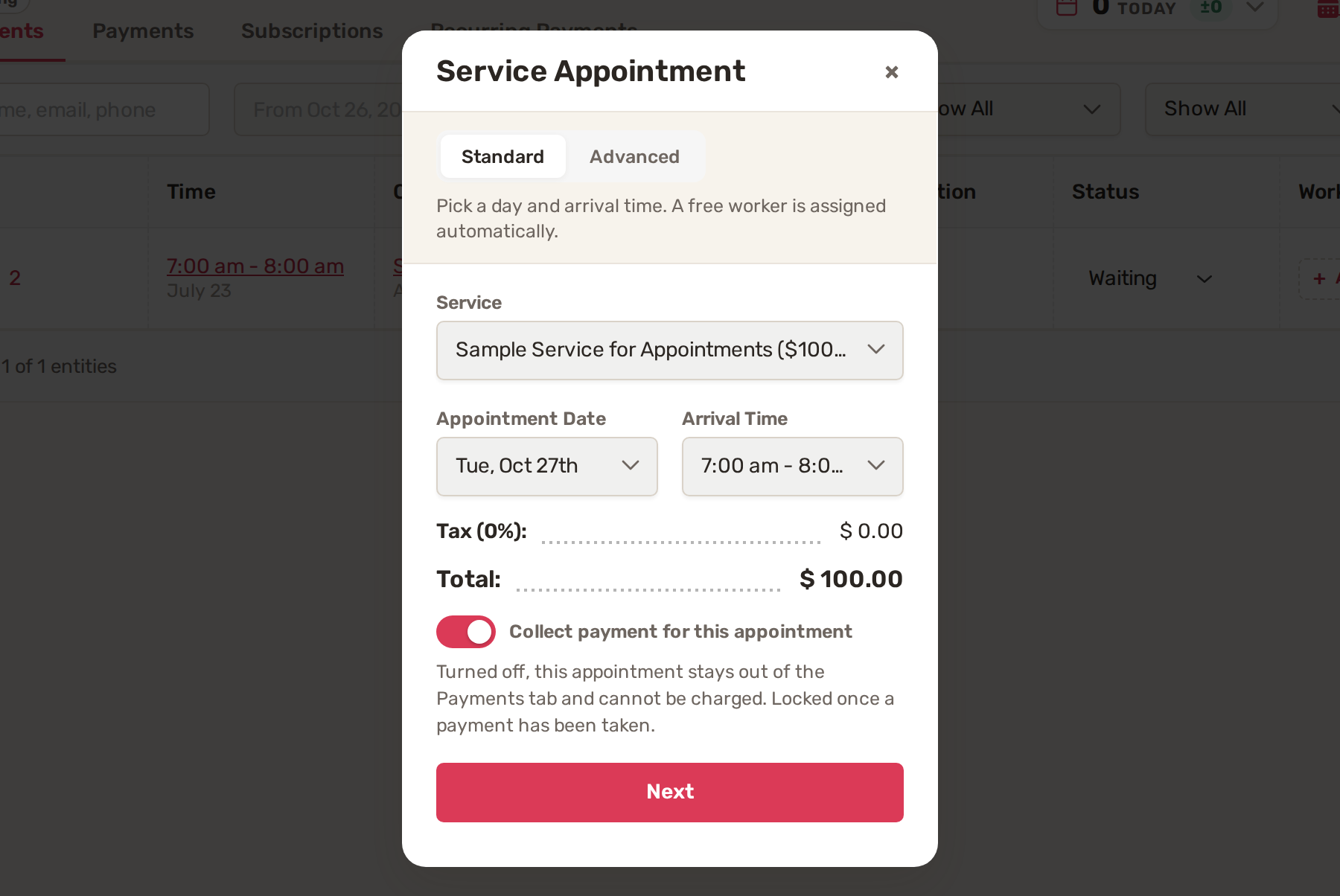
- On the Appointments page, click Add Appointment. You can also click New at the top of any page and pick Appointment. The Service Appointment window opens on Standard or Advanced, whichever you used last. These steps use Standard.
- Pick the Service.
- Pick the Appointment Date and the Arrival Time. The arrival time is a window, such as 7:00 am - 8:00 am, so the customer knows when to expect you.
- Leave Collect payment for this appointment on to take payment for it. Turned off, the appointment stays out of the Payments tab and can't be charged. You can't change this once a payment has been taken.
- Click Next.
- Under Existing Customer, search by name, email or phone and pick the customer. If nobody matches, add them first with Add Customer at the top of the Appointments page.
- Click Submit.
Want to choose the worker yourself, or see who is busy first? Click Advanced at the top of the window. Scheduling modes and advanced scheduling explains both.
See the day in the Scheduler
Click Calendar View at the top right of the Appointments list. The Scheduler opens: one line per worker, plus an Unassigned line for appointments nobody has been given yet.
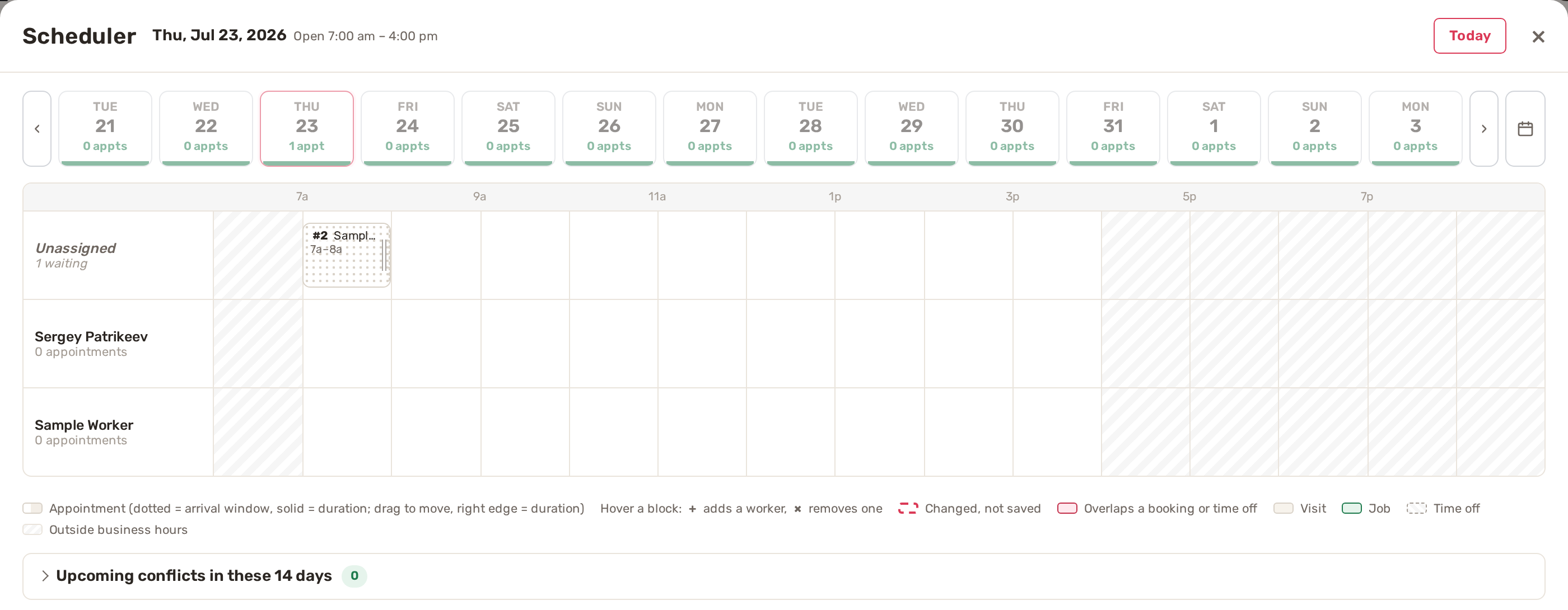
- Pick a day in the strip at the top. The arrows move it along, the calendar icon jumps to any date, and Today brings you back.
- Read a block. The dotted part is the arrival window. The solid part is how long the work takes. Shaded hours are outside business hours.
- Open an appointment by clicking its block.
- Show all workers. A long team is cut short; click Show all … workers at the bottom to see everyone.
- Upcoming conflicts in these 14 days lists any worker who is double-booked or booked into time off.
You can also move appointments and change who goes right here. Nothing is saved until you click Save changes. See Assign workers and dispatch.
The calendar for jobs, visits, estimates and invoices
Appointments have the Scheduler. Everything else has its own Calendar: open Jobs & Invoices and click Calendar View.
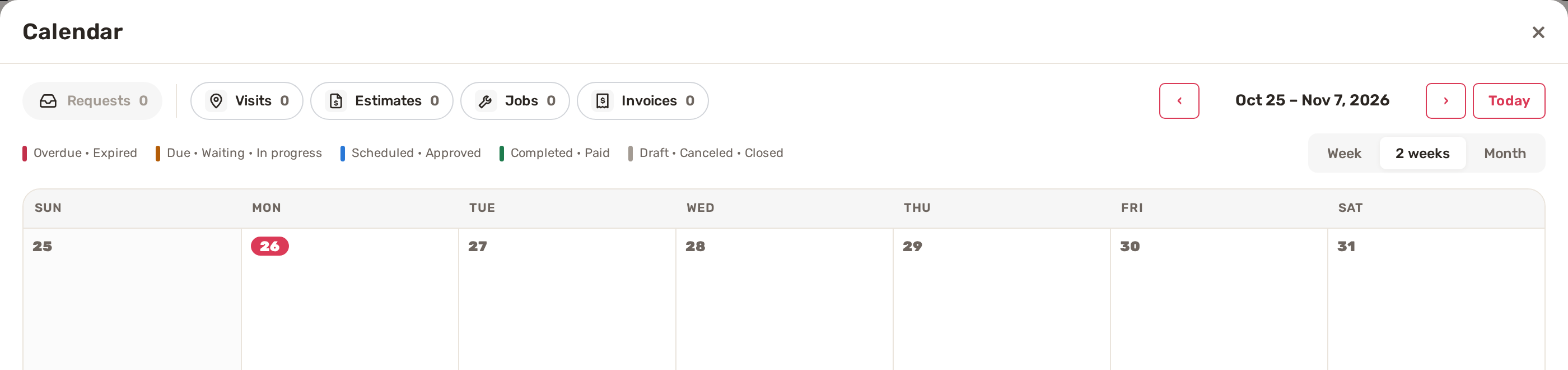
- The buttons at the top, Requests, Visits, Estimates, Jobs and Invoices, turn each kind on or off. The number is how many fall in the dates shown.
- Switch between Week, 2 weeks and Month, and use the arrows or Today to move.
- The coloured bar on each card shows where it stands: red for Overdue · Expired, orange for Due · Waiting · In progress, blue for Scheduled · Approved, green for Completed · Paid, grey for Draft · Canceled · Closed.
- Click a card to open that record.
Change or reschedule an appointment
There are two ways in, and both have the same Standard and Advanced choice.
- Just the time: click the appointment's time in the list. The Reschedule appointment window shows the current time. Pick the New date and New time and click Save new time.
- Everything else: click the appointment's ID to open it, then click Edit. The Edit Appointment window lets you change the service, date, arrival time and Duration, then Save.
To move several appointments at once, drag them in the Scheduler and save once.
Common problems
- Add Appointment sends you to Business Settings. A type of business, a service or working hours is missing. See Set up your business in the first hour.
- Appointments sends you to the plans page. Your plan doesn't include service appointments.
- The day you want isn't in the list. On Standard, only days and times with a free worker may be offered. Switch to Advanced to see every day. See Scheduling modes.
- An appointment sits on the Unassigned line. Nobody was free, or it was saved with nobody ticked. Assign someone as described in Assign workers and dispatch.
- "The schedule could not be loaded." The Scheduler couldn't reach BizBaby. Close it and open it again.
Related
- Scheduling modes and advanced scheduling
- Assign workers and dispatch
- Online booking: what customers can book
- How a job moves: request, quote, job, visit, invoice
Was this article useful?
Keep reading
More Scheduling and dispatch
Assign workers and dispatch
1. Decide who gets booked automatically Each appointment service has its own list of workers. When a customer books onli...
Read guide →Scheduling modes: Standard and Advanced
Standard or Advanced ModeYou chooseBizBaby does StandardThe day and the arrival time.Offers your business's days and arr...
Read guide →Service areas and out-of-area requests
Open your service areas Click the gear icon at the top right, then Service Areas. The page has a map on the left and two...
Read guide →Knowing what to charge is step one
First 3 months free. No card required. Bring the whole team.
Start Free Trial Back to Login