
Website and online booking
Install Google Tag Manager and track leads
In this article
BizBaby's website forms run in their own frame, so the tags on your website can't see what happens inside them. To track form steps and finished leads, paste your Google Tag Manager container into the Google Tag Manager box on the form's code page and click Save script. BizBaby then loads your container inside the form, and you set up triggers on the form's button IDs. This needs the Growth plan.
Before you start
- Your business is on the Growth plan. On other plans the box shows a Growth plan chip and Upgrade to unlock.
- You have a Google Tag Manager account and a web container. Its ID looks like GTM- followed by letters and numbers.
- The form is on your website already. See Add BizBaby forms to any website.
Which forms can be tracked
| Form | Where the box is | Button IDs |
|---|---|---|
| Request Estimate | gear icon → Integrations → Request Estimate → Get code | job_request_step_1_v1: the customer filled in job details and date and confirmed the total. job_request_step_2_v1: the customer filled in address, phone and email and sent the request. |
| Book Appointment | gear icon → Integrations → Book Appointment → Get code | appointment_step_1_v1: picked the details and date. appointment_step_2_v1: filled in address, phone and email. appointment_step_3_v1: entered card details, only for services that need payment. |
| Contact Form | gear icon → Integrations → Contact Form → Get code | contact_v1: the customer sent a message. |
| Quick Request | gear icon → Integrations → Quick Request → Get code | contact_v1: the customer sent a request. Quick Request uses the same tag as the Contact Form. |
The same container also loads on your hosted Dedicated request page and Dedicated booking page, and the same button IDs mark the same stages. The hosted booking page adds a Review step after the address, so there appointment_step_2_v1 means the customer reached Review, not that they booked. The final Book my visit button has the ID appointment_review_submit. Customer Login has no tracking box.
1. Add your container
- Open the form's code page, as in the table above.
- Scroll to Google Tag Manager.
- Paste your Google Tag Manager code, or just the container ID, such as GTM-AB12CD3.
- Click Save script. "Successfully saved!" shows next to the button.
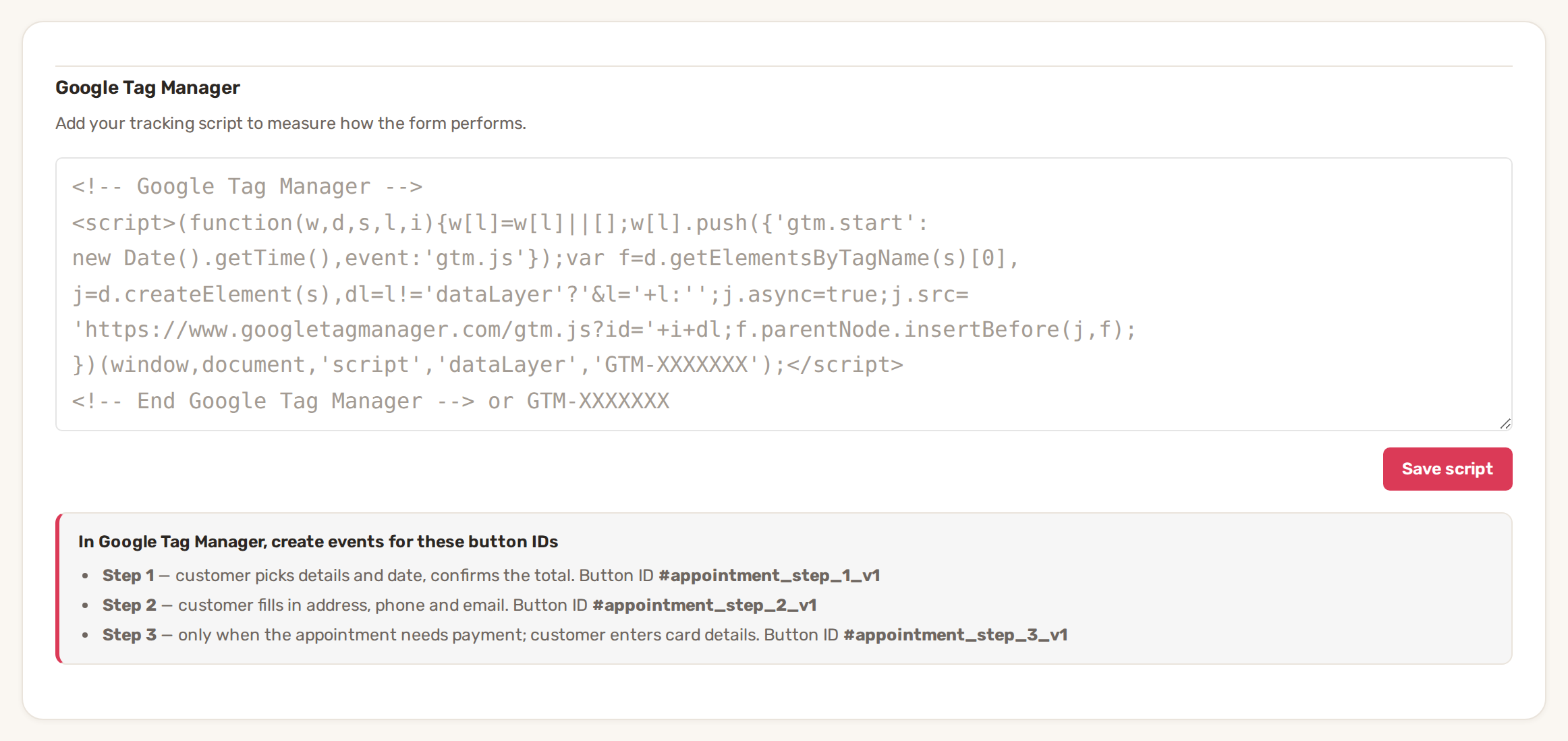
BizBaby keeps only the container ID from what you paste, and loads it inside the form. Each form has its own box, so add your container on every form you want to track. Quick Request uses the same tag as the Contact Form: saving it on either page sets it for both.
2. Set up triggers in Google Tag Manager
In Google Tag Manager, create a trigger for each button you want to count, using the button ID from the list without the # sign. A click trigger on Click ID equals job_request_step_2_v1 is a common way to count sent estimate requests. Attach the trigger to your Google Ads conversion or Google Analytics event tag, then publish the container in Google Tag Manager.
| To count… | Use the button |
|---|---|
| Sent estimate requests | job_request_step_2_v1 |
| Bookings without payment | appointment_step_2_v1 on your website, appointment_review_submit on the hosted booking page |
| Bookings with payment | appointment_step_3_v1 |
| Contact messages and quick requests | contact_v1 |
| People who started | job_request_step_1_v1 or appointment_step_1_v1 |
A click trigger counts the click itself. If a customer clicks and then sees a message such as a missing field, that click still counts.
BizBaby also records where new leads came from, including Google Ads click IDs and campaign names, and shows it in your reports by channel.
Change or remove the container
Open the form's code page, replace or delete what's in the Google Tag Manager box and click Save script. If the box holds nothing that looks like a container ID, BizBaby saves it empty and loads no container.
Common problems
- "Successfully saved!" but nothing reaches Google. The box needs a Google Tag Manager ID that starts with GTM-. A Google Analytics ID (starting with G-) or a Google Ads tag on its own isn't kept. Add those tags inside your Google Tag Manager container instead. Also check the container is published in Google Tag Manager.
- "Saving error!" The save didn't go through. Reload the page and click Save script again.
- The tags on your own website don't see form clicks. That's expected: the form runs in its own frame. Put the container in BizBaby's box as above.
- Tracking stopped after a plan change. The container loads only while your business is on the Growth plan.
Related
Was this article useful?
Keep reading
More Website and online booking
Add BizBaby forms to any website
The forms you can add Click the gear icon at the top right and choose Integrations. The Your website card lists every fo...
Read guide →Connect your own domain
Before you start Buy a domain from a domain provider, if you don't have one. BizBaby doesn't sell domains. Have your sig...
Read guide →Online booking: what customers can book
Where customers book This article covers appointment booking, where the customer books a time on your calendar. BizBaby...
Read guide →Knowing what to charge is step one
First 3 months free. No card required. Bring the whole team.
Start Free Trial Back to Login