
Website and online booking
Add BizBaby forms to any website
In this article
You can put BizBaby's forms on any website you already have, as long as you can paste HTML code into its pages. Go to gear icon → Integrations, click Get code on the form you want, then Copy code and paste it into your site. Requests, bookings and messages land straight in BizBaby. The one thing to know: first enter your site's address in Website Domain under gear icon → Business Settings, because the forms only work on that address.
The forms you can add
Click the gear icon at the top right and choose Integrations. The Your website card lists every form, and the chip at its top right counts how many your plan includes.
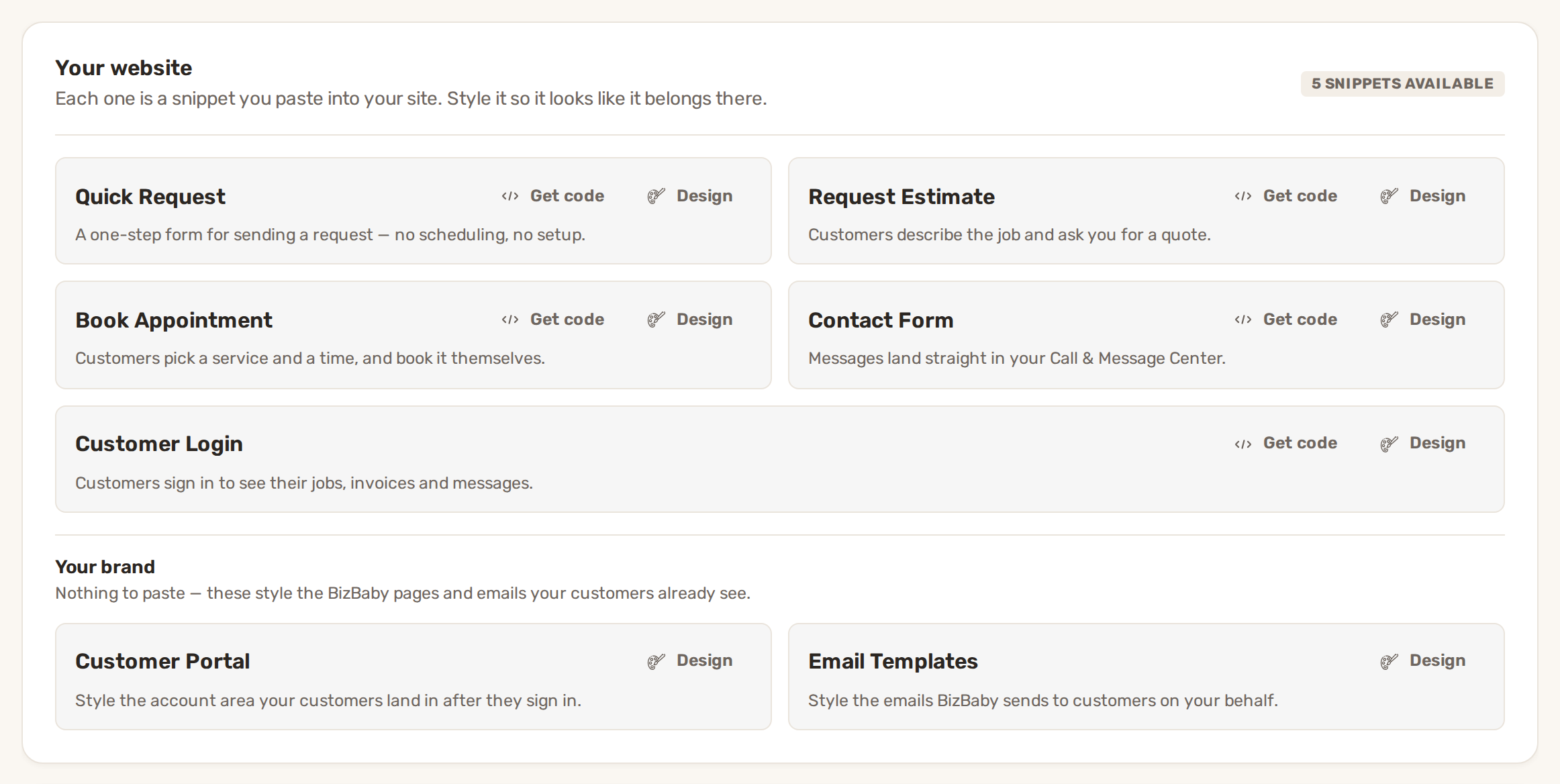
| Form | What customers do | Plans |
|---|---|---|
| Quick Request | Send you a request in one step, with no date or time. | Premium, Growth, Website |
| Request Estimate | Describe the job and ask you for a quote. | Essential, Premium, Growth |
| Book Appointment | Pick a service and a time and book it themselves. See Online booking. | Essential, Premium, Growth |
| Contact Form | Send you a message. It lands in your Call & Message Center. | Premium, Growth, Website |
| Customer Login | Sign in to see their jobs, invoices and messages in your customer portal. | Premium, Growth |
A form your plan doesn't include shows a dashed border, a plan chip and Upgrade instead of Get code. Changing how a form looks (Design) needs the Growth plan. On other plans the tile says Design: Growth plan.
1. Enter your website address
- Click the gear icon and choose Business Settings.
- In Online presence & branding, type your site's address in Website Domain. It must start with https://, for example https://example.com.
- Click Save.
The forms work on that address with or without "www", and on your BizBaby website. On any other site they don't load. If you connected your own domain in the Website Builder, the field is locked. To change it, disconnect the site in the Website Builder first.
2. Copy the code
- On Integrations, click Get code on the form.
- Click Copy code at the top right of the code box. A short "Code in buffer" note confirms it's copied.
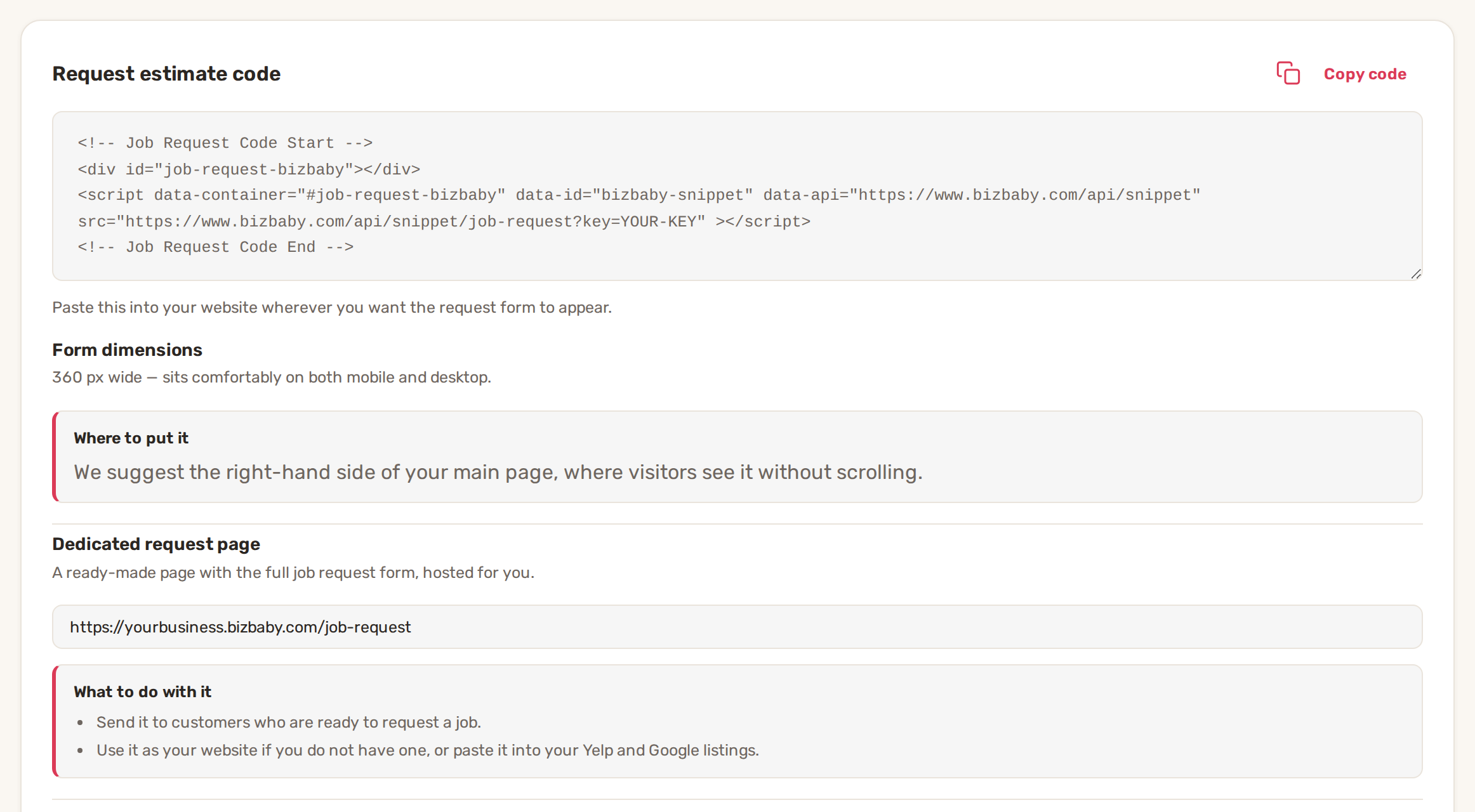
You can also reach the Request Estimate and Book Appointment code from Work setup: on Appointments, click Service Settings, then Embed code next to Estimate requests or Appointment booking.
3. Paste it into your website
Paste the whole code, from the "Code Start" line to the "Code End" line, into the page where you want the form. In most site builders that means adding an HTML, Embed or Custom code block and pasting the code into it. Publish the page and open it to check the form shows.
- The form is 360 px wide and fits on phones and computers.
- BizBaby suggests the right-hand side of your main page, where visitors see it without scrolling.
- Each form's code is different. To add two forms, paste each code where that form should go.
Quick Request, Request Estimate and Book Appointment each have a hosted page with the full form. Click Design on the form, then Open live form. For Request Estimate and Book Appointment the address is also under Dedicated request page or Dedicated booking page. Send it to customers or put it on your Yelp and Google listings. See which page fits which work.
A booking form for one service
To embed a booking form that opens on one service, open that service in your price book and click Embed code at the top. The window gives you code and a Public appointment URL for just that service.
Common problems
- Get code opens Business Settings instead. Website Domain is empty. Every form except Request Estimate needs it before it shows its code. Fill it in as in step 1, then come back.
- "Enter a full https:// domain with a valid ending, for example https://example.com." Type the address with https:// at the start and nothing after the ending, no page path.
- The form doesn't show on your site. The site's address doesn't match Website Domain. A form on shop.example.com doesn't load when the field says https://example.com. Also check you pasted the whole code, both lines between the Start and End comments.
- The form says "This form is temporarily unavailable". Your plan no longer includes that form. Customers see this until you upgrade or remove the code.
- A tile shows Upgrade instead of Get code. Your plan doesn't include that form. See the table above.
Related
- Online booking: what customers can book
- Install Google Tag Manager and track leads
- Website builder
- Customize job and order fields
Was this article useful?
Keep reading
More Website and online booking
Connect your own domain
Before you start Buy a domain from a domain provider, if you don't have one. BizBaby doesn't sell domains. Have your sig...
Read guide →Install Google Tag Manager and track leads
Before you start Your business is on the Growth plan. On other plans the box shows a Growth plan chip and Upgrade to unl...
Read guide →Online booking: what customers can book
Where customers book This article covers appointment booking, where the customer books a time on your calendar. BizBaby...
Read guide →Knowing what to charge is step one
First 3 months free. No card required. Bring the whole team.
Start Free Trial Back to Login