
Website and online booking
Online booking: what customers can book
In this article
With online booking, customers pick one of your services, a day and an arrival time, and book it themselves. They can book any service that is switched to Bookable and isn't Internal only, at the times you open in Service Hours, up to 30 days ahead. Your business hours don't decide this: Service Hours are the only hours customers can book online.
Where customers book
This article covers appointment booking, where the customer books a time on your calendar. BizBaby hosts a page for each of its three request forms. Each page is ready to share and works on a computer and a phone.
| Page | What the customer does | Use it for |
|---|---|---|
| Book Appointment | Picks a service, a day and an arrival window, and books it. | Set services you can schedule straight away. |
| Request Estimate | Picks a job, says what it's about and when they'd like it. You get back to them before anything is booked. | Work you need to price or see first. See How a job moves. |
| Quick Request | Fills in one short form: name, email, phone, address and project details. | The fastest way for someone to reach you, with no date or time. |
To open a page and copy its address, click the gear icon, choose Integrations, click Design on the form, then Open live form at the top right. For Book Appointment and Request Estimate, Get code also shows the address under Dedicated booking page or Dedicated request page. Send the address in messages or add it to your Google and Yelp listings.
- On your own website: paste the form's code. See Add BizBaby forms to any website.
- For one service: on Work setup, click Manage services, open the service and click Embed code. The code and the Public appointment URL it gives open on that service only.
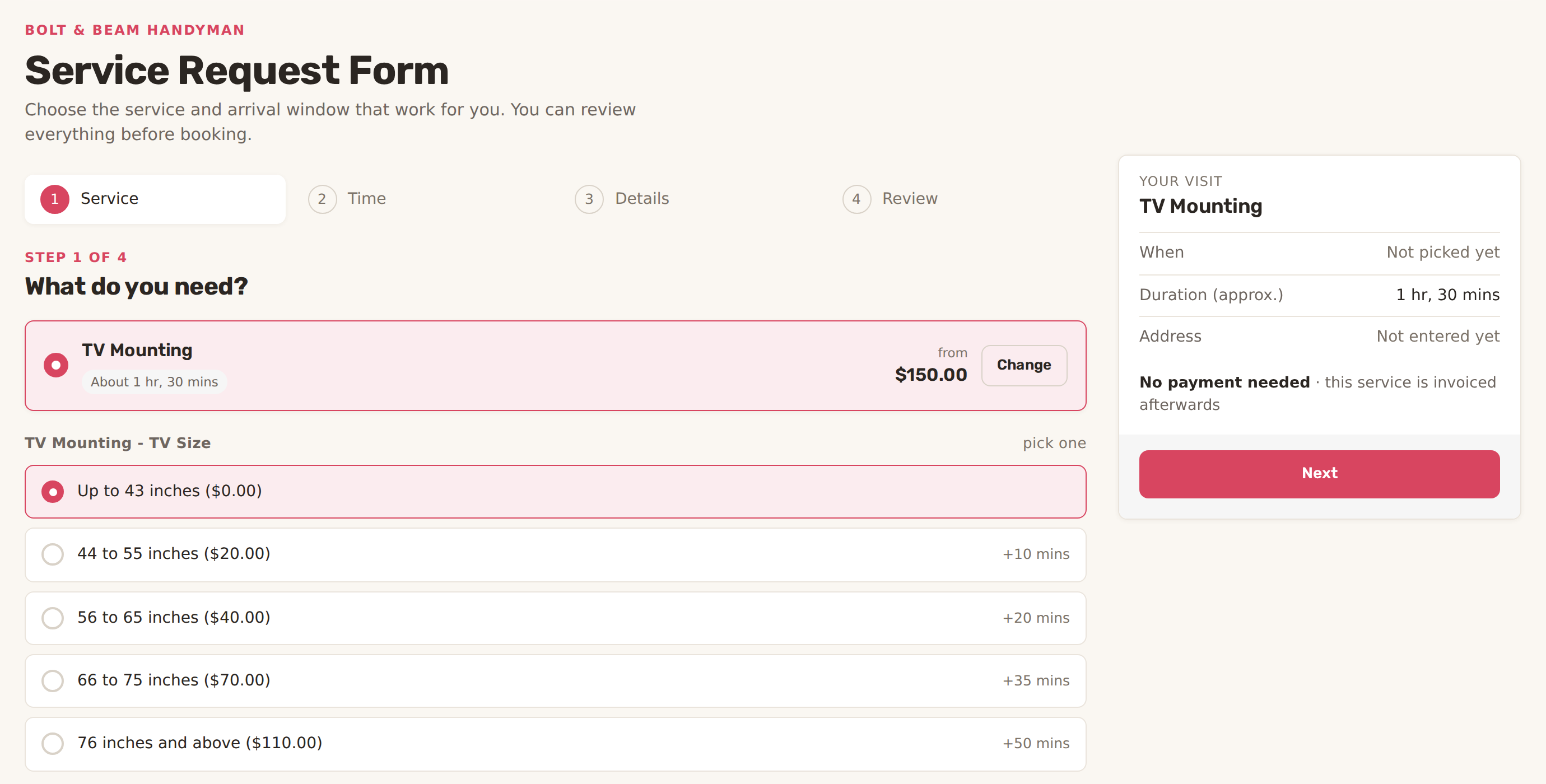
What the customer goes through
- Service: picks the service and any options it has.
- Time: picks a day under Pick a day, then an Arrival window.
- Details: fills in name, phone, email, address and zip code.
- Review: checks everything and books.
The Your visit box on the right keeps the service, time, approximate duration and address in view. When the service doesn't take payment online it says No payment needed.
The appointment then goes on your calendar for the time they picked. If that time was taken or has passed by then, the customer sees "That time is no longer available. Please choose another time."
Which services customers can book
Work setup shows how many services customers can book next to Appointment booking. To get there, click Service Settings on Appointments. Click Manage services to change them.

Each service's settings decide what the customer sees:
| Setting | What it does online |
|---|---|
| Bookable | Bookable — customers can choose this service. Off, the service is not offered. |
| Internal only | Internal only — hide from the booking form. |
| Base duration | How long the appointment lasts, plus any extra time its options add. |
| Availability | Only show times when a worker is free. On, customers see only times when one of the service's workers, or any active worker if none are chosen, is free. Off, they see every Service Hours time. |
| Payment | Require payment for this booking adds the card step. Let customers add a tip appears once payment is on. |
| Customer extras | Let customers leave a comment and Let customers attach files. Require customers to confirm appointments asks the customer to confirm in their Client Portal. |
| Disclaimer | Text shown at the bottom of the booking form, such as your cancellation terms. |
Click Preview form at the top of a service to see its form as a customer would. For setting up services, see Build your Price Book.
When customers can book
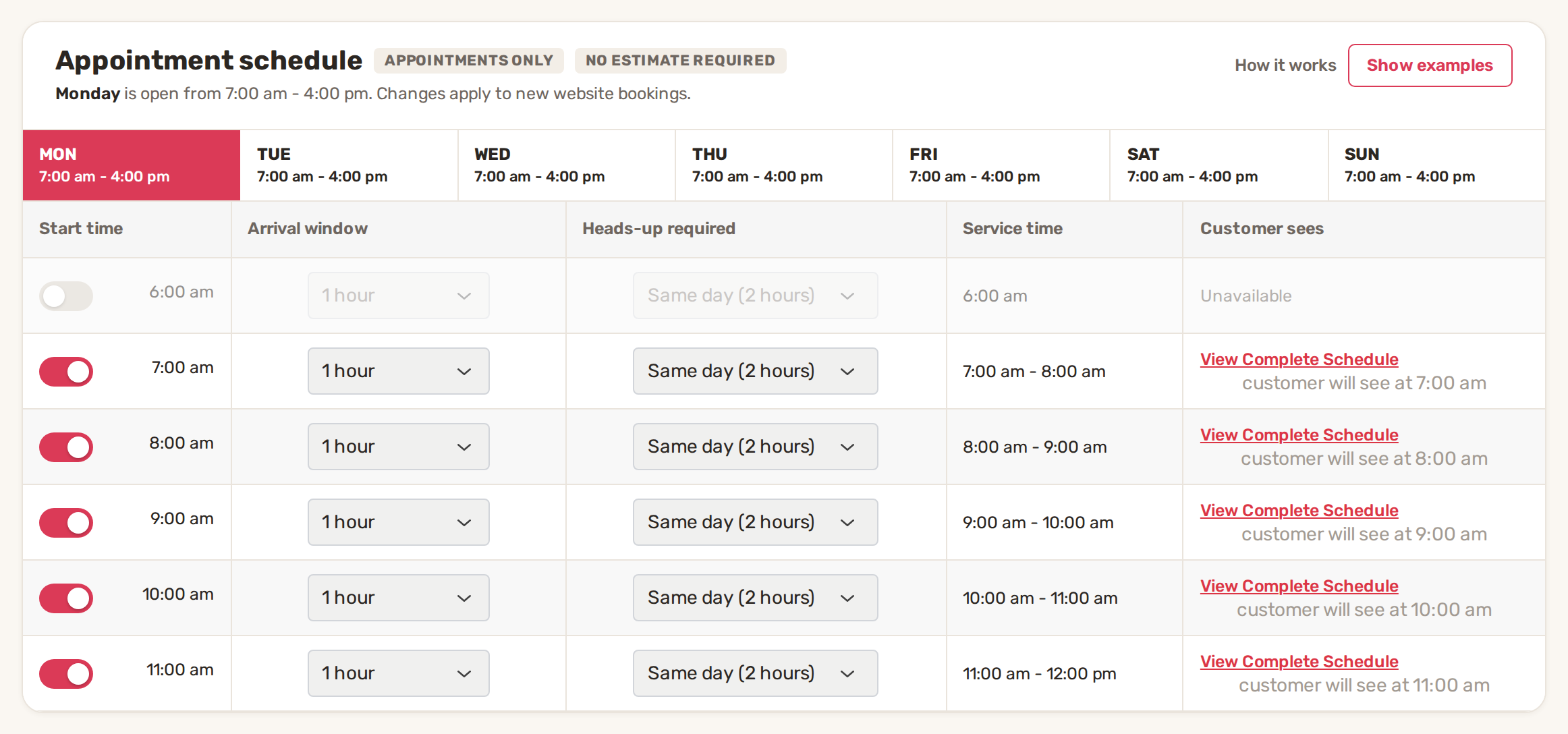
On Work setup, click Change next to Service hours. Pick a day at the top, then switch on each start time customers may book. Changes save on their own and apply to new website bookings.
| Column | What you set |
|---|---|
| Start time | The switch opens that hour for booking. |
| Arrival window | How long the arrival window is: 2 hours, 1 hour, 30 minutes, or your own length with Custom (mins) or Custom (hours). |
| Heads-up required | How much notice you need: No heads-up (0 hours), Same day (1 hour), Same day (2 hours), Same day (3 hours), Next day (24 hours), or your own number with Custom (hours). |
| Service time | The window that start time gives, such as 7:00 am - 8:00 am. |
| Customer sees | When the customer can see that time, with View Complete Schedule to see the whole day. Off shows Unavailable. |
Click Show examples for worked examples. Changing Service Hours needs the Premium or Growth plan.
Service areas
If you set up service areas, a customer whose ZIP code is outside them can't book. When you keep collecting those leads, they can leave their details to hear when you serve their area. See Service areas and out-of-area requests.
Common problems
- A service is missing from the form. It's switched off as Bookable, or set to Internal only.
- No times, or fewer than you expect. Check Service Hours for that weekday, the heads-up you need, and whether the service shows only times when a worker is free. Customers see 30 days ahead at most.
- "The selected service is unavailable. Please choose another service or contact the business." The service was switched off or hidden while the customer had the form open.
- The form says "This form is temporarily unavailable". Your plan doesn't include appointment booking. It needs Essential, Premium or Growth.
Related
- Add BizBaby forms to any website
- Appointments and the calendar
- Assign workers and dispatch
- Install Google Tag Manager and track leads
Was this article useful?
Keep reading
More Website and online booking
Add BizBaby forms to any website
The forms you can add Click the gear icon at the top right and choose Integrations. The Your website card lists every fo...
Read guide →Connect your own domain
Before you start Buy a domain from a domain provider, if you don't have one. BizBaby doesn't sell domains. Have your sig...
Read guide →Install Google Tag Manager and track leads
Before you start Your business is on the Growth plan. On other plans the box shows a Growth plan chip and Upgrade to unl...
Read guide →Knowing what to charge is step one
First 3 months free. No card required. Bring the whole team.
Start Free Trial Back to Login