
Website and online booking
Connect your own domain
In this article
Your website always works at its BizBaby address. To show it at a domain you own, such as yourbusiness.com, add one A record at the company where you bought the domain, pointing to the IP address BizBaby gives you. Then click Connect domain in gear icon → Website Builder → Website connection. BizBaby checks the record, sets up the secure (https) certificate itself and shows Connected. Add the A record first: BizBaby refuses to connect a domain that doesn't point to it yet.
Before you start
- Buy a domain from a domain provider, if you don't have one. BizBaby doesn't sell domains.
- Have your sign-in for that provider ready. You'll change its DNS settings.
- Check the price chip under Your own domain: Included in your plan, or a monthly price for your plan. If there's a monthly price, you need a payment card on file.
Open the Website connection card
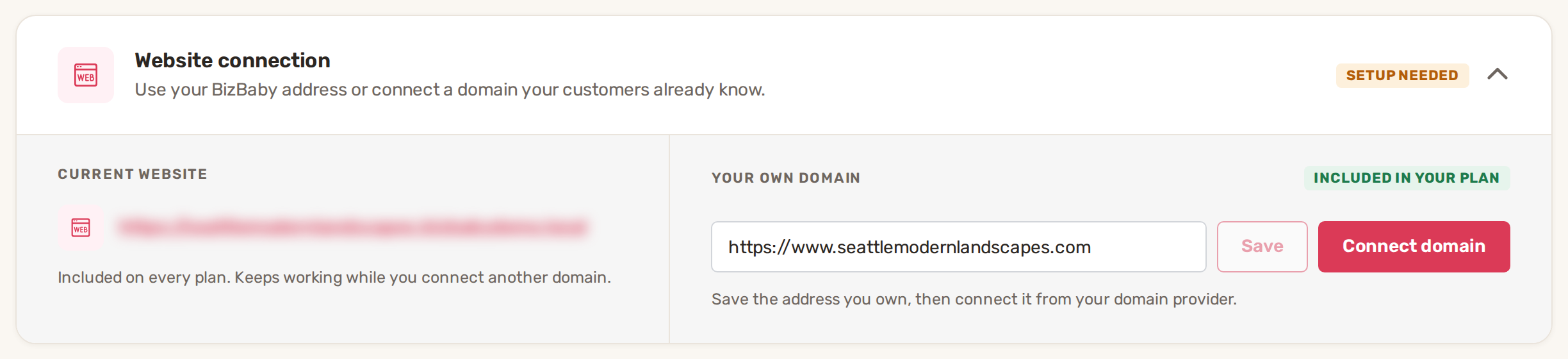
Click the gear icon at the top right, choose Website Builder, and click the Website connection card to open it. On the left, Current website shows your BizBaby address. It's included on every plan and keeps working while you connect a domain. On the right, Your own domain is where you connect yours.
Connect your domain
- In the field under Your own domain, type your domain with https:// in front, for example https://yourbusiness.com, and click Save.
- Click Connect domain. The Confirm Connect window opens with the IP address to use. Don't click Confirm yet.
- In another tab, sign in to your domain provider and open the DNS settings for your domain.
- Add an A record for the domain itself (many providers write this host as @) pointing to the IP address from the Confirm Connect window. Set the TTL to 3600, or the smallest number your provider allows.
- Remove or turn off any other A records for the domain, such as ones pointing to an old website or a "parked" page.
- Back in BizBaby, check the price rows in the window. If your plan charges for a connected domain, tick the box that says you understand the monthly charge.
- Click Confirm. The card shows "Checking domain…" while BizBaby checks the record and reaches your domain over https.
When it works, the card says Connected. Your domain is ready. The chip turns to Connected, and the Public URL of every page in Your website pages uses your domain.
A new A record can take up to 48 hours to reach everyone, though it's often much quicker. If BizBaby says the A record is missing right after you added it, wait a while and click Connect domain again. A domain bought very recently can also take up to 48 hours before it can be found.
What it costs
On plans that include it, the chip reads Included in your plan and the Confirm Connect window shows "Connected domain: Included in your plan". On plans that don't, the chip shows the monthly price. It's added to your monthly plan bill from the day you first connect the domain until you disconnect it, and the window shows which card it's billed to. During your trial period the price is waived, and the window shows the date billing starts. Reconnecting the same domain doesn't start a new charge.
What the card can show
| Status | What it means |
|---|---|
| Setup needed | No domain is connected. Your website shows at its BizBaby address. |
| Checking domain… | BizBaby is checking the A record and reaching your domain. |
| Connected | Your domain shows your website, over https. |
| Disconnected | A connection attempt failed. The reason shows below. Fix it with your provider and click Reconnect, or click Dismiss to clear the attempt. |
| Connected, not reachable | BizBaby checks every connected domain once a day. This one failed the check, so your website isn't showing at it. It's still your domain and still on your bill. Fix the issue and click Reconnect, or click Disconnect domain. |
Change or remove your domain
The domain field is locked while a domain is connected. To use a different domain, click Disconnect domain and confirm, then connect the new one. Disconnecting stops the domain showing your website at once, and stops the monthly charge if your plan has one. Your BizBaby address keeps working the whole time.
Common problems
- "A Record is missing". BizBaby found no A record for your domain. Add it as in step 4, wait, then click Connect domain again. Click the message for the IP address to use.
- "A Record Conflicts". Your domain has A records, but none points to BizBaby's IP address. Usually an old record is still there. Delete the other A records so only BizBaby's remains.
- "That doesn't look like a domain name. Enter it like example.com." Check the spelling, for example https://yourbusiness.com.
- "The domain must start with http:// or https://". Type https:// in front of the domain before you click Save.
- "This domain is linked to another organization." The domain is connected to another BizBaby business. A domain can show only one business. Disconnect it there first.
- "Add a payment method to connect a domain on this plan." Your plan charges for a connected domain and there's no card on file. Add a card in the window that opens, then connect again.
- An error such as "domain does not resolve", "nothing is answering on that domain", "answered by another server" or "HTTPS certificate problem". BizBaby couldn't reach your website at the domain. See Website not showing or certificate pending.
Related
- Website not showing or certificate pending
- Website Builder: build your site with AI and edit it
- Plans and what each includes
Was this article useful?
Keep reading
More Website and online booking
Add BizBaby forms to any website
The forms you can add Click the gear icon at the top right and choose Integrations. The Your website card lists every fo...
Read guide →Install Google Tag Manager and track leads
Before you start Your business is on the Growth plan. On other plans the box shows a Growth plan chip and Upgrade to unl...
Read guide →Online booking: what customers can book
Where customers book This article covers appointment booking, where the customer books a time on your calendar. BizBaby...
Read guide →Knowing what to charge is step one
First 3 months free. No card required. Bring the whole team.
Start Free Trial Back to Login