
Getting started
Set up your business in the first hour
In this article
Open your Dashboard and expand the Getting Started List. It shows what BizBaby needs before you can quote, get paid and email customers, and it ticks each row off as you finish it. Start with your business details, services and working hours: until those are saved, BizBaby won't open a new estimate or invoice. Then connect Stripe, set up your emails and test your forms.
Start from the Getting Started List
The list sits near the top of your Dashboard. Click + next to Set up to open it. The percentage and the green bar show how far along you are.
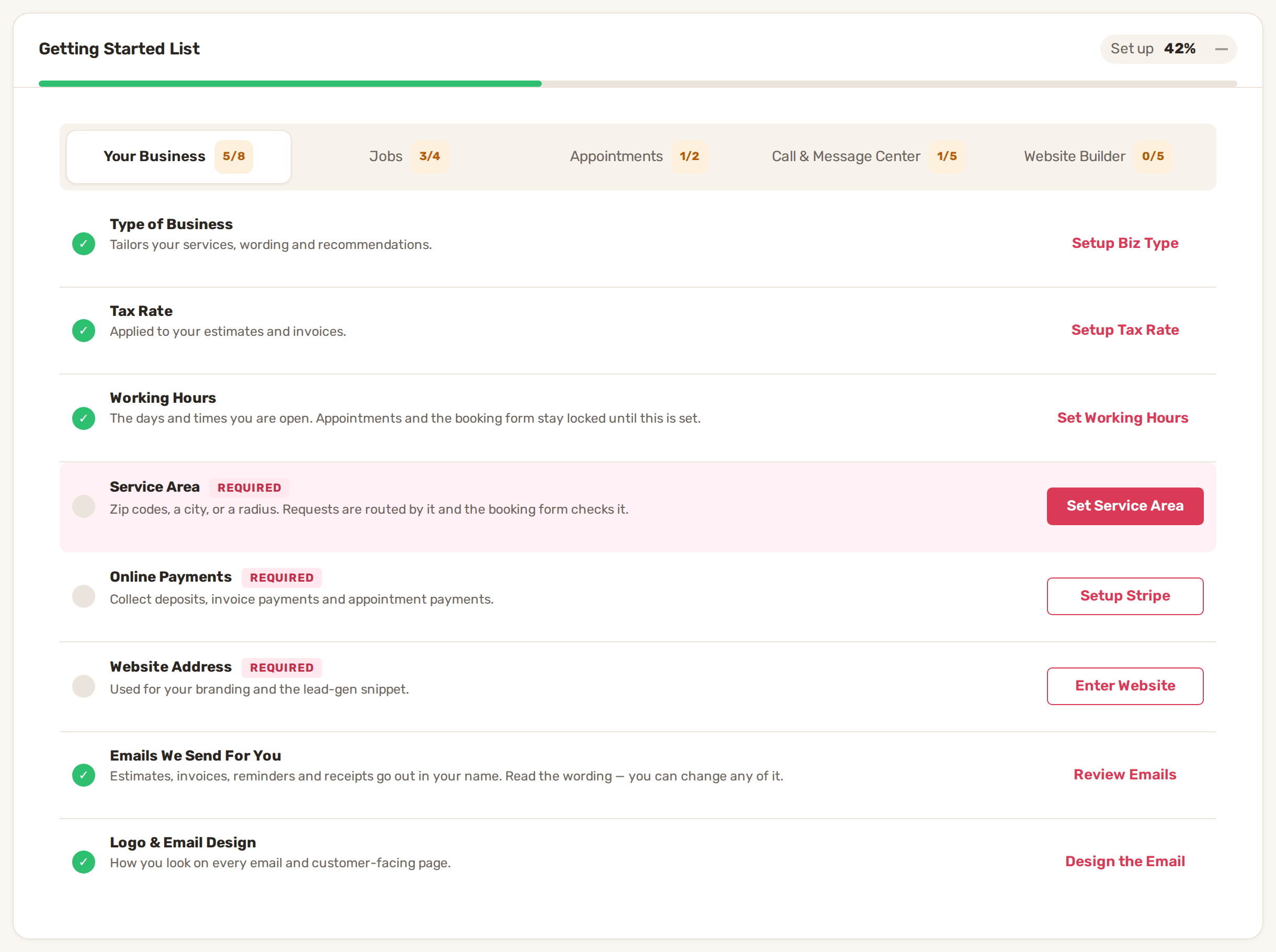
- Tabs group the work: Your Business, Jobs, Appointments and Call & Message Center. The number on each tab shows how many of its rows are done. A tab your plan doesn't include is greyed out; hover over it to see which plan includes it. A Website Builder tab appears once you have a website built with BizBaby.
- Rows still to do are marked Required or Optional. Required rows are what BizBaby really needs. Nothing breaks without the optional ones.
- Rows under Try it out, like making your first call, are practice runs. They don't count towards the percentage.
- A row ticks itself off when the setting is saved. You never mark anything done yourself.
The steps below cover every Required row, in the order that saves you the most back-and-forth. That isn't always the order of the list.
1. Check your business details
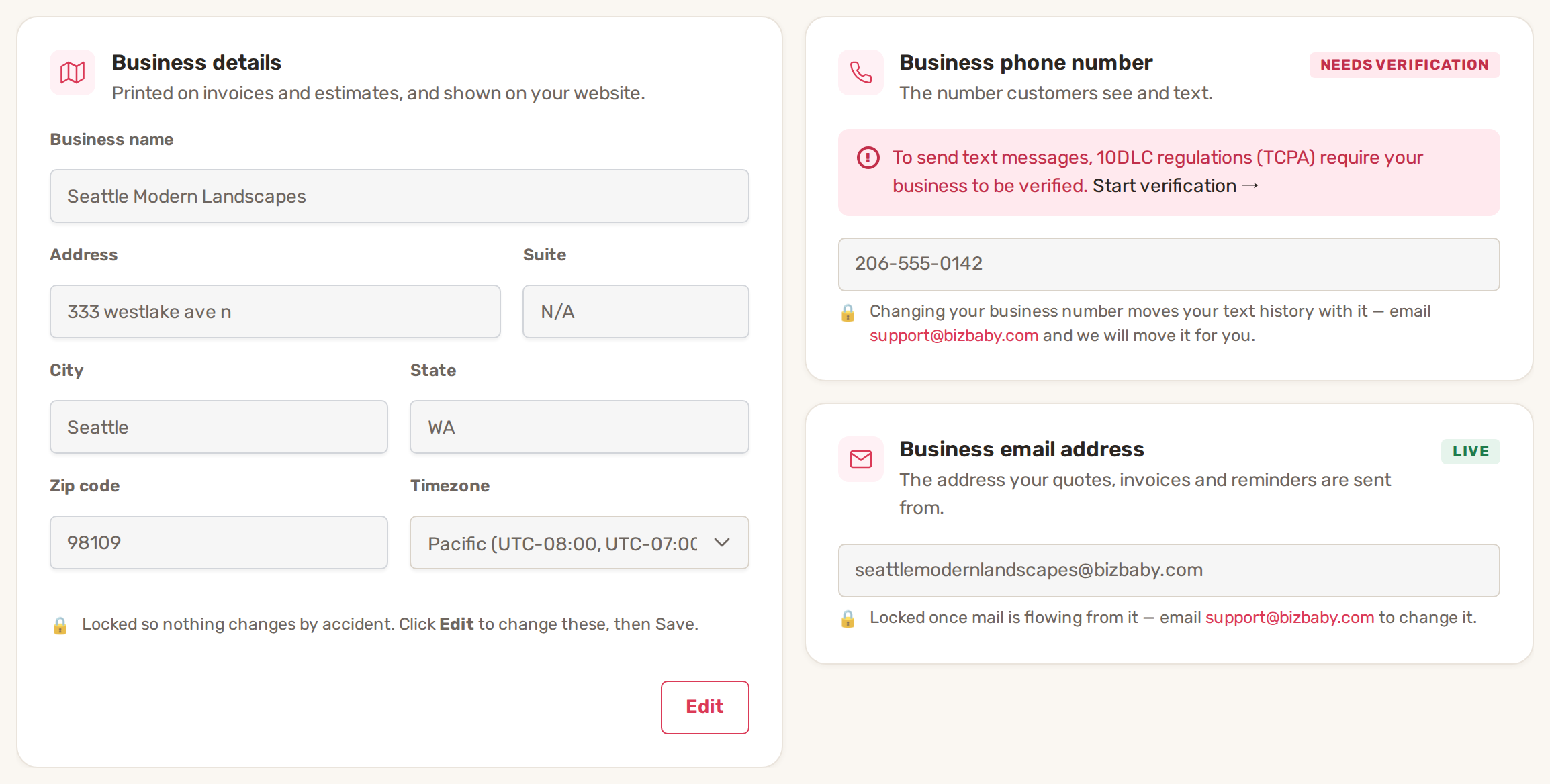
Your business name and address are printed on every estimate and invoice and in the footer of your emails. The tax check in step 7 also needs the full street address.
- Click the gear icon at the top right, then Business Information.
- In Business details, click Edit. The fields are locked until you do, so nothing changes by accident.
- Check Business name, Address, Suite, City, State, Zip code and Timezone.
- Click Save.
2. Choose your type of business and services
BizBaby won't open a new estimate or invoice until you have a type of business, at least one service and working hours (step 3). It sends you to Business Settings with a list of what's missing instead.
- In the Getting Started List, click Setup Biz Type. It opens Business Services Setup. The same cards are under gear icon → Business Settings.
- Under Services & pricing, pick your Type of Business. BizBaby uses it to tailor guidance and recommendations. Changing it later doesn't replace your services or email wording.
- Under List of Services, add the work you quote for with + Add New Service.
- Click Save at the bottom of the page.
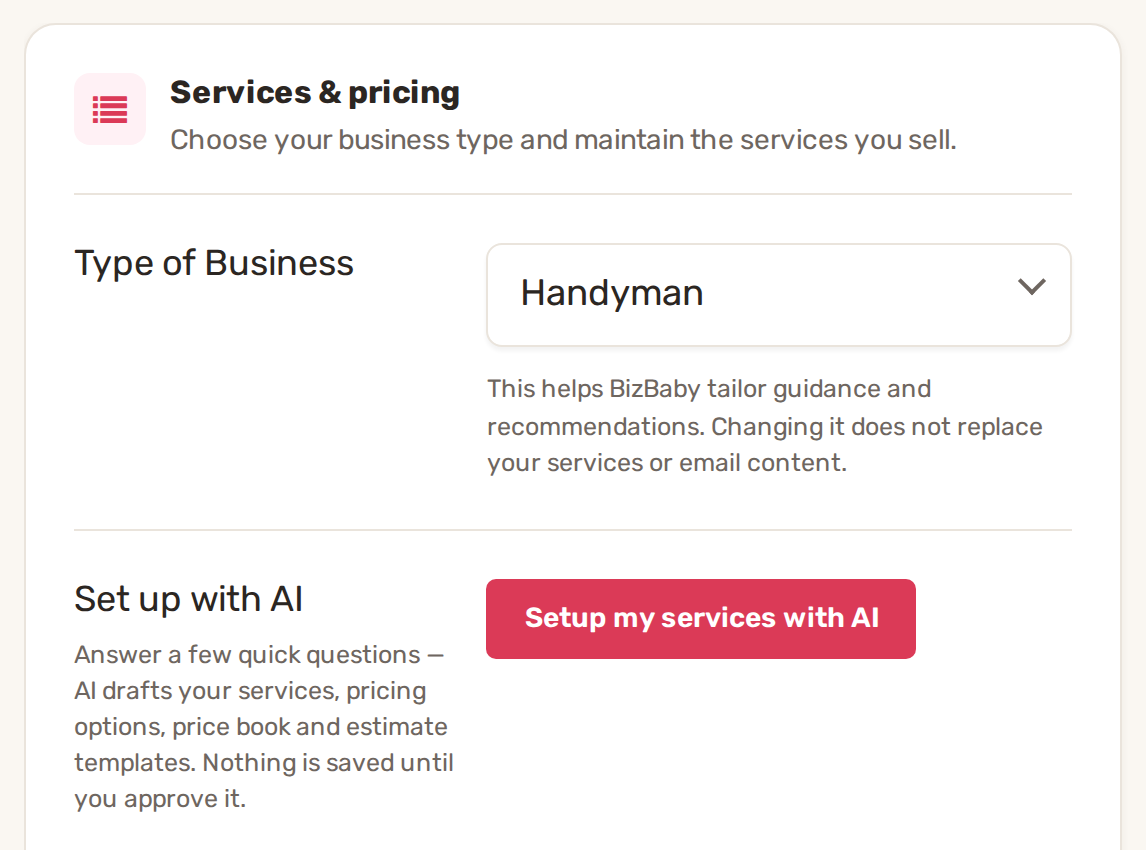
Click Setup my services with AI and answer a few questions. BizBaby drafts your services, pricing options, Price Book items and estimate templates. Nothing is saved until you approve it.
3. Set your working hours
This one matters more than it looks. Appointments and the online booking form stay locked until at least one working day is set, and new estimates and invoices wait for working hours too.
- Click Set Working Hours in the Getting Started List, or go to gear icon → Business Settings, and find Working hours.
- Tick the days you work and pick a start and end time for each.
- Click Save at the bottom of the page.
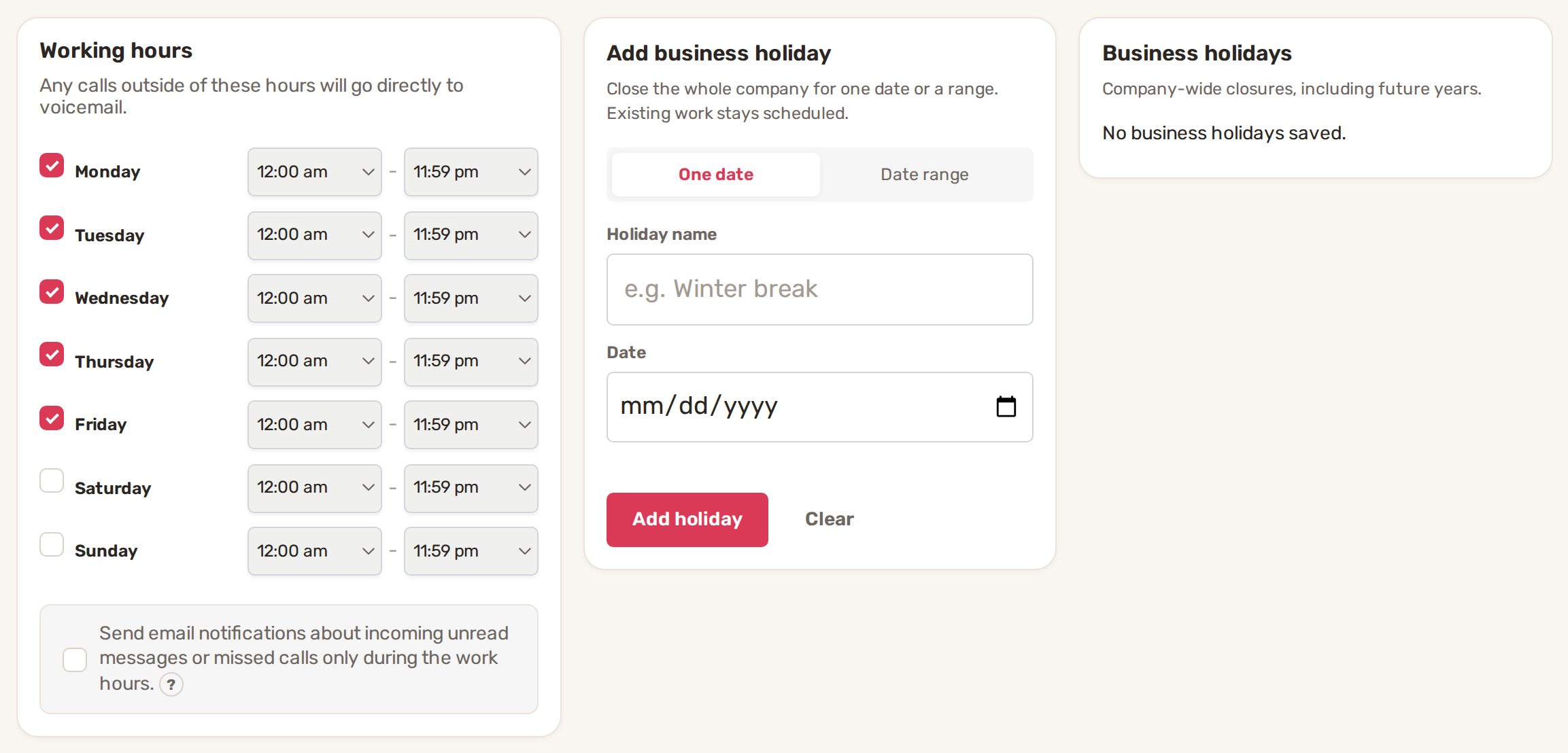
Closed for a holiday? Use Add business holiday next to it, for One date or a Date range. Work that is already scheduled stays scheduled.
4. Add the services customers can book
Only if your plan includes Appointments. These are separate from the services in step 2: fixed-price work a customer can book a time for, without waiting for a quote.
- On the Appointments tab of the list, click Setup Services next to Appointment Services.
- On Appointment services, click Add service.
More in Online booking: what customers can book.
5. Draw your service area
Your service area tells BizBaby where you work. Booking forms follow it, and it decides what happens to requests from outside it.
- Click the gear icon, then Service Areas.
- Click + New zone. Type a zip code in its Add zip… box and click Add; repeat for each one. Or use the Radius tool to drop a circle on the map and take every zip code inside it.
- A zone covers All services unless you click Edit next to Services and narrow it down. Useful if you only do some kinds of work further out.
- Use Test an address to check that a customer's street lands inside a zone.
- Under Outside your area, choose what happens to requests from elsewhere (see the table below).
- Click Save changes.
| Choice | What the customer sees | What you get |
|---|---|---|
| Accept everything | No location check. | Every request, as before. |
| Accept & tag | Nothing different. | The request, marked out-of-area, so you can decide. |
| Decline politely | A message that you don't serve their area. You can edit it. | The lead is still saved if they opt in. |
More in Service areas and out-of-area requests.
6. Turn on online payments
Customers pay deposits, invoices and appointments online through Stripe. Until Stripe is connected, the send button on a new invoice reads Connect Stripe to Send Invoice and is locked. You can still record a cash payment with Mark as Paid Cash on the invoice.
- In the Getting Started List, click Setup Stripe next to Online Payments. Or go to gear icon → Integrations and click Set up Stripe.
- Stripe asks for your business and bank details on its own secure pages, then sends you back to BizBaby.
- Back in gear icon → Integrations, check that the Stripe card says Connected.
The list ticks this row as soon as your Stripe account exists, even if setup isn't finished. Action needed on the Stripe card means setup stopped part-way and you can't be paid yet: click Continue setup. Pending review means Stripe is still checking your account, and you get an email when it clears. BizBaby recommends a separate Stripe account for BizBaby, even if you already use Stripe. More in Connect Stripe and take card payments.
7. Add your tax rate
Do this after Stripe is connected and your address from step 1 is complete. BizBaby then gets the official rate for your business address from Stripe, instead of you working it out.
- Go to gear icon → Business Settings and find Tax rates.
- Click Check now. BizBaby asks Stripe for the official rate at your address, adds it and makes it your default.
- If you have more than one rate, click Make default on the one most of your invoices use.
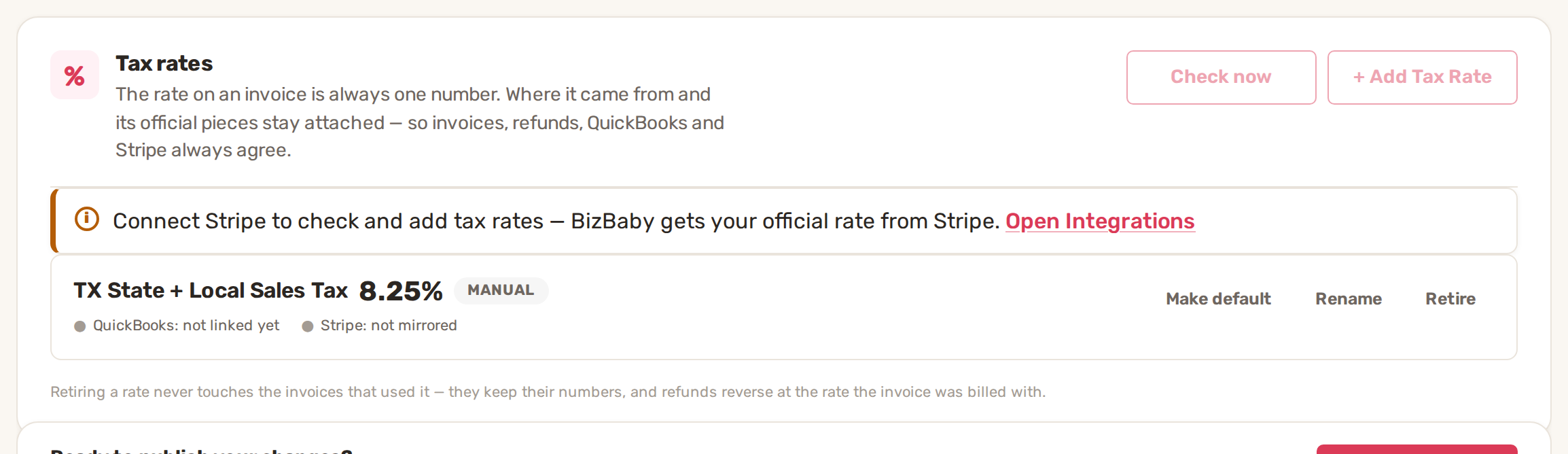
A Stripe-verified rate is checked again on the first of each month, so a rate change doesn't slip past you. A rate you stop using can be retired with Retire. Invoices that already used it keep their numbers, and refunds reverse at the rate the invoice was billed with.
8. Add your website address and logo
On gear icon → Business Settings, under Online presence & branding:
- Website Domain: type your website address. BizBaby's request form code only works on the address you enter here, so nobody else can put your form on their site. Saving it ticks the Website Address row.
- Logo: click Select image and choose a PNG or JPEG. It appears in your customer portal and on emails to your customers. The screen recommends 50 × 50 px; bigger logos are scaled down.
Click Save at the bottom of the page. No website yet? Build one with Website Builder in the menu on the left; the list's Enter Website button opens it too. If you connect your own domain there, the Website Domain field locks until you disconnect it.
9. Set up your emails: sender, design and wording
Estimates, invoices, reminders and receipts go out in your name. Set up who they come from and how they look before the first one goes out. Set up your email templates and sender details walks through each screen.
- Sender. On gear icon → Business Information, the Business email address card is the address your quotes, invoices and reminders are sent from. If it's empty, click Setup Business Email. Until it's set, emails go out from a BizBaby no-reply address. It needs a plan with the Call & Message Center, and it locks once mail is flowing from it.
- Look. In the list, click Design the Email next to Logo & Email Design. On Email design, set your logo, colours, font, footer tag line and buttons, check the live preview on the right, then click Save. Email design is included on the Growth plan.
- Wording. Click Review Emails next to Emails We Send For You. It opens Automations, where every built-in email has its own row. Click ⋯ → Email design on a row to change its words, or ⋯ → Preview to see it as your customer will.
10. Then choose what goes out on its own
Once the emails read right, decide which ones BizBaby sends by itself. On the same Automations page, the Active switch on each row turns it on or off. Rows with a lock, such as Service invoice, can't be switched here. Ready-made extras are on the Discover tab. How automations work explains the whole page.
11. Get a business phone number
If your plan includes the Call & Message Center, its tab in the list has two Required rows: Business Phone Number, one number for calls and texts, and Business Email Address, the same address as in step 9.
- Click Choose a Number next to Business Phone Number and pick one. More in Get a new number.
- To send texts, your business must be verified first (US carriers require it). On gear icon → Business Information, the phone card links you to Start verification. See Text messaging registration (A2P 10DLC).
Don't want a number? Choose Continue without phone. The row then shows Skipped and counts as done. Voice Greetings, Answering Hours & Email Defaults and Agent Genie on the same tab are optional.
12. Test your forms
The last Required rows prove that a real customer can reach you. Each one ticks once a request or booking arrives through your public form.
- Jobs tab: click Send a Test Request and send yourself a job request.
- Appointments tab: click Book a Test Appointment and book a time yourself. This needs working hours and at least one appointment service.
- Website Builder tab, if you have one: click Open Builder next to Review Website Content to check your pages, then Send Test Request next to Test Your Website Forms.
Then try Turn a request into a quote under Try it out on the Jobs tab.
What to do next
- Put your request form on your own website. On the Jobs tab, click Setup Code next to Lead Gen Code. See Add BizBaby forms to any website.
- Bring in your customers. In Customers, click Upload from CSV. See Import your customers.
- Invite your team. In Team, click Add User. See Add your team and choose what each person can see.
Why is something greyed out or locked?
- New estimate or invoice sends you to Business Settings with a "please fill out" message. A type of business, a service or working hours is missing. Do step 2 and step 3.
- The list says Appointments and the booking form are locked. No working day is set yet. Go back to step 3.
- A tab in the list is greyed out, or a row says Needs and a plan name. That part isn't on your plan. Hover over the tab to see which plan includes it.
- A page sends you to the BizBaby plans page. That feature isn't on your plan. Email design, for example, is on Growth only.
- A page sends you to Billing & Plan instead. Your trial has ended and there's no card on file for your BizBaby plan.
- Tax buttons are greyed out. Stripe isn't connected yet. Do step 6 first.
- A new invoice says Connect Stripe to Send Invoice. Stripe isn't connected, or its setup isn't finished. Go to gear icon → Integrations and check the Stripe card.
- Check now asks you to complete your address. Fill in the street address, city, state and zip code in step 1.
Related
- Your dashboard and the Getting Started List
- Set up your email templates and sender details
- How automations work
- Connect Stripe and take card payments
Was this article useful?
Keep reading
More Getting started
Add your team and choose what each person can see
The Team page Click Team in the left menu. The page is called Team Management and lists everyone in your business with t...
Read guide →Build your Price Book
Open the Price Book Click Price Book in the left menu. It has two tabs: Items and Categories. Click a column heading suc...
Read guide →Import your customers
1. Prepare your file Export your customers from your old software or spreadsheet as a CSV file. The first row must hold...
Read guide →Knowing what to charge is step one
First 3 months free. No card required. Bring the whole team.
Start Free Trial Back to Login