
Getting started
Import your customers
In this article
Save your customer list as a CSV file, then go to Customers, click Upload from CSV and choose the file with Upload CSV File. BizBaby shows every row first, so you can fix or remove rows, and only adds them when you click Sync New Customers. Customers who are already in BizBaby are skipped, and nobody gets an email unless you choose to send one.
1. Prepare your file
Export your customers from your old software or spreadsheet as a CSV file. The first row must hold the column names, separated by commas, tabs or semicolons. BizBaby recognises these column names, in any mix of capitals:
| BizBaby field | Column names it understands |
|---|---|
| Name | name, fullname or full_name (split into first and last name), or first_name / firstname with last_name / lastname |
| Phone | phone, mobile or telephone |
| Address | address |
| Zip code | zip_code or zipcode |
Any other column is ignored. Rename your columns to match before you upload; there is no step to match them up afterwards.
- A name column is required. To be added, each row also needs an email and a phone number.
- Phone numbers are shown as 206-555-0123. Ten-digit numbers in other formats are tidied up for you.
- Zip codes need 5 digits.
- The file can be up to 1 MB and 10,000 customers. Split a bigger list into several files.
On Customers, Download customers by CSV saves your current customers with exactly the columns BizBaby reads: first_name, last_name, phone, email, address, zip_code. Use it as a template.
2. Upload it
- Click Customers in the left menu.
- Under the buttons at the top right, click Upload from CSV.
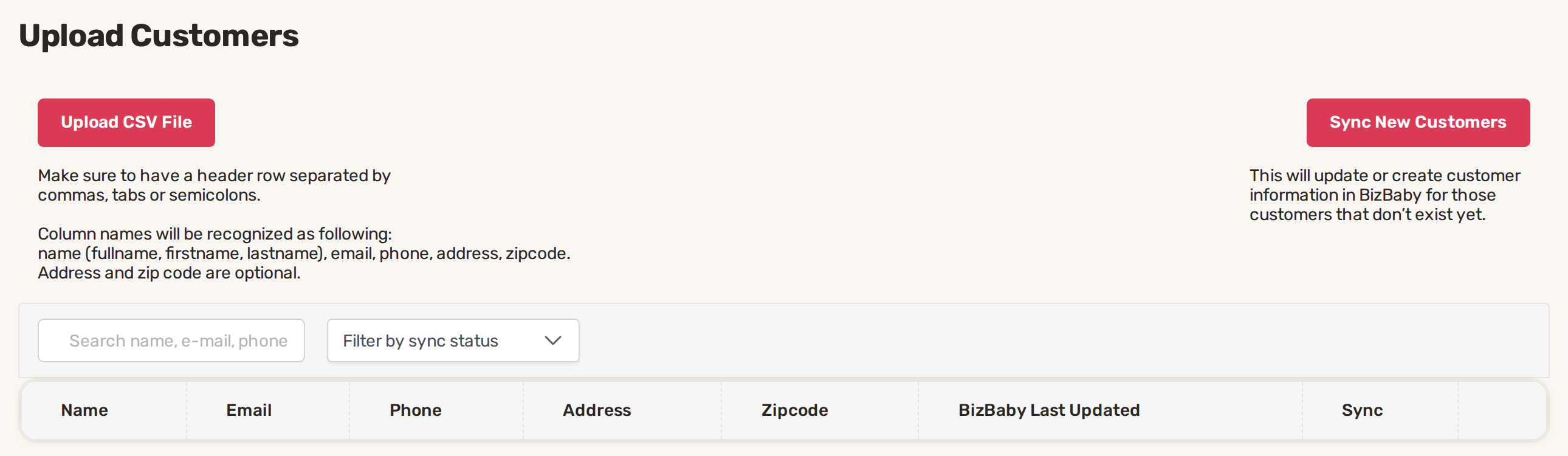
- On Upload Customers, click Upload CSV File and pick your file.

Using QuickBooks? QuickBooks sync on the same page brings customers in from there instead; see QuickBooks: connect, what syncs and fixing sync errors.
Nothing is saved yet. Your customers appear in a table with Name, Email, Phone, Address, Zipcode, BizBaby Last Updated and Sync columns.
3. Check the rows
Use Filter by sync status to see each group. The search box finds a row by name, email or phone.
| Status | What it means |
|---|---|
| New | Not in BizBaby yet. It is added when you sync. |
| Exist | A customer with the same first name, last name and address is already in BizBaby. It is skipped. |
| Synced | Already added from this table. |
- A cell that says invalid has an email, phone or zip code in the wrong format. A cell that says Add + is empty. Click either to type the right value, then click Save.
- If the Sync column says not added (for example not added: phone belongs to another customer), that email or phone already belongs to another customer, or appears on an earlier row of your file. Each phone and email can belong to one customer only.
- Each row's menu has Remove from sync table to leave a row out, and Sync this record only to add just that one.
- To start over with a different file, click Clear the Table.
4. Add them to BizBaby
- Click Sync New Customers.
- If some rows are still missing details, BizBaby asks whether to add only the complete rows. Click Continue to do that, or Cancel to fix them first.
- Wait for Data was successfully synchronized. Your new customers are now in Customers.
With more than 2,000 rows, the upload can take a few minutes. Keep the browser tab open until it finishes.
Imported customers are not emailed. To welcome someone, use Sync and send a welcome email in that row's menu.
Common problems
- "We couldn't find data matching: name, firstname, lastname, address." No column is named in a way BizBaby understands. Rename your name column to name, or first_name and last_name, and upload again.
- "Only CSV files accepted." Save the spreadsheet as CSV first. An Excel file won't upload.
- "Only files of 1 MB or less are accepted." Split the file, or delete columns you don't need.
- "Your file is too large…" More than 10,000 customers. Split the file and upload each part.
- "The file has a header row but no customers." Only the column names are in the file. Check you exported the rows too.
- "No rows are completely filled." Every row is missing its email or phone. Fill them in the table or in your file.
- A customer you expected isn't there. Check the Sync column: they were skipped as already existing, or their email or phone belongs to someone else.
Related
- Add, edit and merge customers
- QuickBooks: connect, what syncs and fixing sync errors
- Set up your business in the first hour
Was this article useful?
Keep reading
More Getting started
Add your team and choose what each person can see
The Team page Click Team in the left menu. The page is called Team Management and lists everyone in your business with t...
Read guide →Build your Price Book
Open the Price Book Click Price Book in the left menu. It has two tabs: Items and Categories. Click a column heading suc...
Read guide →Set up your business in the first hour
Start from the Getting Started List The list sits near the top of your Dashboard. Click + next to Set up to open it. The...
Read guide →Knowing what to charge is step one
First 3 months free. No card required. Bring the whole team.
Start Free Trial Back to Login