
Getting started
Build your Price Book
In this article
The Price Book is your list of reusable items: services, products, hours, fees. Add an item once with its name, type, price and description, and pick it on any estimate or invoice instead of typing it again. Changing a line on an estimate never changes the Price Book, and changing the Price Book never changes estimates or invoices you already made.
Open the Price Book
Click Price Book in the left menu. It has two tabs: Items and Categories.
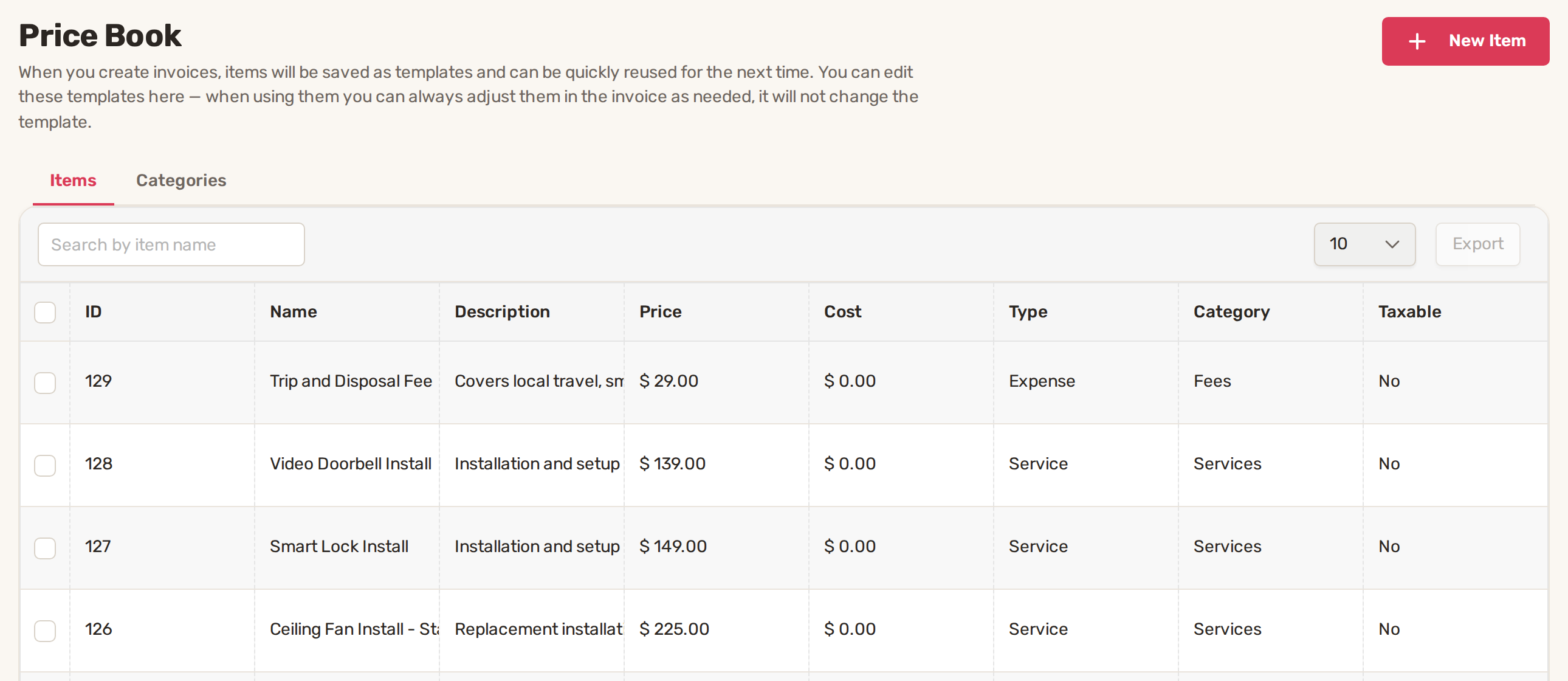
The Items list shows each item's Name, Description, Price, Cost, Type, Category and whether it's Taxable. Tick items and click Export to download them as a spreadsheet.
1. Make your categories (optional)
Categories group your items, for example Services, Materials and Fees. They don't change prices or what your customer sees, but they make a long list easier to pick from.
- Open the Categories tab and click New Category. The Create New Category window opens.
- Type a Category Name and, if you like, a description.
- Click Save.
2. Add an item
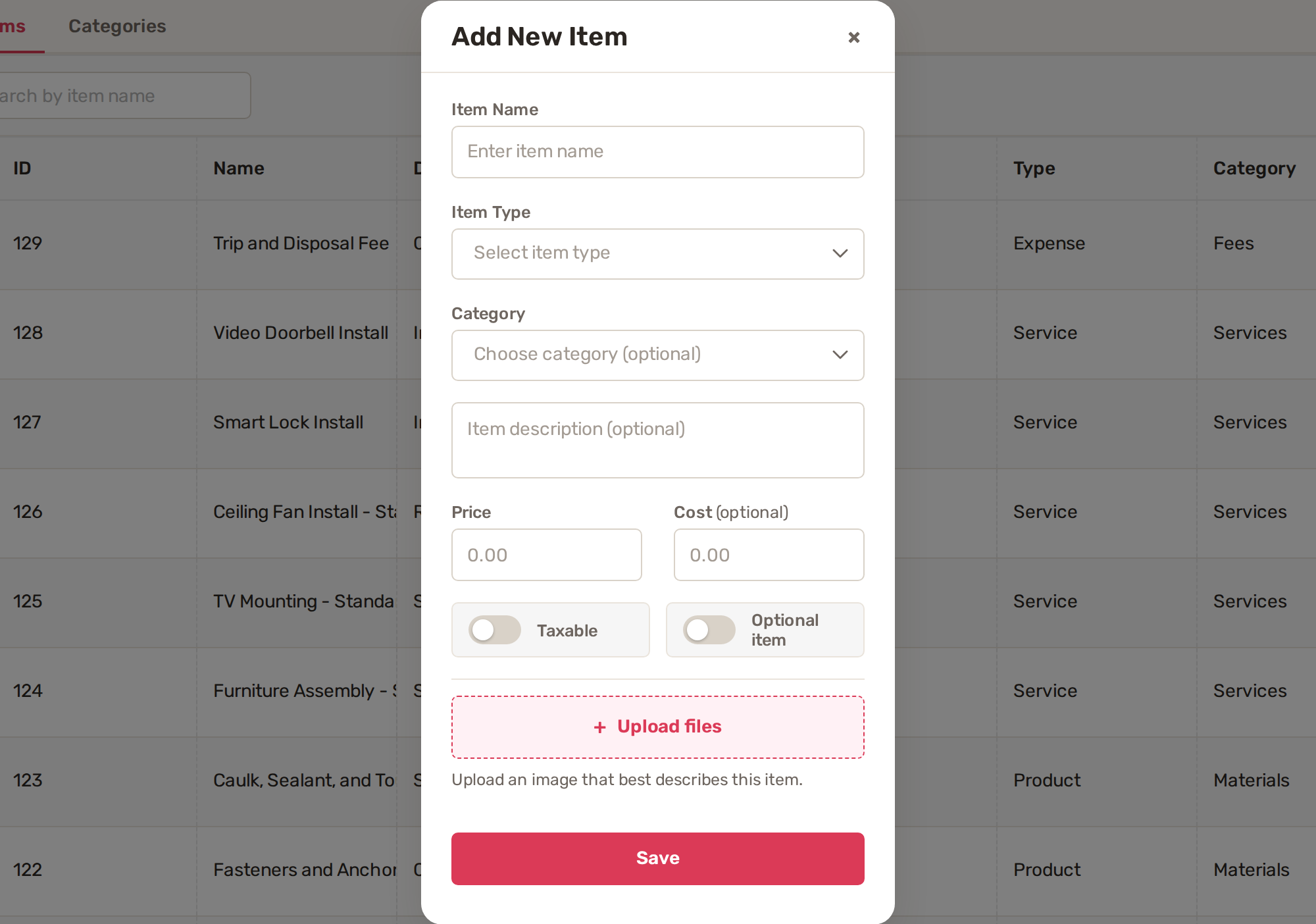
- On the Items tab, click New Item.
- Type the Item Name as your customer should read it.
- Choose an Item Type: Product, Service, Hours, Expense, Equipment or Warranty.
- Pick a Category, if you made some, and add a description.
- Enter the Price you charge. Cost is what it costs you; it's optional and left at 0.00 if empty.
- Turn on Taxable if sales tax applies to it. Turn on Optional item to mark it as optional.
- Click Upload files to add a picture of the item.
- Click Save.
You can edit items and categories later, but you can't delete them.
Every new item you type on an invoice can be kept: in the item picker, choose Create new reusable item and it's added to the Price Book for next time. And if you set up your services with AI on Business Settings, it can draft Price Book items for you to approve.
3. Use it on estimates and invoices
On an estimate or invoice there are two ways to add items:
- + Add New item opens a picker. Start typing a name and choose the item. If nothing matches, choose Create new reusable item to add it to the Price Book at the same time.
- Price Book opens all your items with their pictures. Search by item, item group or category, set how many of each you want with + and -, check View Summary, then click Add to Estimate.
Each item lands as its own line, with the Price Book's name, description and price. Change the quantity or price on that line as needed; your Price Book stays as it was.
Common problems
- Price Book isn't in my menu. Your plan doesn't include jobs and estimates, or your account doesn't have the Orders & Customers access. Ask the owner.
- The Category box is missing. You haven't made any categories yet. Add one on the Categories tab first.
- "Please delete the existing image before uploading a new one." An item has one picture. Delete it, then upload the new one.
- "Image size must be less than 10MB". Pick a smaller picture.
- Save doesn't work. Item Name, Item Type and Price are needed. Prices can't be negative or have more than two decimals.
Related
Was this article useful?
Keep reading
More Getting started
Add your team and choose what each person can see
The Team page Click Team in the left menu. The page is called Team Management and lists everyone in your business with t...
Read guide →Import your customers
1. Prepare your file Export your customers from your old software or spreadsheet as a CSV file. The first row must hold...
Read guide →Set up your business in the first hour
Start from the Getting Started List The list sits near the top of your Dashboard. Click + next to Set up to open it. The...
Read guide →Knowing what to charge is step one
First 3 months free. No card required. Bring the whole team.
Start Free Trial Back to Login