
Requests, quotes, jobs and invoices
Create and send an estimate
In this article
In BizBaby a quote is called an estimate. Open Jobs & Invoices → Estimates, click New Estimate, pick the customer and service, add items, then click Create and Send (Email). The customer gets a link, signs and clicks Accept. The send buttons stay off until the estimate has a customer, a service and at least one item.
1. Start the estimate
Start from one of two places:
- From a request: on the Requests tab, click the request's row, go to the Estimate step and click Add New Estimate. The estimate opens in a new browser tab with the customer, address and service filled in, and View Request Info shows what the customer asked for.
- From scratch: on the Estimates tab click New Estimate. In Select Customer, search by name, email or phone and click Select. Then pick the Service.
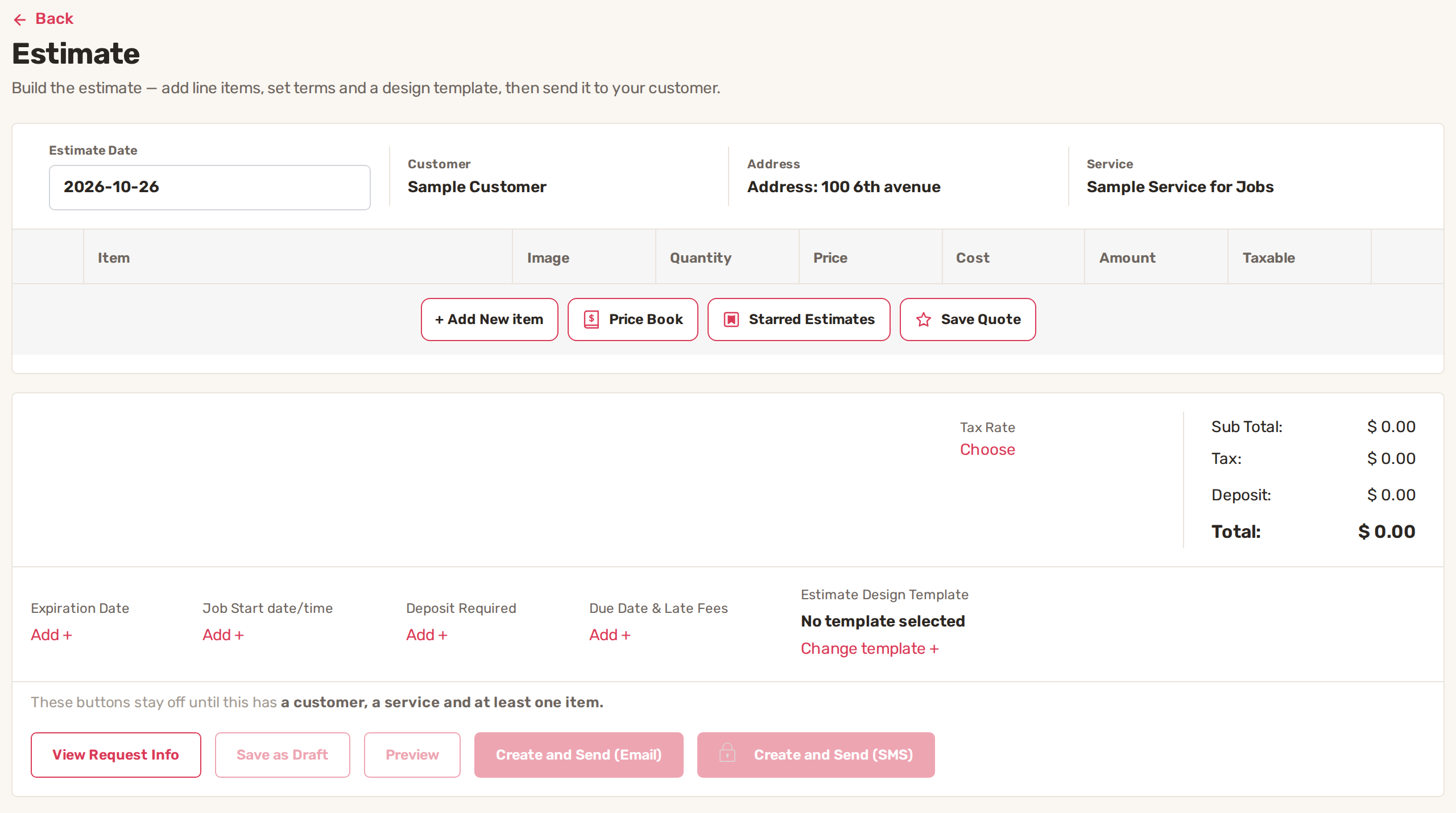
The Estimate Date is today. Click it to change it.
2. Add the items
- Click + Add New item to type a line, or Price Book to pick from your saved services and products.
- For each line set the Quantity and Price. Cost is what the line costs you. Amount is worked out for you.
- Tick Taxable on the lines that carry tax, then under Tax Rate click Choose and pick your rate. One estimate uses one tax rate.
Sub Total, Tax, Deposit and Total update as you type.
To reuse a set of lines, click Starred Estimates and apply one you saved before. To save this estimate's lines for next time, click Save Quote and give it a name. See Estimate templates.
3. Set the terms
Below the totals, each option has an Add + link:
| Option | What it does |
|---|---|
| Expiration Date | After this date the estimate turns Expired and the customer can no longer approve it. |
| Job Start date/time | When you plan to start, shown on the estimate. |
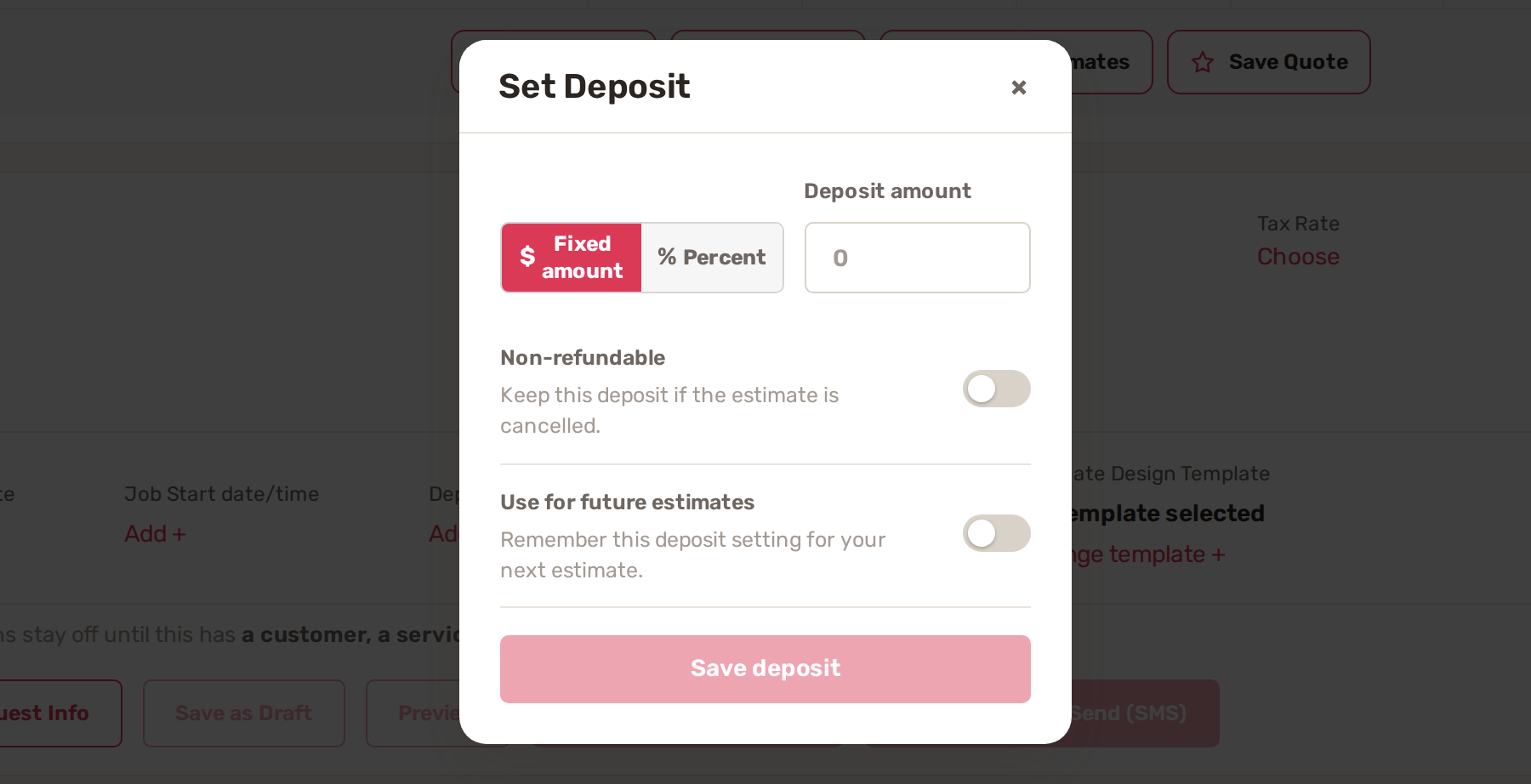
| Deposit Required | A Fixed amount or a Percent the customer pays when they approve. The minimum is $0.50. |
| Due Date & Late Fees | The payment terms carried over to the invoice made from this estimate. Shown only if your plan includes them. |
| Estimate Design Template | How the estimate looks to the customer. Click Change template +. Shown only if your plan includes design templates. |
4. Preview and send
- Click Preview to see the estimate as your customer will.
- Click Create and Send (Email), or Create and Send (SMS) to send the link by text.
Not ready? Click Save as Draft. Drafts don't reach the customer and show under Drafts at the top of the Estimates tab. Once you've sent an estimate, the buttons read Update and Resend.
What happens after you send it
- The estimate shows as Waiting Approval, counted under Pending.
- The customer opens the link, can untick optional items, signs, and clicks Accept. The estimate turns Approved. If you asked for a deposit, BizBaby creates a draft invoice for the customer to pay it.
- If the customer rejects it, it turns Rejected. To send it again, click its row and, on the Estimate step, click Send.
- Built-in reminders email the customer 7 days and 1 month after the estimate is created, and another email goes when it expires. You can switch each one on or off with its Active switch on the Automations page under Estimates.
Next, turn the approved estimate into a job and schedule it. See How a job moves.
Common problems
- The send buttons are greyed out. The estimate still needs a customer, a service and at least one item, as the line above the buttons says.
- Create and Send (SMS) shows a lock. Your business number isn't registered for texting yet. Send by email, and see Text messaging registration.
- The customer is told the estimate can't be approved. The customer opened an estimate that is already approved, rejected, expired or canceled. Send a new one.
Related
- How a job moves: request, estimate, job, visit, invoice
- Estimate design templates and saved estimates
- Build your Price Book
- Built-in automations
Was this article useful?
Keep reading
More Requests, quotes, jobs and invoices
Checklists for jobs and appointments
1. Build a checklist template Open Work setup: on Appointments, click Service Settings. The Checklist templates row is u...
Read guide →Customize job and order fields
1. Ask questions on a service Questions are what the customer answers when booking: room count, TV size, ceiling height....
Read guide →How a job moves: request, estimate, job, visit, invoice
Where to find it Click Jobs & Invoices in the menu on the left. The page has a tab for each stage: Customers, Requests,...
Read guide →Knowing what to charge is step one
First 3 months free. No card required. Bring the whole team.
Start Free Trial Back to Login