
Requests, quotes, jobs and invoices
Estimate design templates and saved estimates
In this article
BizBaby has two kinds of estimate template. An Estimate Design Template sets how an estimate looks to the customer: a header image and text, a photo gallery and reviews. A saved estimate is a set of line items you reuse, so you don't type the same prices twice. Invoices have no design templates: they use your business details and the invoice email.
Estimate design templates
Open Jobs & Invoices, go to the Estimates tab and click Estimate Design Templates above the table. The link appears only if your plan includes estimate templates.
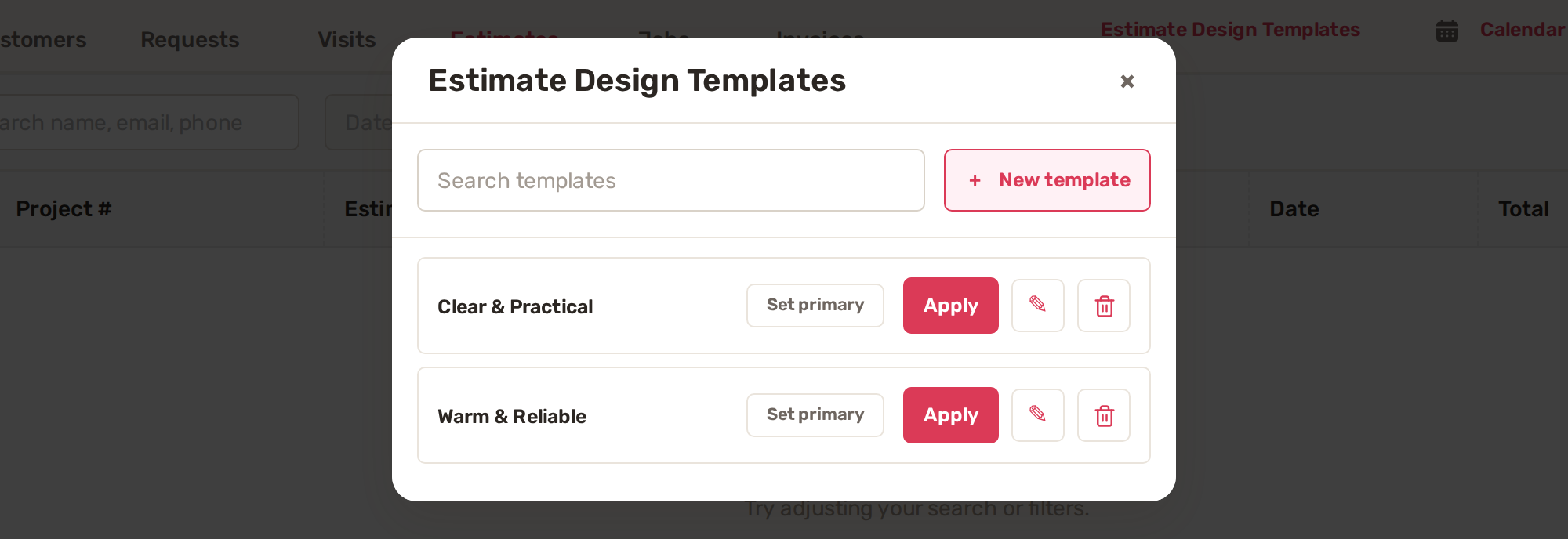
| Button | What it does |
|---|---|
| New template | Opens the template editor. |
| Set primary | Makes this the template every new estimate starts with. Only one template is primary. |
| Apply | Uses this template on the estimate you're working on. |
| Pencil | Edits the template. |
| Bin | Deletes the template. |
Build a design template
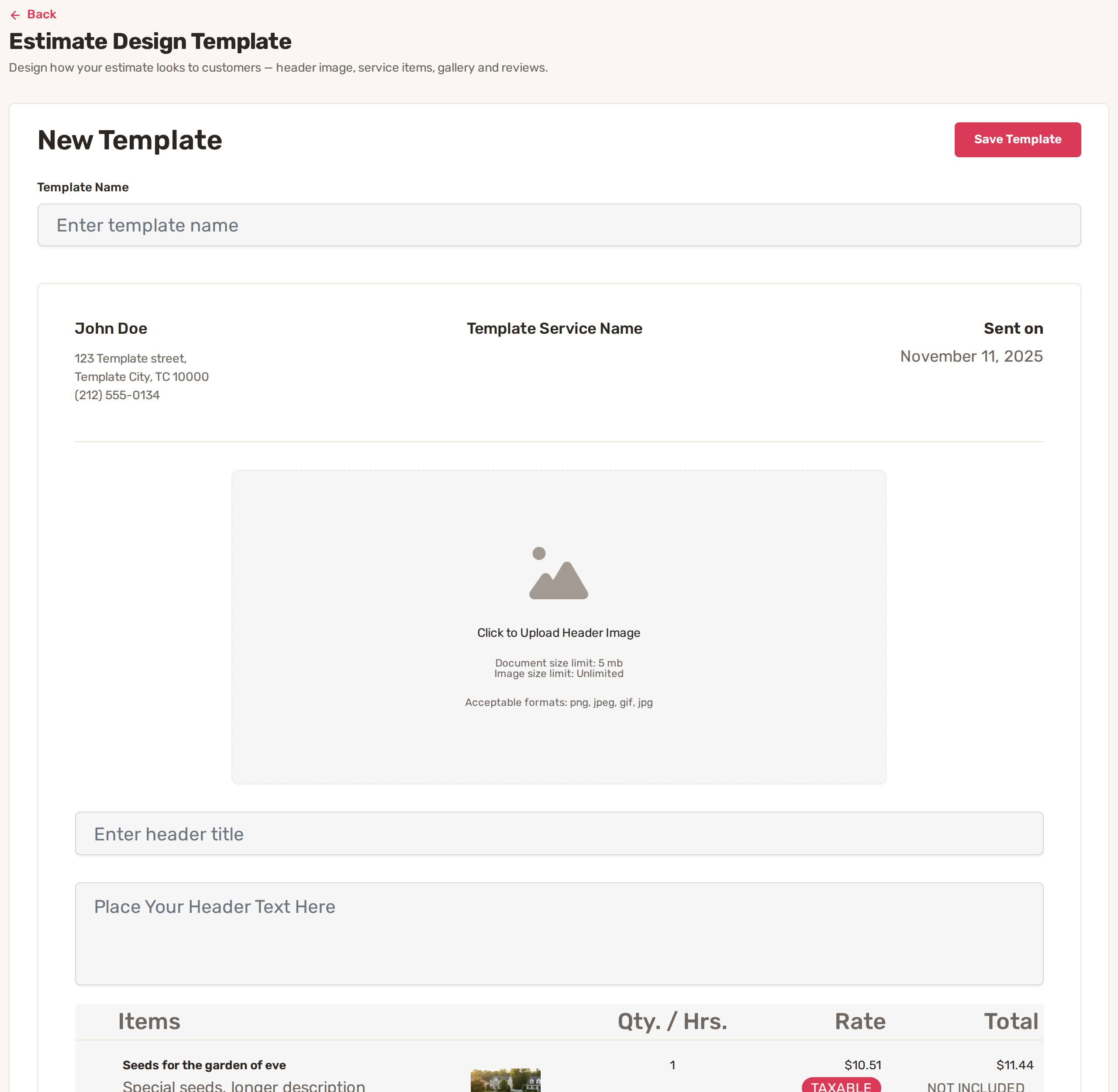
- Click New template.
- Type a Template Name you'll recognise, such as Spring cleanup.
- Click Click to Upload Header Image and choose a photo of your work. The file can be up to 5 MB, in png, jpeg, gif or jpg.
- Write a header title and the header text, for example what's included and why customers choose you.
- Further down, give the gallery a title and click Upload Gallery Images, then add Reviews: the source (Google, Meta (Facebook), Yelp, G2, Trustpilot or Clutch), the star rating, the customer's name, the date and the review text.
- Click Save Template.
To use a template on one estimate, open the estimate and, under Estimate Design Template, click Change template +, then Apply on the one you want. The estimate shows No template selected until you pick one or set a primary. Click Preview to check the result before you send.
Estimates you already sent keep the design they were sent with, even if your plan changes later.
Saved estimates (reusable line items)
If you quote the same work often, save its lines once.
- Build an estimate with the items and prices you reuse.
- Click Save Quote under the items.
- In Enter Template Name, type a name and click Save.
Next time, click Starred Estimates on a new estimate, open the one you want and click Apply Estimate. Its lines are added to the estimate, and you can still change any of them.
The invoice page has the same buttons, called Starred Estimates and Save Invoice, so you can reuse lines when you bill.
Common problems
- There's no Estimate Design Templates link. Check you're on the Estimates tab. If it's still missing, your plan doesn't include estimate templates.
- The image won't upload. It's over 5 MB or not an image. Try a smaller png or jpg.
- "The image may not be greater than 5 MB." Shrink the photo and upload it again.
Related
Was this article useful?
Keep reading
More Requests, quotes, jobs and invoices
Checklists for jobs and appointments
1. Build a checklist template Open Work setup: on Appointments, click Service Settings. The Checklist templates row is u...
Read guide →Create and send an estimate
1. Start the estimate Start from one of two places: From a request: on the Requests tab, click the request's row, go to...
Read guide →Customize job and order fields
1. Ask questions on a service Questions are what the customer answers when booking: room count, TV size, ceiling height....
Read guide →Knowing what to charge is step one
First 3 months free. No card required. Bring the whole team.
Start Free Trial Back to Login