
Getting started
Using BizBaby on your phone
In this article
There's nothing to download. Open BizBaby in your phone's web browser and sign in as usual. On a phone-sized screen it switches to a phone layout: a bar along the bottom for Home, Jobs, Appointments, Customers and More, with everything else under More. Your team members do the same to reach their jobs for the day.
Open BizBaby on your phone
- Open your phone's browser and go to the BizBaby sign-in page.
- Sign in with the same email and password you use on your computer.
- If you work for more than one business, pick the one you want.
BizBaby has no app in the App Store or Google Play. The phone layout appears on any screen narrower than a small tablet. On a wider screen, such as a tablet held sideways, you get the same pages as on a computer.
Find your way around

- The bottom bar takes you to your dashboard, jobs, appointments and customers. A tab only appears if your plan includes it and you have access to it.
- The top bar shows the page you're on, a search button and the bell with your notifications.
- More holds everything else. Tapping your business's initials at the top left opens it too.
What's under More
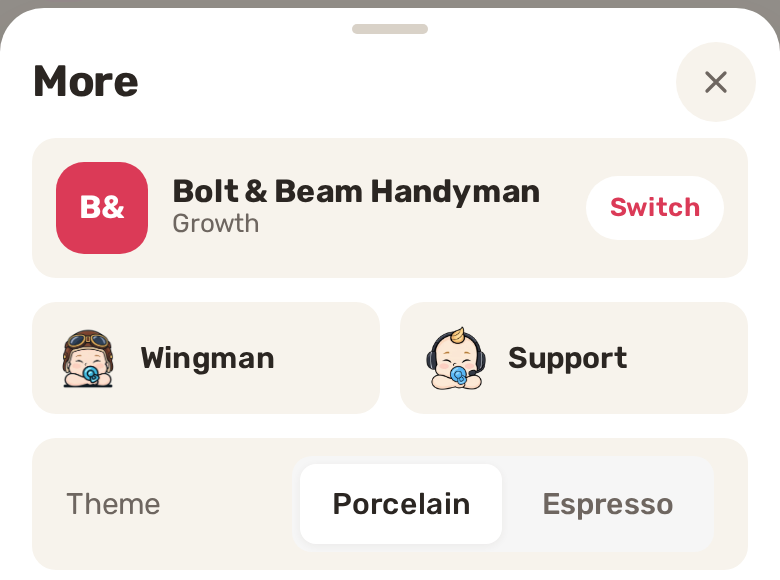
- Your business, with Switch to change to another business you work for.
- Wingman and Support.
- Theme: Porcelain (light) or Espresso (dark).
- If you have a business phone number: the number with Copy, Quick Call, and the Available for Calls switch.
- The full menu you know from the computer, including Website Builder, Communications, Team and Price Book.
- At the bottom: Help, Account settings, Switch Company, Account information, Change password and Logout.
For your team in the field
Team members work from their Worker Cabinet. The Go to Cabinet button on the dashboard's Personal Cabinet card opens it; on a dashboard that keeps to the essentials, that card shows once you click Explore in Grow with BizBaby. The cabinet shows the day's work, a strip of days, and the tasks assigned to them, with All, Work, Tasks and History filters.
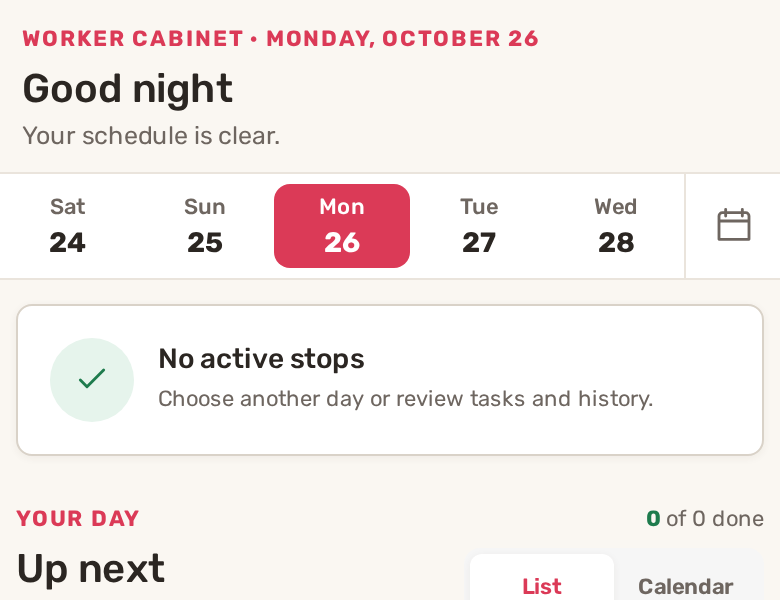
Opening a job or appointment gives them the buttons they need on site:
- Get directions and Call customer.
- Start work when they arrive, Complete work when they're done. For a task, Complete task.
- Open checklist, if your plan includes checklists and the job has one.
- Add a photo under Photos & files, and Leave a comment.
- Unable to complete when something stops the work. They must give a reason, and the item won't count as complete.
More in The worker cabinet: what workers see.
Most phone browsers can put a shortcut to a web page on your home screen from their share or menu button. BizBaby doesn't set this up for you, but the shortcut opens the same sign-in and pages.
Good to know
- BizBaby needs an internet connection. There is no offline mode.
- Photos are added through your phone's normal file picker, which usually offers the camera too.
- Calls and texts from your business number are in the Call & Message Center, under More → Communications.
- Some browsers ask whether BizBaby may send notifications about incoming calls. Allow it if you take calls on your phone.
Related
- The worker cabinet: what workers see
- Add your team and choose what each person can see
- The Call & Message Center: calls, texts and chats in one place
- Switch between businesses
Was this article useful?
Keep reading
More Getting started
Add your team and choose what each person can see
The Team page Click Team in the left menu. The page is called Team Management and lists everyone in your business with t...
Read guide →Build your Price Book
Open the Price Book Click Price Book in the left menu. It has two tabs: Items and Categories. Click a column heading suc...
Read guide →Import your customers
1. Prepare your file Export your customers from your old software or spreadsheet as a CSV file. The first row must hold...
Read guide →Knowing what to charge is step one
First 3 months free. No card required. Bring the whole team.
Start Free Trial Back to Login