
Marketing
Email campaigns: build, send, results
In this article
A campaign is one email you send to a group of customers, leads or vendors, right away or on a date you pick. You build it in four steps on the Marketing page: an audience, an email, a test, then Schedule or Send it now. Before your first campaign you must connect an email address on your own domain. Campaigns can't go out from a BizBaby address.
Before you start
- Your plan includes email marketing. It's part of the Growth plan. See Plans and what each includes.
- Your business email on your own domain is connected and verified. See Send marketing email from your own domain.
- Your logo, colours and footer are set in Design Email Template. See email templates and sender details.
If you click New Campaign before your own domain is connected, a System message asks you to set up a business email address first. Click Proceed to start that setup.
The Marketing page
Click Marketing in the menu on the left. Every campaign you start is listed here. Search by name, or use Show All to see one status at a time.
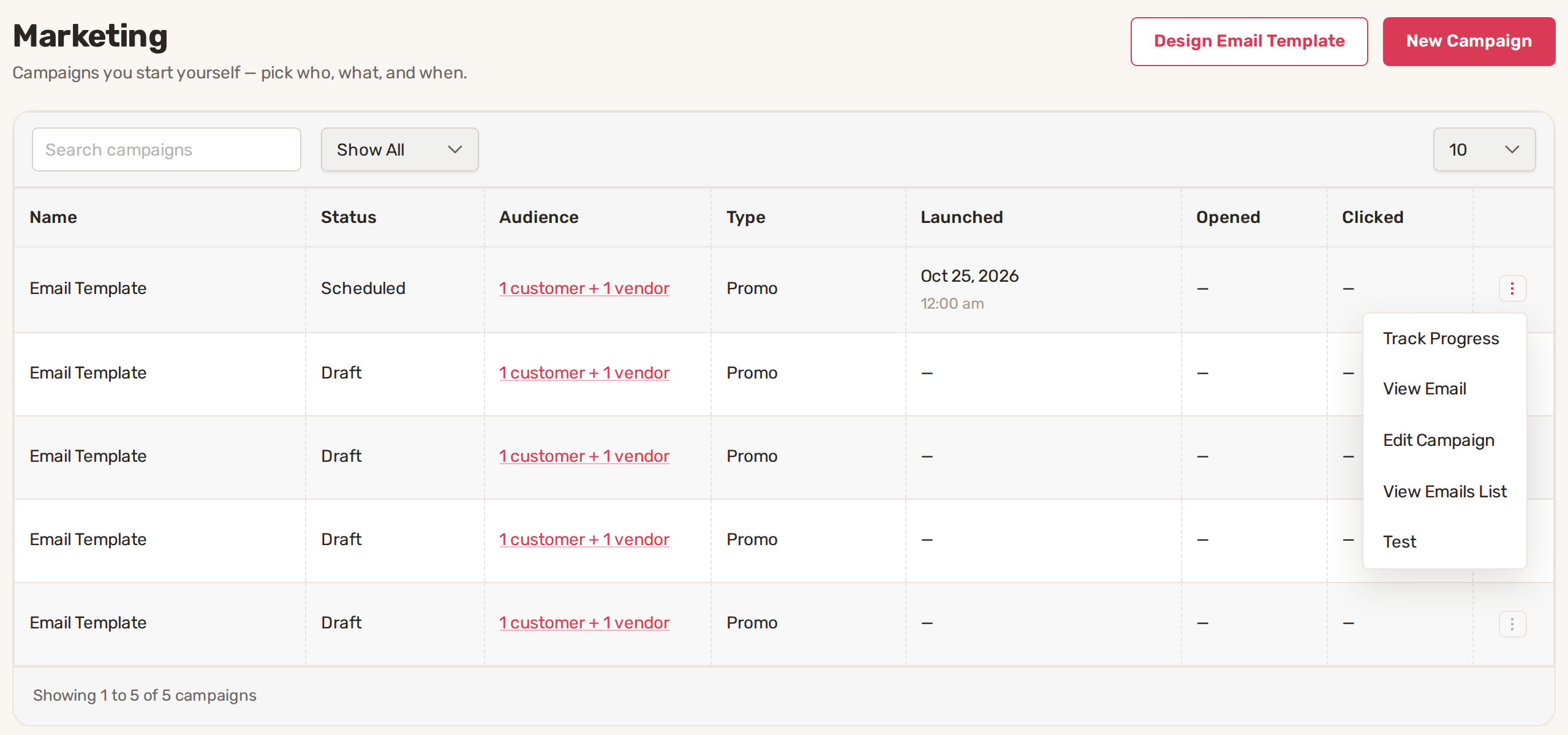
| Status | What it means |
|---|---|
| Draft | Saved but not scheduled or sent. You can still change everything. |
| Creating | BizBaby is preparing the send. |
| Scheduled | Waiting for its launch date. The date shows in Launched. |
| In Progress | The emails are going out. |
| Completed | Every email has been sent. |
Create a campaign
- On the Marketing page, click New Campaign. The New Campaign page shows four numbered steps.
- Next to Create an audience, click Create and build your audience (see below).
- Next to Create an email, click Create and write the email (see below).
- Under Test email, type your own address and click Send test. Open the test in your inbox and check it on your phone too.
- Under Schedule or send, click Schedule to pick a date and time, or Send it now.
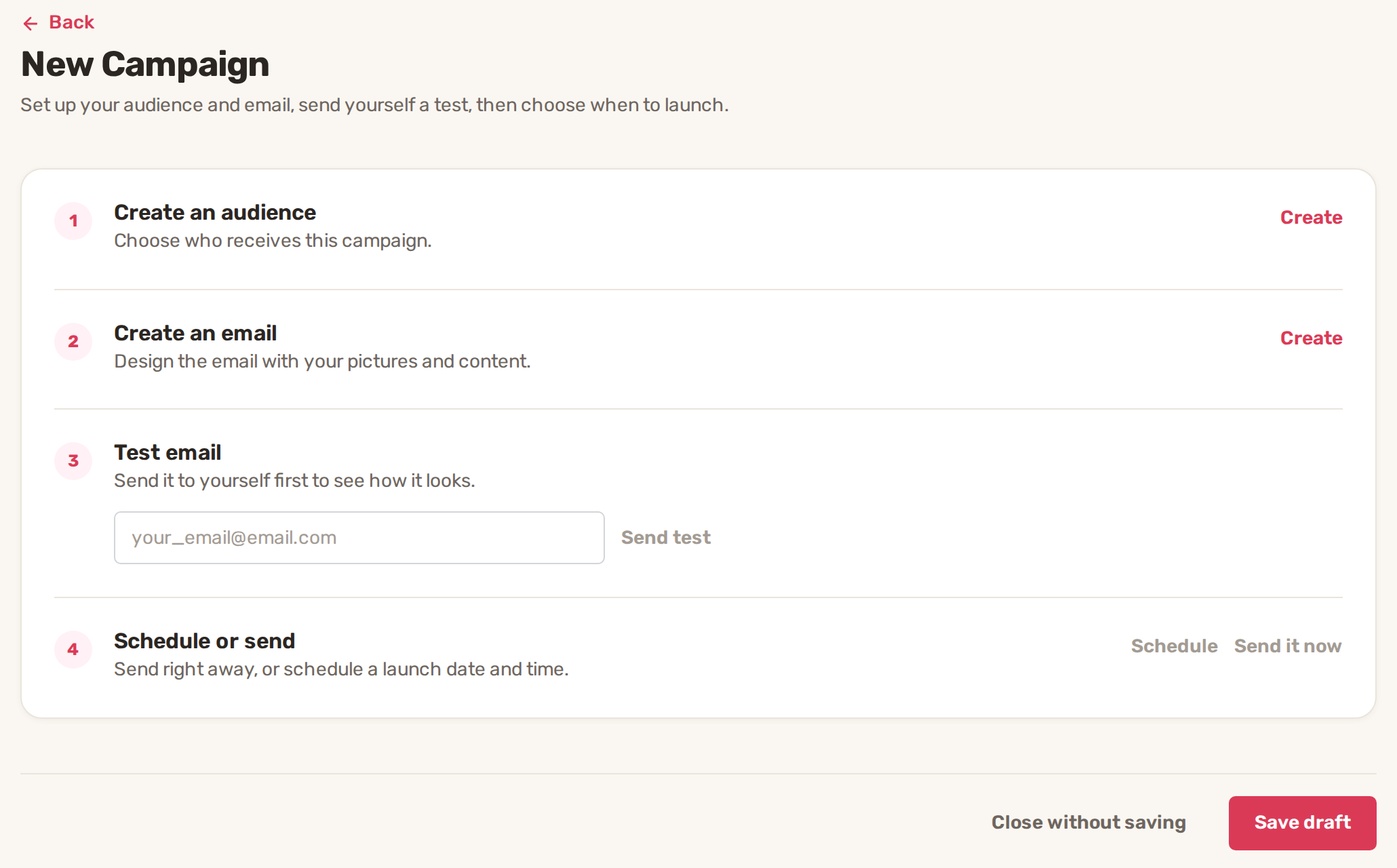
Not ready yet? Click Save draft and come back to it from the row menu. Close without saving drops what you did on this page.
Build your audience
Give the audience an Audience name and pick its Email type.
| Email type | Who it skips |
|---|---|
| Promo | People who turned off promotional emails. |
| Updates | People who turned off service updates. |
Then choose who gets it. Customers, leads and vendors can be mixed in one audience.
- Customers: All customers, Matching conditions or Don't include customers. With Matching conditions, a chart shows each customer as a dot. Drag the Last order and Total spent sliders, and pick OR or AND to join them. Dots in the shaded area are in the audience.
- Leads: Don't include leads, All leads or Leads from a time window. Only leads with an email address count.
- Vendors: tick Include all vendors to add every vendor that has an email address.
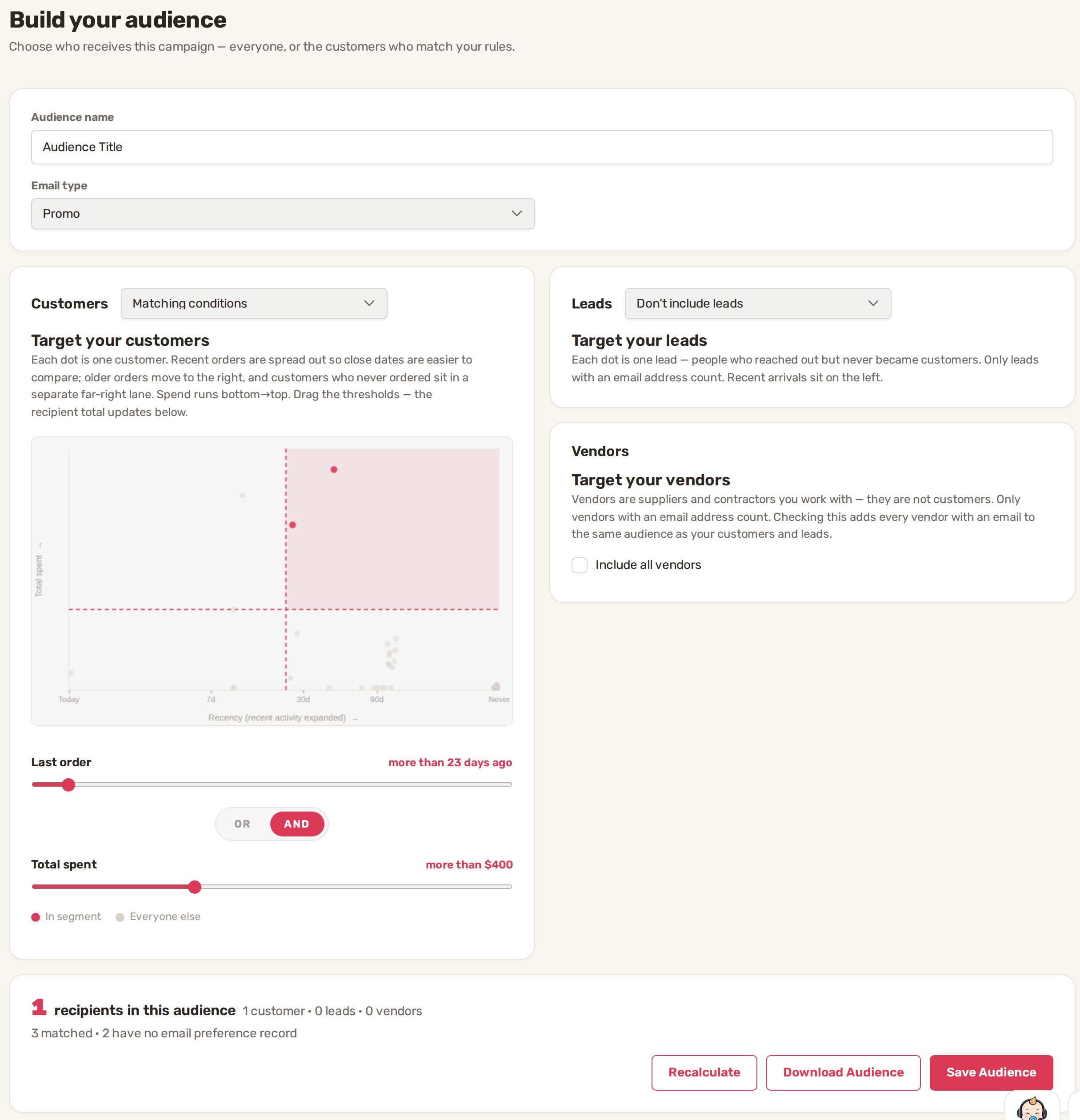
The bottom card shows how many recipients in this audience, split into customers, leads and vendors. When fewer people get the email than matched, the line below says why: they unsubscribed, have no email preference record, share an email with another customer, or have an email that isn't valid. Click Recalculate after changes, Download Audience for a list, and Save Audience to go back to the campaign.
Write the email
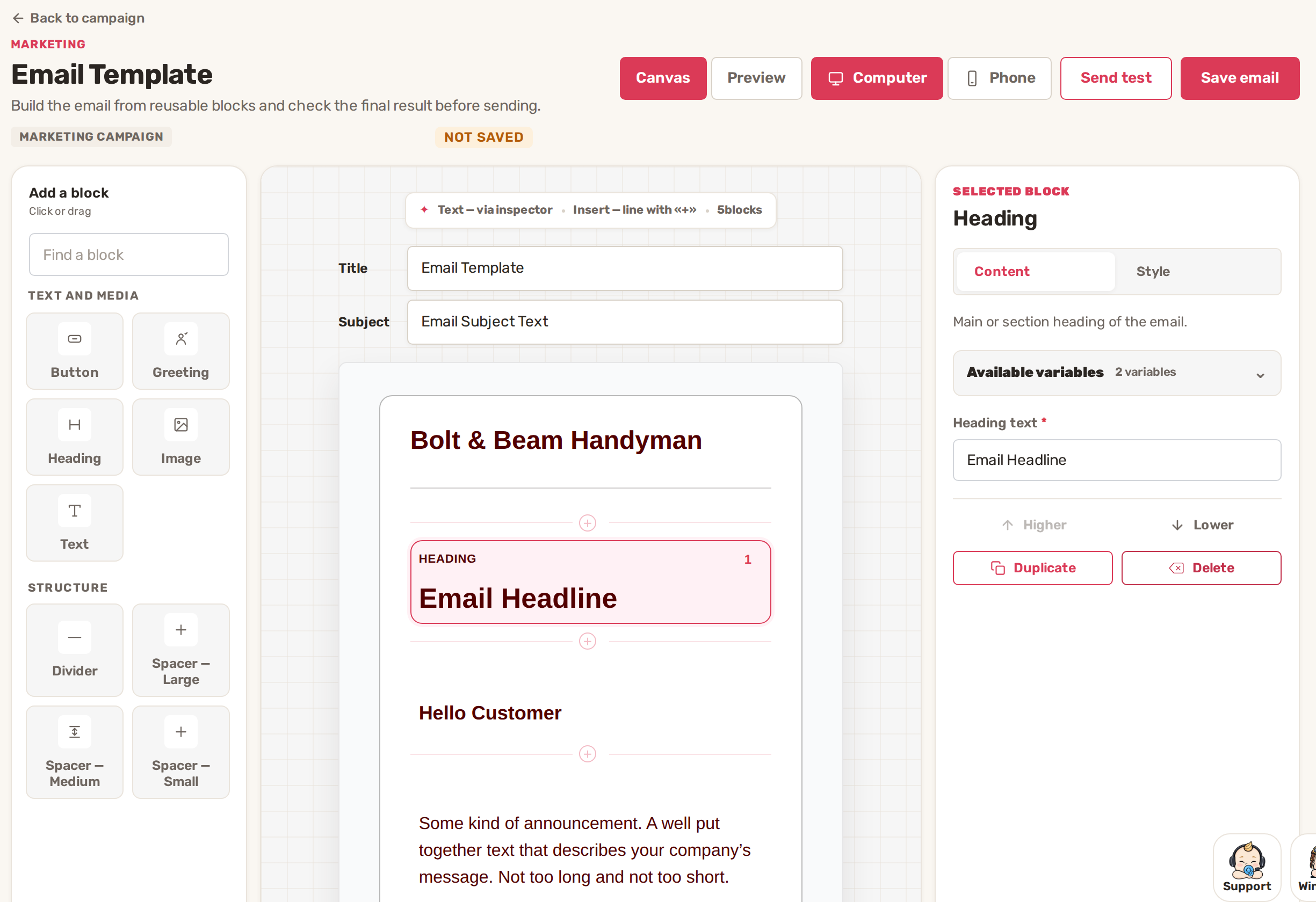
The email editor opens with a starter email in your business's design.
- Type a Title for the email and the Subject your customers see in their inbox.
- Add blocks from Add a block on the left: Button, Greeting, Heading, Image, Text, Divider and spacers. Click or drag a block into the email.
- Click a block to change it on the right. Content holds its words, Style its look. Higher and Lower move it, and you can Duplicate or Delete it.
- Click Preview, then Computer or Phone, to see the finished email.
- Click Save email. Back to campaign returns you to the four steps.
Schedule or send
- Schedule opens Schedule campaign. Pick a Date and Time and click Schedule campaign. The campaign shows as Scheduled. To cancel, open the campaign and click Remove date.
- Send it now asks you to confirm. Click Send now and the campaign goes to the whole audience. A send can't be undone.
Once a campaign is scheduled, its email and audience are locked. Only drafts show Edit Email, Edit Audience and Delete in the row menu.
See the results
On the Marketing page, Opened and Clicked show the share of delivered emails that were opened and clicked. They show a dash until emails are delivered. From the row menu:
| Action | What it does |
|---|---|
| Track Progress | Shows how far the send has got. |
| View Email | Opens a preview of the email. |
| View Emails List | Lists the people the campaign goes to. |
| Edit Campaign | Opens the four steps again. Drafts and scheduled campaigns only. |
| Test | Sends a test copy. |
Customers can turn off promotional emails and service updates separately. Pick Promo for offers and Updates for news about your service, so an opt-out from offers doesn't also stop your service news.
Common problems
- New Campaign shows a System message. Your own domain email isn't connected and verified yet. Click Proceed and finish the domain setup.
- "Sender not verified". Sending stopped because your sender address isn't verified. Click Create a Ticket in that window, or email support@bizbaby.com.
- Schedule and Send it now are grey. The audience or the email isn't saved yet. Finish steps 1 and 2.
- Fewer recipients than you expected. Read the line under the recipient count: people who unsubscribed, have no valid email or share an email are left out.
- "Campaign preparation failed". Check the campaign's audience and email, then schedule it again.
Related
- Send marketing email from your own domain
- Set up your email templates and sender details
- How automations work
Was this article useful?
Keep reading
More Marketing
Apply a promo code to your BizBaby plan
Apply a code Click the gear icon at the top right, then the Billing & Plan tab. Click Apply promo code next to Change pl...
Read guide →Send marketing email from your own domain
Why campaigns need your own domain Until your own domain is connected and verified, clicking New Campaign on the Marketi...
Read guide →Knowing what to charge is step one
First 3 months free. No card required. Bring the whole team.
Start Free Trial Back to Login