
Requests, quotes, jobs and invoices
Checklists for jobs and appointments
In this article
A checklist is a list of steps your crew ticks off on site. Build it once as a checklist template, then attach it to any job or appointment, or let a service add it to every new booking. Steps can demand a photo or a note before they close, and every tick is saved straight away with who did it and when.
1. Build a checklist template
- Open Work setup: on Appointments, click Service Settings. The Checklist templates row is under What your team does on site.
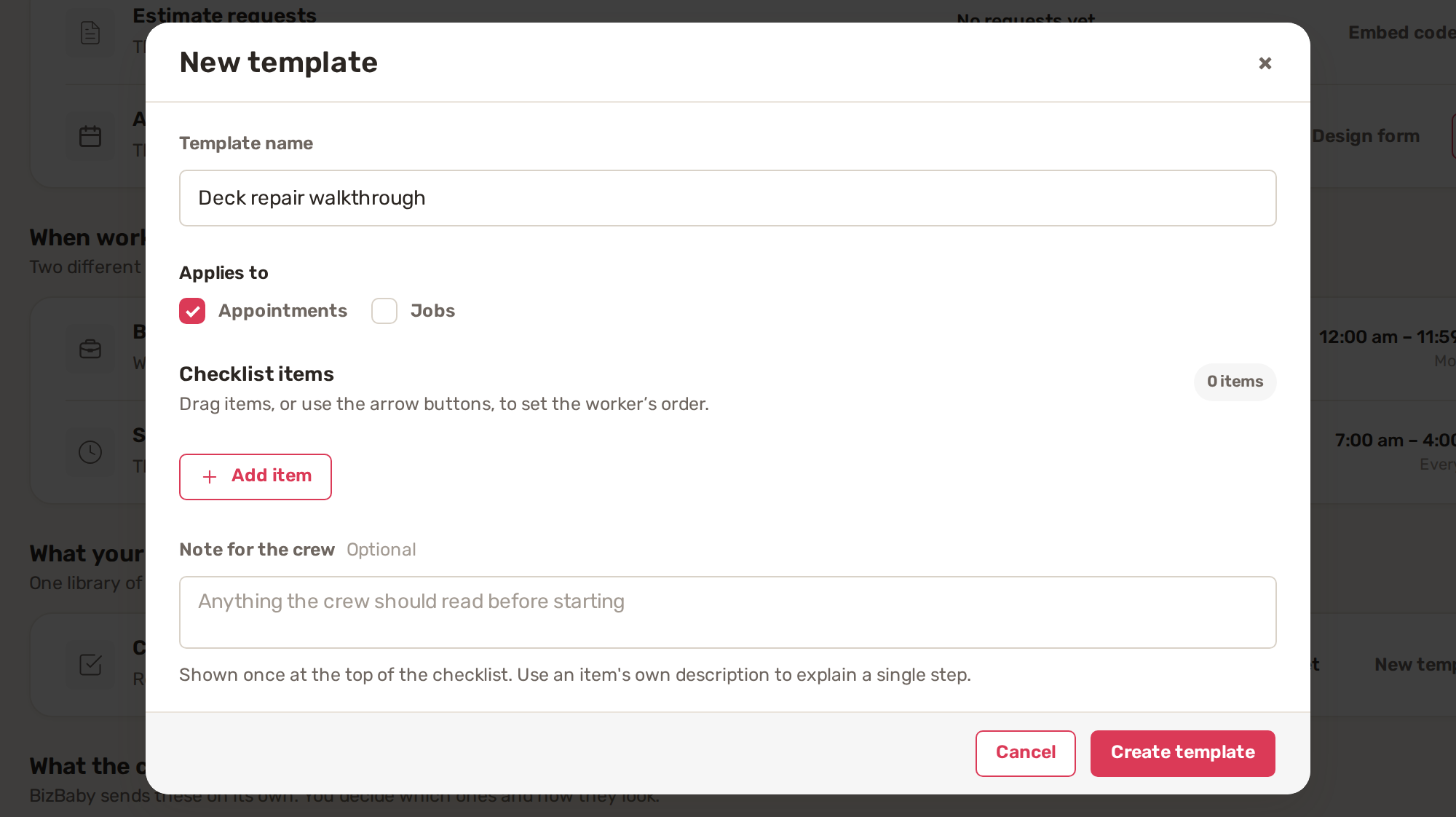
- Click New template.
- Type a Template name.
- Under Applies to, tick Appointments, Jobs, or both.
- Click Add item for each step. Give it an Item title and an optional Item description. Under Worker must add, tick Photo or Note if the step can't close without one. Tick Worker may mark this step N/A instead of doing it for a step that sometimes doesn't apply.
- Drag items, or use the arrow buttons, to set the order the worker sees them in.
- Add a Note for the crew if you like. It shows once at the top of the checklist.
- Click Create template.
To change or retire templates, click Manage on the same row. The library shows each template's items, how often it has been used and what it applies to, with Edit and Archive template. Archived templates sit under the Archived filter.

2. Put a checklist on a job or appointment
The Checklist column of the Jobs and Appointments lists shows each record's checklist. A record without one shows + Add checklist.
- Click + Add checklist on the row.
- Under Start from a template, pick one, then click Use this template. Or click Start blank and write the steps for this one record. You can save a blank checklist as a template when you're done.
On a job you can also open the project and click Add + next to Checklist on the Job step.
Once a checklist is on a record, the column shows progress, for example 0/2, and turns green when every step is answered for. Click it to open the checklist.
3. Add a checklist to every booking of a service
- Open the service from Manage services.
- In the Internal card, switch on Give workers a checklist for this job and choose the template. The steps it holds are listed under it.
- Click Save.
Every new booking of that service then starts with that checklist.
What your crew does on site
Workers see the checklist on their own work screen. There is no Save button: each tap is saved as it happens.
| Action | What happens |
|---|---|
| Complete step | The step locks and records who completed it and when. |
| Photo required | Tapping the step opens the file picker. The photo is saved with the job or appointment's files and the step completes itself. The flag turns to Photo added. |
| Note required | The worker must add the note before the step closes. |
| Mark N/A | For a step that doesn't apply, when the template allows N/A on that step. The worker says why. |
| Reopen step | Only an owner, admin or manager can reopen a completed step, with a reason. |
Common problems
- Work setup shows See Premium instead of New template. Checklists aren't on your plan.
- A template isn't offered on a job. It applies to Appointments only. Edit it and tick Jobs.
- A worker can't tick a step. It needs a photo or a note first.
- A worker can't undo a step. Only owners, admins and managers see Reopen.
Related
Was this article useful?
Keep reading
More Requests, quotes, jobs and invoices
Create and send an estimate
1. Start the estimate Start from one of two places: From a request: on the Requests tab, click the request's row, go to...
Read guide →Customize job and order fields
1. Ask questions on a service Questions are what the customer answers when booking: room count, TV size, ceiling height....
Read guide →How a job moves: request, estimate, job, visit, invoice
Where to find it Click Jobs & Invoices in the menu on the left. The page has a tab for each stage: Customers, Requests,...
Read guide →Knowing what to charge is step one
First 3 months free. No card required. Bring the whole team.
Start Free Trial Back to Login