
Requests, quotes, jobs and invoices
Fix "worker unable to complete" warnings
In this article
When a worker taps Unable to complete on a job, visit or appointment, the record gets a red Needs office action marker. The worker's report doesn't change the record's status or schedule: you decide what happens next. Click the marker, read the reason, and pick an action. The marker closes once that action succeeds, or when the work is completed.
What the worker reports
On their work screen, the worker taps Unable to complete, picks a Reason and taps Mark unable & show next. The item doesn't count as complete, and their report and time stay in the worker activity.
The reasons are Customer unavailable, Could not access property, Required parts unavailable, Unsafe conditions, Office requested reschedule and Other. With Other, the worker must write what happened, up to 240 characters.
Find the warnings
- The record's row in Jobs & Invoices or Appointments shows Needs office action. These rows rise to the top of their list, above other warnings.
- On Appointments, and on the Visits and Jobs tabs of Jobs & Invoices, set the All alerts filter to Unable to complete to see only these.
- The notification bell rings for it, unless you've turned that off (see below).
Choose what happens next
- Click Needs office action on the row. The window shows Worker activity: who reported it, when, and the reason.
- Under Choose what happens next, pick one of the actions below.
- Finish the window it opens and save. The marker closes when that save succeeds. If you close the window without saving, the marker stays.
| Action | What it does | Offered on |
|---|---|---|
| Reassign worker | Opens worker assignment so someone else takes it. | Jobs, visits, appointments |
| Reschedule | Opens the date and time so you can move it. | Jobs, visits, appointments |
| Create follow-up visit | Schedules a new visit on the same job request. | Jobs, visits |
| Mark addressed | Keeps the status and schedule as they are and closes the marker. | Jobs, visits, appointments |
| Cancel | Asks you to confirm, with an optional cancellation comment, then sets the status to Canceled. | Visits, appointments |
The worker's report stays in the record's activity history whichever action you pick. A cancellation comment is saved in the record's worker comments.
Turn the alert or its bell off
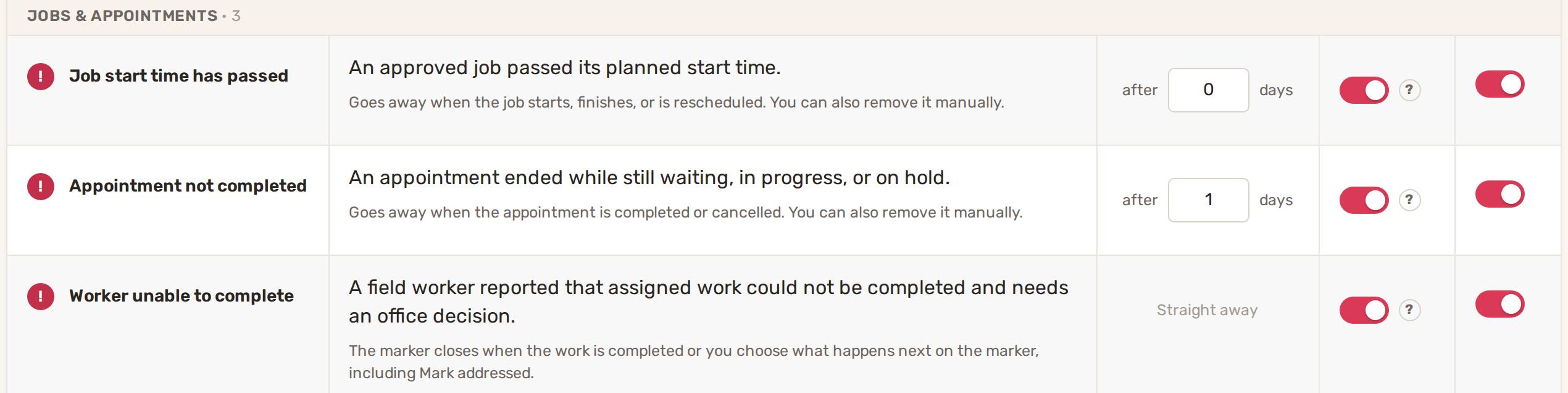
Go to Automations and open the Alerts tab. Under Jobs & appointments, the Worker unable to complete row has a Ring bell switch and an On switch. It appears straight away when a worker reports.
Common problems
- I rescheduled the appointment but the marker is still there. Reschedule from the marker's window. A change made elsewhere doesn't count as the answer to the report.
- Mark addressed shows "Could not mark this report addressed". Try again. If it keeps failing, reload the page.
- Nothing happened when the worker says they reported it. The report only reaches the office for work assigned to that worker.
Related
Was this article useful?
Keep reading
More Requests, quotes, jobs and invoices
Checklists for jobs and appointments
1. Build a checklist template Open Work setup: on Appointments, click Service Settings. The Checklist templates row is u...
Read guide →Create and send an estimate
1. Start the estimate Start from one of two places: From a request: on the Requests tab, click the request's row, go to...
Read guide →Customize job and order fields
1. Ask questions on a service Questions are what the customer answers when booking: room count, TV size, ceiling height....
Read guide →Knowing what to charge is step one
First 3 months free. No card required. Bring the whole team.
Start Free Trial Back to Login