
Requests, quotes, jobs and invoices
Customize job and order fields
In this article
BizBaby doesn't have free-form custom fields. You shape what a booking collects through each appointment service: Questions with priced answers, plus switches for comments, file uploads, tips and a disclaimer. The estimate request form has its own short list of settings. Everything here is set per service, on the service's own page.
1. Ask questions on a service
Questions are what the customer answers when booking: room count, TV size, ceiling height. Each answer can add to the price and to the time the job takes.
- Go to Appointments, click Service Settings, then Manage services.
- Open a service. Its page has Basics, Questions and a list of settings on the left.
- In the Questions card, click + Add question.
- Set each option's Price and Extra time. The first option is the starting price.
- Click Save at the top of the page.
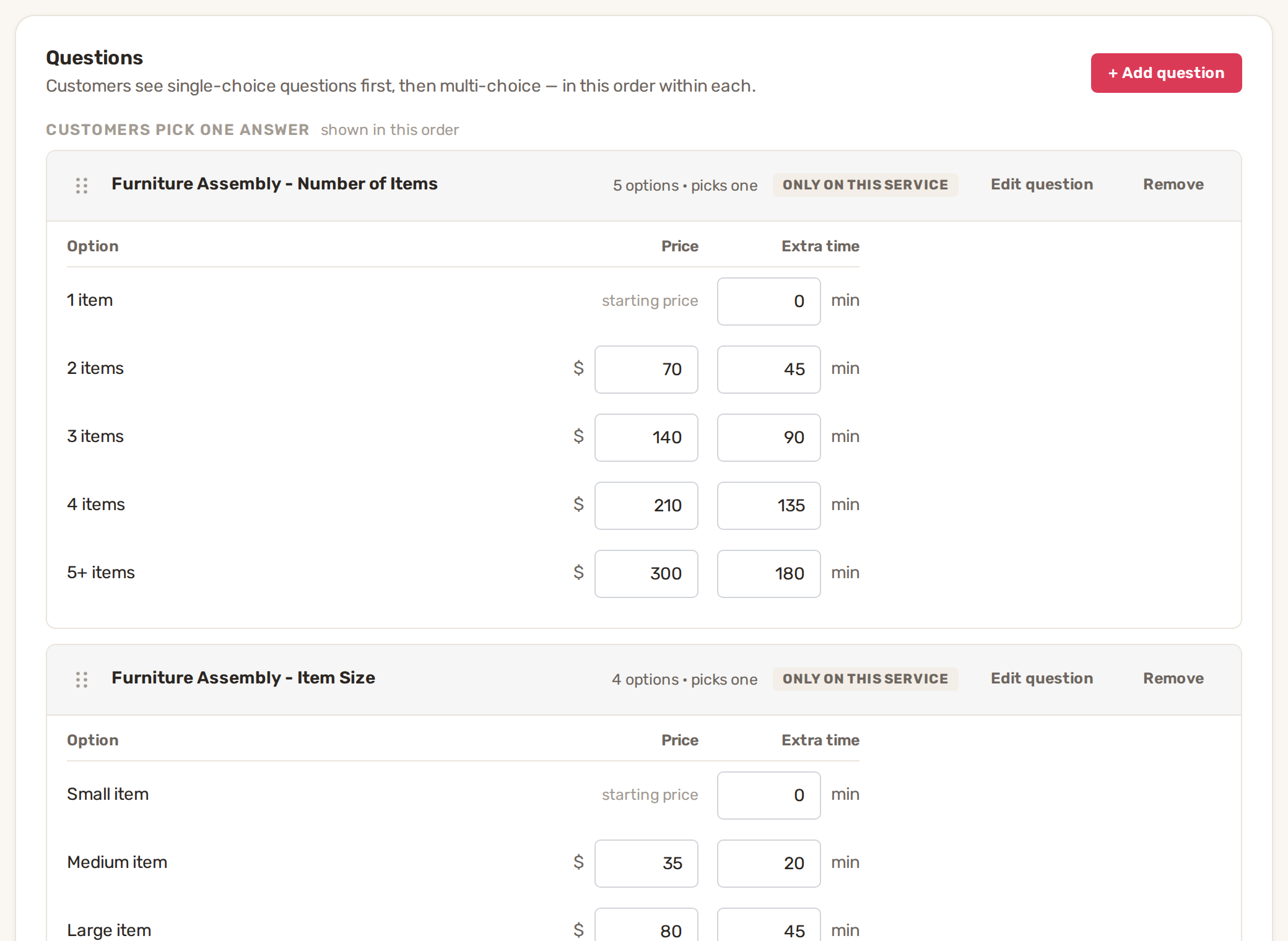
Use Edit question to change one, Remove to take it off this service, and the drag handle to change the order. A question marked ONLY ON THIS SERVICE isn't shared with other services.
2. Reuse the same question on several services
Questions you ask on more than one service live on the Attributes tab next to Services. Click Add attribute set and choose the kind:
| Kind | What it is | Price change |
|---|---|---|
| Job detail | A property of the job, such as size or type. The customer picks One answer or Several answers. | A Dollar amount or a Percentage of the order total, plus extra time. |
| Recurring plan | How often the customer wants the work. Always one answer. | A percentage discount. See Recurring jobs. |
Before you save, the preview at the bottom shows the price a customer would pay on a sample service.
3. Let customers add comments, files and tips
Further down the service page, these switches add fields to the booking form:
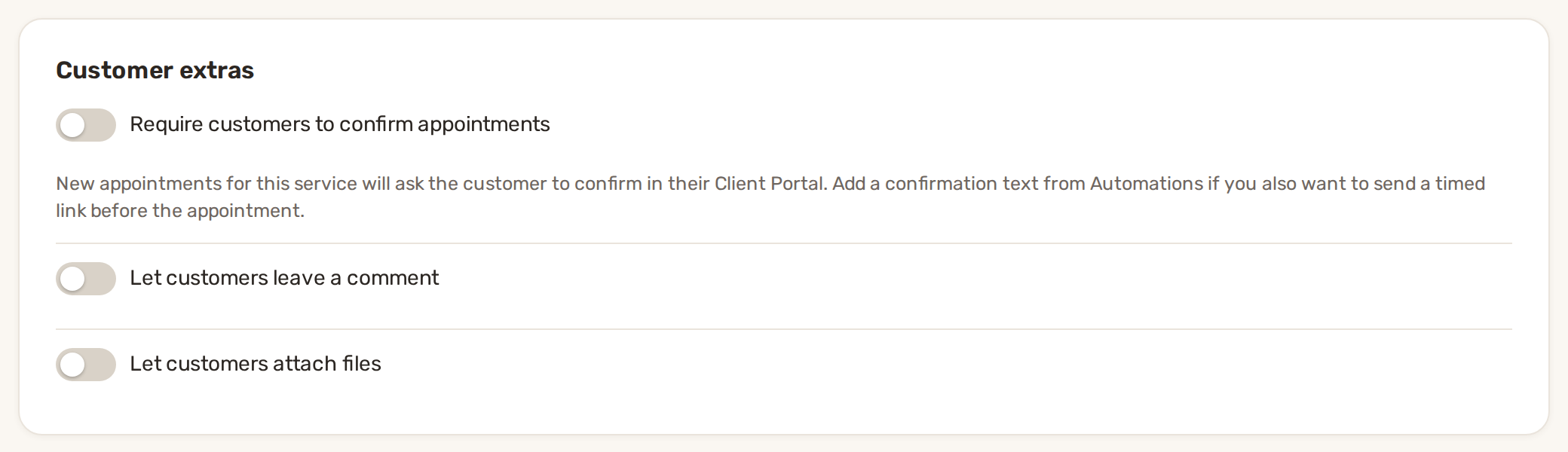
- Customer extras: Let customers leave a comment, Let customers attach files and Require customers to confirm appointments. With confirmation on, new appointments for this service ask the customer to confirm in their Client Portal.
- Payment & tips: Require payment for this booking and Let customers add a tip. Bookings that require payment appear in Payments.
- Disclaimer: text shown at the bottom of the booking form on your website.
- Internal: Internal only, hide from the booking form keeps a service for your office, and Give workers a checklist for this job adds a checklist to each booking.
Click Preview form at the top of the service page to see the booking form as your customer will.
4. The estimate request form
Estimate requests ask the customer to describe the work, so they have no per-service questions. The form asks for the Service, Preferred Date, Preferred Time, Alternative Dates, Comments and optional images. On Work setup, click Design form next to Estimate requests to open the Form studio. Under Form setup, switch Require customer email and Allow attachments on or off. Under Design, set the Form title, colours, font and corner shapes.
Common problems
- A question doesn't appear on the booking form. Check that the service is switched on as Bookable and isn't Internal only, then use Preview form.
- Questions show in a different order from the editor. Single-choice questions always come before multi-choice ones.
- The Attributes tab or Design form sends you to the plans page. That feature isn't on your plan.
Related
- Online booking: what customers can book
- Recurring jobs
- Checklists and job forms
- Add BizBaby forms to any website
Was this article useful?
Keep reading
More Requests, quotes, jobs and invoices
Checklists for jobs and appointments
1. Build a checklist template Open Work setup: on Appointments, click Service Settings. The Checklist templates row is u...
Read guide →Create and send an estimate
1. Start the estimate Start from one of two places: From a request: on the Requests tab, click the request's row, go to...
Read guide →How a job moves: request, estimate, job, visit, invoice
Where to find it Click Jobs & Invoices in the menu on the left. The page has a tab for each stage: Customers, Requests,...
Read guide →Knowing what to charge is step one
First 3 months free. No card required. Bring the whole team.
Start Free Trial Back to Login