
Website and online booking
Website Builder: build your site with AI and edit it
In this article
Every business gets a website at its own BizBaby address. Open gear icon → Website Builder to see its pages, edit them, publish them and choose which ones Google may show. Build a fresh website with AI makes a complete new version from your business details: the style preview is free, and you pay a one-time package price only when you like the look. Your current website stays live until you choose to replace it, and the old one is kept as a saved version.
Where to find it
Click the gear icon at the top right and choose Website Builder. The page has four parts, top to bottom:
| Part | What it's for |
|---|---|
| Website connection | Your BizBaby address, and where you connect a domain you own. See Connect your own domain. |
| Build a fresh website with AI | Makes a complete new version of your website. Marked Beta. |
| Your website pages | Every page, with its status, its customer form, Google visibility and the buttons to edit and publish it. |
| Saved versions | Up to 5 earlier or generated websites you can go back to. |
Your website pages
The counters at the top of the list show how many pages you have, how many are live, how many are draft and how many are in Google. Each page card shows:
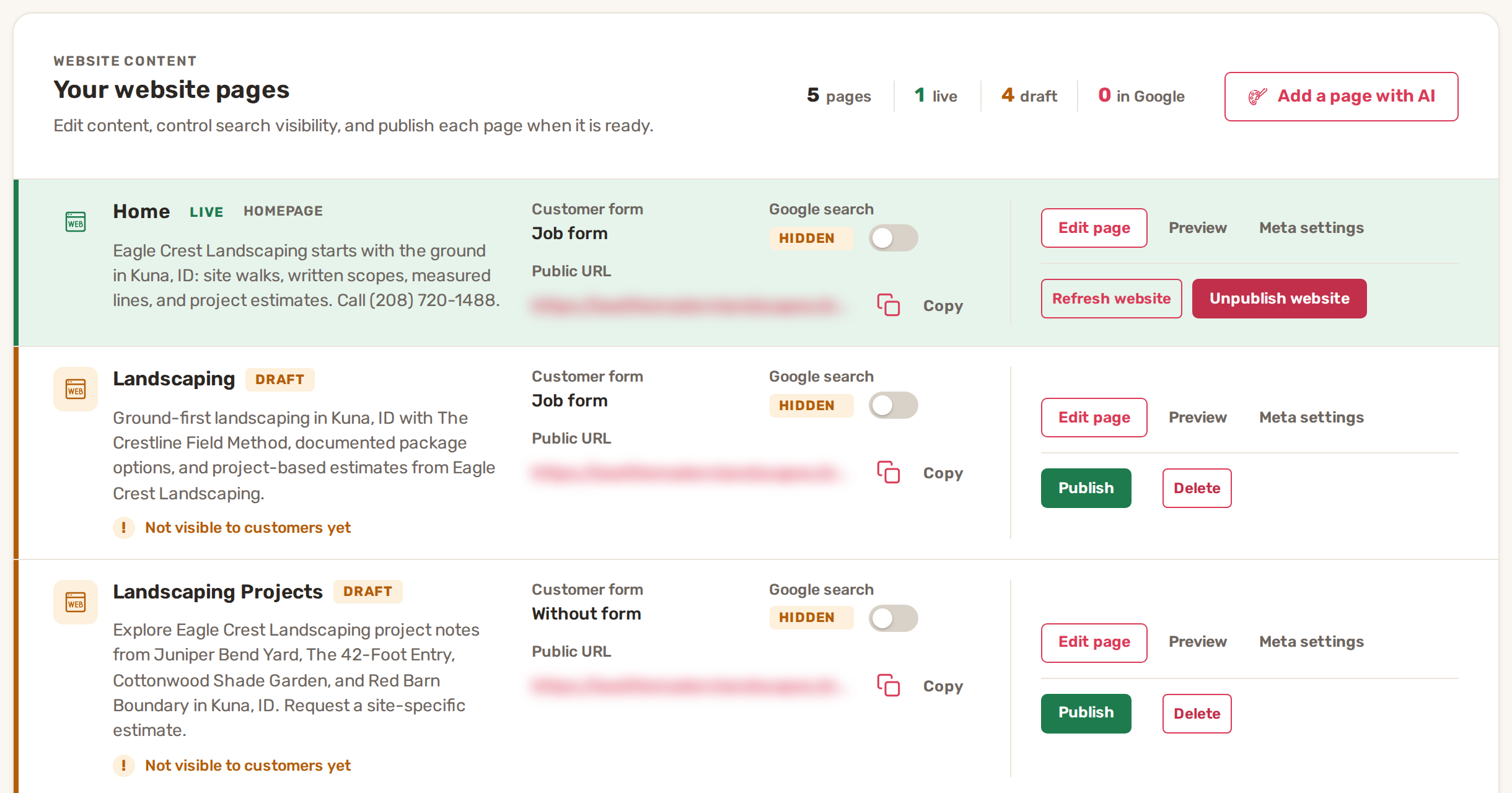
| On the card | What it means |
|---|---|
| Live / Draft | Live pages are on your website. Draft pages aren't: a visitor who opens one gets "page not found". The first card is your Homepage. |
| Customer form | The form in the page's top section: Job form, Appointment form, Quick request form or Without form. |
| Google search | Included or Hidden. Flick the switch to let search engines show the page, or to keep it out. |
| Public URL | The page's address. Click Copy to copy it. Once your own domain is connected, the address uses it. |
The buttons on each card:
- Edit page opens the page in the editor, in a new tab.
- Preview shows the page as visitors would see it, including unpublished changes.
- Meta settings opens a page where you set the Page name, the Public address, and the Search title and Search description that search engines show. Under Sitemap guidance, Page priority and Change frequency are optional hints for search engines. Click Save meta settings when done. If you change the address of a live page, visitors who use the old address are sent to the new one.
- Publish puts a draft page on your website. Unpublish takes it off again. On the homepage the button reads Unpublish website, because without a live homepage your website doesn't show.
- Delete removes a page. The homepage can't be deleted.
The note under the list says how many pages your plan includes and what each extra page costs per month. On Starter, only the homepage can be edited; your other pages stay live but show "editing is locked" until you upgrade.
Edit a page
- Click Edit page on the page's card. The editor opens in a new tab.
- Click any section or element on the page. Its settings open on the right. You can also click text and type straight on the page.
- Use Page structure on the left to jump to a section, and + Add block at the bottom to add a new one.
- Use Site styles (or General elements styling on the left) for colours and styles that apply across all your pages.
- Switch between your pages with the tabs at the top. The three device buttons show the page on a computer, a tablet or a phone.
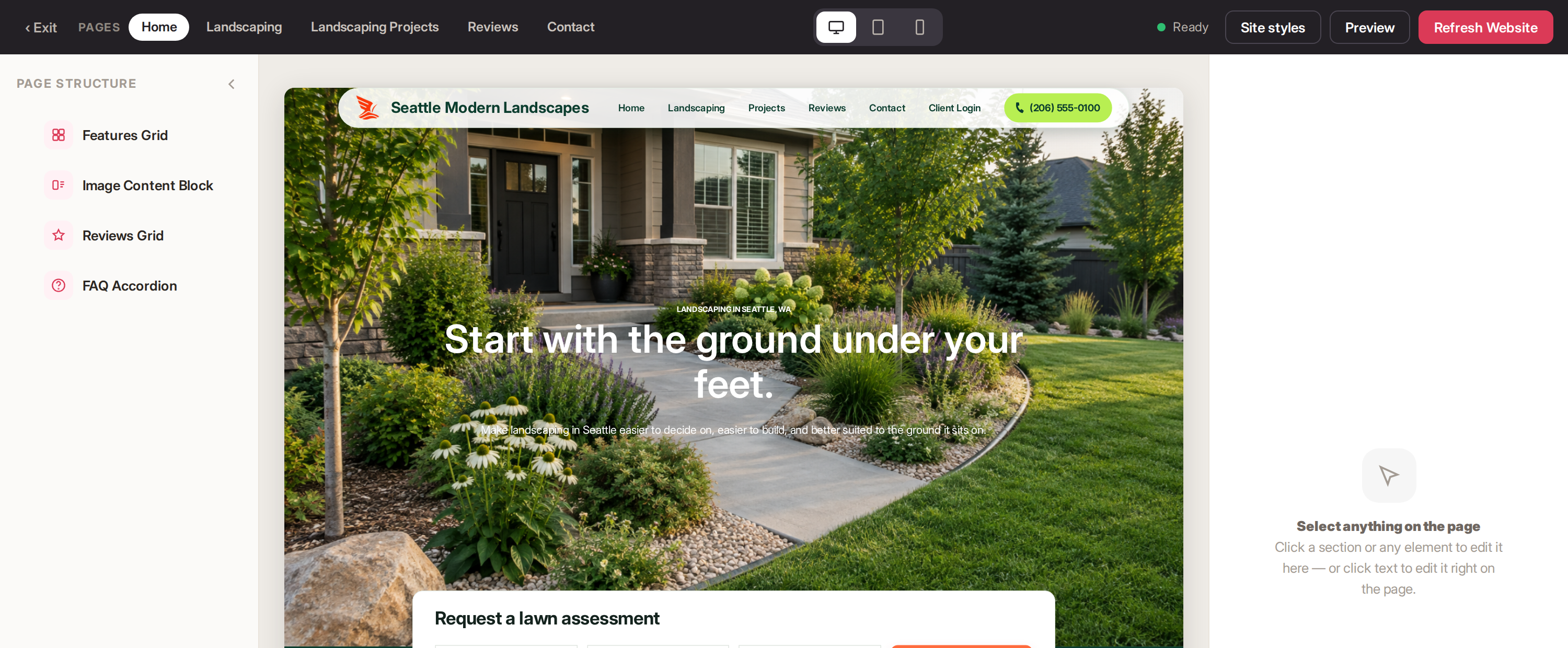
Your changes are saved as you go. The status next to Site styles shows Ready when nothing is waiting. The public website catches up with your changes on its own within about an hour. To show them straight away, click Refresh Website in the editor, or Refresh website on the homepage card in Website Builder. Click Exit at the top left to close the editor.
Add one page with AI
- In Your website pages, click Add a page with AI.
- Type the Page name, describe What should the page cover?, and choose Where in the menu?
- Check the rows below the form: how many pages you'll have against your plan, whether your monthly bill changes, and that AI usage is Billed as it completes.
- Click Generate page. It takes a few minutes. You can close the window and come back.
- Look at the page in the preview, then click Add to my website or Discard.
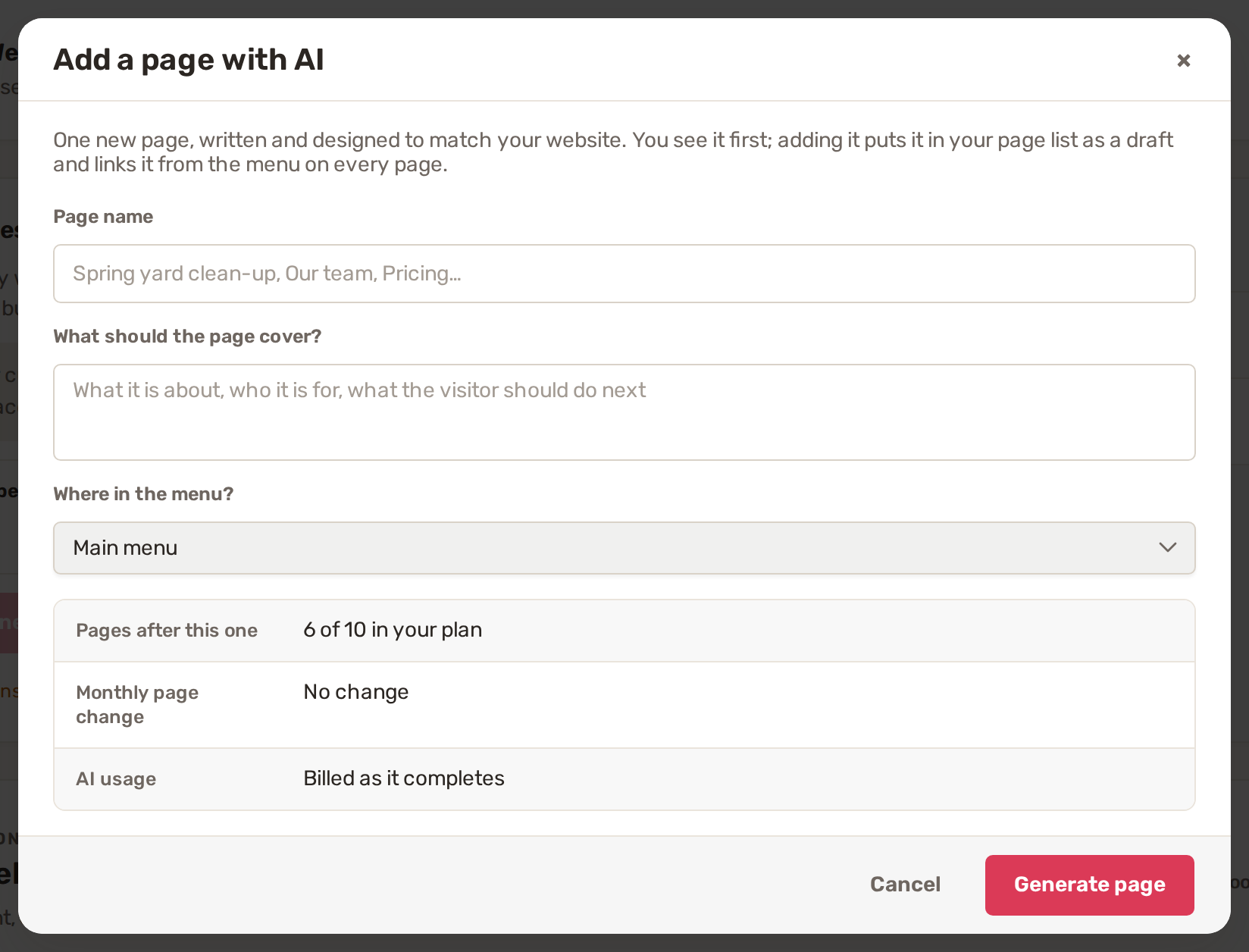
An added page goes into your list as a draft and is linked from the menu on every page. Open it, check it, then click Publish. This works only on websites BizBaby generated with AI. On any other website the window says so at the top.
Build a fresh website with AI
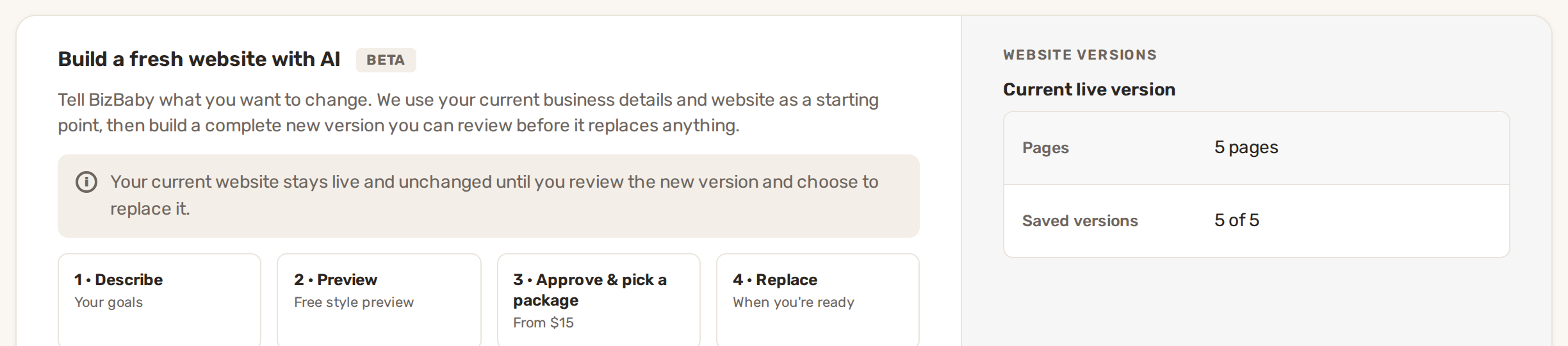
- Click Build a new version.
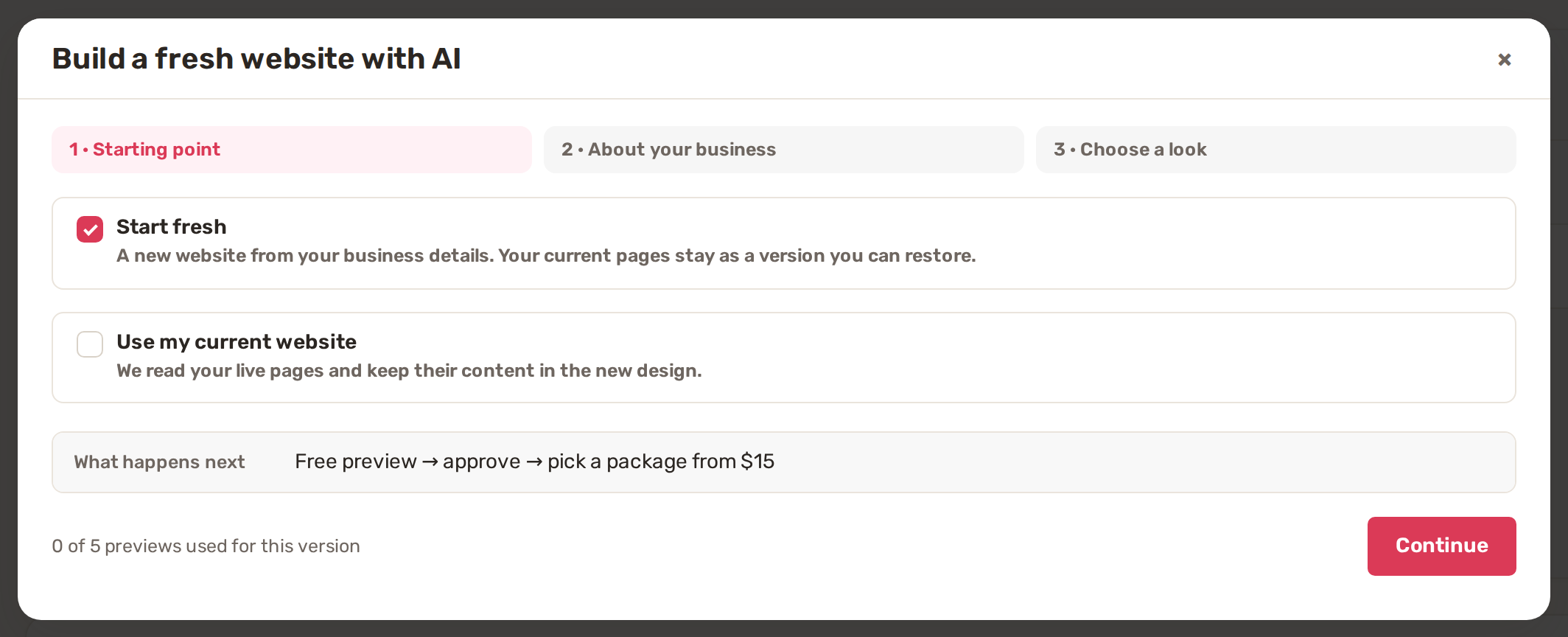
- Starting point: choose Start fresh for a new website from your business details, or Use my current website to keep the content of your live pages in a new design. With the second option, tick the pages to bring over.
- About your business: check Business name, Type of work, Main services and Service area, which BizBaby fills in from your settings and which are required. Optionally add your ideal customer, what the website should achieve, the tone, a description and any Special instructions.
- Choose a look: pick a style, pick Not sure — you choose to let BizBaby decide, or pick Let me provide my own and give a link or an image to follow. Click Create my free preview.
- When Your preview is ready, look at the homepage preview. Click Request changes, describe what should change and click Regenerate preview, or click Approve this style.
- Choose a package and click Pay & Build. The card on file is charged once. If there's no card on file, you're asked to add one.
- BizBaby builds the full website. It may ask you to Approve image for generated pictures, or you can Skip the rest.
- When it says Your new website is ready, click Preview, then Replace live website when you're happy.
| Package | Pages | One-time price |
|---|---|---|
| Launch Website | 2 | $15 |
| Complete Website | 5 | $30 |
| Authority Website | 10 | $45 |
| Custom Website | 11 to 50 | $5 per page |
If you chose Use my current website, the package that fits your number of pages is picked for you and the others are greyed out, so every page has a place in the new website.
You get 5 previews (first previews and regenerations together) for each live version. The count shows under Build a new version, for example "0 of 5 previews used for this version". Replacing or restoring a version starts the count again.
Saved versions
Saved versions keeps up to 5 websites: your earlier live websites (Previous live), websites BizBaby generated (Generated) and the one that is Live now. Click Save current website as a version before you make big changes.
- Restore puts an earlier website back. Apply puts a generated website live.
- Both first save your current live pages as a new "Previous live" version, so nothing is lost.
- Delete removes a saved version and its pages for good. The live website isn't touched.
Common problems
- Build a new version is greyed out with "a new website needs room for two". A new website needs two free places in Saved versions: one for the new website and one for the backup of your current one. Delete a saved version you no longer need.
- "5 of 5 previews used for this version". You've used all 5 previews. Replace your live website with a generated one or restore a version, and the count starts again.
- "Fill in the business name, type of work, main services and service area." One of the four required fields in About your business is empty.
- "Choose at least one page of your current website to bring over." With Use my current website, tick at least one page. If it says "No live pages found", publish a page first or choose Start fresh.
- A page shows "Billing paused" and "temporarily offline". It was taken offline because a BizBaby bill is unpaid. Click Review billing and pay the bill to publish and edit it again.
- My edits don't show on the website. Click Refresh Website in the editor, or wait up to an hour. Check that the page is Live, not Draft. See Website not showing.
Related
- Connect your own domain
- Website legal pages
- Website not showing or certificate pending
- Add BizBaby forms to any website
Was this article useful?
Keep reading
More Website and online booking
Add BizBaby forms to any website
The forms you can add Click the gear icon at the top right and choose Integrations. The Your website card lists every fo...
Read guide →Connect your own domain
Before you start Buy a domain from a domain provider, if you don't have one. BizBaby doesn't sell domains. Have your sig...
Read guide →Install Google Tag Manager and track leads
Before you start Your business is on the Growth plan. On other plans the box shows a Growth plan chip and Upgrade to unl...
Read guide →Knowing what to charge is step one
First 3 months free. No card required. Bring the whole team.
Start Free Trial Back to Login