
Website and online booking
Website legal pages: Privacy Policy and Terms of Use
In this article
Every BizBaby website has a Privacy Policy and Terms of Use page, linked at the bottom of every page. BizBaby writes them for you, with your business name and contact details filled in. You don't need to set anything up. To use your own wording instead, publish your own page at the same address. BizBaby's text is a general template, not legal advice, so check it fits your business.
Where they are
The links sit in the bottom line of your website's footer, on every page, next to "Designed and Hosted by BizBaby" and your copyright line.

| Page | Address |
|---|---|
| Privacy Policy | /privacy on your website, for example yourbusiness.com/privacy |
| Terms of Use | /terms on your website, for example yourbusiness.com/terms |
They work at your BizBaby address and at your own domain once it's connected. They show inside your website's own header and footer.
What the Privacy Policy says
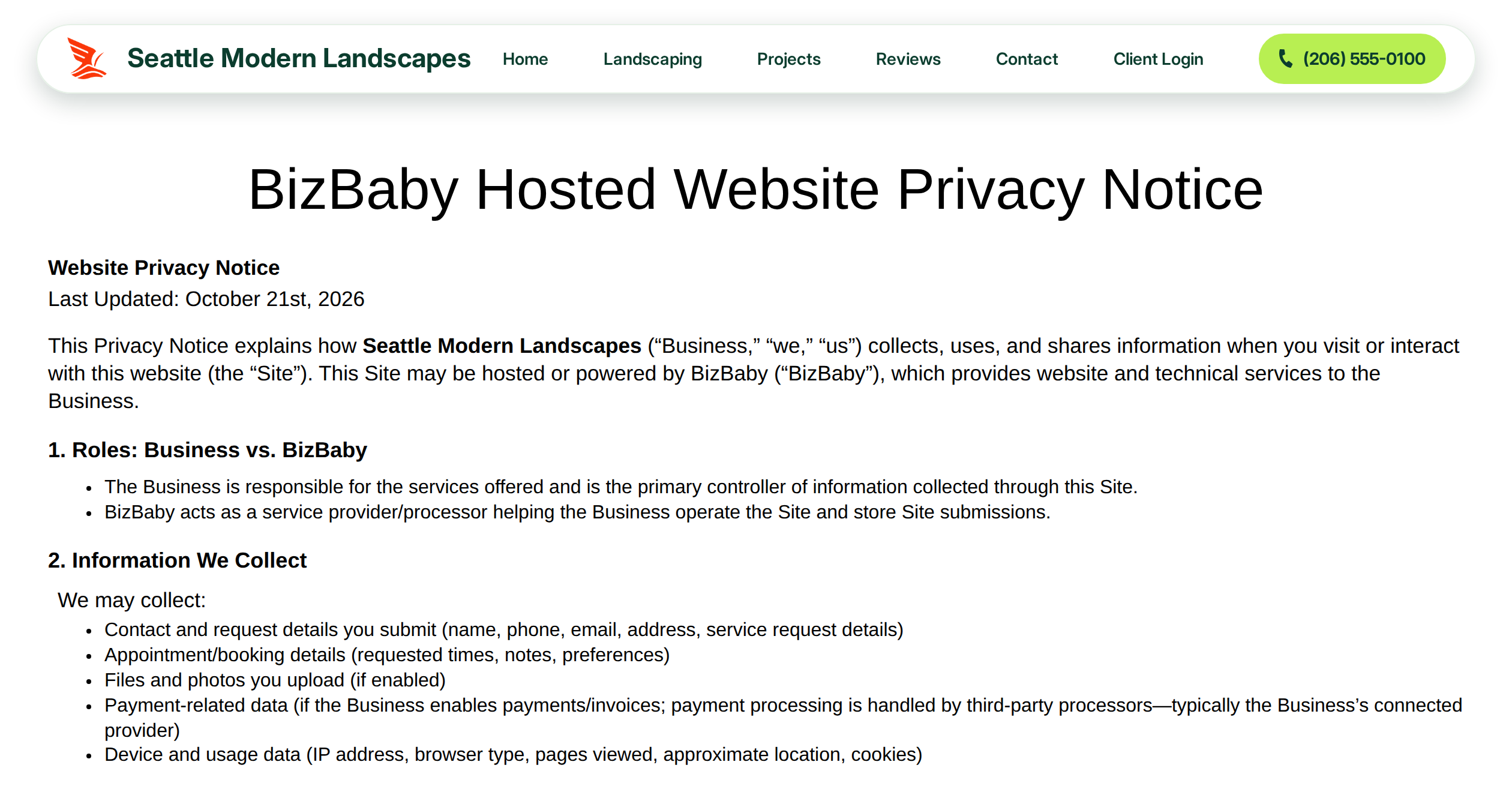
The page is titled "BizBaby Hosted Website Privacy Notice". It explains that your business is responsible for its services and the information collected on the site, and that BizBaby hosts the site for you. It then covers:
- what may be collected: contact and request details, appointment details, uploaded files and photos, payment-related data and device and usage data
- how the information is used and who it may be shared with
- cookies and analytics, such as Google Analytics
- messages from your business, data retention, visitors' choices and children's privacy
- a contact section with your business name
What the Terms of Use say
The page is titled "BizBaby Hosted Website Terms of Use". It says your business operates the site and BizBaby provides the hosting. It covers acceptance of the terms, your services and information, prohibited use, what visitors submit through forms, ownership of your content and branding, third-party links, disclaimers, limitation of liability, changes to the terms, and a contact section with your business name.
What BizBaby fills in
| Detail | Where it comes from |
|---|---|
| Business name | Your business name in BizBaby. It appears at the top and in the contact section. |
| Your business email in gear icon → Business Information. Left out if you haven't set one. | |
| Phone | Your BizBaby business phone number. Left out if you don't have one. |
| Last Updated | The date your homepage was last updated in BizBaby. |
Make sure the contact section gives visitors a way to reach you. If neither an email nor a phone number shows, add your business email or get a BizBaby number.
Use your own wording
BizBaby shows its built-in page only while you have no live page of your own at that address. To replace one:
- In gear icon → Website Builder, get a page for your policy: add one with Add a page with AI, or use a page you no longer need. Click Edit page and replace its text with your policy.
- Click Meta settings on the page's card. Set the Public address to privacy (or terms) and click Save meta settings.
- Click Publish on the page's card.
The footer link now opens your page. If you unpublish or delete it, the built-in page comes back.
Common problems
- The legal pages show "page not found". Your homepage isn't published. The legal pages show only while your homepage is Live. Click Publish on the homepage card in Website Builder.
- "Another page already uses this address." Another page of yours already has the address privacy or terms. Change that page's address or use it as your policy page.
- The Last Updated date changed, but I didn't change the policy. The date follows your homepage, so it moves whenever the homepage is edited.
Related
- Website Builder: build your site with AI and edit it
- Install Google Tag and track leads
- Website not showing or certificate pending
Was this article useful?
Keep reading
More Website and online booking
Add BizBaby forms to any website
The forms you can add Click the gear icon at the top right and choose Integrations. The Your website card lists every fo...
Read guide →Connect your own domain
Before you start Buy a domain from a domain provider, if you don't have one. BizBaby doesn't sell domains. Have your sig...
Read guide →Install Google Tag Manager and track leads
Before you start Your business is on the Growth plan. On other plans the box shows a Growth plan chip and Upgrade to unl...
Read guide →Knowing what to charge is step one
First 3 months free. No card required. Bring the whole team.
Start Free Trial Back to Login