
Requests, quotes, jobs and invoices
Recurring jobs: repeating appointments
In this article
Repeating work in BizBaby runs as an appointment series. Give a service a Recurring plan question, such as Weekly or Monthly, and when a booking is made with one of those options BizBaby keeps creating the next appointment on that schedule. You see and manage every series on Appointments → Subscriptions. Charging the customer on a schedule is a separate feature: see Bill customers on a subscription.
How a series works
- The first appointment is booked as usual, with a frequency chosen from the service's Recurring plan.
- BizBaby turns that booking into a series and keeps a copy of what was booked: the service, the answers and the price.
- Each next appointment is created automatically, up to 7 days before its date. Your crew sees it on the calendar like any other appointment.
- Choosing One time books a single appointment and starts no series.
Only appointment services repeat this way. Jobs that start from an estimate request don't repeat on their own.
1. Offer a repeat schedule on a service
- Go to Appointments, click Service Settings, then Manage services next to Appointment booking.
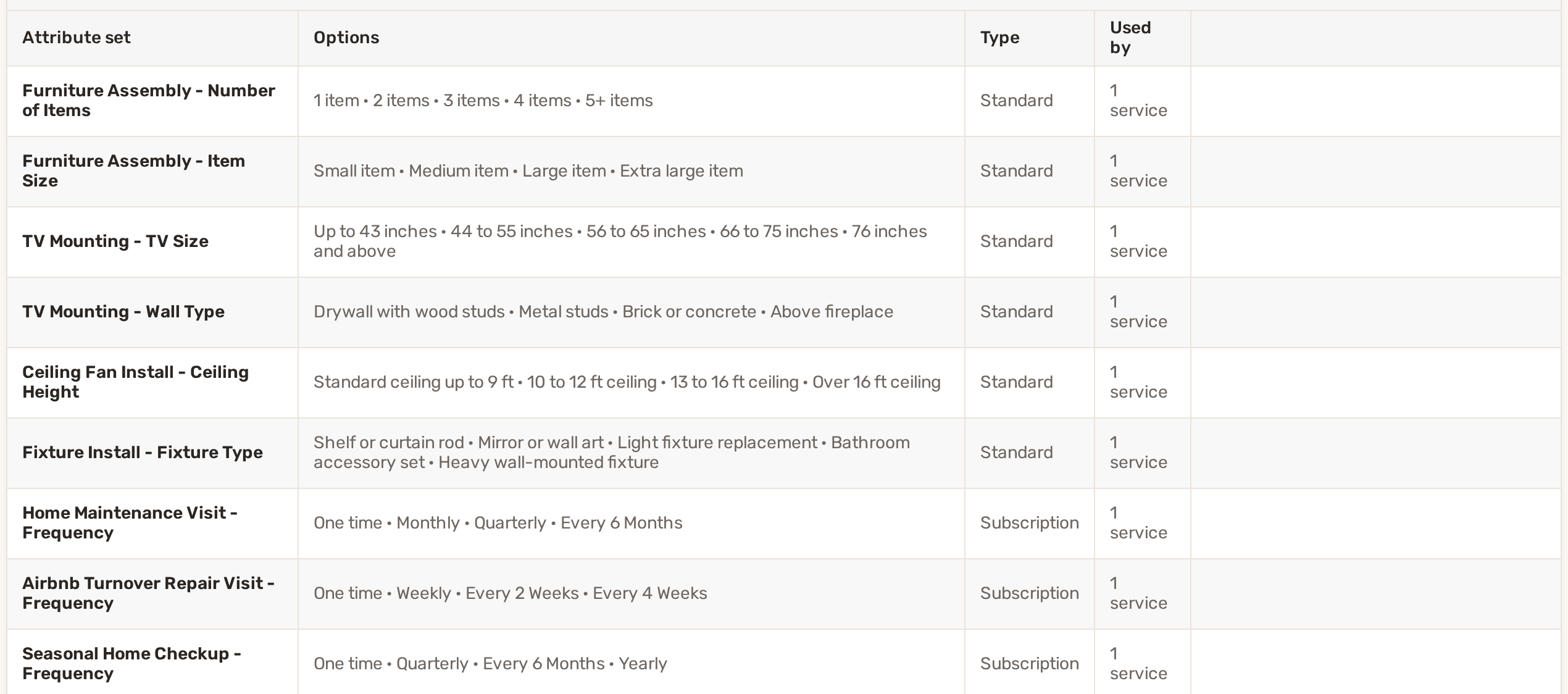
- Open the Attributes tab and click Add attribute set.
- Choose Recurring plan: "How often the customer wants it, at a discount."
- Give it a Title, for example "Lawn mowing - Frequency".
- Add one row per schedule. Each row's Option is picked from the list of frequencies, and its Direction and Price set the discount off the order total (a new row starts at full price). Use + Add modifier for another row. The preview at the bottom shows the customer's real price before you save.
- Save the set, then add it to the service as a question with + Add question on the service's Questions card.
| Frequency | Next appointment |
|---|---|
| One time | None. A single appointment. |
| Weekly | 7 days later |
| Every 2 Weeks | 14 days later |
| Every 4 Weeks | 28 days later |
| Monthly | Same date next month |
| Quarterly | 3 months later |
| Every 6 Months | 6 months later |
| Yearly | 1 year later |
2. See your series
Go to Appointments and open the Subscriptions tab. Each row is one series, with its Customer, Last Appointment, Next Appointment, Service, Status and Frequency. Search by name, email or phone, or narrow it with Date Range.
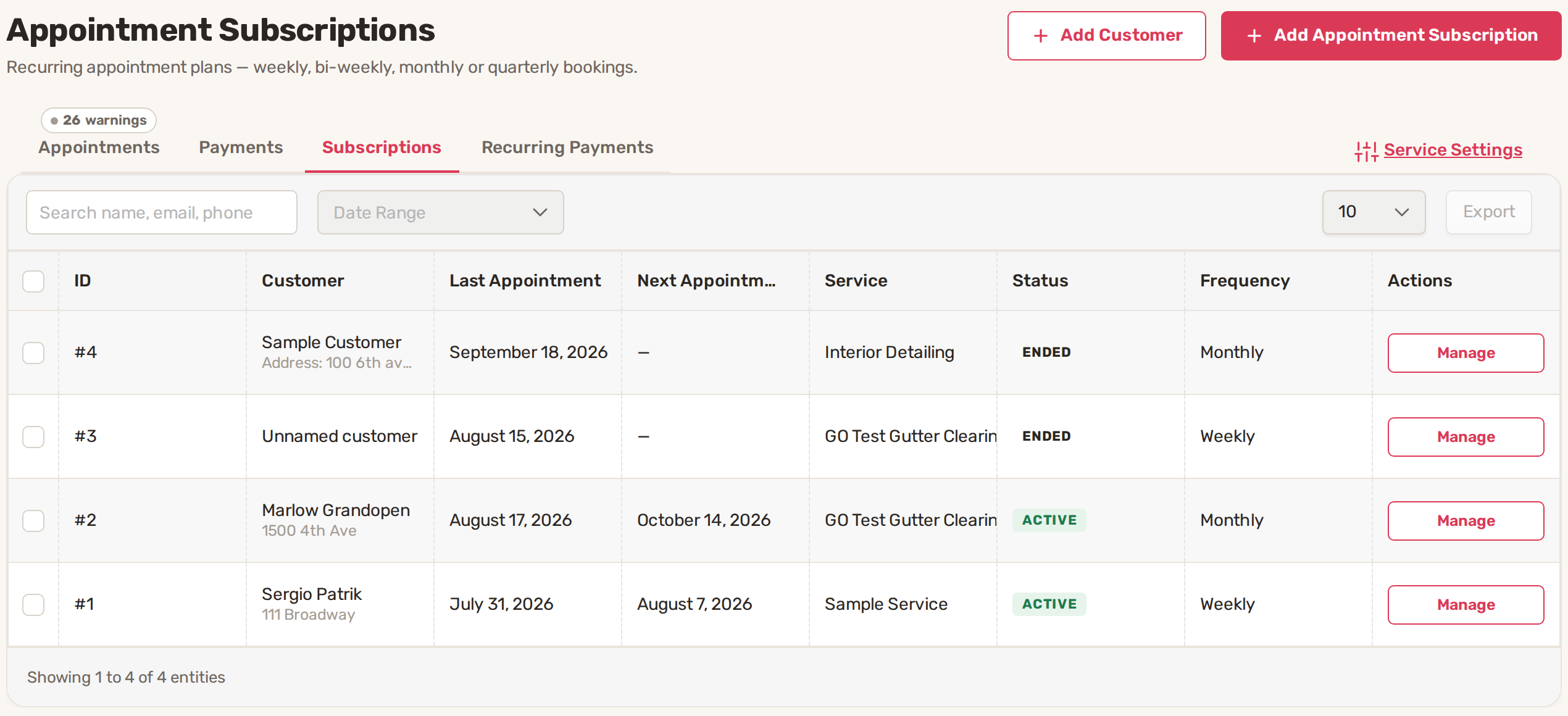
To start a series yourself, click Add Appointment Subscription. Pick the Service, Appointment Date, Arrival Time and Frequency, click Next, choose the customer and click Submit.
Appointments that belong to a series show it in the Subscription column of the Appointments list.
3. Pause, skip or end a series
- On the Subscriptions tab, click Manage on the row.
- Under Manage future appointments, choose Pause series, Resume series, Skip next appointment or End appointment series.
- Type a Reason for change. It is required, and it is kept with the action, who did it and when.
The same window shows the Occurrence timeline (appointments created, visits skipped, and generation attempts) and the Management history. Once a series has ended, no future appointments are generated, but its timeline and history stay available.
Rescheduling or cancelling one appointment from the series only affects that appointment. To change what happens next time, use Manage on the series.
Common problems
- A booking didn't start a series. The customer picked One time, or the service has no Recurring plan question.
- The next appointment isn't on the calendar yet. It appears up to 7 days before its date. Check Next Appointment on the Subscriptions tab.
- Manage shows "Series health needs attention". BizBaby found the series' schedule and its appointments don't agree. Review the read-only findings, use Preview first, and apply the repair only after checking the affected occurrences.
- No Subscriptions tab. Recurring appointments aren't on your plan.
Related
- Bill customers on a subscription
- Appointments and the calendar
- Customize job and order fields
- Online booking: what customers can book
Was this article useful?
Keep reading
More Requests, quotes, jobs and invoices
Checklists for jobs and appointments
1. Build a checklist template Open Work setup: on Appointments, click Service Settings. The Checklist templates row is u...
Read guide →Create and send an estimate
1. Start the estimate Start from one of two places: From a request: on the Requests tab, click the request's row, go to...
Read guide →Customize job and order fields
1. Ask questions on a service Questions are what the customer answers when booking: room count, TV size, ceiling height....
Read guide →Knowing what to charge is step one
First 3 months free. No card required. Bring the whole team.
Start Free Trial Back to Login