
Getting started
Your dashboard and the Getting Started List
In this article
Your Dashboard is the first page after you sign in. At the top, the Getting Started List shows how far your setup has come. Below it, one card per area shows the last 7 days, what needs your attention, and a button straight into that area. Click Dashboard in the left menu to come back any time.
What's on the dashboard
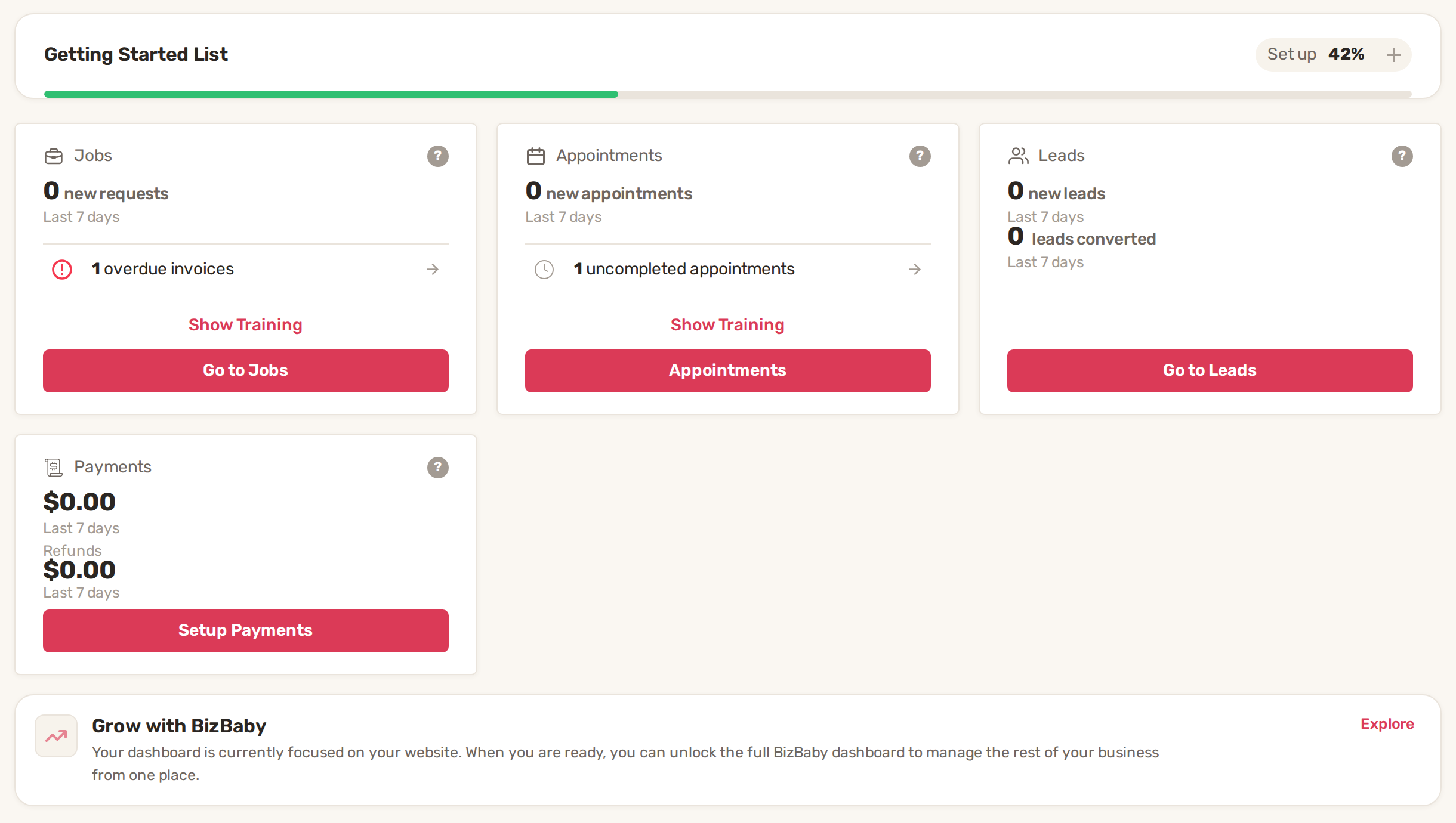
| Card | What it counts | Its button |
|---|---|---|
| Jobs | New requests in the last 7 days. | Go to Jobs |
| Appointments | New appointments in the last 7 days. | Appointments |
| Leads | New leads and leads converted, last 7 days. Shown when you have a BizBaby website. | Go to Leads |
| Payments | Money received and refunds, last 7 days. | Payments and Invoices, or Setup Payments until Stripe is connected |
| Call Center | Calls, texts, inbound emails and chats, last 7 days. | Go to Call Center |
| Personal Cabinet | Your own outstanding jobs for today. | Go to Cabinet |
- A small arrow next to a number compares it with the 7 days before.
- Lines with an arrow under the numbers are things to act on, such as overdue invoices, unanswered requests, approved estimates, declined payment, uncompleted appointments, missed calls or outstanding messages. They only appear when there's something to do. Click one to open that list.
- The ? on a card explains what the area is for.
- Show Training on a card opens the Getting Started List on that area's tab.
- A greyed-out card isn't on your plan. It names the plan that includes it.
The full dashboard
At first, your dashboard keeps to the essentials. The Grow with BizBaby box at the bottom opens more. Click Explore to see what the full dashboard adds, such as the Personal Cabinet and Call Center cards, then click Show Full BizBaby Dashboard to switch to it. Hide details folds the preview away again. For a new business, a Back to Website Dashboard button at the bottom switches back.
The Getting Started List
The list sits at the top of the dashboard, folded up. Set up and the green bar show how much of your setup is done. Click + to open it and – to fold it away again; BizBaby remembers which you chose.
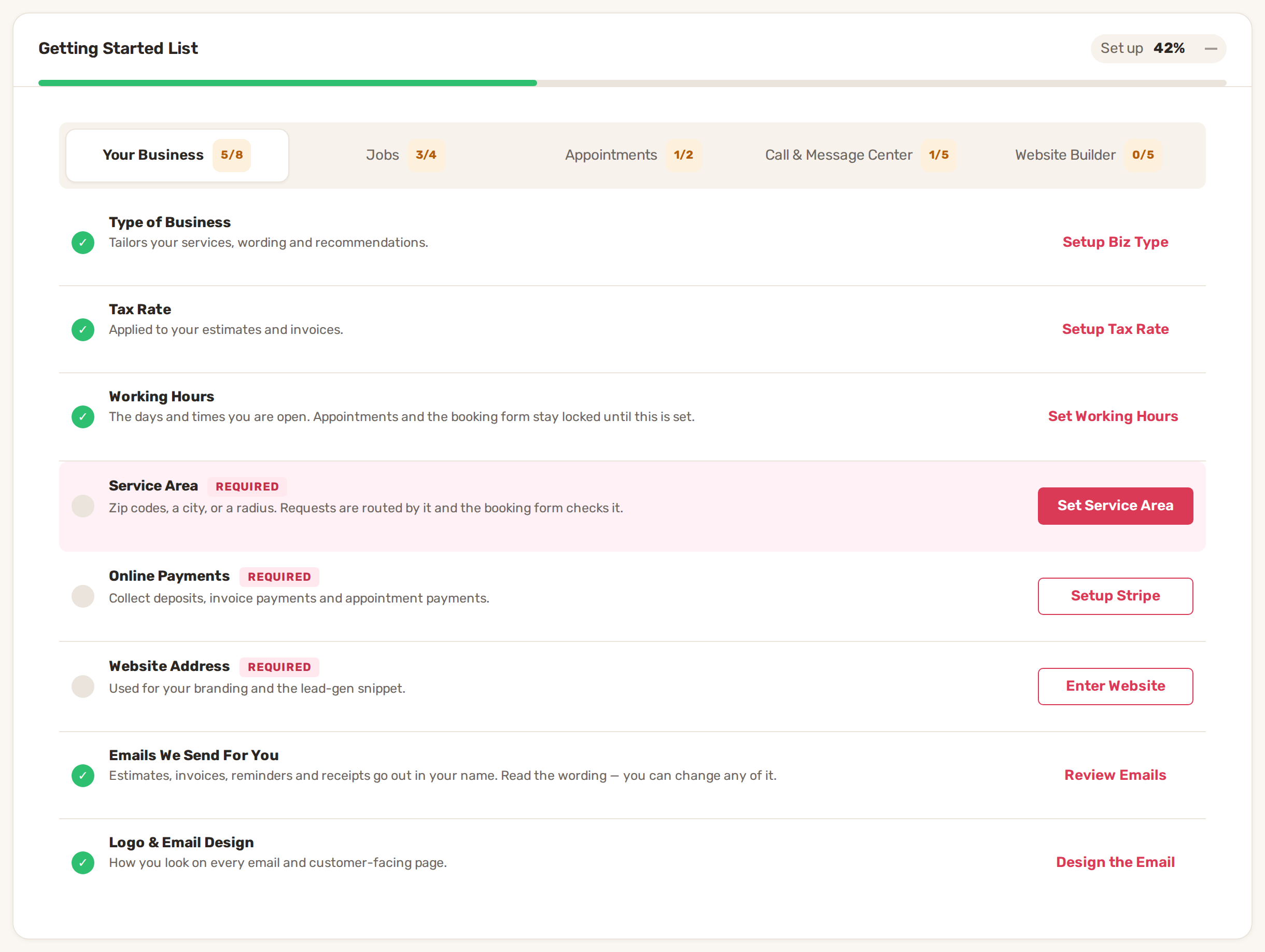
- Tabs group the rows: Your Business, Jobs, Appointments and Call & Message Center, plus Website Builder once you have a BizBaby website. The number on each tab shows how many of its rows are done.
- Each row says what it is and why it matters, with a button that takes you to the right page.
- Rows still to do are marked Required or Optional. Rows under Try it out are practice runs and don't count towards the percentage.
- A row ticks itself off when the setting is saved. You never tick anything yourself.
- If something is stopping you from working, such as missing working hours, a warning above the tabs says what it is, with a link to fix it.
The list is only shown to the owner and to people with Business Settings access, because setting the business up is their job. Set up your business in the first hour walks through every Required row in the best order.
Not sure which one your work is? Click Learn the difference between Jobs and Service Appointments at the top of the dashboard.
Common problems
- A team member doesn't see the Getting Started List or some cards. That's expected. The list is for the owner and admins, and cards follow each person's access. See Add your team and choose what each person can see.
- A tab in the list is greyed out. That part isn't on your plan. Hover over it to see which plan includes it.
- Show Training does nothing. That area's tab is greyed out on your plan, so there's nothing to open.
- Setup Payments is greyed out with "Only the owner or an admin can set up payments." Ask the owner to connect Stripe.
- "Your worker account is disabled." The business has deactivated your account. Contact your employer.
Related
- Set up your business in the first hour
- How a job moves: request, quote, job, visit, invoice
- Plans and what each includes
- Using BizBaby on your phone
Was this article useful?
Keep reading
More Getting started
Add your team and choose what each person can see
The Team page Click Team in the left menu. The page is called Team Management and lists everyone in your business with t...
Read guide →Build your Price Book
Open the Price Book Click Price Book in the left menu. It has two tabs: Items and Categories. Click a column heading suc...
Read guide →Import your customers
1. Prepare your file Export your customers from your old software or spreadsheet as a CSV file. The first row must hold...
Read guide →Knowing what to charge is step one
First 3 months free. No card required. Bring the whole team.
Start Free Trial Back to Login