
Requests, quotes, jobs and invoices
Invoices: send, remind, mark paid and deposits
In this article
Create an invoice from a job's project or with New Invoice, then click Create and Send (Email). The customer pays online through your Stripe account, so connect Stripe first: until you do, the send button reads Connect Stripe to Send Invoice. Built-in reminders chase unpaid invoices for you. If the customer pays you some other way, click Mark as Paid Cash on the invoice.
1. Create the invoice
Open Jobs & Invoices. Then pick the starting point that fits:
- From a project: click the job's row on the Jobs tab, go to the Invoice step and click Add New Invoice.
- From scratch: on the Invoices tab click New Invoice, pick the customer and the service.
The invoice page works like the estimate page: add lines with + Add New item or Price Book, pick a Tax Rate, and check the Invoice Date. See Create and send an estimate for the item list.
2. Set when it's due
Under the totals, click Add + under Due Date & Late Fees.
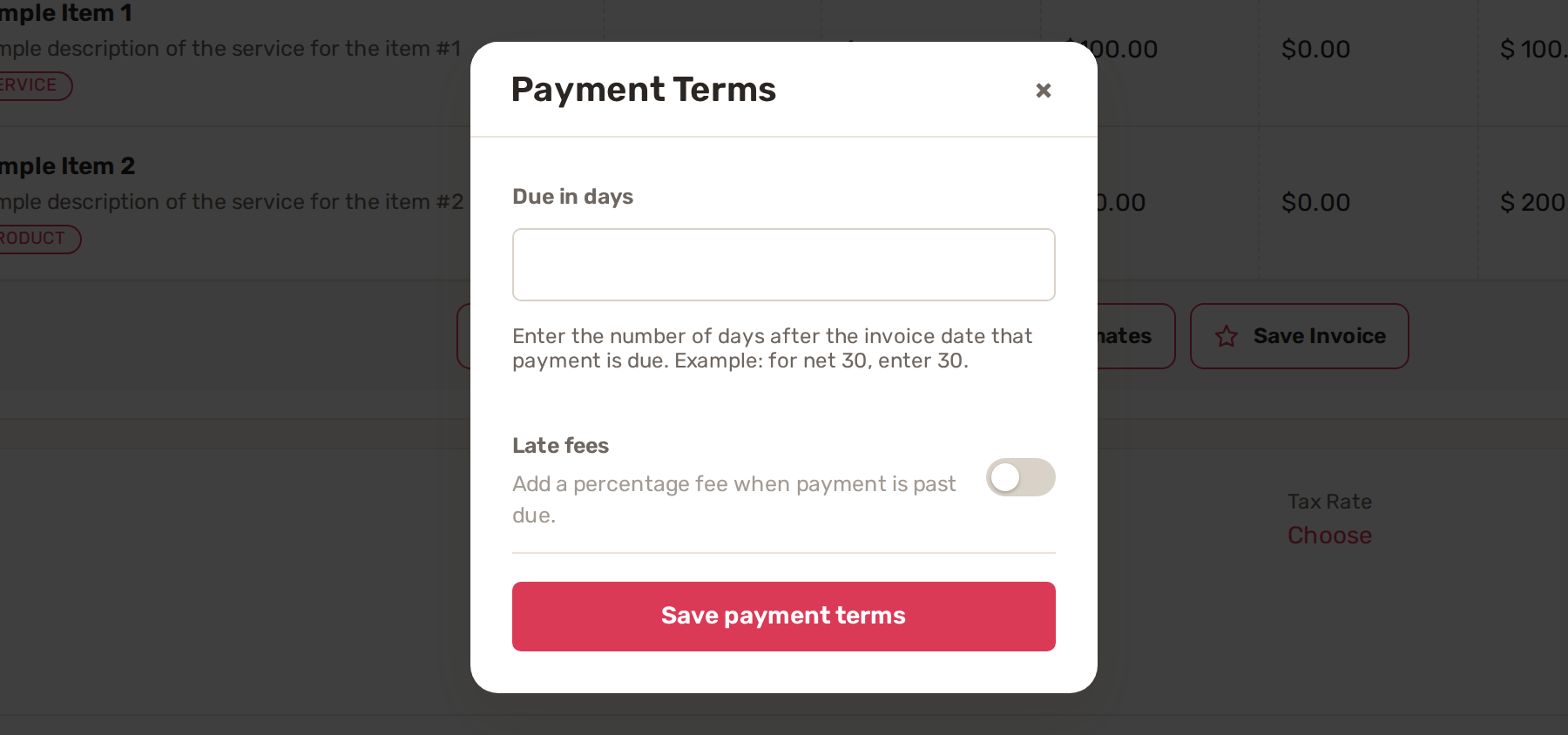
- In Due in days, type the number of days after the invoice date. For net 30, type 30.
- To charge for late payment, turn on Late fees and enter the Late fee (%).
- Click Save payment terms.
If you leave Due in days empty, the invoice is due on its invoice date and turns Overdue the day after. When an invoice with a late fee becomes overdue, BizBaby adds one line called Fees, worked out on the items before tax. Due Date & Late Fees shows only if your plan includes it.
3. Send it
Click Preview to check it, then Create and Send (Email) or Create and Send (SMS). The customer gets a link where they can pay. Save as Draft keeps it without sending; drafts are counted under Drafts at the top of the Invoices tab. To change an invoice you've sent, click its row, click Edit and then Update and Resend.
4. Reminders
BizBaby's built-in invoice emails are on the Automations page, under Invoices & getting paid:
| When it goes | |
|---|---|
| Invoice | When the invoice is created and sent. |
| Payment reminder | 7 days after the invoice is created. |
| Overdue invoice | When the invoice becomes overdue. |
| Overdue invoice reminder | 1 month after the invoice is created. |
| Final overdue reminder | A later reminder. It starts switched off. |
Reminders go only while the invoice is still unpaid, so a customer who has paid never gets one. Use each row's Active switch to turn a reminder on or off. For how to change the wording or the timing, see Built-in automations.
5. Track who has paid
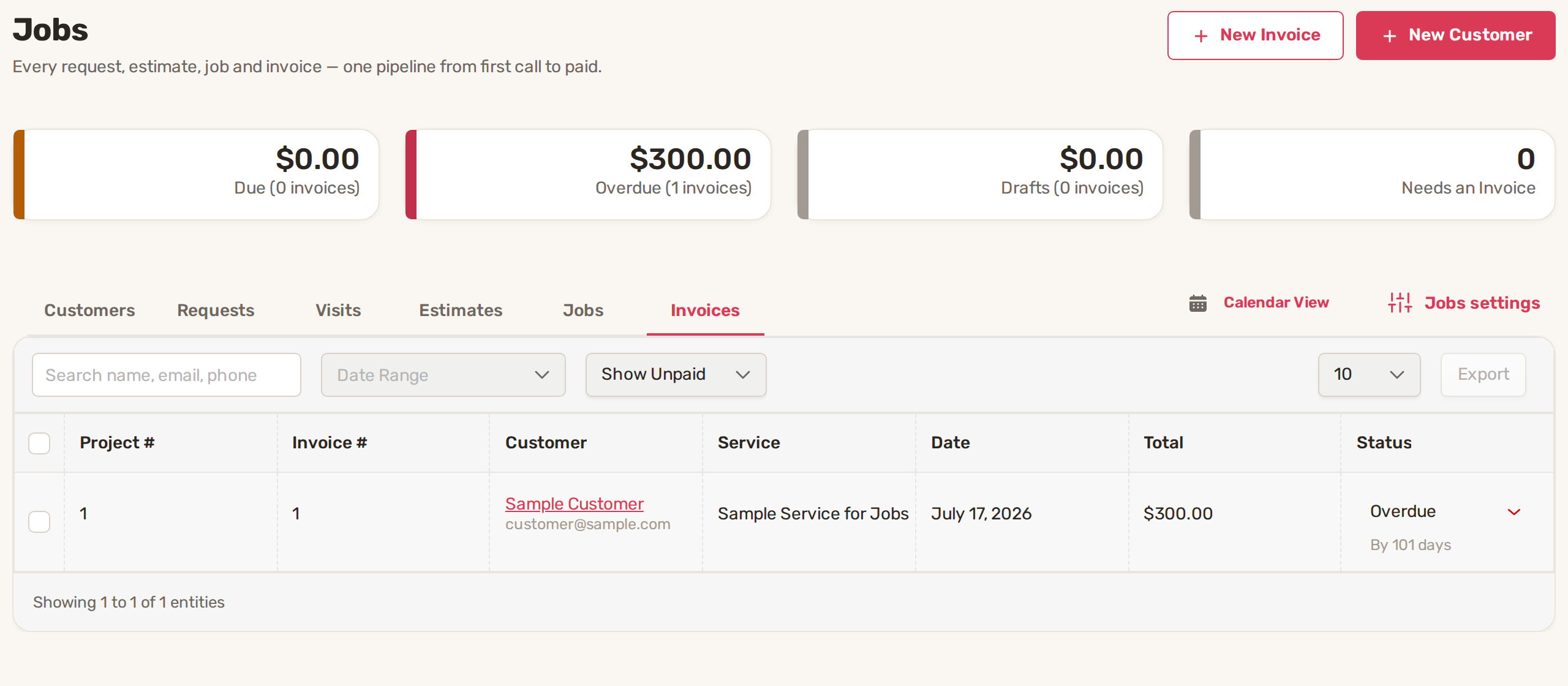
The Invoices tab opens on Show Unpaid. The totals at the top show what's Due, what's Overdue, your Drafts, and how many jobs Needs an Invoice. Under an overdue invoice's status you see how late it is, for example By 102 days.
| Status | What it means |
|---|---|
| Due | Sent and not yet paid. |
| Overdue | Past its due date and not paid. |
| Pending | A payment has started and is still going through. |
| Paid | Paid online. |
| Paid Cash | You marked it paid outside BizBaby. |
| Declined | The customer's payment failed. The invoice still needs paying. |
| Disputed | The customer disputed a card payment with their bank. |
| Refunded, Partially Refunded | You refunded all or part of the payment. |
| Voided, Uncollectable | You closed it without payment. |
Mark an invoice paid in cash or by check
- On the Invoices tab, click the invoice's row.
- On the Invoice step, click Mark as Paid Cash.
BizBaby records a payment for the whole amount still owed and the status turns Paid Cash. For an invoice you won't collect, click its status in the Status column and choose Voided or Uncollectable.
Deposits and part payments
The way to take part of the money up front is a deposit on the estimate (Deposit Required). When the customer approves the estimate, BizBaby creates a draft invoice and they pay the deposit online. On that invoice the deposit shows as Paid, and the last line reads Total Remaining: what the customer still owes. When the invoice is sent, they pay the rest from the same link.
BizBaby doesn't record a part payment of any other amount by hand. Mark as Paid Cash always closes the whole balance.
Common problems
- The send button reads "Connect Stripe to Send Invoice". Your Stripe account isn't connected or can't take payments yet. Click Open Integrations. See Connect Stripe and take card payments.
- "A payment is still being processed. Please wait." The customer's payment is in progress, so you can't mark the invoice paid in cash until it settles.
- "There is nothing to pay on this invoice, so it cannot be marked as paid in cash." The invoice is already fully paid.
- An invoice went overdue the day after I sent it. It had no Due in days. Edit the invoice and set payment terms.
- Create and Send (SMS) shows a lock. Your business number isn't registered for texting yet. See Text messaging registration.
Related
Was this article useful?
Keep reading
More Requests, quotes, jobs and invoices
Checklists for jobs and appointments
1. Build a checklist template Open Work setup: on Appointments, click Service Settings. The Checklist templates row is u...
Read guide →Create and send an estimate
1. Start the estimate Start from one of two places: From a request: on the Requests tab, click the request's row, go to...
Read guide →Customize job and order fields
1. Ask questions on a service Questions are what the customer answers when booking: room count, TV size, ceiling height....
Read guide →Knowing what to charge is step one
First 3 months free. No card required. Bring the whole team.
Start Free Trial Back to Login